


Connect a GO tenant to a OneSignal account using Quick Wizard. This integration allows GO platform services to deliver in-app notifications by storing your OneSignal App ID, REST API Key, and an optional identity verification private key.
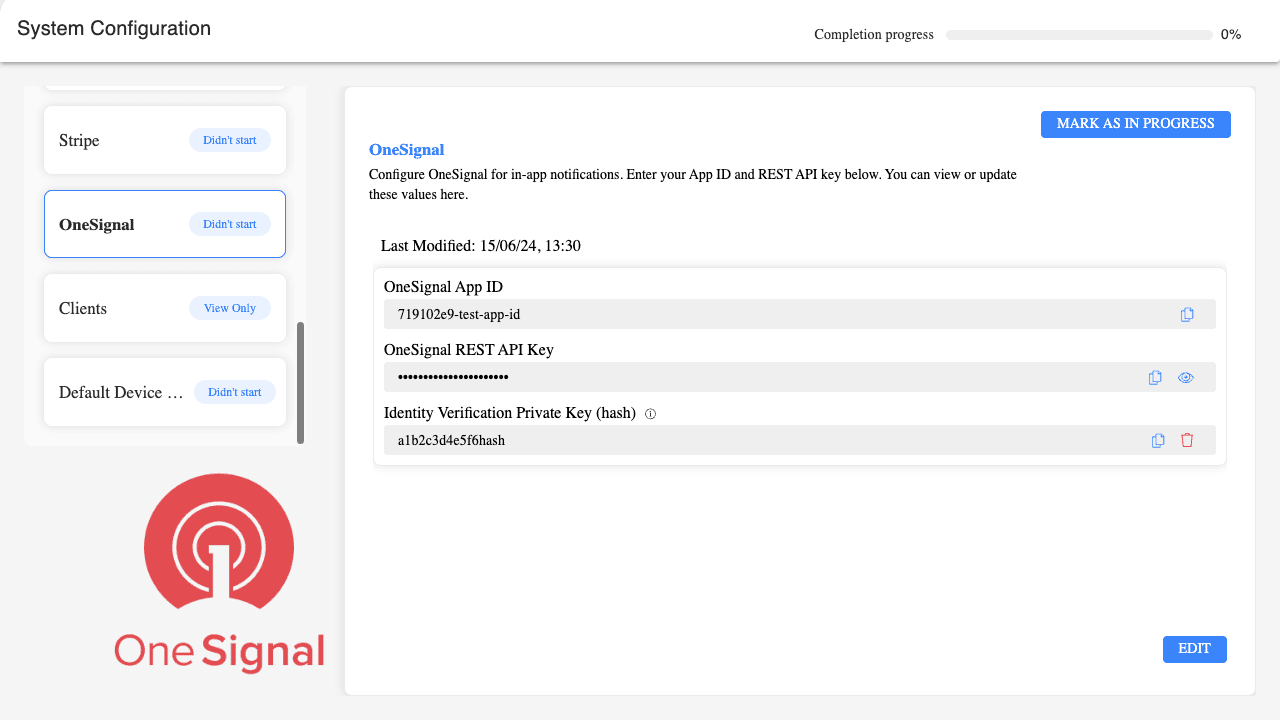
Navigate to System Configuration > OneSignal.
Page description: “Configure OneSignal for in-app notifications. Enter your App ID and REST API key below. You can view or update these values here.”
Before configuring OneSignal, confirm the following requirements:
OneSignal Credentials: You must have an active OneSignal account containing your App ID and REST API Key.
OneSignal messages must be enabled for your GO tenant. If disabled, the OneSignal card does not appear in the side menu.
Manage Permissions: You must have manage permissions. Without them, the OneSignal menu item is locked and displays the tooltip: “This section is available only for users with manage permissions.”
In Quick Wizard, open System Configuration and select OneSignal.
Determine whether a configuration already exists:
First-time setup: Fields are editable immediately, and SAVE appears at the bottom right.
Existing configuration: Fields are read-only, the REST API key is masked, and EDIT appears at the bottom right. The Last Modified timestamp displays the most recent save date and time.
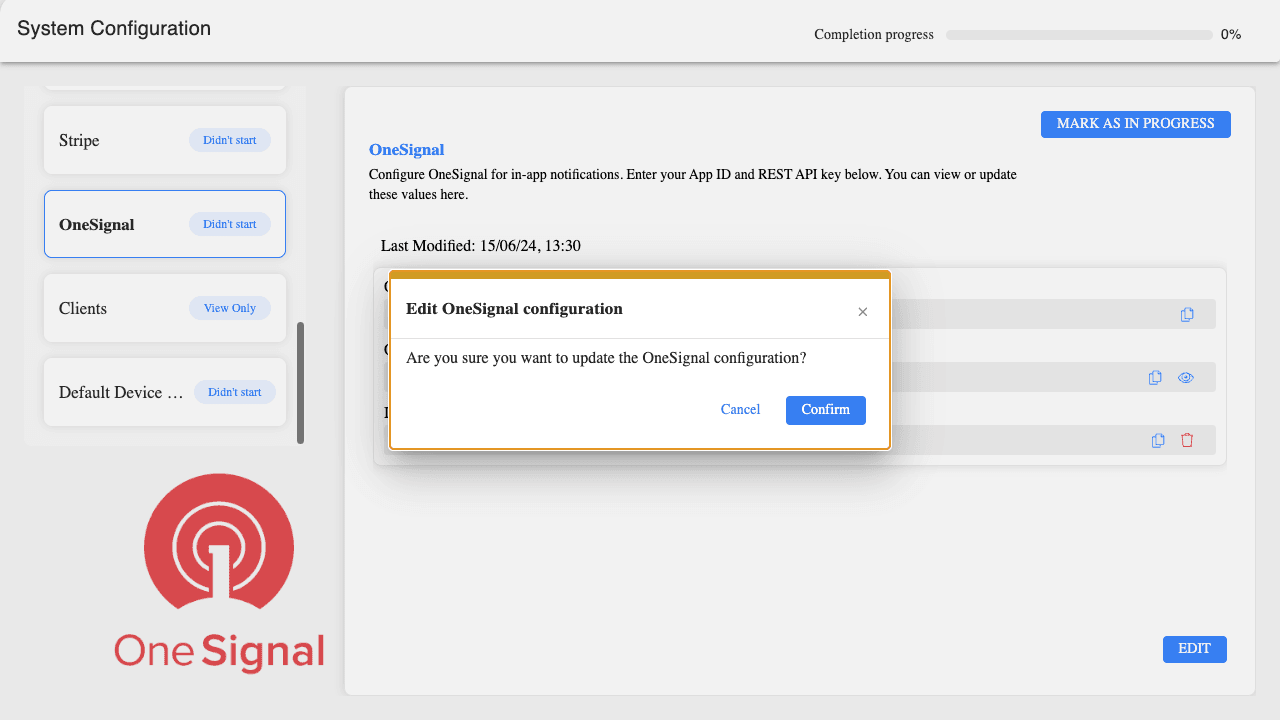
If editing an existing setup, click EDIT. In the confirmation dialog, read “Are you sure you want to update the OneSignal configuration?” and select Confirm (or Cancel to discard). Confirming unmasks the REST API key. Click the eye icon to mask it again if needed.
Enter the OneSignal App ID.
Enter the OneSignal REST API Key. You can use the eye icon to toggle visibility or the copy icon to copy the value.
(Optional) Add an identity verification private key. Leaving this field empty preserves any key previously stored.
Click SAVE.
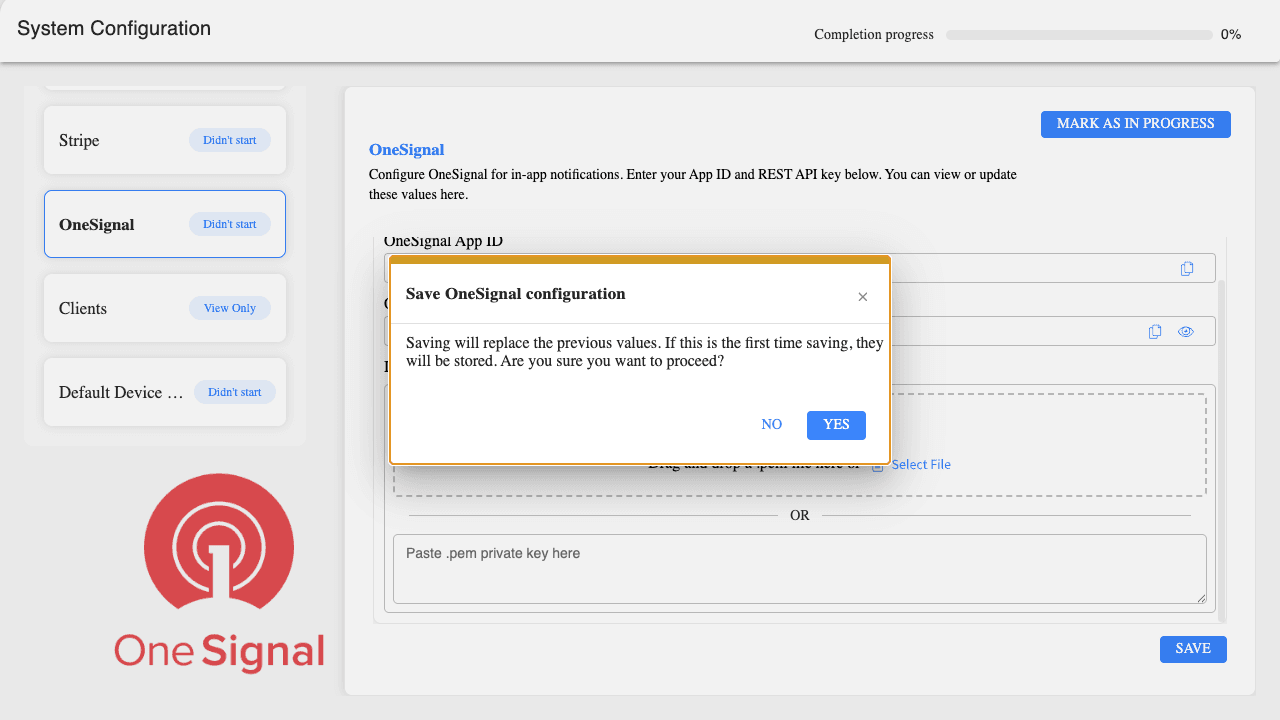
In the Save OneSignal configuration modal, review the prompt (“Saving will replace the previous values. If this is the first time saving, they will be stored. Are you sure you want to proceed?”):
Select YES to store your configuration.
Select NO to discard current edits and restore previously saved values.
Quick Wizard displays “Updating OneSignal configuration...” followed by “Successfully updated OneSignal configuration”. The form returns to read-only mode and the API key is masked.
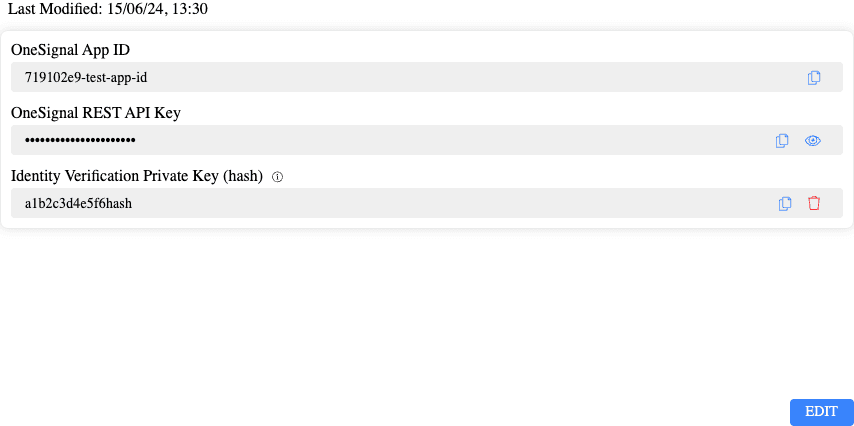
The unique application identifier provided by OneSignal. This field is mandatory. Leaving it blank triggers validation errors: “App ID must contain at least one character” and “App ID and API Key are required”.
The REST API key generated in your OneSignal account. This field is mandatory. Leaving it blank returns “API key must contain at least one character”. When saved, the key is masked. Use the eye icon to reveal or hide the clear text.
An optional security key used when the GO platform must verify app user identities directly with OneSignal.
While editing, this field is labeled Identity Verification Private Key (optional) with the hint: “Upload a .pem file or paste the private key below. The stored value is shown as a hash.”
Adding a key:
Drag and drop a valid .pem file directly into the drop zone, or click Select File.
Alternatively, paste the raw key text directly into Paste .pem private key here.
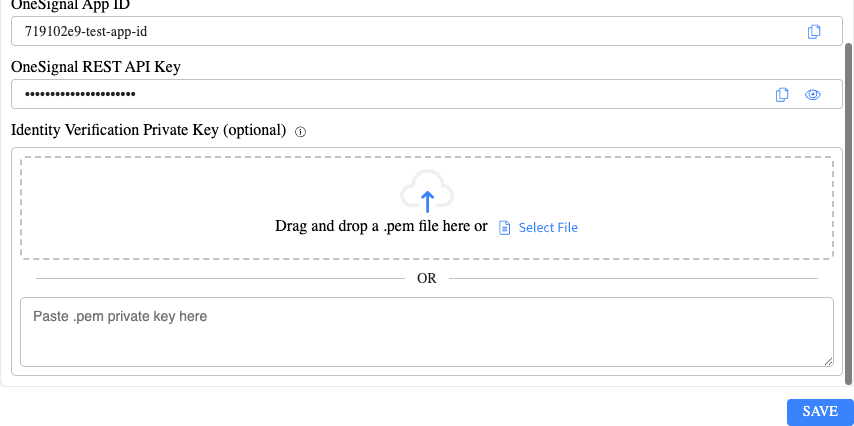
Format and security requirements: The key must be a valid PEM private key, enclosed by -----BEGIN PRIVATE KEY----- and -----END PRIVATE KEY-----. Invalid formats report “Private key must be a valid PEM-encoded private key”. Unreadable files return “Error reading file”. Only .pem file formats are accepted.
Once saved, the raw key is never displayed again. The field label updates to Identity Verification Private Key (hash) and displays a SHA hash of the stored value, along with the hint: “SHA hash of the stored private key. The actual key is not returned by the server.” If no key exists, the field reads “No private key configured”.
Removing a key: To delete a stored private key without editing other values, stay on the read-only view (do not click EDIT). Click the trash icon on the hash field.
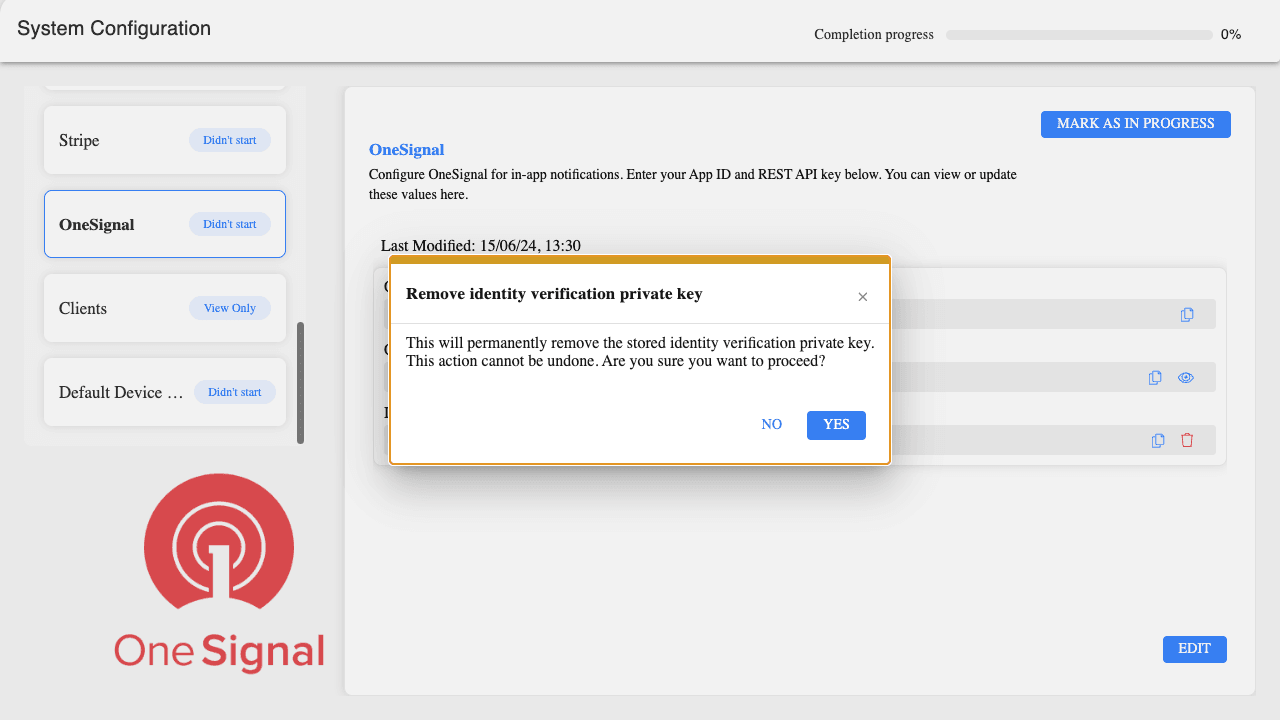
In the Remove identity verification private key dialog, select YES to permanently delete the key, or NO to cancel. Deleting the private key is irreversible and disables identity verification, but retains your App ID and REST API Key.
The OneSignal setup card displays Didn't start until manually updated.
Clicking MARK AS IN PROGRESS updates the status banner to In Progress, and updates the button label to MARK AS COMPLETED. This tracker is purely administrative and does not save credentials or private keys.
Saving changes (YES) activates the credentials for your tenant, allowing GO platform services to authenticate with OneSignal. It does not send credentials directly to end-user clients. Viewers are affected only after GO backend services begin dispatching messages through the account.
Removing the private key turns off identity verification for this tenant without interrupting general message delivery, removing API credentials, or affecting the OneSignal account itself.
Permissions: Users without manage permissions cannot open or edit the OneSignal module.
Validation: Both the App ID and REST API Key must be populated before a save can proceed.
Key Recovery: Raw private keys cannot be retrieved after saving. To replace a forgotten key, upload or paste a new .pem file and save.
Load Errors: If credentials cannot be fetched from storage, the form is hidden and displays “Error getting OneSignal secrets”.
Save Errors: If saving fails, Quick Wizard reports “Error updating OneSignal configuration” alongside technical details. Previous configurations remain intact.
Deletion Errors: If key deletion fails, the interface reports “Error removing OneSignal identity verification private key”. The stored key remains active until successfully deleted.

