

overview
what's new
getting started
other

Use the IDP page to connect identity providers to Synamedia Client Identity and manage existing configurations.
An identity provider authenticates your users and supplies the identity information required by your applications. The available configuration types are:
Primary Flow
— users sign in through the identity provider’s login page.
Token Exchange
— your backend service authenticates users and supplies their existing identity tokens.
IAS
— users authenticate through SAP Identity Authentication Service.
The correct configuration type depends on how users sign in to your applications. Contact your identity or security team if you are unsure which type to use.
Make sure that:
You have permission to manage IDP configurations.
You know which configuration type your application uses.
You have the issuer URL, credentials, claims, and other required values.
All URLs use HTTPS.
Secrets and encryption keys were obtained through an approved secure channel.
IDP configuration changes can affect user authentication immediately. Verify all values before adding, updating, or removing a configuration.
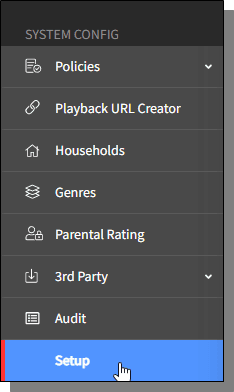
From the left navigation menu, select
System Configuration > Setup
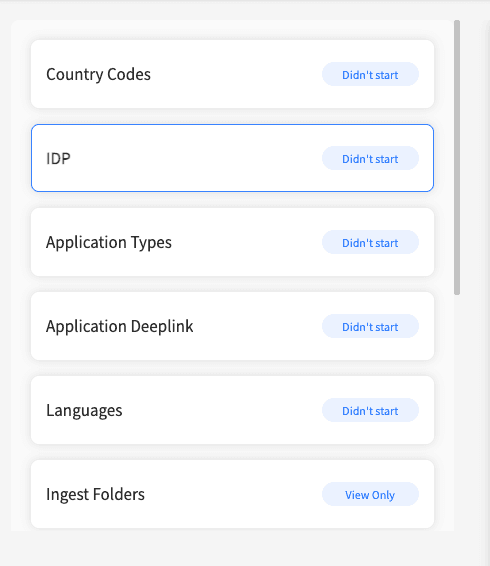
On the Setup page, select
IDP
IDP configuration types
The console supports three IDP configuration types. To view them, select Add IDP Configurations.
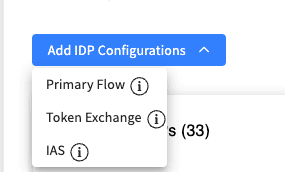
Choose the type that matches how your users authenticate:
Choose Primary Flow when users sign in through your identity provider’s login page. Users are redirected to the identity provider and then returned to Client Identity after successful authentication.
This type requires an issuer URL, client ID, and client secret.
Choose Token Exchange when your application or backend service authenticates users. The service sends an existing identity token to Client Identity.
This type requires an issuer URL and the audience expected in the incoming token. It does not use a callback URL or IDP application credentials.
Choose IAS when users authenticate through SAP Identity Authentication Service.
This type requires the SAP IAS endpoint and the security keys and credentials supplied by your SAP IAS administrator or security team.
After selecting a type, the Add IDP Configuration window displays the fields required for that integration.
Choose Primary Flow when users sign in through the identity provider’s login page.
During authentication, the user is redirected to the identity provider. After the user signs in, the identity provider redirects the user to Client Identity, which completes the authentication process.
Before starting, obtain the application client ID and client secret from the administrator of your identity provider.
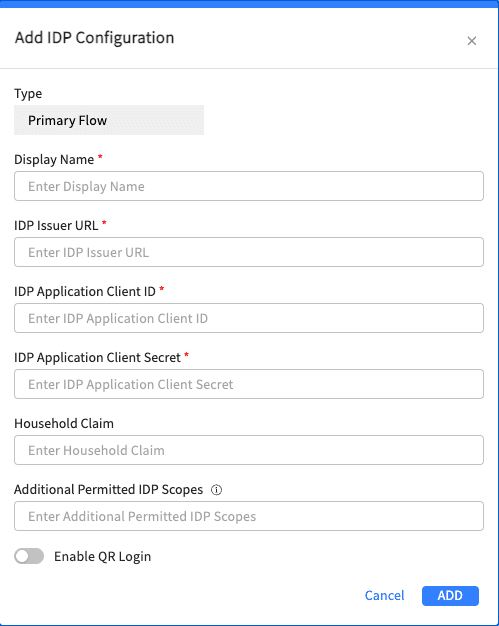
Select Add IDP Configurations > Primary Flow.
Complete the following fields:
Display Name
Enter a recognizable name for the configuration. Use a name that helps operators identify the provider and environment, such as Corporate IDP – Production.
IDP Issuer URL Enter the HTTPS issuer URL supplied by your identity provider. The URL must identify the provider that issues the user tokens.
IDP Application Client ID Enter the client ID assigned to the Client Identity integration.
IDP Application Client Secret Enter the secret associated with the client ID.
Household Claim Optional. Enter the name of the token claim containing the user’s household or account identifier.
For example, if the token contains "householdId": "12345", enter householdId.
Additional Permitted IDP Scopes Optional. Add any additional scopes that Client Identity is permitted to request from the identity provider.
Add each scope separately. Scope names must match those configured by the identity provider.
Enable QR Login Enable this option when users must be able to sign in on limited-input devices, such as smart TVs or set-top boxes, by scanning a QR code.
Select ADD.
After adding a Primary Flow configuration:
Locate the configuration in the
Configured IDPs
Select the copy action beside its
Callback URL
Add the copied URL to the allowed callback or redirect URLs in your identity provider.
Save the identity provider configuration.
The callback URL must match exactly, including the protocol, domain, and path. Users cannot complete authentication if the identity provider does not allow this URL.
Only one IDP configuration can have QR Login enabled at a time.
If QR Login is already enabled for another identity provider, the console displays a transfer confirmation. Confirming the transfer:
Disables QR Login for the current identity provider.
Enables QR Login for the selected identity provider.
Review the affected identity providers before confirming the transfer.
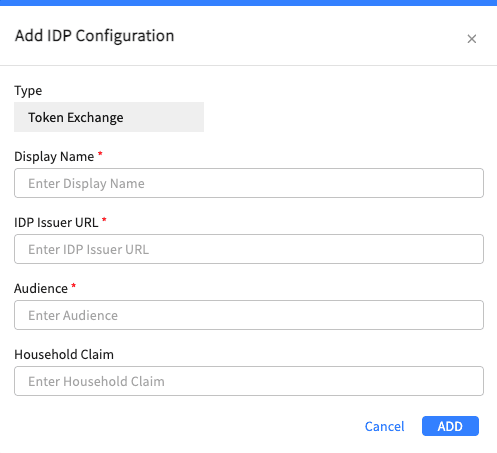
Choose Token Exchange when user authentication is handled by your application or backend service.
In this flow, your service supplies an identity token that has already been issued by your identity provider. Client Identity validates the token before issuing the credentials required by Synamedia services.
Token Exchange does not require an IDP application client ID, client secret, or callback URL.
Select Add IDP Configurations > Token Exchange.
Complete the following fields:
Display Name Enter a recognizable name for the configuration.
IDP Issuer URL Enter the HTTPS issuer URL supplied by your identity provider. It must correspond to the issuer identified in the incoming tokens.
Audience Enter the audience expected in tokens issued by the identity provider.
The value must exactly match the intended audience in the incoming token. Confirm the correct value with the team responsible for issuing the tokens.
Household Claim Optional. Enter the name of the token claim containing the household or account identifier.
Select ADD.
An incorrect issuer URL or audience prevents Client Identity from accepting tokens from the identity provider.
Choose IAS when users authenticate through SAP Identity Authentication Service.
Before adding the configuration, obtain the required endpoint, credentials, keys, and encryption values from your SAP IAS administrator or security team.
Select
Add IDP Configurations > IAS
Complete the
Connectivity, Data Security and Authentication sections.
Select
ADD
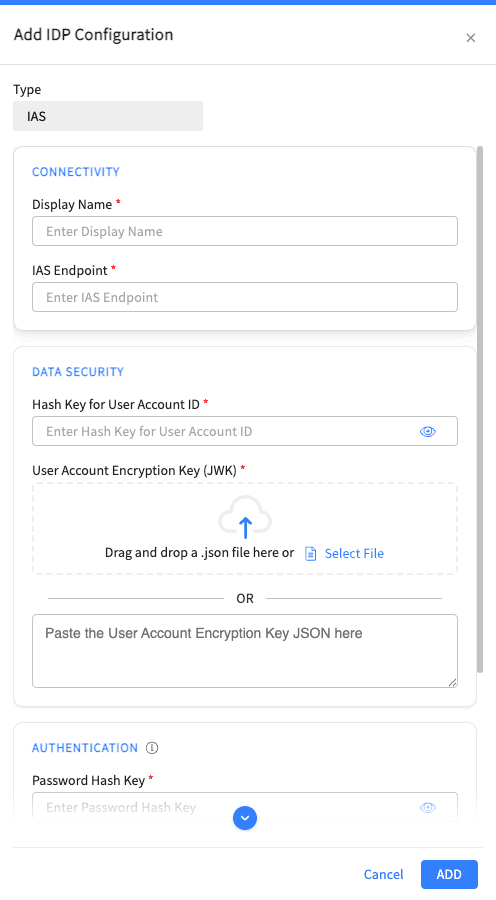
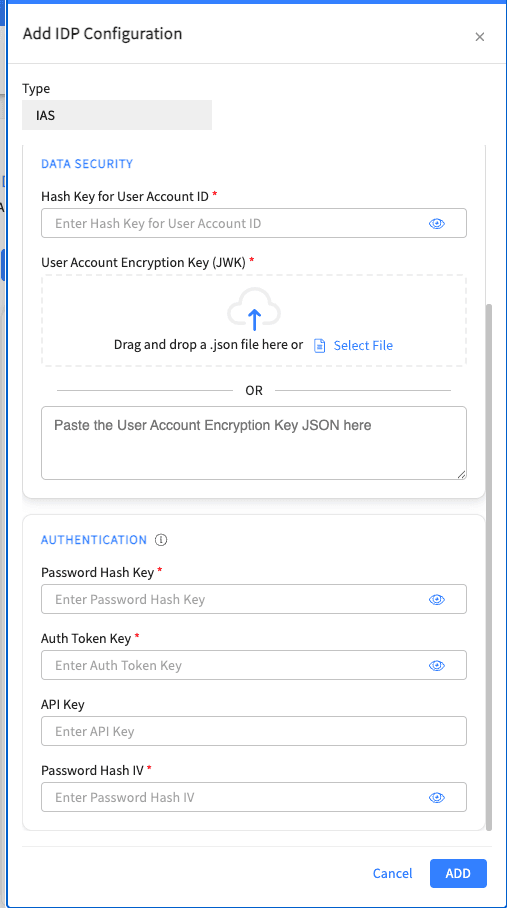
Display Name Enter a recognizable name for the SAP IAS configuration.
IAS Endpoint Enter the HTTPS endpoint supplied for your SAP IAS environment.
Hash Key for User Account ID Enter the secret key used to protect user account identifiers received from SAP IAS.
User Account Encryption Key Provide the public encryption key as valid JSON. You can enter the JSON directly or upload the JSON file supplied for the integration.
The corresponding private key must remain securely stored by your organization.
Provide only the public encryption key. Never upload or paste the corresponding private key into the console.
Password Hash Key Enter the key used to protect passwords before they are sent to SAP IAS.
Auth Token Key Enter the authentication token key used to authorize requests to SAP IAS.
API Key Optional. Enter the API key if one is required by your SAP IAS integration.
Password Hash IV Enter the initialization vector supplied for password protection.
The password-processing algorithm and encoding are configured automatically.
Treat the Password Hash Key, Auth Token Key, API Key, and Password Hash IV as secrets. Do not share them in email, support tickets, screenshots, or other unsecured channels.
Select the edit action beside an IDP configuration.
If you have read-only permission, the configuration opens in view mode. You can review its values but cannot save changes.
Select the edit action beside the configuration.
Update the required fields.
Verify the new values.
Select
UPDATE
Changes can affect active authentication flows. Coordinate changes to issuer URLs, credentials, audiences, claims, and security keys with the identity provider administrator.
If credentials or keys are being rotated, ensure the new values are active in the identity provider before updating the console.
For a Primary Flow configuration, select the copy action beside its Callback URL.
Use the copied value when configuring the allowed callback or redirect URLs in the identity provider.
The copy action copies the callback URL; it does not duplicate the IDP configuration.
Select the delete action beside the configuration.
Review the confirmation message.
Confirm the deletion.
Select the checkboxes beside the required configurations.
Select
REMOVE
.
Review the confirmation message.
Confirm the deletion.
Removing an identity provider can prevent users from signing in. Verify that the configuration is no longer required before deleting it.
A configuration cannot be removed while an application still references it or while it is configured as the default identity provider. Update the affected applications before trying again.
Check that:
All mandatory fields are complete.
The issuer or endpoint URL is a valid HTTPS URL.
The User Account Encryption Key contains valid JSON.
No field currently displays a validation error.
You have permission to modify the configuration.
Check that:
The issuer URL is correct.
The client ID and client secret are current.
The displayed callback URL is registered in the identity provider.
The registered callback URL exactly matches the value displayed in the console.
The required scopes are permitted by the identity provider.
Check that:
The issuer URL corresponds to the issuer of the incoming token.
The configured Audience exactly matches the token audience.
The incoming token has not expired.
The configured Household Claim exists in the token, if one was specified.
Check that:
The IAS endpoint is correct and accessible.
The required keys and credentials are current.
The User Account Encryption Key is valid JSON and contains the correct public key.
The API Key is present if it is required for the integration.
The SAP IAS administrator has not rotated or revoked any configured credentials.
The configuration may still be:
Referenced by an application.
Configured as the default identity provider.
Remove or update those dependencies, then try again.

