


Synamedia Business Operations Console enables concurrency policies that are simple to use and can be easily managed. To access Concurrency policies, from the Synamedia Business Operations Consolelanding page, in the left navigation bar, select Concurrency in Policies under System Config.
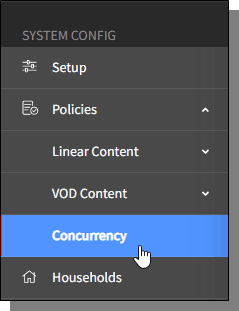
The homepage of Concurrency is displayed.
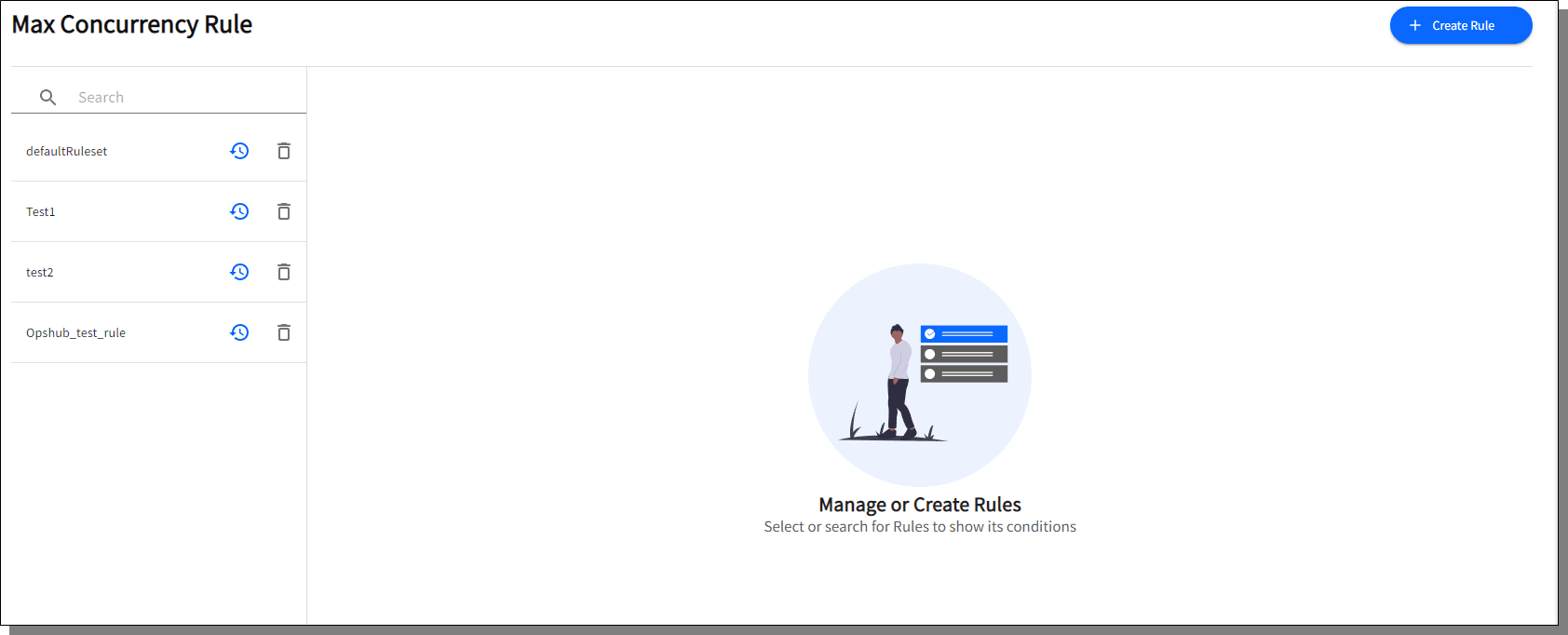
To create a new rule, do the following:
On the Concurrency homepage, click Create Rule.
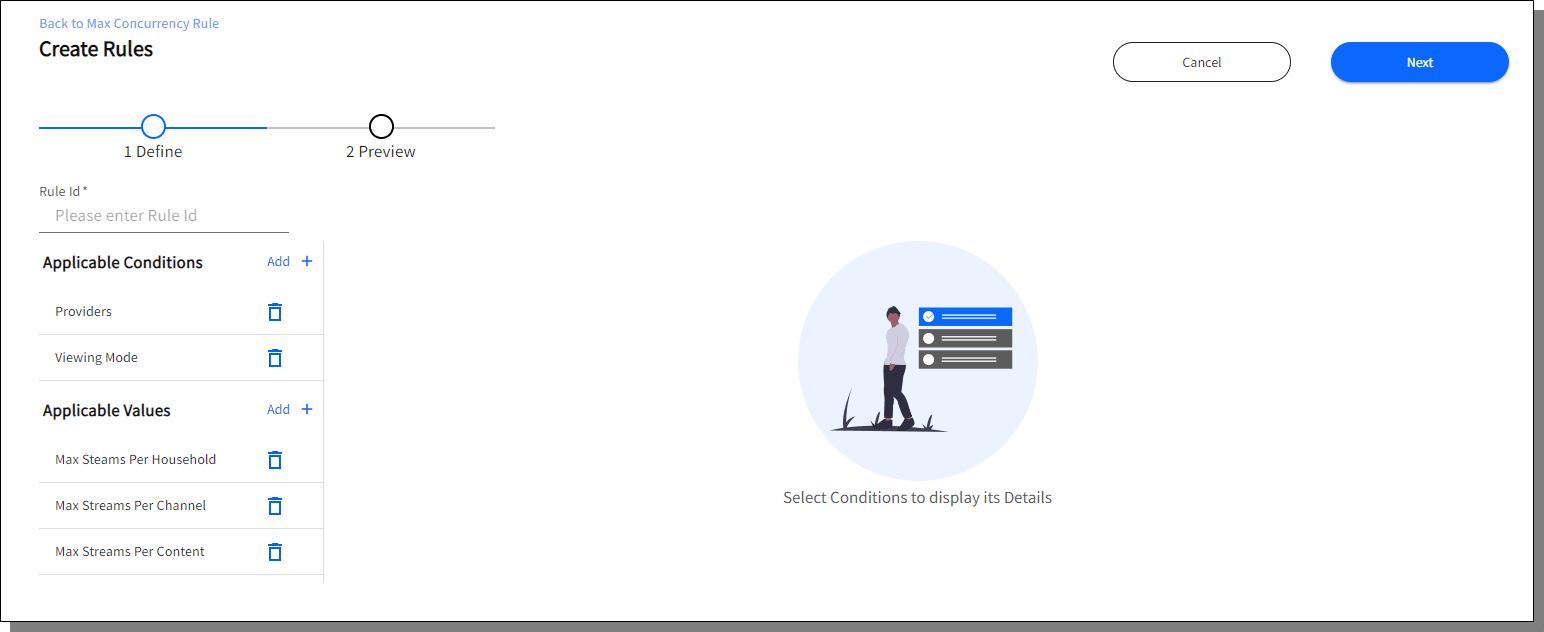
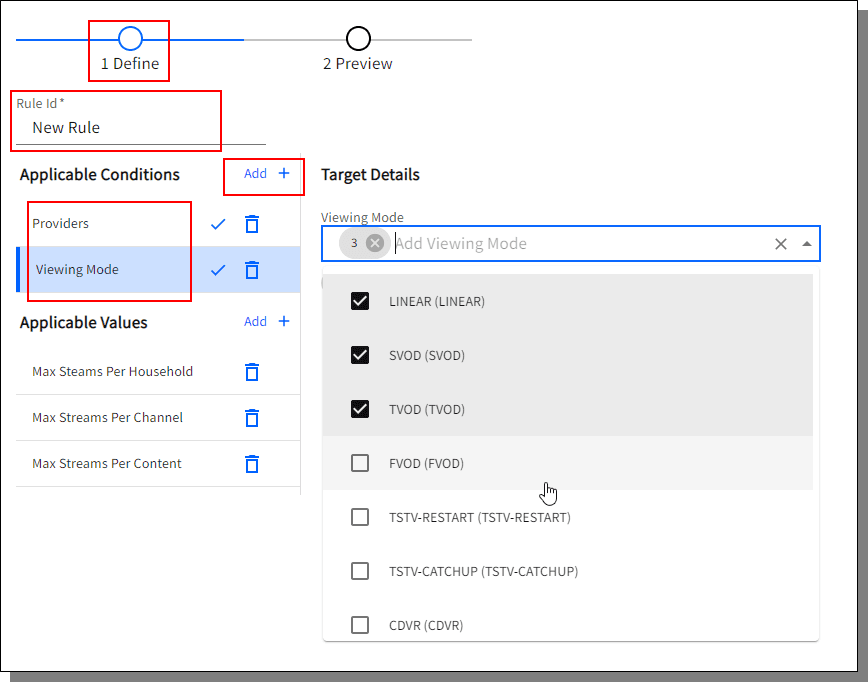
In the Define screen enter the Rule Id for the rule in the given text field, click the Add + button to add the Applicable Conditions. Select the Providers and the Viewing Modes.
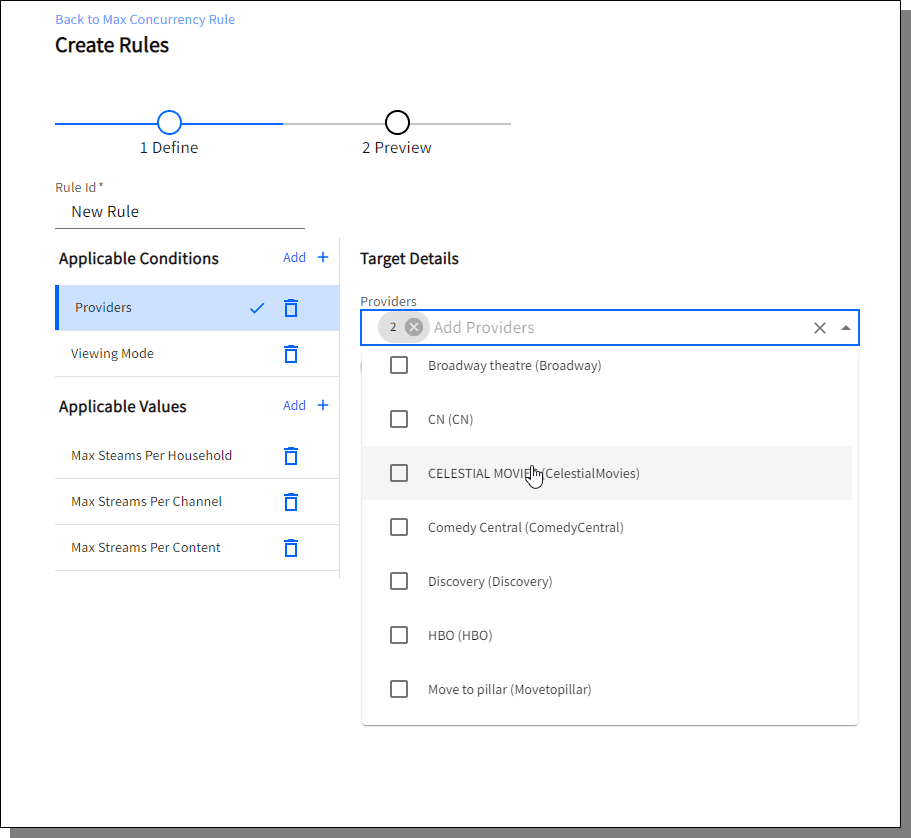
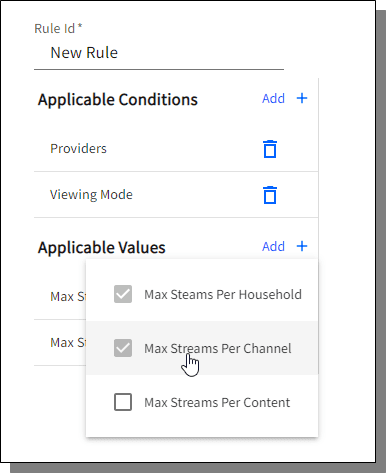
Click the Add + button to add the Applicable Values.
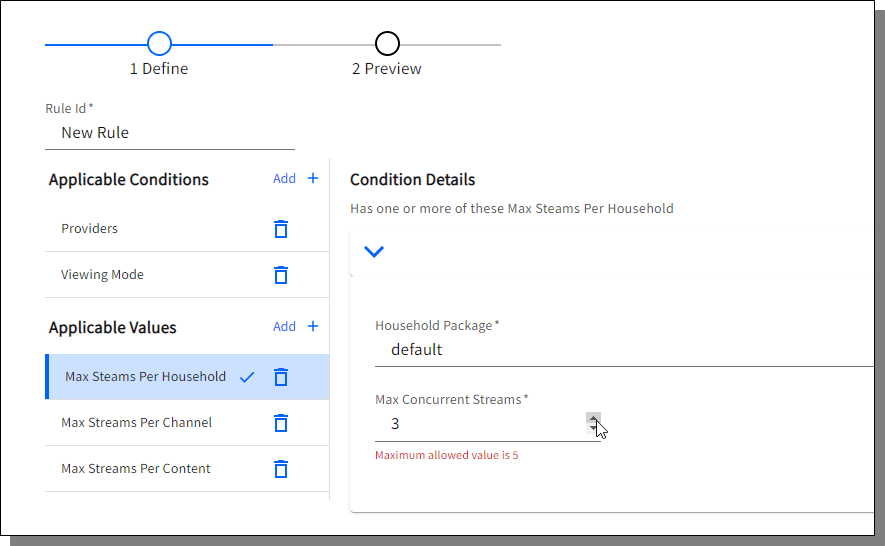
Click on the added Applicable Values to select Household Package and Max Concurrent Streams. The Max Concurrent Streams selected should not be greater than the specified value.
Click Next. The Preview page for the selections made for the Rule are displayed.
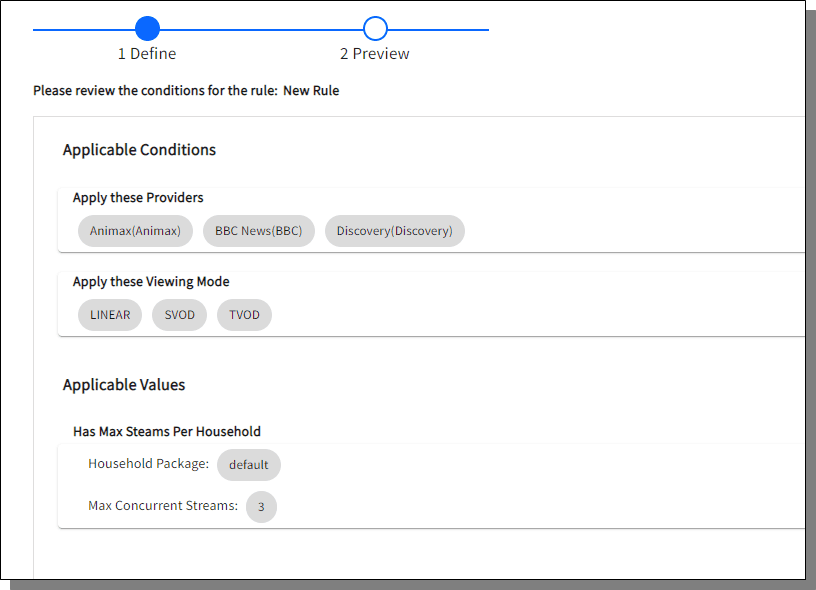
Click Finish. The newly created Rule is listed in the Concurrency homepage.
To edit a rule, do the following:
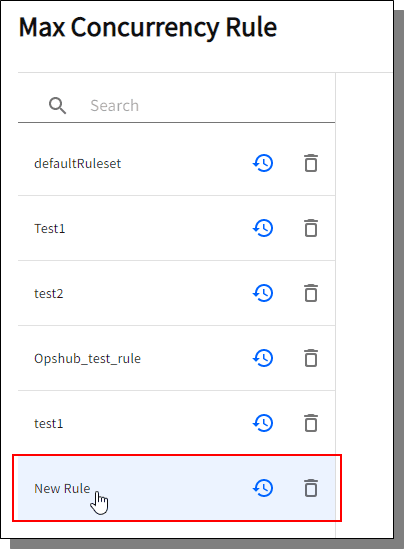
On the Concurrency homepage, click on the Rule to be edited from the list of existing rules.
The details of the selected Rule can be viewed by clicking on Preview Targets & Conditions.
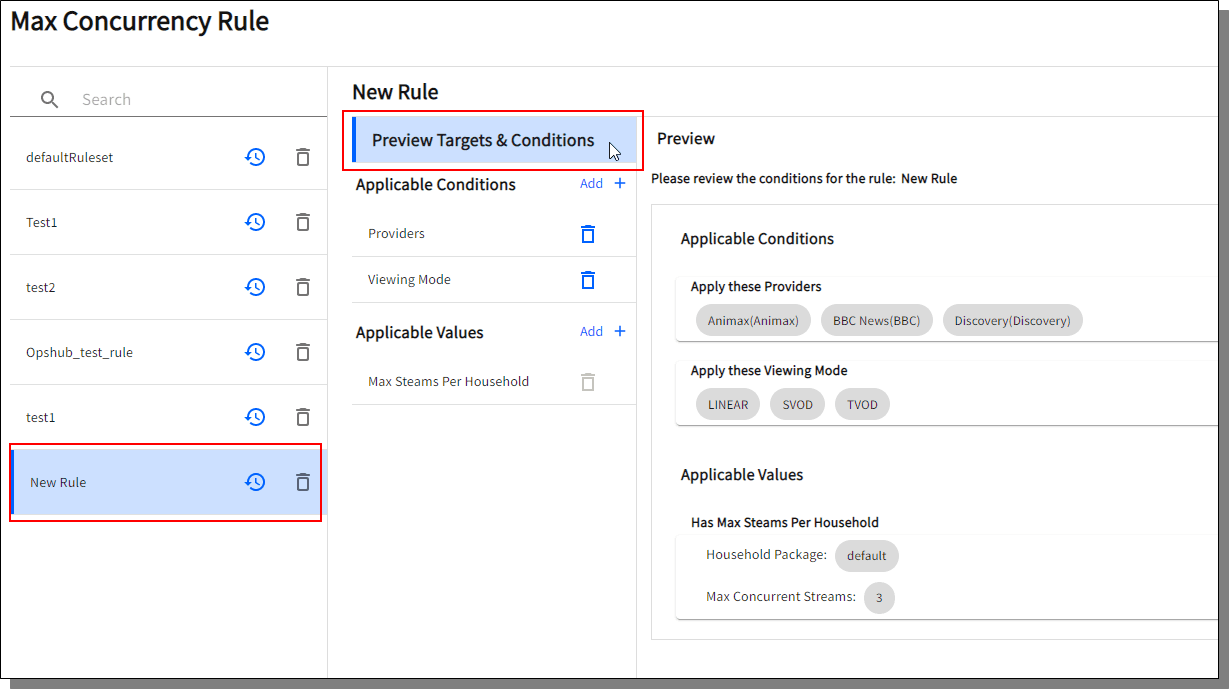
Click on the Applicable Conditions and Values to make changes.
Click on Preview & Save button, on preview window click Confirm after reviewing the changes.
To delete a Rule, do the following:
On the Concurrency homepage, click on the delete icon .

A confirmation message is displayed, click Delete to confirm deletion.
To view the history of the Rule created, do the following:
On the Concurrency homepage, click on the clock icon .

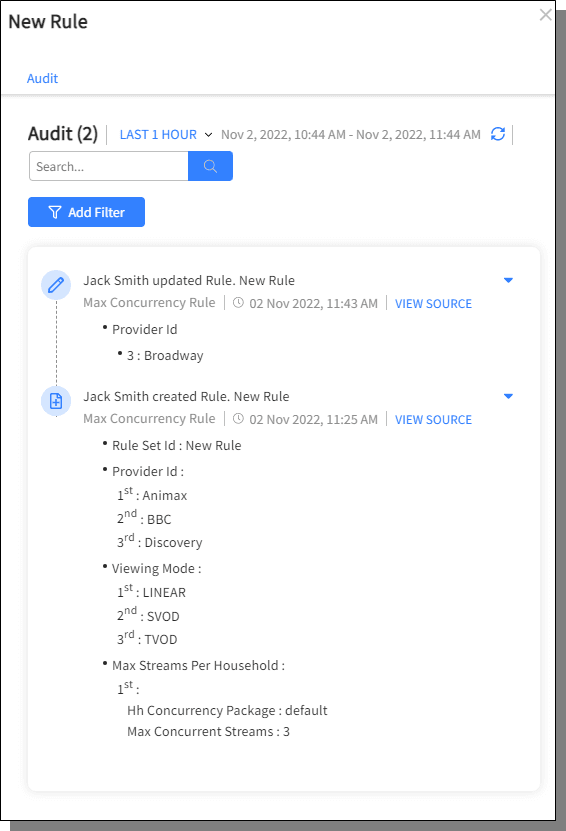
All the details about creating and updating the rule are displayed in the history.

