


The short video below walks through VOD Policies: finding a policy, reading its default value and conditional values, editing a policy and adding a conditional value.
VOD Policies set the default rules for video-on-demand content. They control the on-demand viewing experience and availability – for example download retention duration, copy protection levels, available regions, and whether content can be purchased, downloaded or previewed. Each policy has a default value, and can optionally have conditional values that apply only when certain conditions are met.
The module is opened from the sidebar under System Config > Policies > VOD Content > VOD Policies. The header reads "VOD Policies". The screen works exactly like Linear Policies, so the two feel familiar once you have used either.
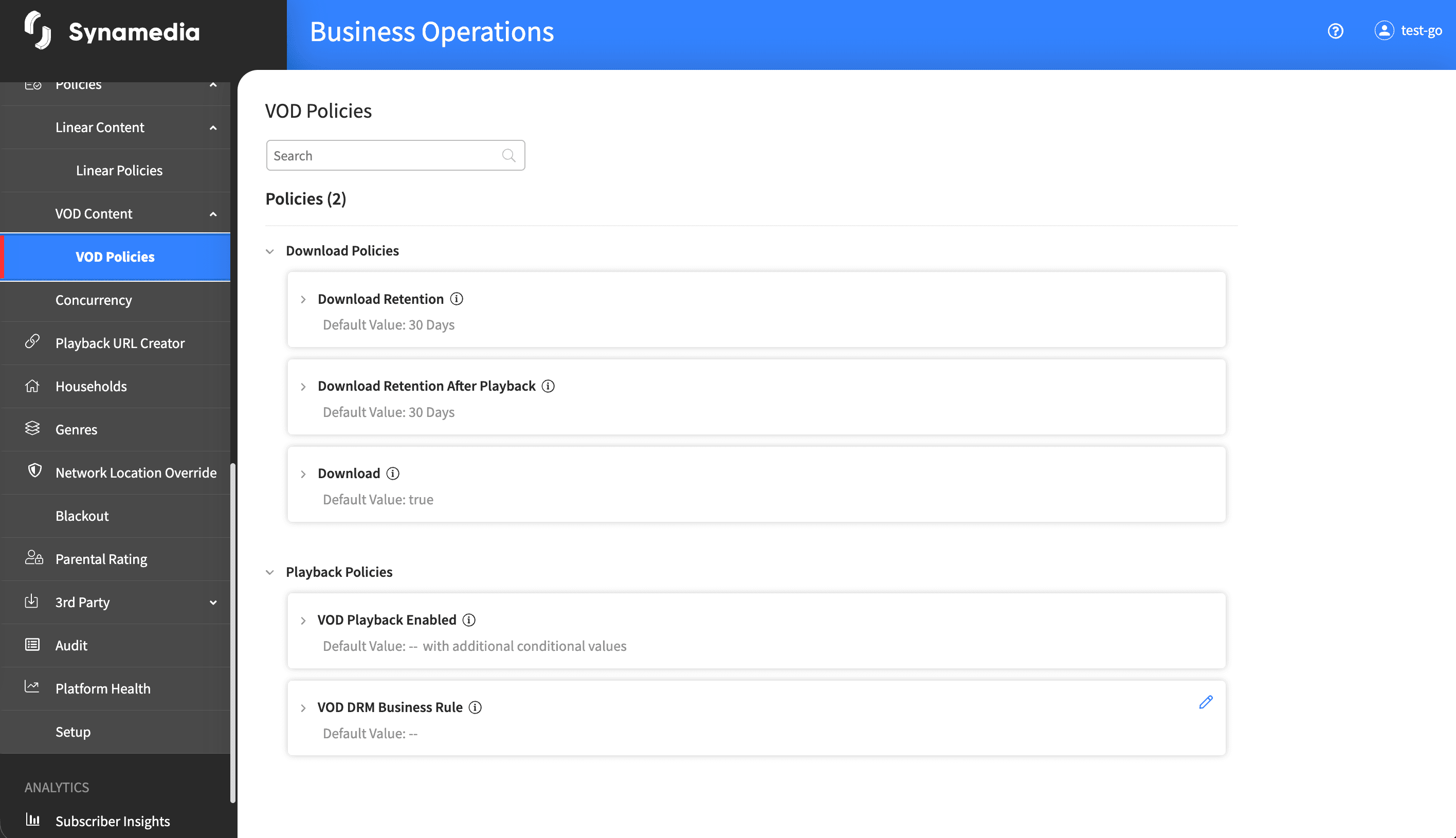
Policies are grouped into expandable sections. Each policy row shows:
The policy name, with an information icon that shows a description on hover.
An "EDITED" tag when the policy differs from its default value.
The current default value in plain text.
An indication that conditional values exist, where they have been defined.
Use the search box to filter the list by policy name as you type. The counter "Policies (n)" shows how many policies there are.
Expand a policy to see its Default Value and, where defined, its Conditional Value section. Conditional values show the rules that trigger them, joined by AND and OR logic, so you can see exactly when a different value applies.
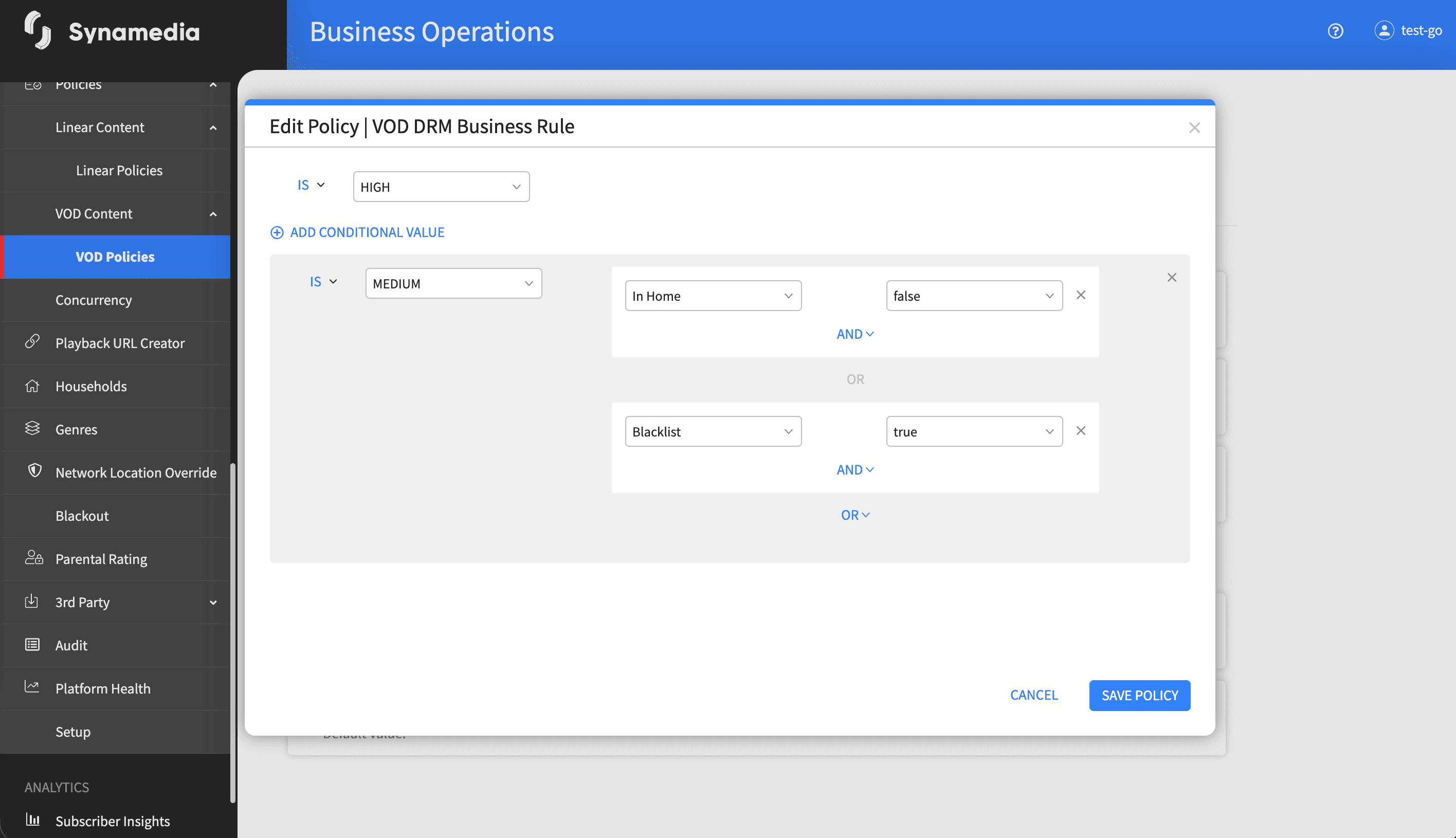
Click the Edit (pencil) icon on a policy to open the "Edit Policy" dialog for that policy. Change the default value and, where supported, manage conditional values. The value control matches the policy type – a text field, a duration, a date and time, a toggle, a single-select dropdown, or a multi-select list. Click "Save Policy" to apply, or "Cancel" to discard. Some policies are view-only and have no Edit action.
Inside the Edit Policy dialog, click "ADD CONDITIONAL VALUE" to add a rule that overrides the default under specific conditions (for example a different value for a particular content category, provider or viewing mode). Combine conditions with AND and OR logic. A conditional value cannot be left empty.
VOD Policies work the same way as Linear Policies, so skills transfer directly between the two.
The "EDITED" tag quickly shows which policies differ from their defaults.
Set the default value for the common case, then add conditional values only for the exceptions.
Some VOD policies are view-only, shown by the absence of an Edit action.
Use the information icon next to each policy name to understand exactly what the setting controls before changing it.
Hovering over the 'i' icon provides more information about what the policy is

