


The short video below shows how filtering tags appear on content: reading the tags on a title, expanding the full list when there are many, and using tags to find similar content in the Assets list.
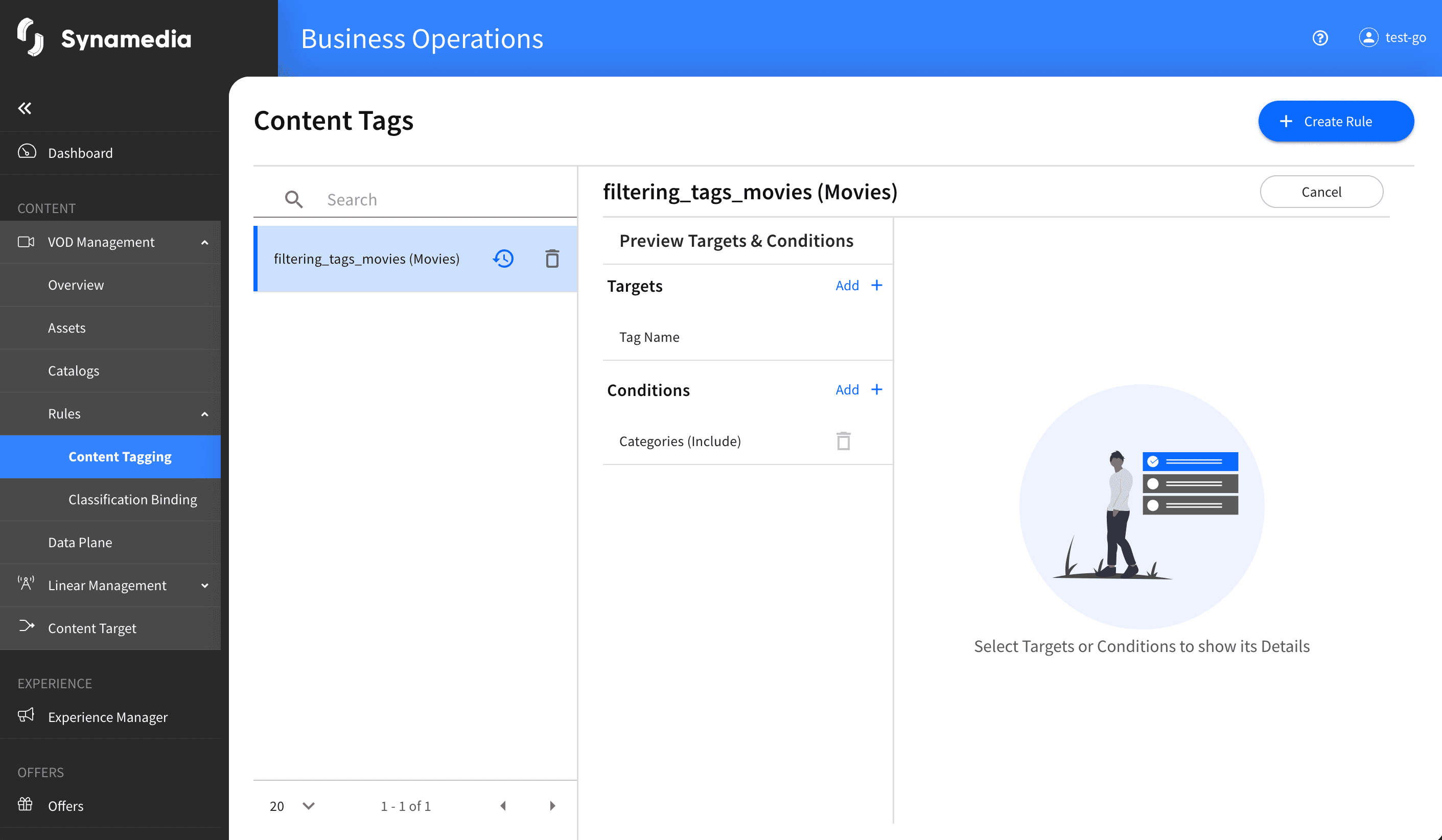
Filtering tags are labels applied to your content that describe and categorise it – for example "Action", "Drama", "Kids" or "Animation". They make it easier to group, find and filter content across the library.
Tags are applied automatically – by the classification rules and during ingest – so within VOD Management they are something you view and filter by, rather than create or edit by hand. Understanding the tags on a title helps you see, at a glance, how the system has categorised it.
You will see filtering tags in two places:
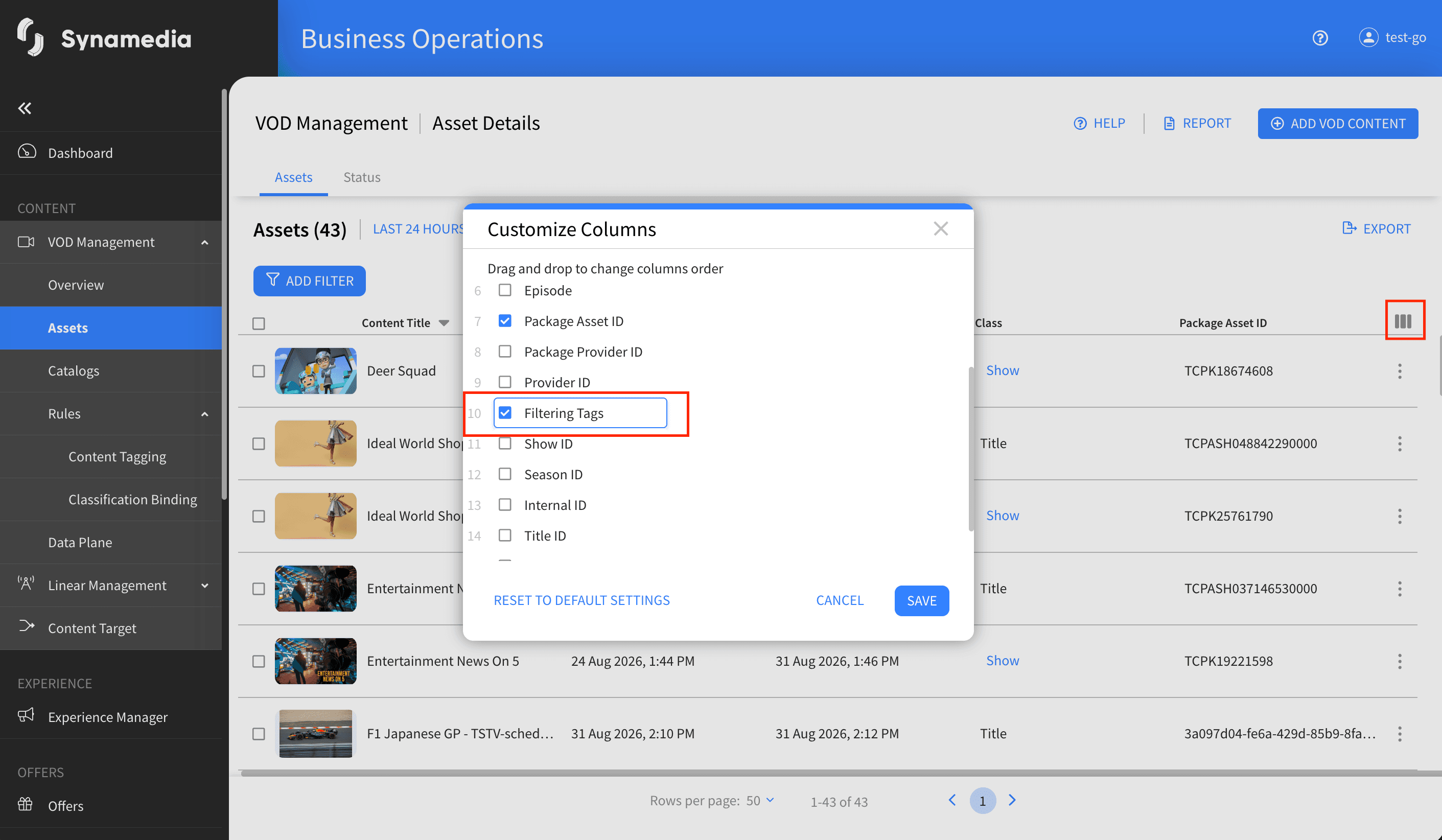
In the Assets table: the Filtering Tags column shows the tags applied to each title. A few tags are shown directly in the row, and if a title has more, a "+N" indicator shows how many more there are.
In the asset's details panel: when you open a title, its tags are shown in the panel header just beneath the title, and these update in real time if the tags change while you are viewing.
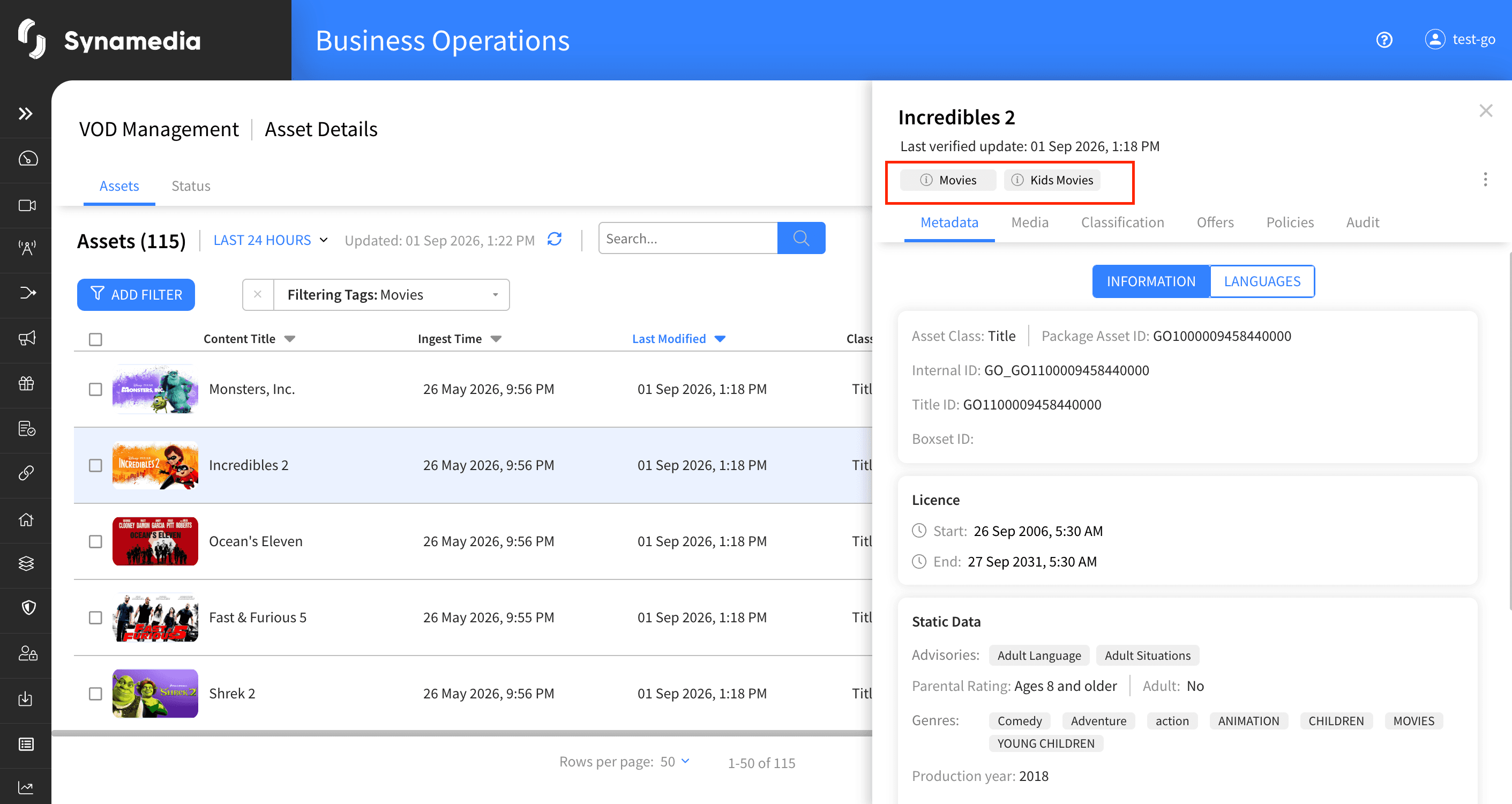
Hover over a tag to see its full name, which is useful when a name is shortened to fit.
Click the "+N" indicator to open a list of all the remaining tags on the title, so you can see the complete set.
Use the Filtering Tags filter in the Assets list to show only content that carries one or more chosen tags. This is a quick way to gather similar titles together, for example all "Kids" content.
Tags are included when you export the asset list, so you can analyse them outside the system.
Tags are read-only in this area, so you can view and filter by them but they are assigned automatically rather than edited here.
Tags update on their own: when rules change or content is re-processed, the tags on a title can be re-applied, so what you see always reflects the latest categorisation.
A single title can carry many tags across different themes, and the "+N" indicator keeps the display tidy while still giving you access to the full list.
Use tag filtering to build a quick working set of similar content instead of searching titles one by one.
If a title's tags look wrong, remember they are driven by rules and ingest data, so the fix is in those rules or data rather than on the title itself.
Expand the "+N" list before assuming a title is missing a tag, as it may simply be hidden in the overflow.

