


The short video below walks through the Playback URL Creator: browsing tokens, creating a token, adding rules with match conditions and a replacement value, reordering rules, reviewing changes, and publishing.
Playback URL is the URL the end user device application uses to play the requested asset. To build the correct URL for the end user device application Token Rules is used. This UI helps in creating and managing Token Rules to build the playback URL.
The Playback URL Creator lets you control how playback URLs are generated based on the conditions of a stream. You define tokens (named sets of rules), and each rule has match conditions (such as content type, device type or DRM type) and a replacement value. When a playback request arrives, the rules in the matching token are evaluated in order and the first matching rule provides the playback URL. This lets you route playback differently per device, content type or DRM combination. Changes are staged as you work and only take effect when you publish.
The module is opened from the sidebar under . The header reads "".
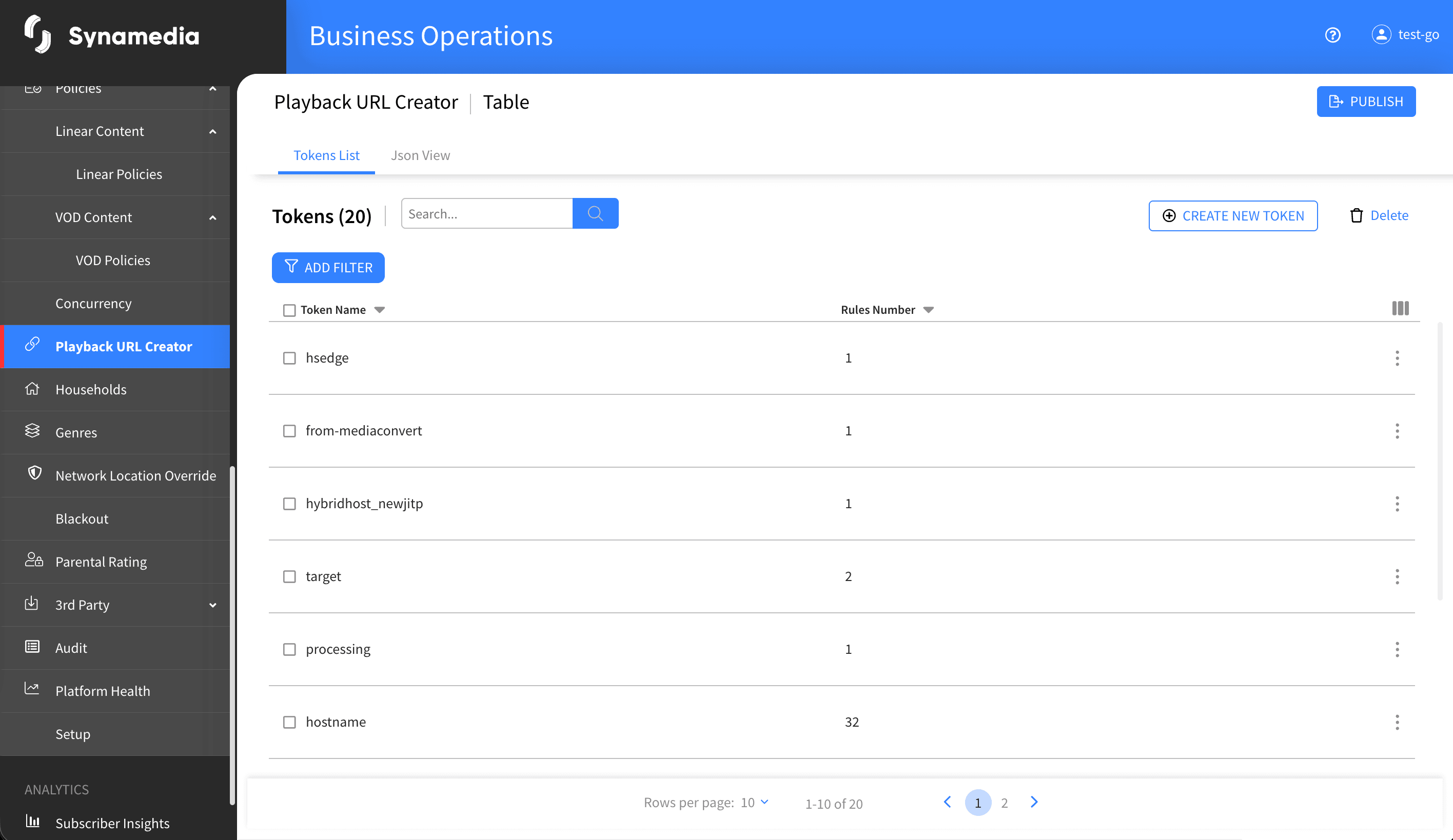
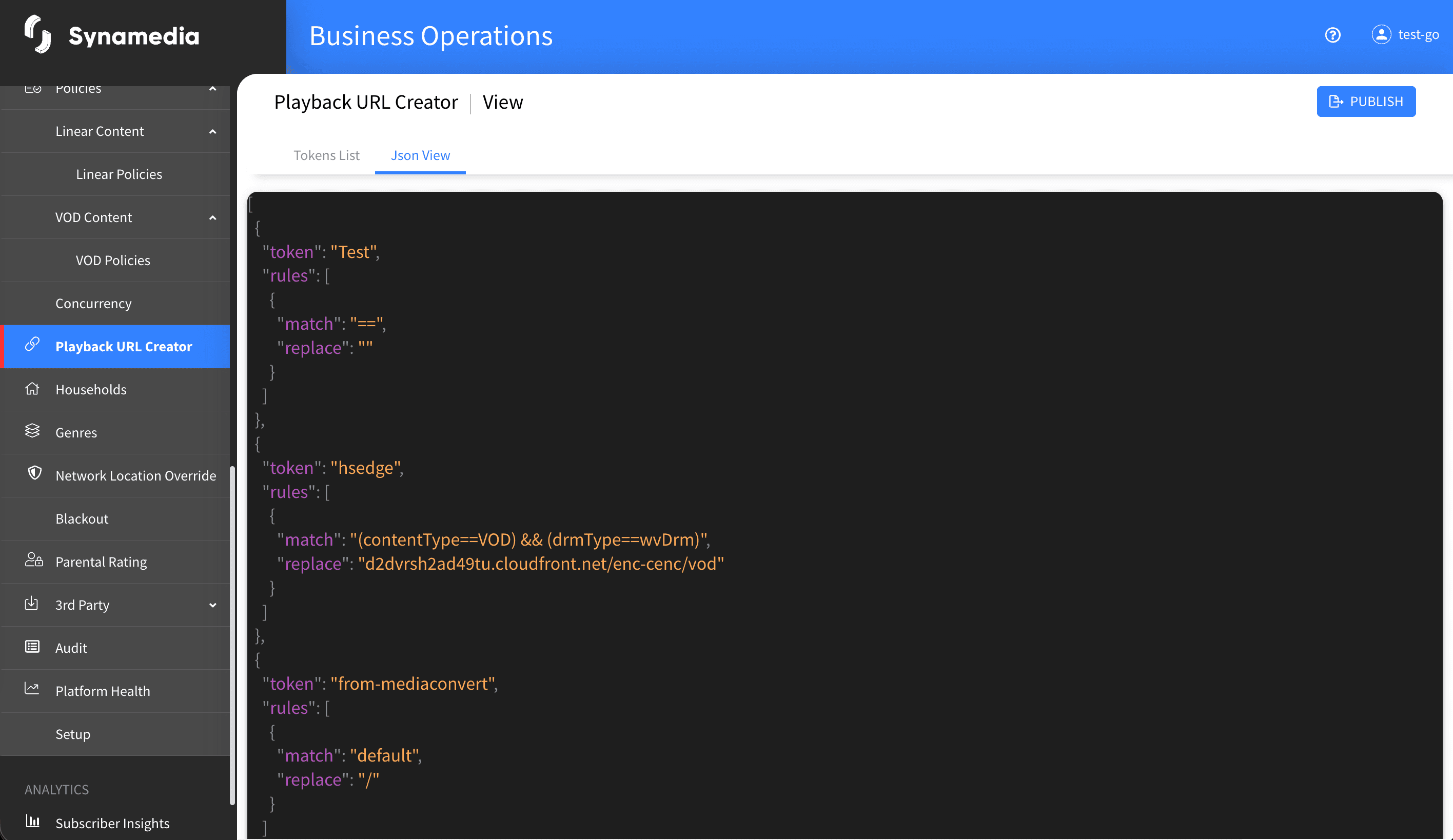
The screen has two tabs:
Tokens List: a table of all tokens, showing each token's name and its number of rules. This is where you browse, create, edit and delete tokens.
Json View: a read-only, pretty-printed view of the whole configuration, useful for inspecting or checking everything at once.
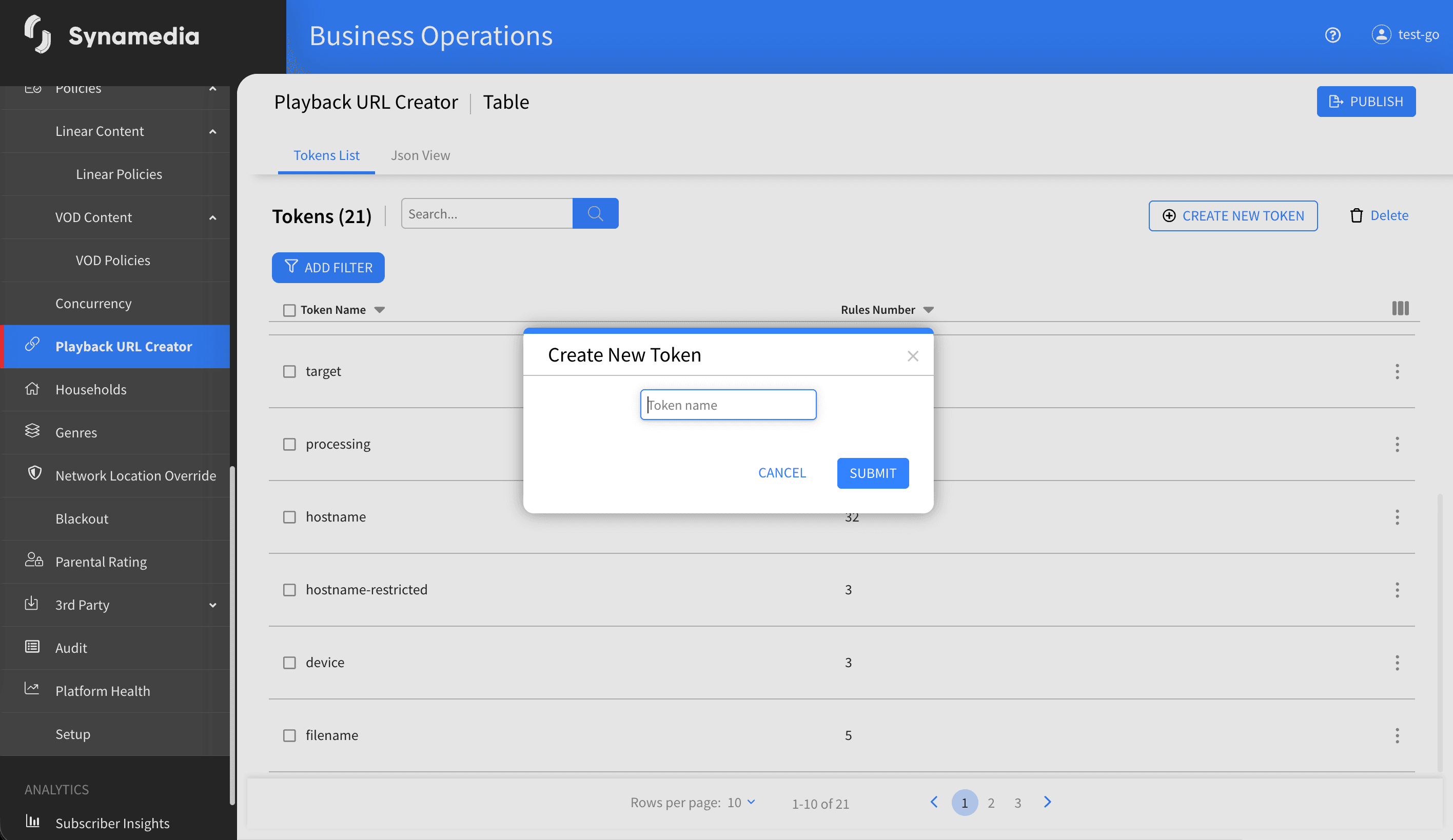
Click "Create New Token" to open the "Create New Token" dialog. Enter a Token name and click "Submit". Token names must be unique (spaces are removed automatically); a duplicate name shows the message that the name already exists.
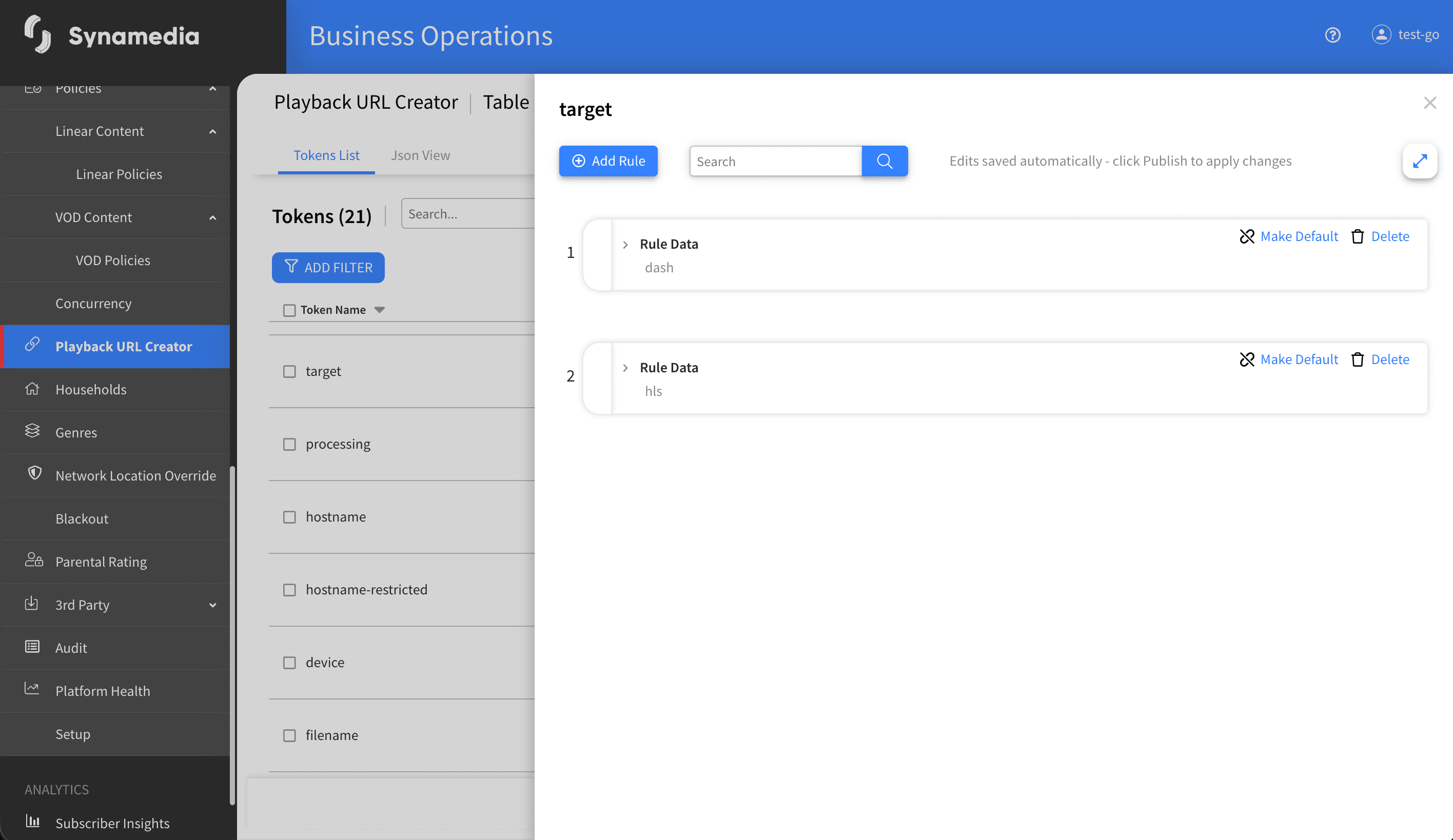
Click a token row to open the editor drawer. Click "Add Rule" to add a rule. Each rule has:
Match conditions: one or more condition groups. Within a group, each condition is a field (such as contentType, deviceType, drmType, isWatermark or locationCountryCode), a comparison operator (equals, not equals, or includes), and a value. Conditions in a group are joined with AND or OR, and groups are joined with AND or OR. Replace: the replacement playback URL or value that applies when the rule matches, entered in the "Replace" field.
You can drag rules by the handle to reorder them, make a rule the fallback with "Make Default" (which clears its conditions so it always matches), and delete a rule. A JSON preview under each rule shows the resulting match and replace. If any rule is missing inputs, a notice at the bottom of the drawer lists the affected rule numbers.
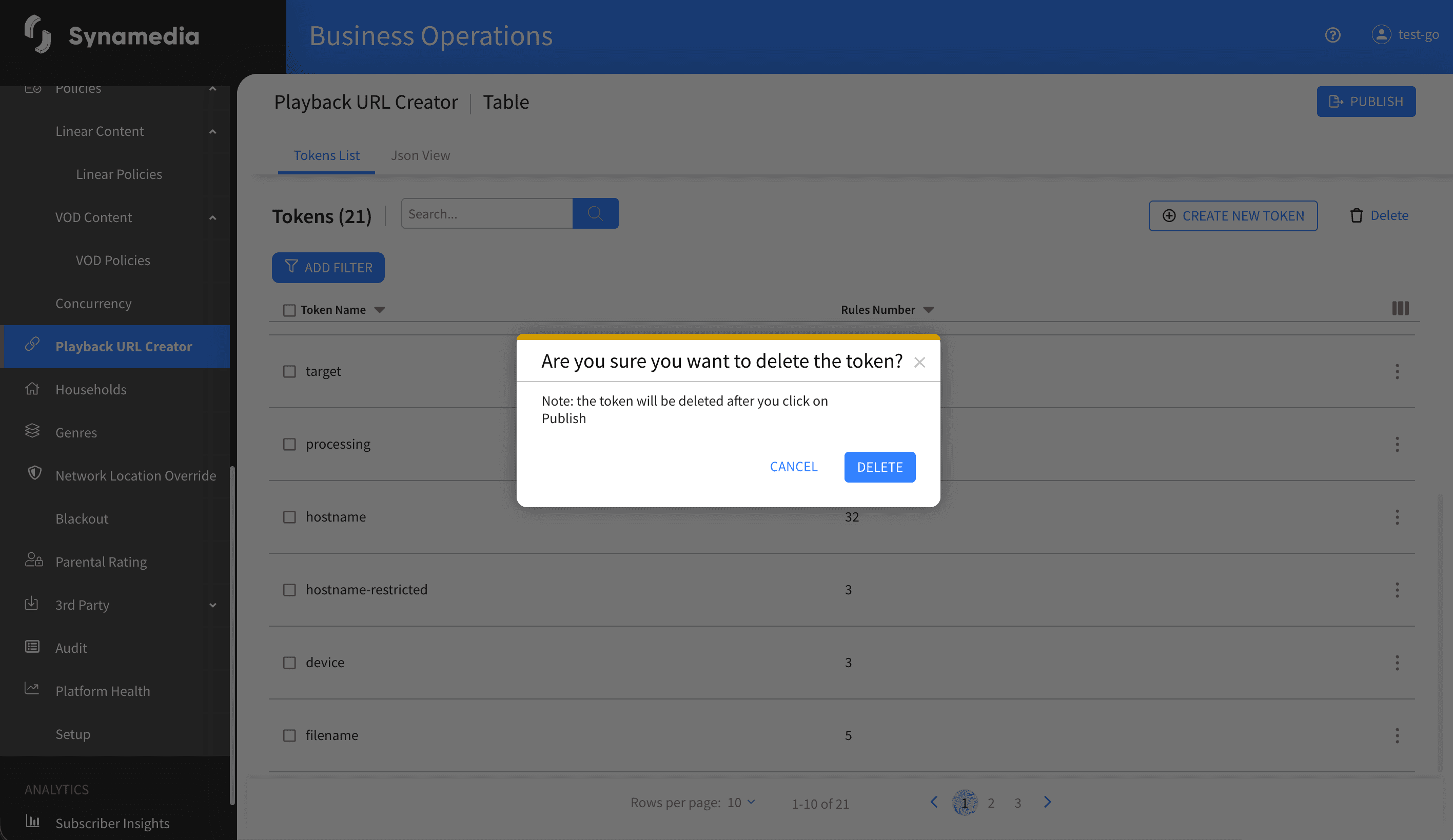
Use the Delete action on a token row. You are warned that the token will be deleted after you click Publish. Deletion, like all changes, is staged until you publish.
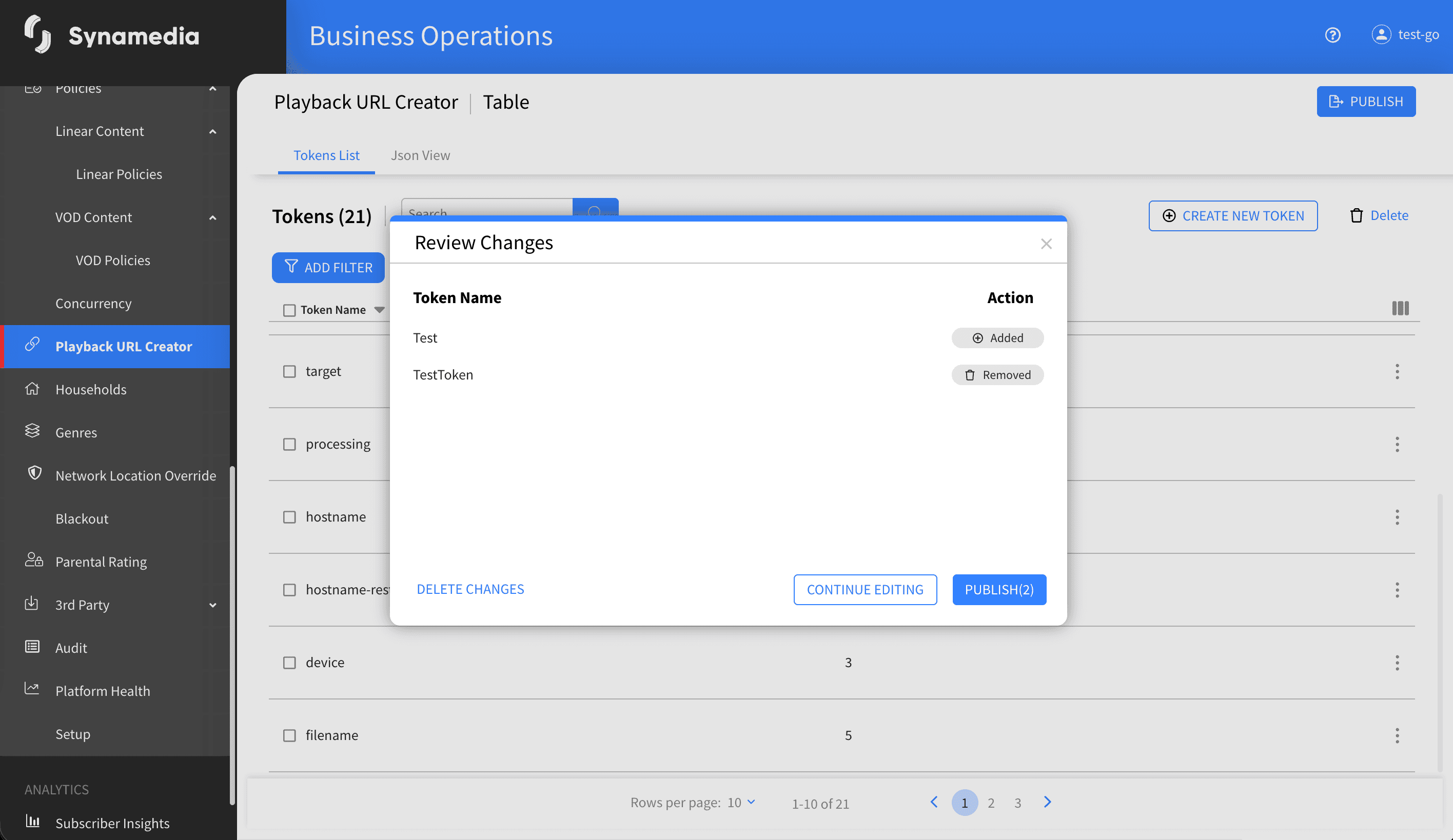
Click "PUBLISH" to open the "Review Changes" dialog, which lists every changed token tagged as Added, Edited or Removed. From here you can choose "DELETE CHANGES" to discard all edits, "CONTINUE EDITING" to go back, or the Publish button (which shows the number of changes) to commit them. On success you see "Submitted Successfully". If a token is missing required values, a schema validation message identifies the token.
Rules are evaluated top to bottom and the first match wins, so order them from most specific to most general.
Keep a Default (fallback) rule so there is always a match when no conditions apply.
Token names must be unique, and any spaces you type are removed automatically.
Nothing you change takes effect until you publish, so use the Review Changes dialog to confirm exactly what will change.
The Json View is a quick way to double-check the whole configuration before publishing.
If the drawer shows a notice about missing inputs, fix those rule numbers before you publish.

