


Experience Manager enables adding a Category in the top menu of a specified Portal.
To add a Category:
To access the Experience Manager Interface, click on the Experience Manager from Experience main menu in the Synamedia Business Operations Console main landing page.
List of all the available Portals in displayed. Click on the Graphical View icon to initiate creating a Category through Graphical View.
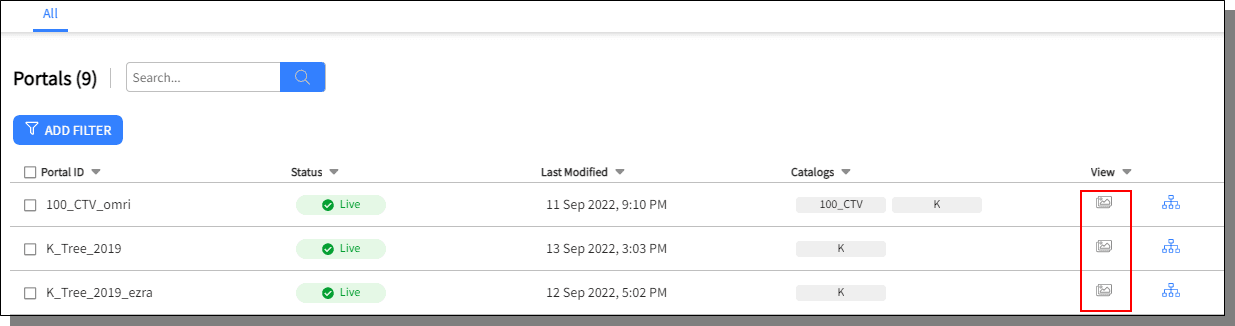
Categories can be added both from Graphical and Tree view.
In the Graphical View click on the options button displayed on mouse-hover beside the category names. Select Add Category.
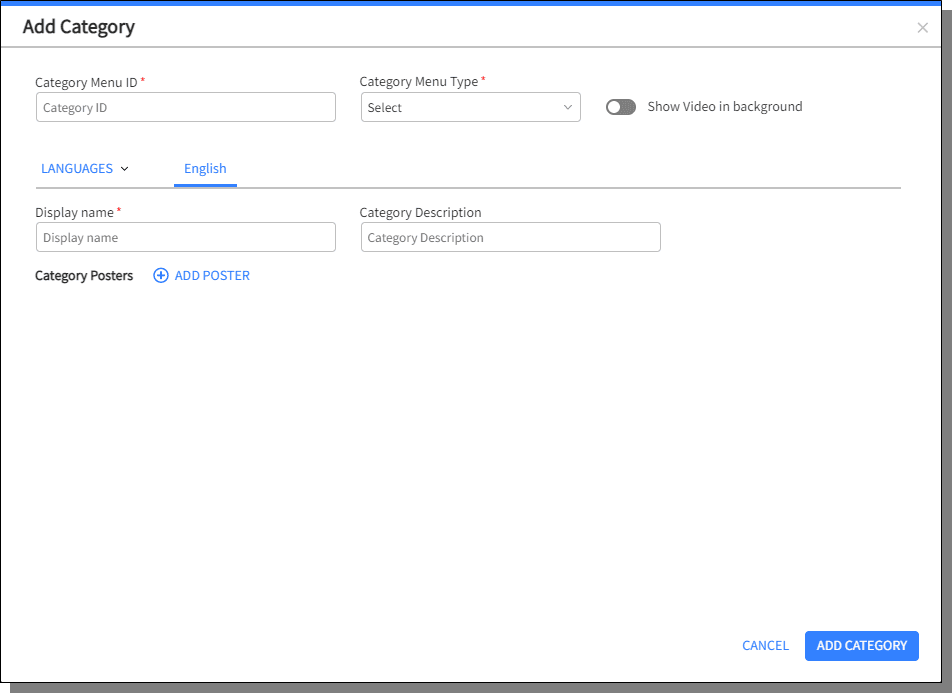
The Add Category pop-up is displayed. Enter all the details and click on Add Category.
Category Menu ID: Enter the Category ID
Category Menu Type: Select the Category Menu Type from the given options
Show video in background toggle button, displays the video in the background for the end user
Choose the Languages to enter the details
Display name: Enter the display name of the category
Category Description: Enter a valid description for the category being added
Add Poster: on adding the Image URL, the image can be set either as an icon or the poster image. The same image can be applied to multiple languages as well.
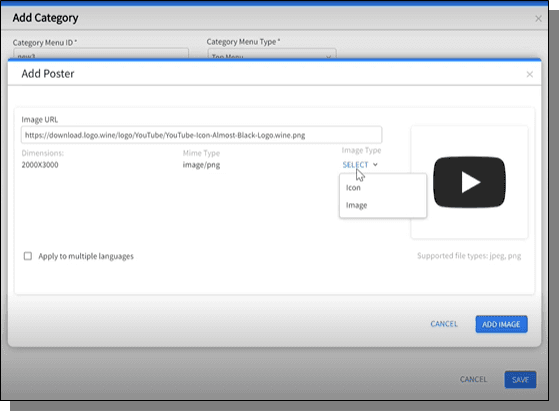
The newly created Category is displayed on the Experience Manager screen only after publishing. You can add Swimlanes to the new Category.
To edit a category, do the following:
From the Graphical view, click on the options button displayed on mouse-hover beside the category names. Select Edit Categories.

In case of Graphical View, Edit Categories pop-up is displayed with the list of all the categories.
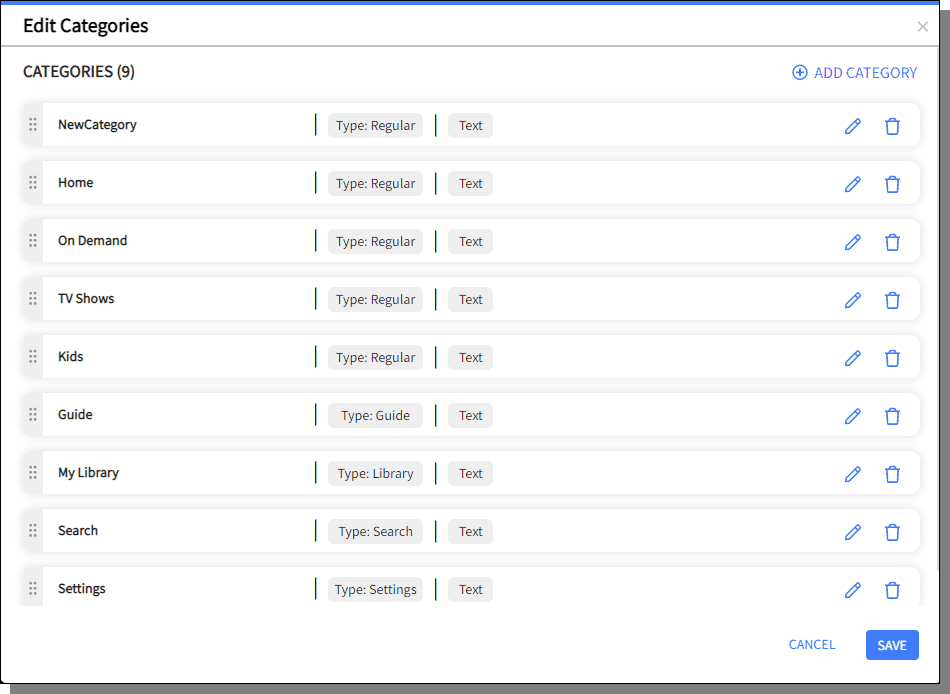
Click on the Edit button of the Category that needs to be edited. A new category creation can be initiated from this screen. Drag and drop the Category rows to reorder the display of the categories in the menu.
From the Tree view, click on the dots displayed beside the Category name and choose Edit Category. Only the selected Category can be edited.
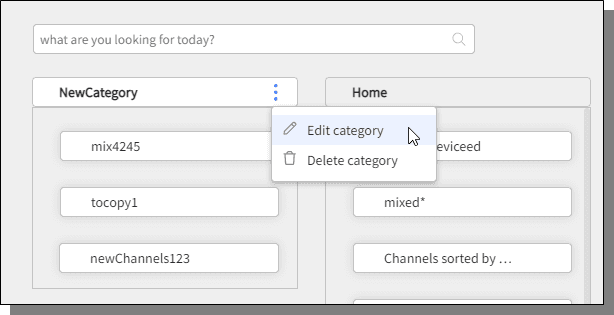
The Category labels can be dragged and dropped to reorder the display of the categories in the menu.
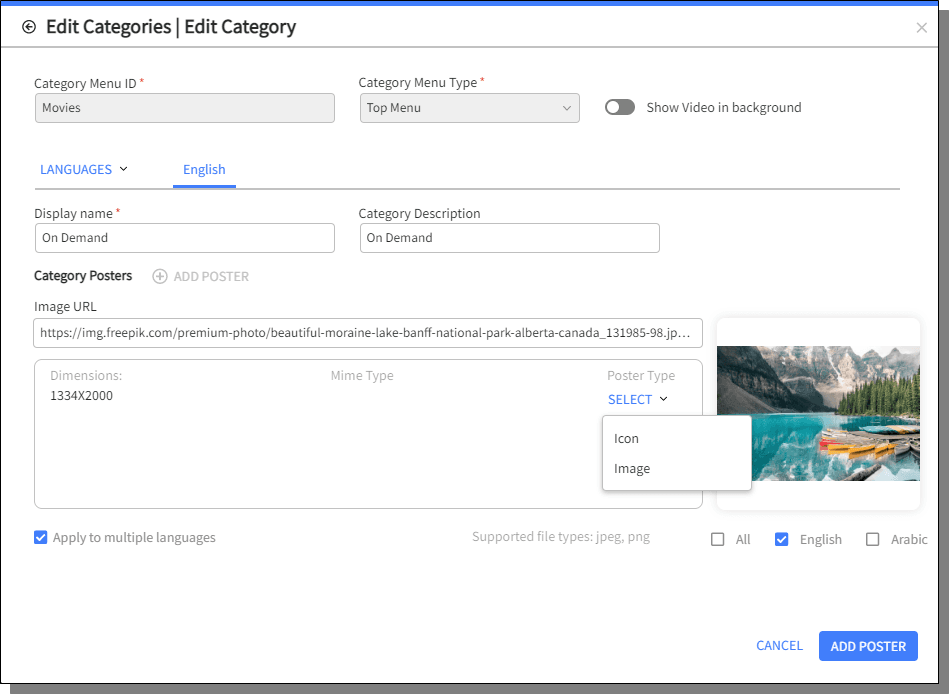
Make the necessary changes and click Save Category.
To delete a category, do the following:
In the Graphical view, from the options displayed choose Edit Categories.
Click on the delete button of the Category that needs to be deleted.
In the Tree View, from the options displayed, choose Delete Category.

