


On entering the details in the Content Rules screen and clicking Next, Display Rules screen for the selected swimlane type is displayed.
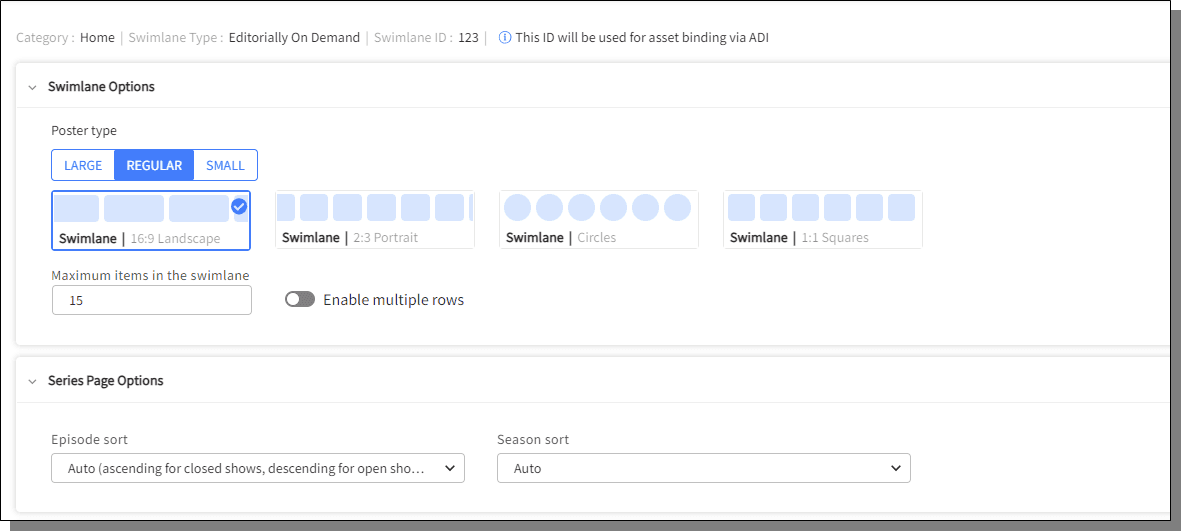
Provide the details for the Swimlane Options
Poster Type
Maximum Items in the swimlane
Enable Multiple Rows : On enabling this feature, enter the details for the following fields, or choose Automatic to select the deafult
Maximum Items in a row
Maximum rows
Automatic
For series content, in the Series Page Options section, provide the following details
Episode sort
Season Sort
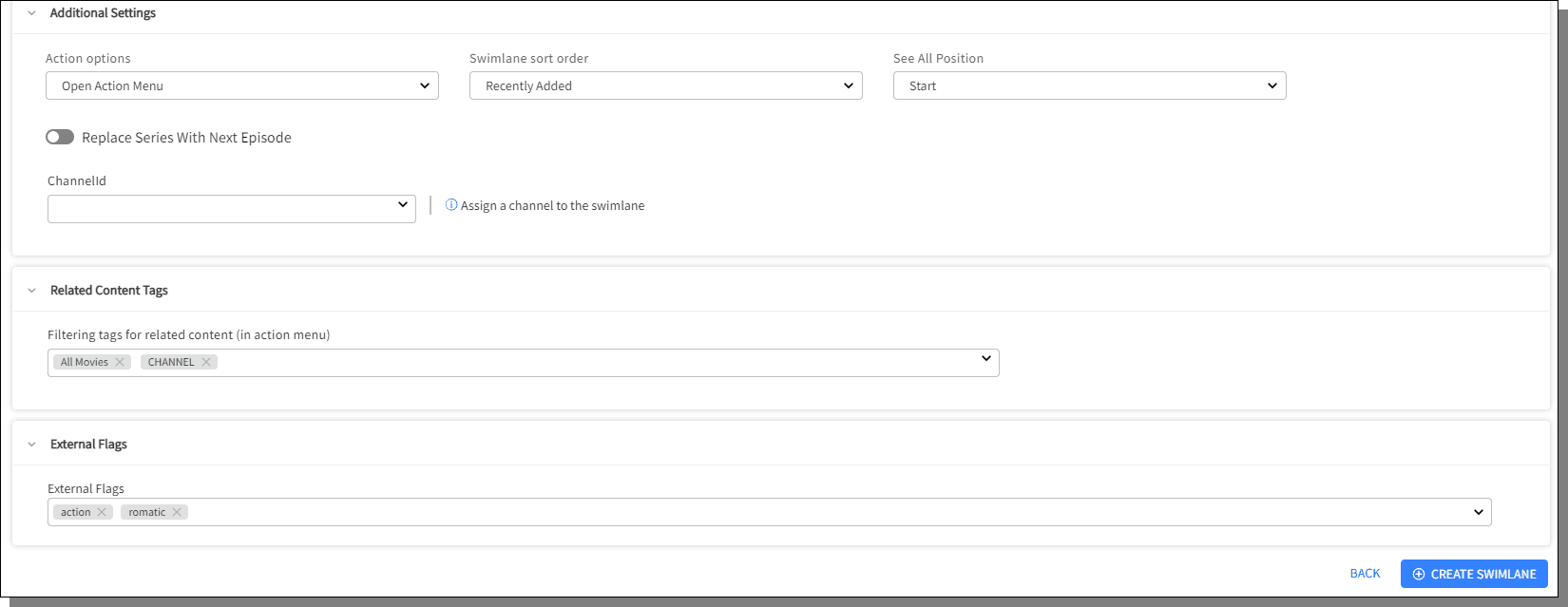
For Additional Settings
Action Options
Swimlane sort order
See All Position
Contains Adult Content, Entitled Content Only and Replace Series with Next Episode toggle buttons can be used as desired.
ChannelID - Assign a channel to the swimlane
Choose the Filtering Tags for related content in the Related Content Tags section.
Choose the External Flags in the External Flags section.
Click Create Swimlane to complete the process of adding a new swimlane. The swimlane is displayed on the Experience Manager screen.
The points mentioned above might not be applicable to all the Editorial type swimlanes, follow the instructions accordingly.
On entering the details in the Setup screen and clicking Next, Display Rules screen for the selected swimlane type is displayed.
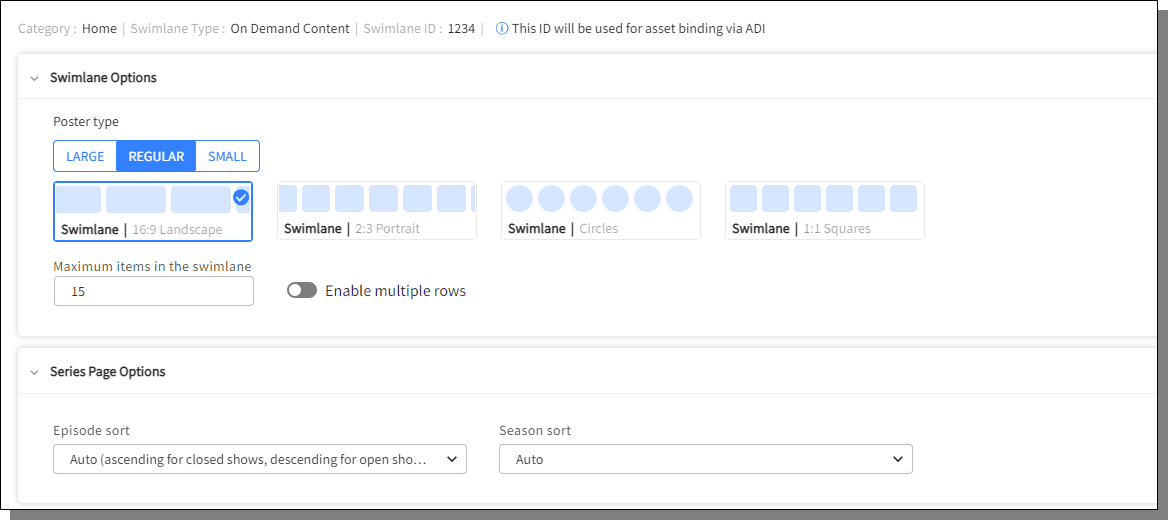
Provide the details for the Swimlane Options
Poster Type
Maximum Items in the swimlane
Enable Multiple Rows : On enabling this feature, enter the details for the following fields, or choose Automatic to select the deafult
Maximum Items in a row
Maximum rows
Automatic
For series content, in the Series Page Options section, provide the following details
Episode sort
Season sort
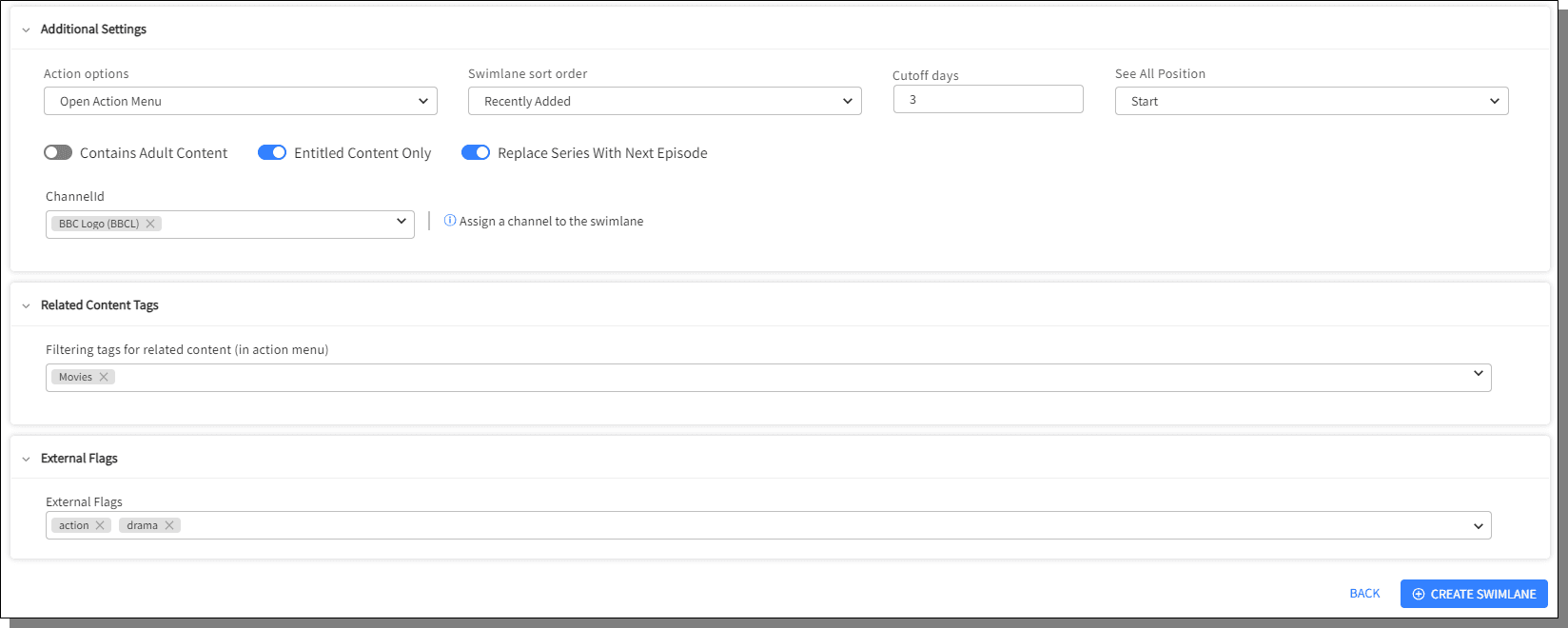
For Additional Settings
Action Options
Swimlane sort order
See All Position
Contains Adult Content, Entitled Content Only and Replace Series with Next Episode toggle buttons can be used as desired.
ChannelID - Assign a channel to the swimlane
Choose the Filtering Tags for related content in the Related Content Tags section.
Choose the External Flags in the External Flags section.
Click Create Swimlane to complete the process of adding a new swimlane. The swimlane is displayed on the Experience Manager screen.
The points mentioned above might not be applicable to all the On Demand type swimlanes, follow the instructions accordingly.
The following set of instructions do not apply for Recommendation > Most Popular type of swimlane.
On entering the details in the Content Rules screen and clicking Next, Display Rules screen for the selected swimlane type is displayed.
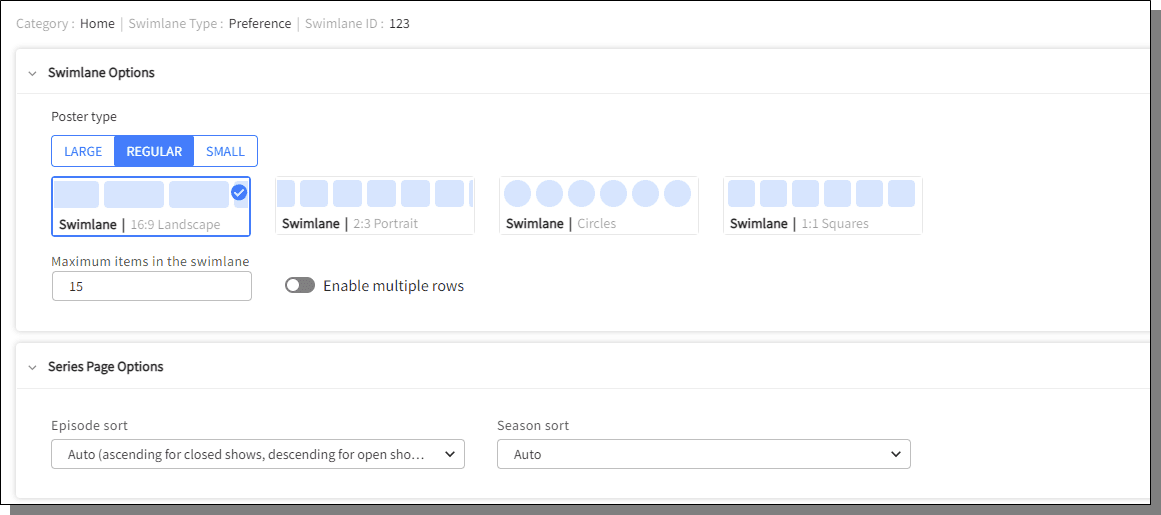
Provide the details for the Swimlane Options:
Poster Type
Maximum Items in the swimlane
Enable Multiple Rows
If you enable mutiple rows, enter the details for Maximum Items in a row, Max rows or setting Automatic will calculate the tiles based on the width of the screen.
For series content, in the Series Page Options section, provide the following details:
Episode sort
Season Sort
For Additional Settings
Action Options
See All Positions
Contains Adult Content, Entitled Content only, and Replace Series With Next Episode toggle buttons can be used appropriately
ChannelID - Assign a channel to the swimlane. On opening the swimlane the associated channel starts playing.
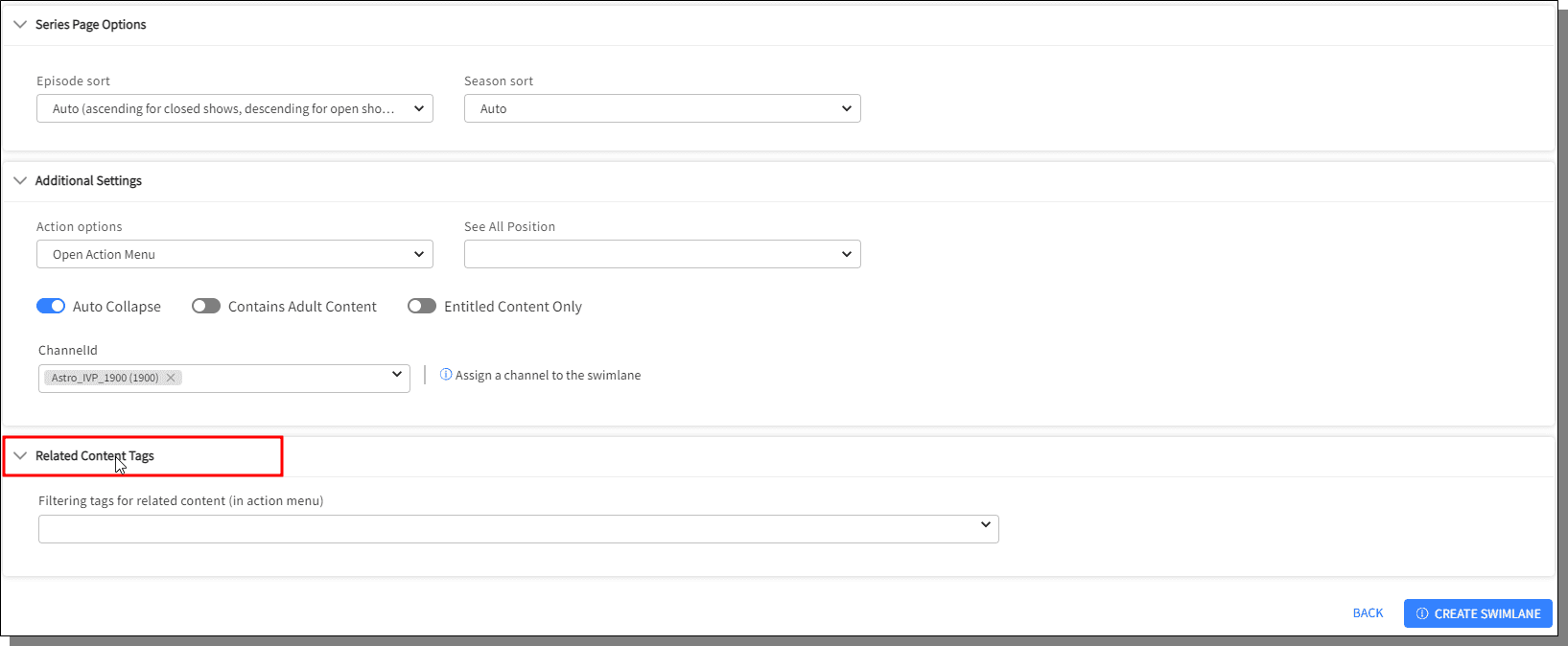
Choose the filtering tags for related content in the Related Content Tags section.
Click Create Swimlane to complete the process of adding a new swimlane. The swimlane is displayed on the Experience Manager screen.
The above set of instructions are applicable for Recent Swimlane type as well.
In the Content Rules screen of Most Popular type of swimlane, on choosing Catchup under Select Sources section, Swimlane Sort Order and Set the Starting Point fields are displayed on the Display Rules screen.
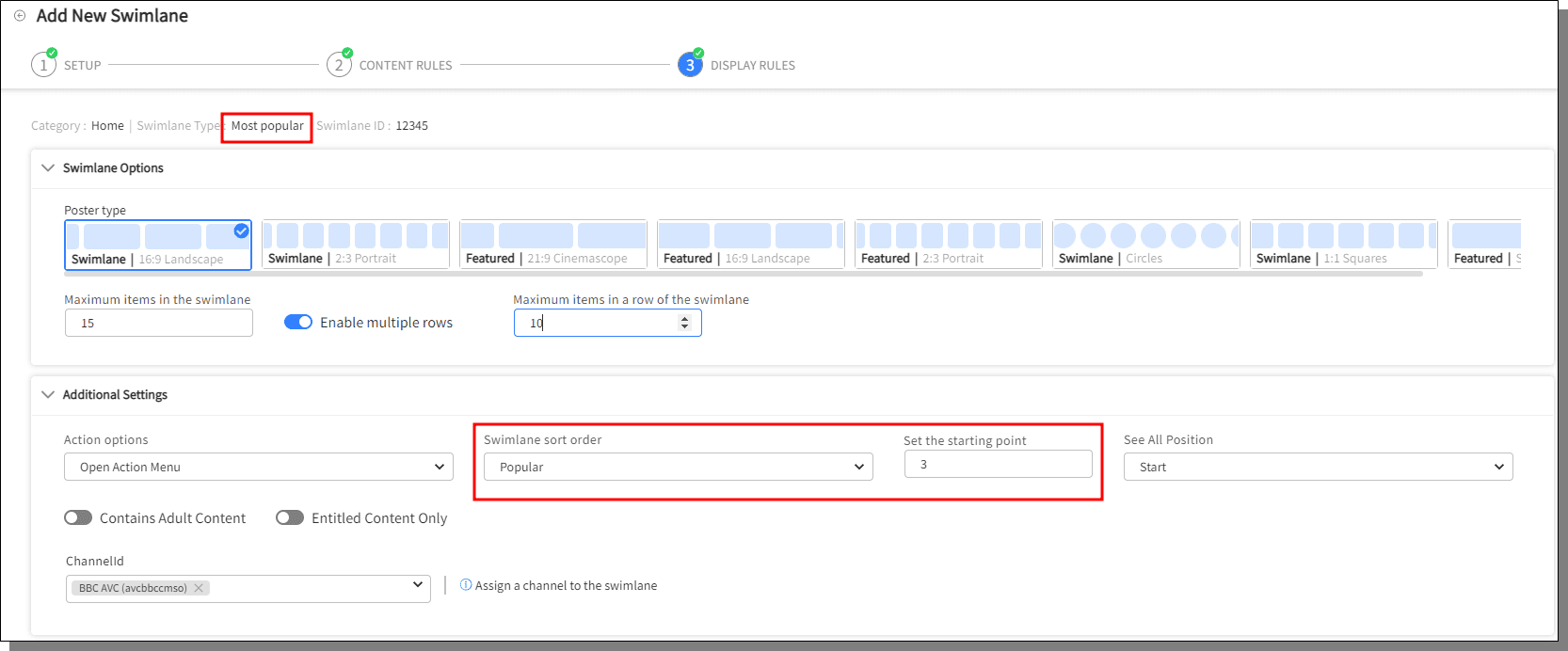
Provide the details for the Swimlane Options:
Poster Type
Maximum Items in the swimlane
Enable Multiple Rows
Maximum Items in a row if the swimlane
For series content, in the Series Page Options section, provide the following details:
Episode sort
Season Sort
For Additional Settings
Action Options
Swimlane Sort Order
Set the starting point
See All Position
Contains Adult Content, Entitled Content only toggle buttons can be used appropriately
ChannelID - Assign a channel to the swimlane
Choose the Filtering Tags for related content in the Related Content Tags section.
Click Create Swimlane to complete the process of adding a new swimlane. The swimlane is displayed on the Experience Manager screen.
In the Setup screen, select Library > Rental or Watchlist as the swimlane type and click Next after filling the data in the other fields. The Display Rules screen is displayed.
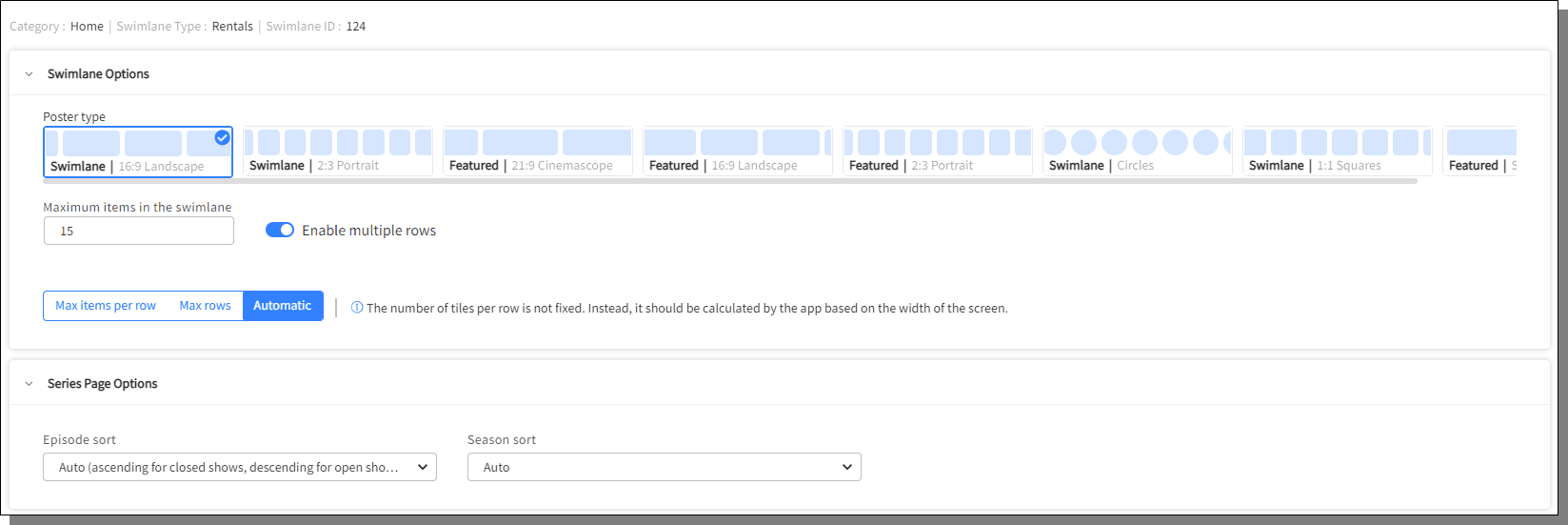
Provide the details for the Swimlane Options
Poster Type
Maximum Items in the swimlane
Enable Multiple Rows : On enabling this feature, enter the details for the following fields, or choose Automatic to select the deafult
Maximum Items in a row
Maximum rows
Automatic
For series content, in the Series Page Options section, provide the following details
Episode sort
Season Sort
For Additional Settings
Action Options
Swimlane sort order (This option is not displayed for Library - Rentals)
See All Position
Replace Series with Next Episode toggle button can be used as desired
ChannelID - Assign a channel to the swimlane
Choose the Filtering Tags for related content in the Related Content Tags section.
Choose the External Flags in the External Flags section.
Click Create Swimlane to complete the process of adding a new swimlane. The swimlane is displayed on the Experience Manager screen.
For Display Rules of Library - Library DVR, Display Rules for Library - Downloadsand Display Rules for On Demand - Favorite Classifications follow Display Rules , few points might not be applicable, skip the points accordingly.
On the Content Rulesscreen for Linear TV - Channels, click Next after filling the data in the all the fields. The Display Rules screen is displayed.
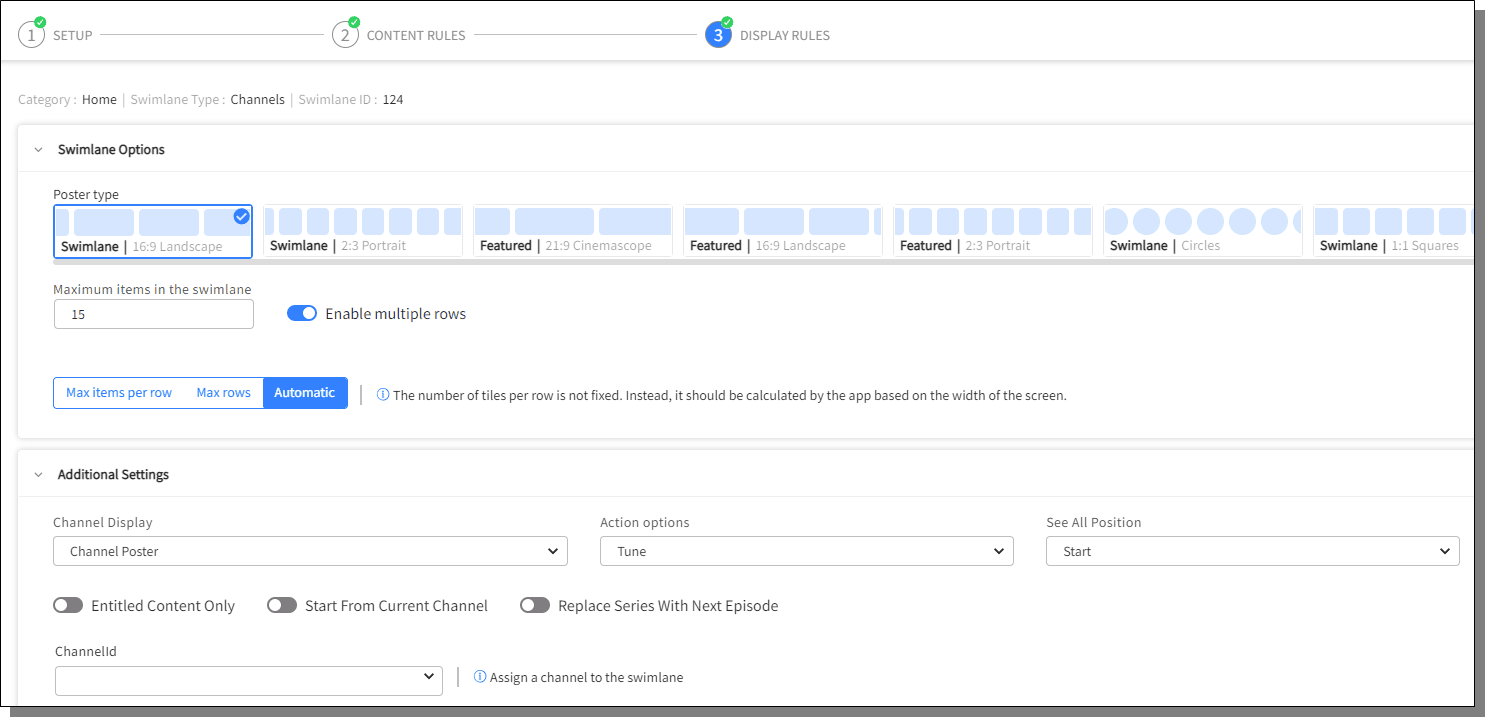
Provide the details for the Swimlane Options
Poster Type
Maximum Items in the swimlane
Enable Multiple Rows : On enabling this feature, enter the details for the following fields, or choose Automatic to select the deafult
In Additional Settings, provide the following details
Channel Display: Channel Poster, Regular Channel Logo, Inverted Channel Logo, Event Title Over Channel Poster
Action Options: Tune, Open Action Menu
See All Position: Start, End, Start and End, None
Use the toggle button as required
Channel ID: The channel assigned to the swimlane
External Flags: Choose the external flags to associate the swimlane.
ClickCreate Swimlane to complete the process of creating a swimlane. The swimlane is displayed on the Experience Manager screen.
For Linear TV > Channel Genres, follow step 1, step 3 and 4. For Linear TV > Broadcast Schedule type of swimlane, only step 3 and step 4 are applicable.
[CDATA[ ]]

