


Depending on the Swimlane Type selected in Setup page, the Content Rules screen is displayed.
In the Setup screen, select Editorial > Editorially On Demand as the swimlane type and click Next after filling the data in the other fields.
Content Rules screen for Editorially On Demand swimlane type is displayed.
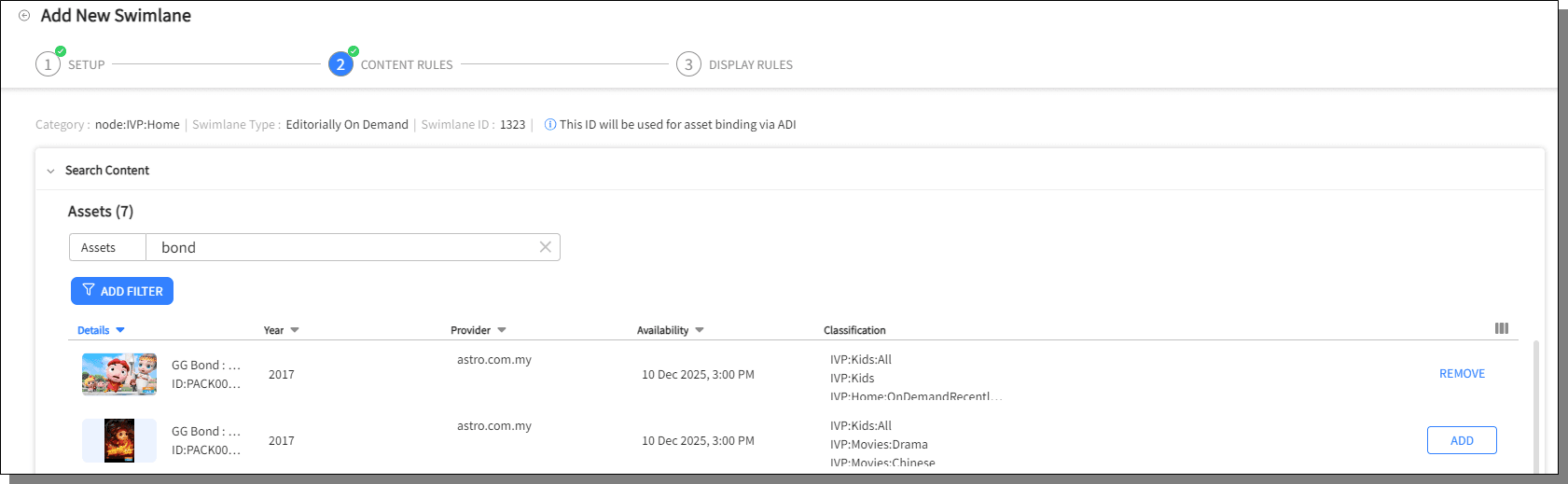
Under Search Content, enter a keyword to search for the Assets, Shows (series) or Boxsets.
Press Add Filter to filter the search results by Year, Provider, Availability and Classification.
Press Add to add the Asset, Show or the Boxset. The Add button is a toggle button to add or remove the Asset, Show or the Boxset.
Once added, the Asset, Show or the Boxset is displayed under Preview. Drag and drop the Asset, Show or the Boxset to reorder.
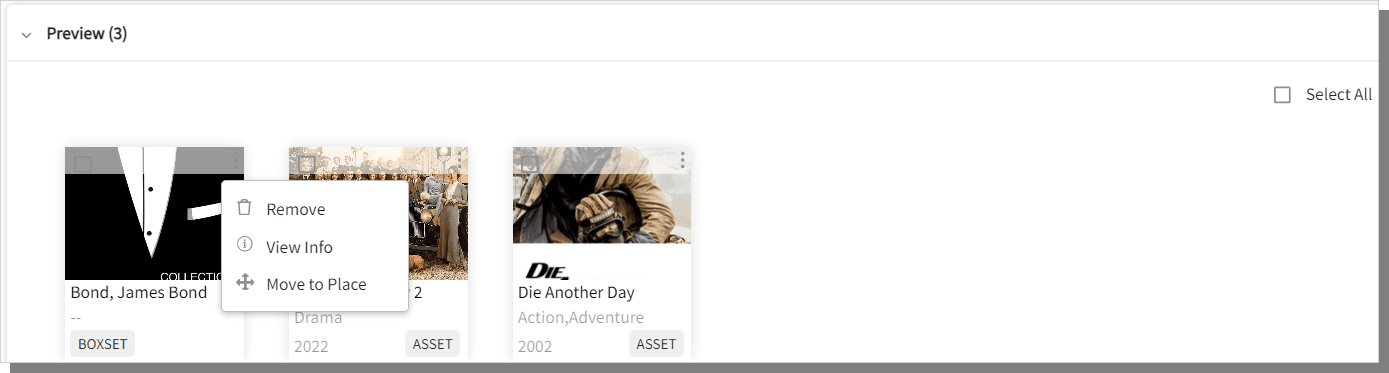
To remove the Asset, Show or the Boxset added, select the Asset, Show or the Boxset in the Preview section and press Remove. Press Select All to select all the Assets, Shows or Boxsets added and press Remove to remove them all at once.
Press Next.
Display Rules screen is displayed, refer to Display Rules for more details.
In the Setup screen, select Editorial > Editorially Linear as the swimlane type and click Next after filling the data in the other fields.
Content Rules screen for Editorially Linear swimlane type is displayed.
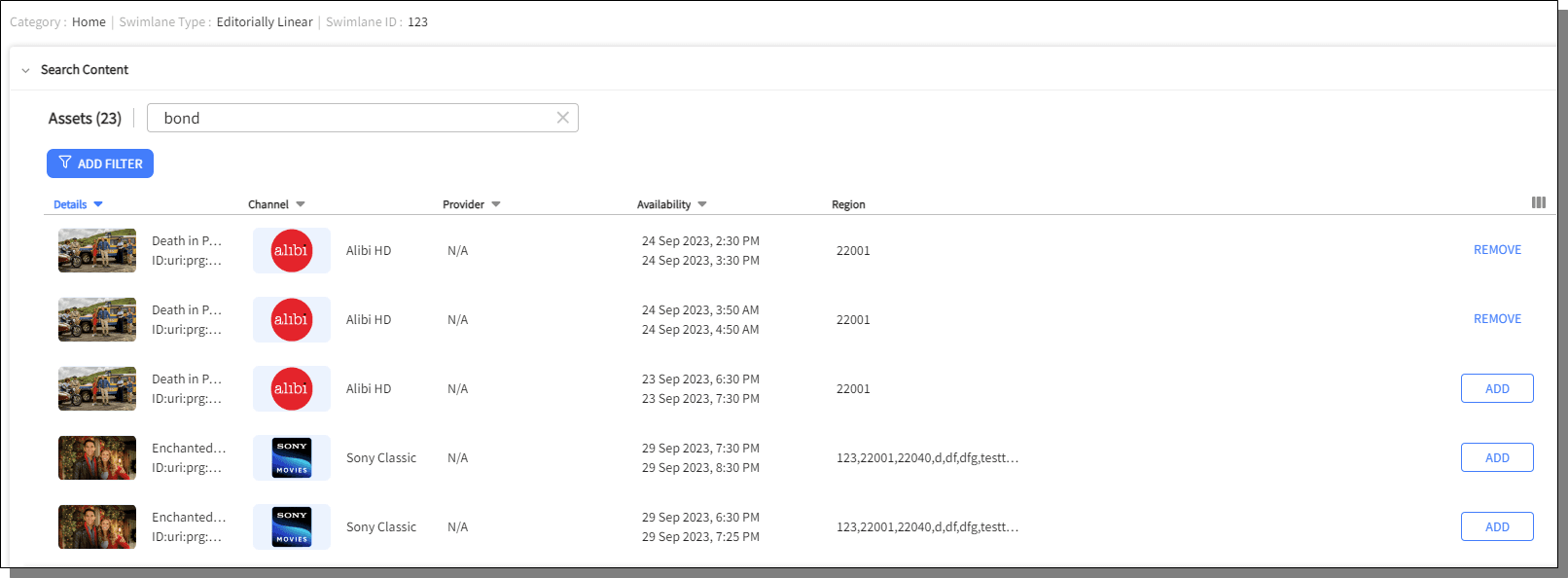
Under Search Content, enter a keyword to search assets.
Press on Add filter button to filter the search results.
Press Add to add the Asset. The Add button is a toggle button to add or remove the Asset.
Once added, the Asset is displayed under Preview. Drag and drop the Asset to reorder.
To remove the asset added, select the asset in the Preview section and press Remove. Press Select All to select all the assets added and press Remove to remove them all at once.
Press Next.
Display Rules screen is displayed, refer to Display Rules for more details.
Follow the same instructions as above for Content Rules for Editorially Applications, search and add the Applications instead of Assets.
In the Setup screen, select Editorial > Editorially Keyword Searchas the swimlane type and click Next after filling the data in the other fields.
Content Rules screen for Editorially Linear swimlane type is displayed.
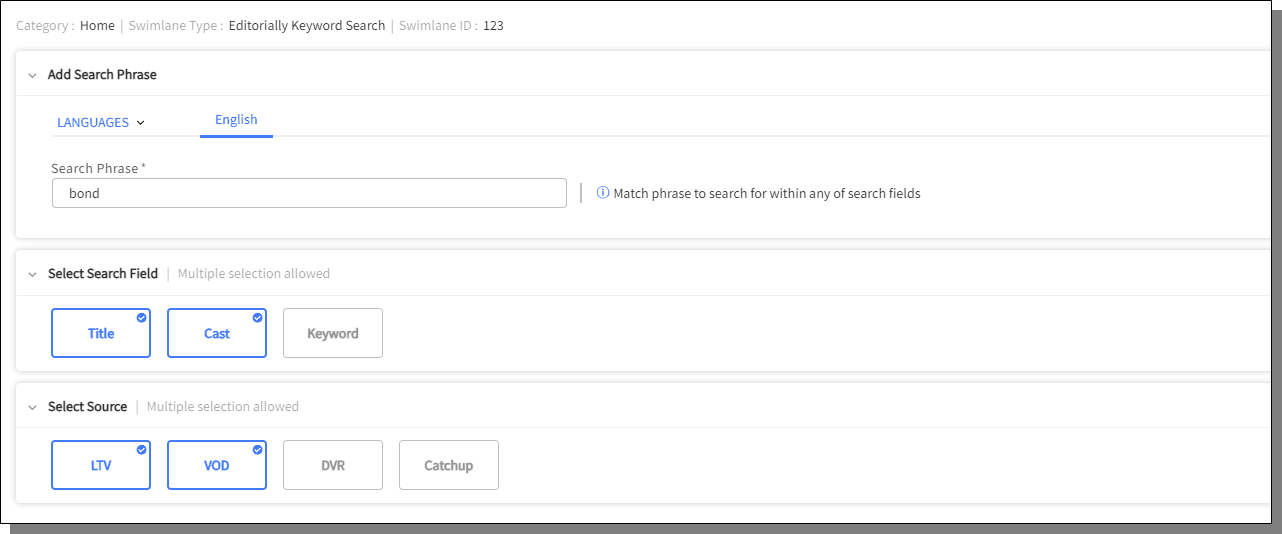
Under Add Search Phrase, select the Languages desired from the Languages drop down.
In the Search Phrase textbox, enter the phrase to search for within any search fields.
Click on the options available under Select Search Field.
Title
Cast
Keyword
Click on the options available under Select Source.
LTV
VOD
DVR
Catchup
Press Next.
Display Rules screen is displayed, refer to Display Rules for more details.
In the Setup screen, select Recommendation > Preference as the swimlane type and click Next after filling the data in the other fields.
Content Rules screen for Preference swimlane type is displayed.
Select Sources:
VOD: Choose the Filtering Tags Rules and click Next
LTV: Define the parameters for Program Start Time and click Next
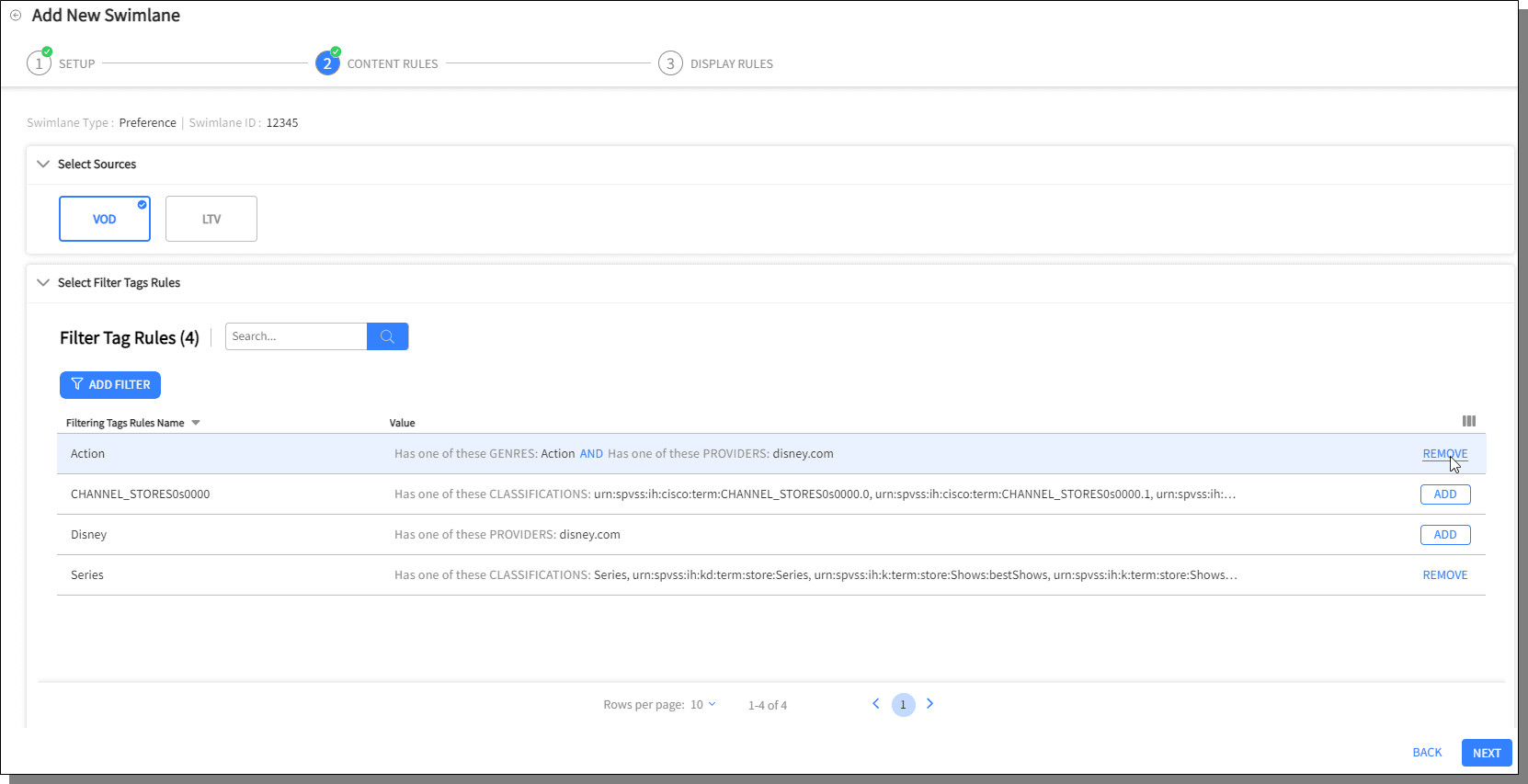
Display Rules screen is displayed, refer to Display Rules for more details.
Follow the same set of instructions as above to create Recommendation - Because you Watched the Content type of swimlanes.
In the Setup screen, select Recommendation > Most Popular as the swimlane type and click Next after filling the data in the other fields.
Content Rules screen for Most Popular swimlane type is displayed.
Select Sources:
VOD: Choose the Filtering Tags Rules and click Next
LTV: Click Next
Catchup:
Choose the Channel Genres to be Excluded or Included from Genre list in the swimlane using the drop-down
Select the channels to exclude from the channel list and click Next
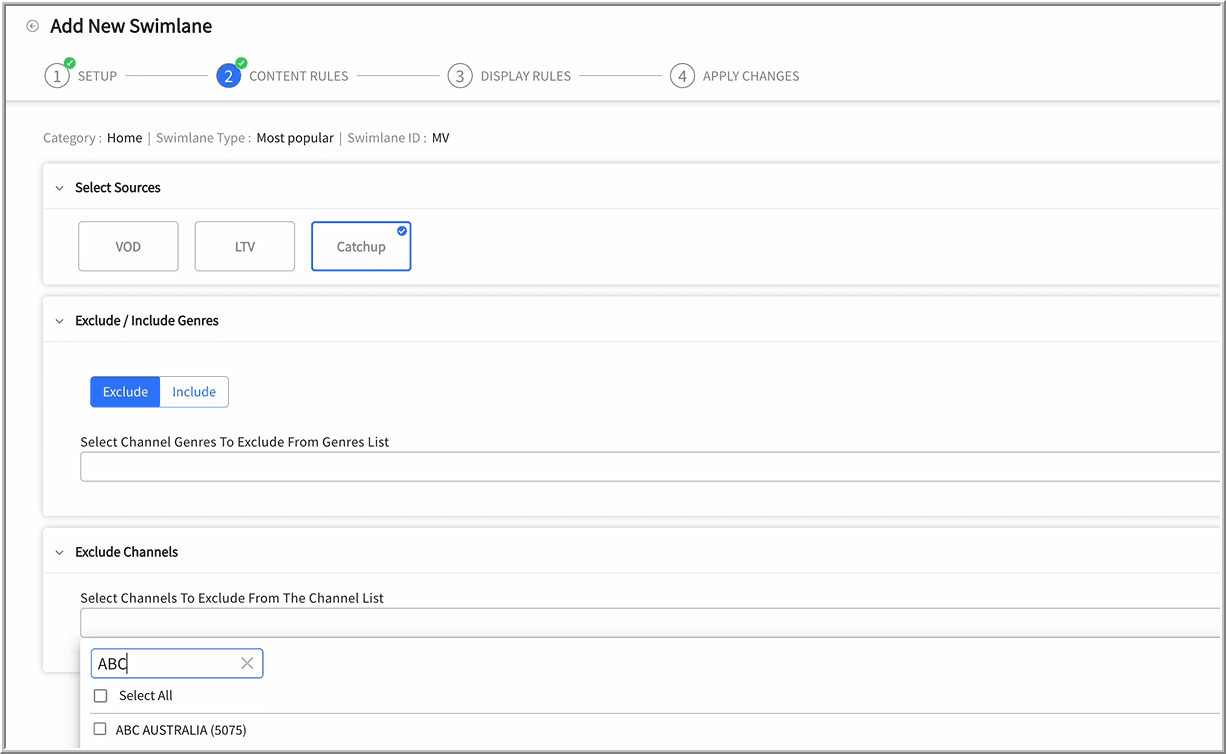
On clicking Next on the Content Rules screen, Display Rules screen is displayed, refer to Display Rules for more details.
In the Setup screen, select Recent > Continue Watching as the swimlane type and click Next after filling the data in the other fields.
Content Rules screen for Continue Watchingswimlane type is displayed.
Select Sources:
VOD: Choose to show the next episode automatically, choose the Filtering Tags Rules and click Next
DVR: Click Next
Catchup: Click Next
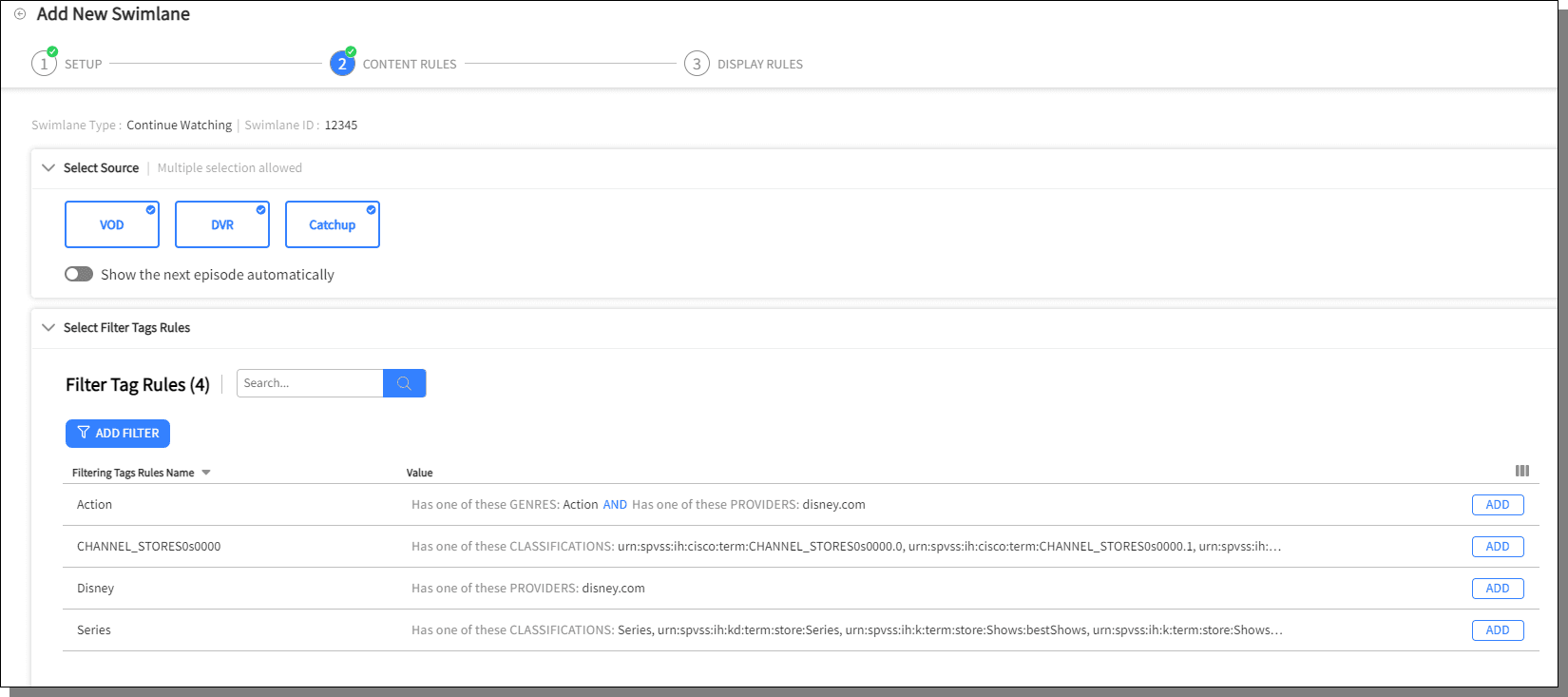
On clicking Next on the Content Rules screen, Display Rules screen is displayed, refer to Display Rules for more details.
For Recent> Watch Again type of swimlane, select Filter Tag Rules and click Next, Display Rules screen is displayed.
In the Setup screen, select Library > Watchlist as the swimlane type and click Next after filling the data in the other fields.
Content Rules screen is displayed. Choose the options under Select Watchlist Content Types.
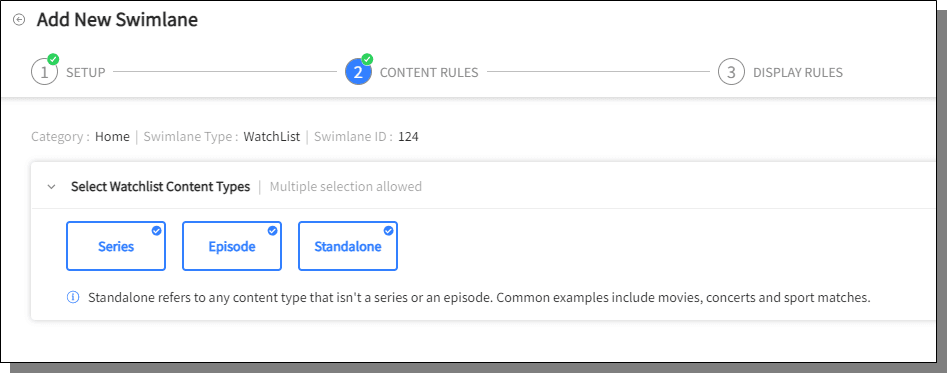
Click Next. On clicking Next on the Content Rules screen, Display Rules screen is displayed, refer to Display Rules for more details.
In the Setup screen, select Library > Library DVR as the swimlane type and click Next after filling the data in the other fields.
Content Rules screen is displayed. Choose your options under, Select Source and Select Source Filter.
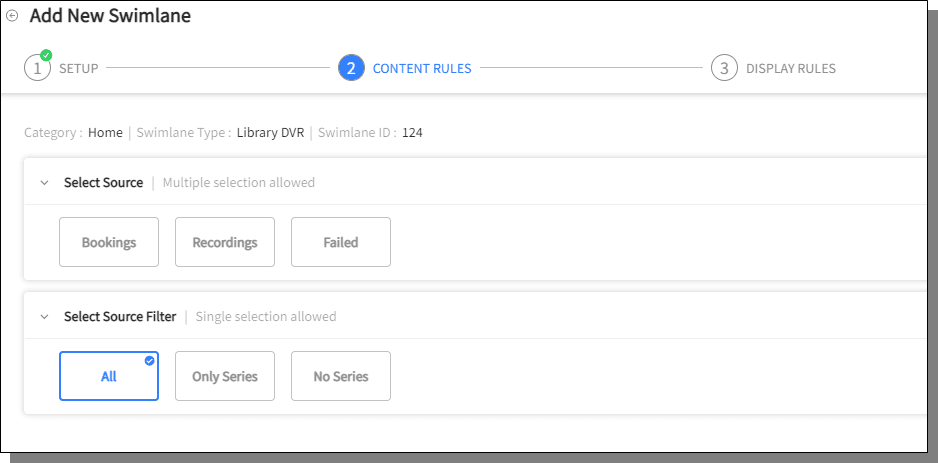
Click Next. On clicking Next on the Content Rules screen, Display Rules screen is displayed, refer to Display Rules for more details.
In the Setup screen, select Linear TV > Channels as the swimlane type and click Next after filling the data in the other fields.
Content Rules screen is displayed.
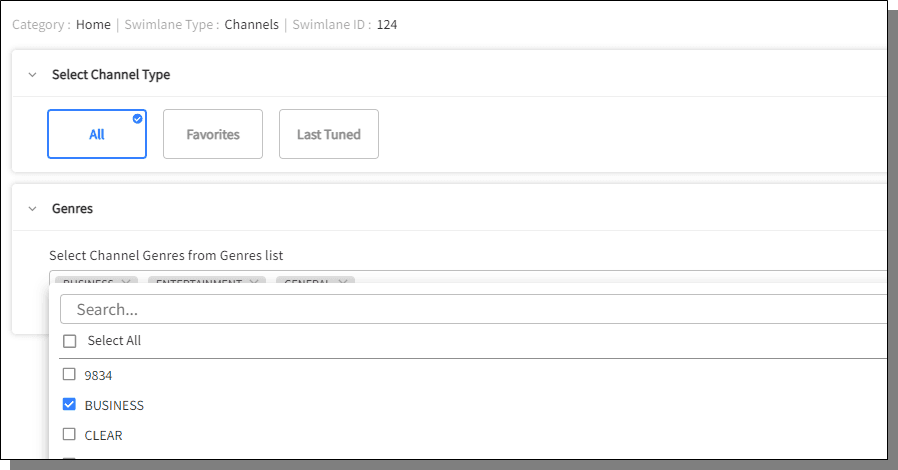
Choose from the options given in Select Channel Type.
From the Genres drop down select the genres.
Click Next, Display Rules screen is displayed, refer to Display Rules for more details.
In the Setup screen, select Linear TV > Channel Genres as the swimlane type and click Next after filling the data in the other fields.
Content Rules screen is displayed.
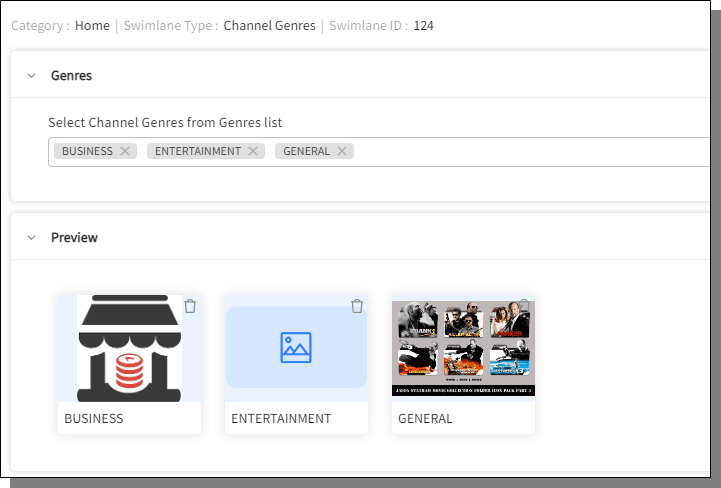
From the Select Channel Genres from the Genres List drop-down, choose the channel genres.
The selected genres appear in the Preview section.
Click Next, Display Rules screen is displayed, refer to Display Rules for more details.
In the Setup screen, select Linear TV > Mixed Channels as the swimlane type and click Next after filling the data in the other fields.
Content Rules screen is displayed.
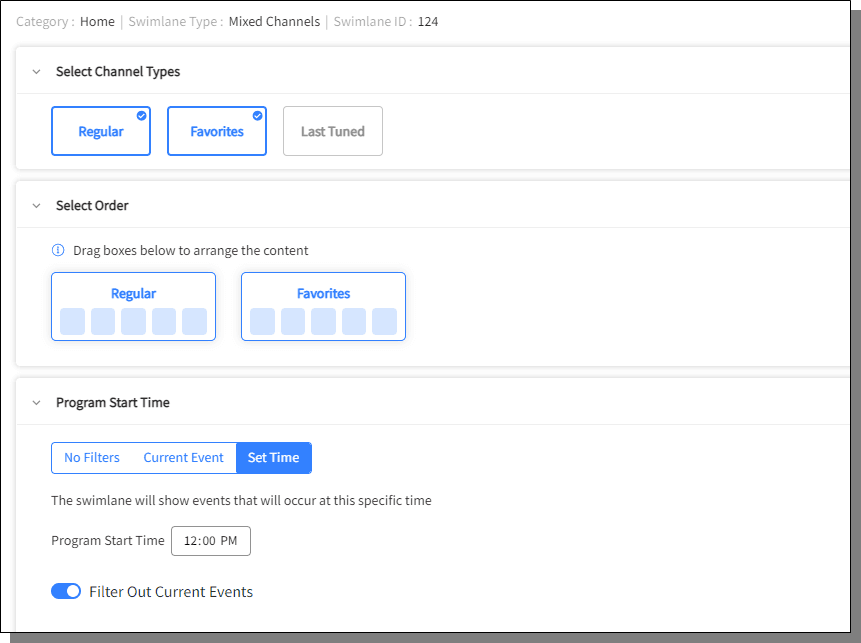
Select Channel Types, select the order of the content using drag and drop.
Select program start time:
No filters
Current Event: Events of current time
Set Time: Enter the start time of the events
Use the toggle button to filter out the current events.
Click Next. Display Rules screen is displayed, refer to Display Rules for more details.
In the Setup screen, select Linear TV > Linear TV Events as the swimlane type and click Next after filling the data in the other fields.
Content Rules screen is displayed.
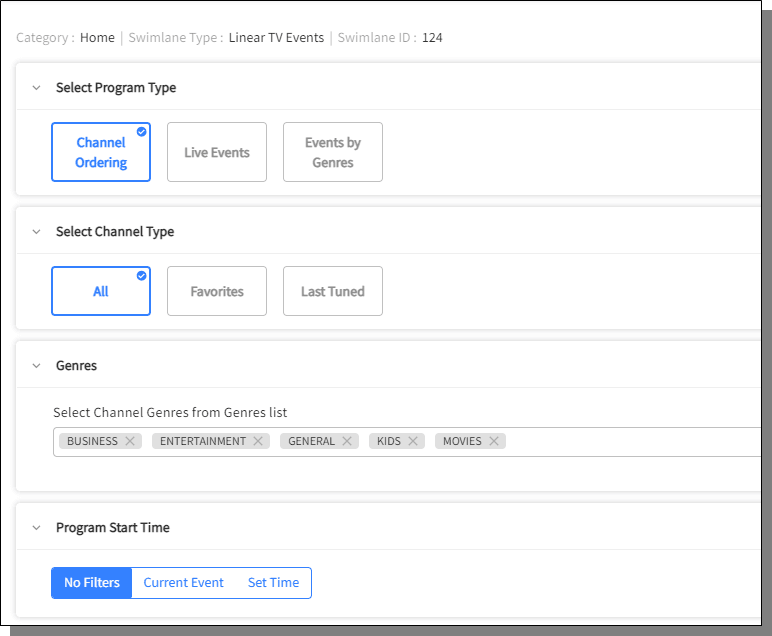
Select the Program Type, the rest of the fields are displayed based on the Program Type chosen.
Channel Ordering : Channel Type, Genres and Program Start Time
Live Events: Genres
Event by Genres: Genres
Click Next. Display Rules screen is displayed, refer to Display Rules for more details.

