


Experience Manager enables adding a new Portal under a chosen Catalog.
To add a new Portal, do the following:
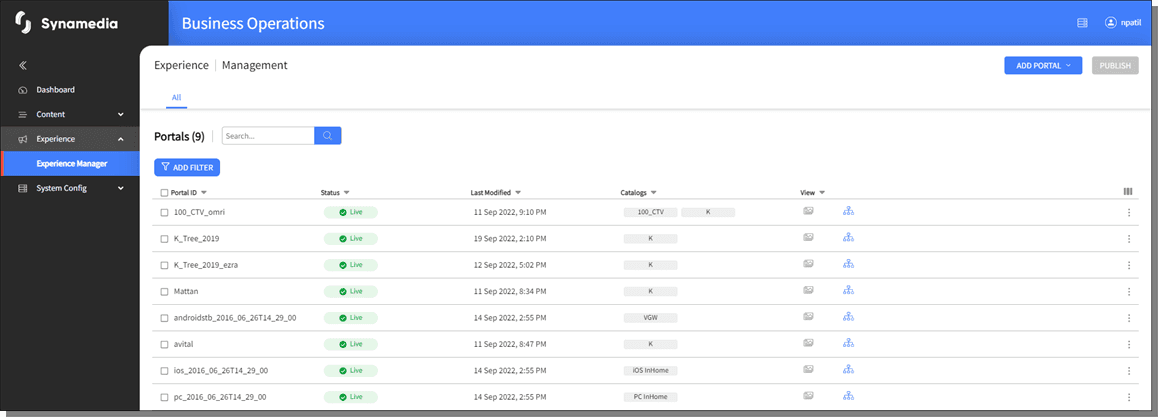
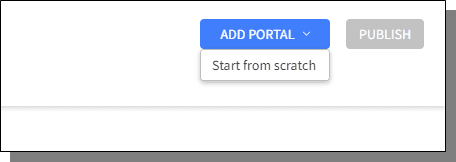
On the Landing page of Experience Manager, click on Add Portal and select Start form Scratch.
Add Portal pop-up is displayed. Enter the Portal Id, choose the the has to be added to and click .
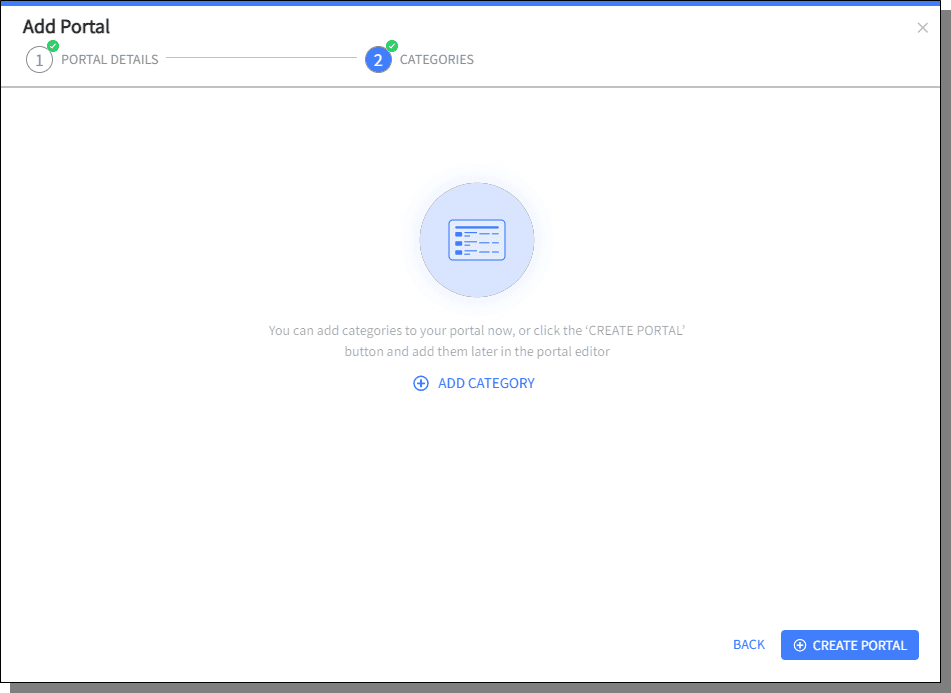
Click on Add Category to add categories (Top Menu) to the Portal being created and click on Create Portal to complete creating Portal.
The Categories can be added later. Refer to Adding a Category to add a Category.
The newly added Portal is listed in the Experience Manager landing page.
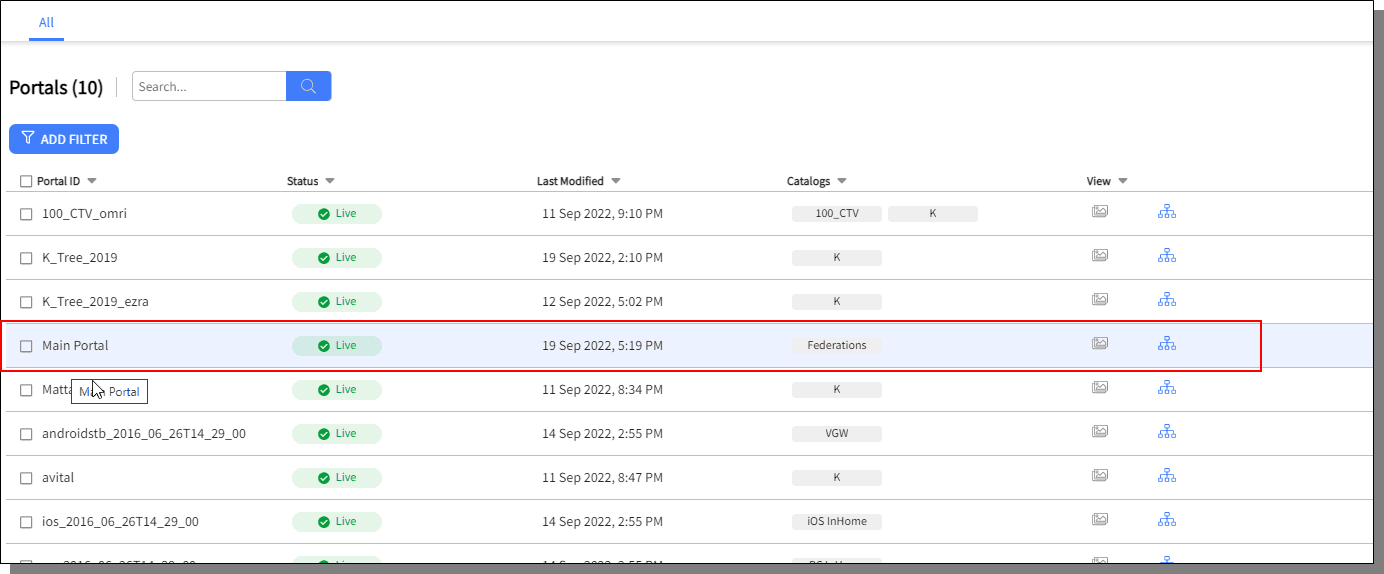
Click on one of the views and add categories to the Portal.
To edit a Portal, do the following:
Click on the displayed in the same row as the Portal that is being edited and choose Edit Portal.


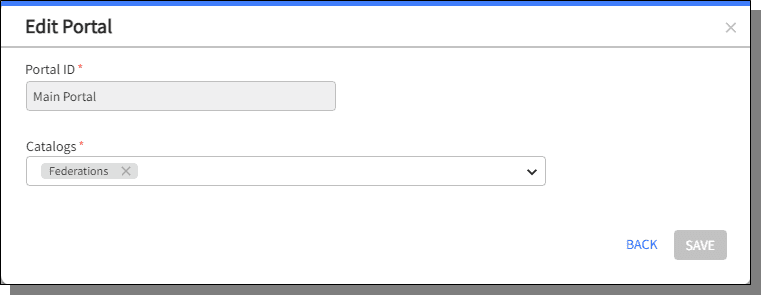
The Edit Portal pop-up is displayed, edit the details and click Save.
A specific portal or Multiple Portals can be deleted at a time.
To delete a specific Portal, click on displayed in the same row as the Portal that is being deleted and choose Delete Portal.
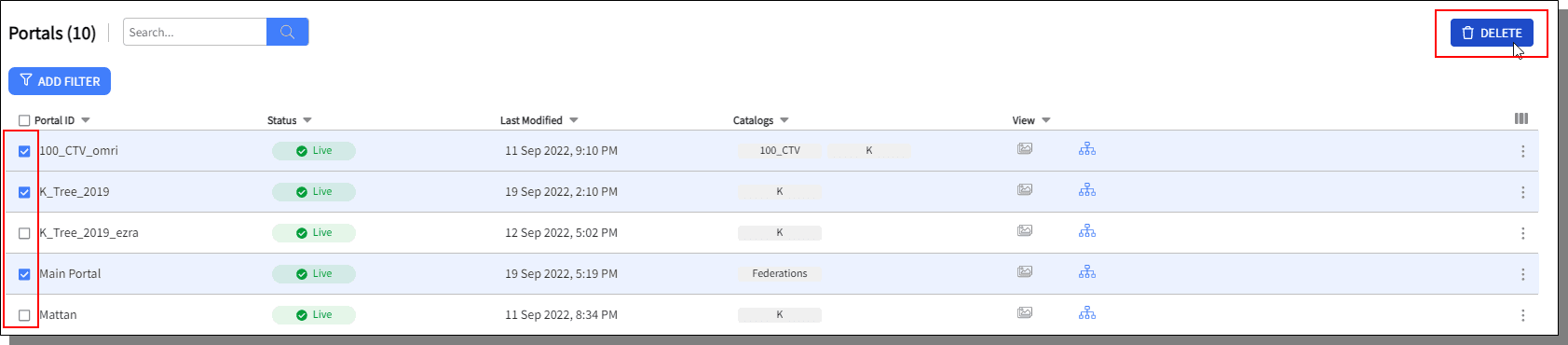
To delete multiple Portals, select the checkboxes of the Portals to be deleted and click on the delete button.
To resize columns, re-order columns, or to choose specific columns to display, refer to Customizing Columns List

