


A Because you watched swimlane normally shows one fixed display name to every viewer. Engaging titles let you add alternate titles to the swimlane, and the TV app selects the title that matches the content the recommendation is based on. You add them in Experience Manager, in the Additional Titles field on the Setup step of the swimlane wizard.
You need edit access to the experience tree. If the swimlane opens in view-only mode, the
Additional Titles
field is disabled.
Additional titles are available only for the Recommendation swimlane types
Because you watched the content
and
Because you watched the genre
.
The field must be enabled for your tenant. If
Additional Titles (optional)
does not appear on the Setup step for these swimlane types, it is not enabled in your environment.
Open the experience tree in the graphical view.
Select
Add New
, then
New Swimlane
.
Select the tab where the swimlane should appear and confirm. The
Add New Swimlane
wizard opens on the
Setup
step.
Open
Swimlane type
and select
Recommendation
, then
Because you watched the content
or
Because you watched the genre
.
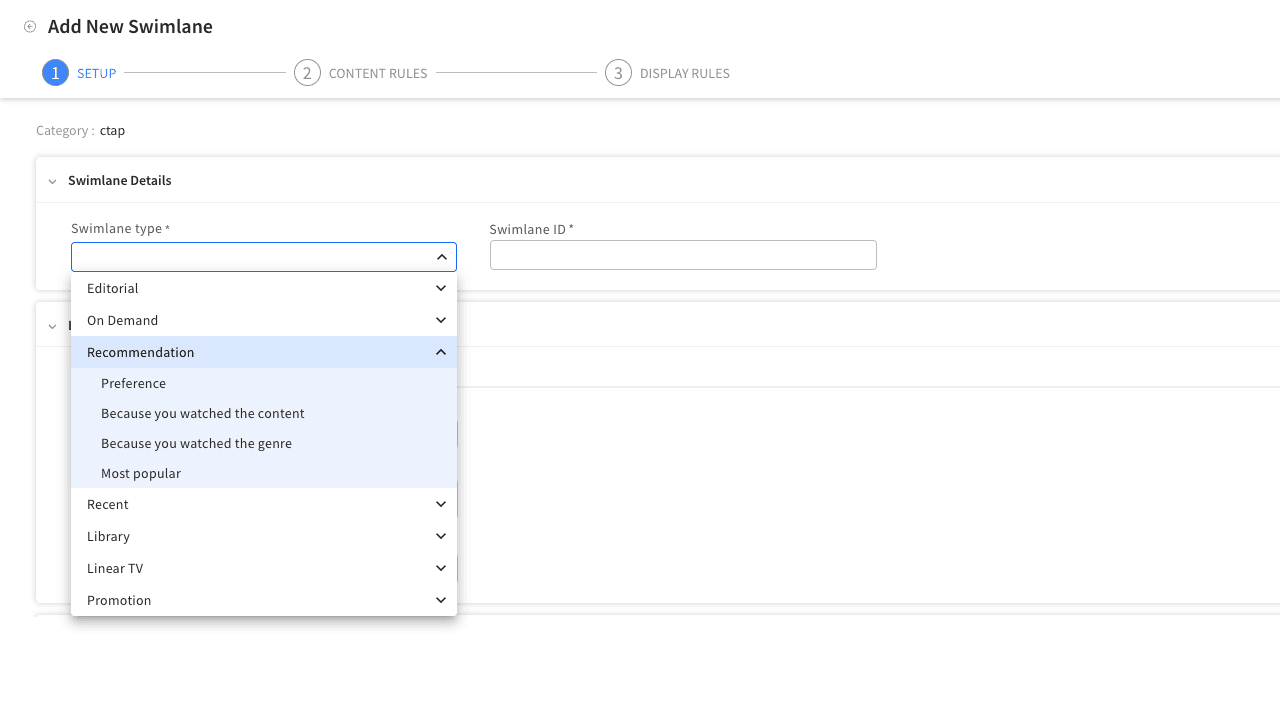
Enter a
Swimlane ID
.
Under
Language Specific Details
, enter the
Display name
. This is the title viewers see when no additional title is used.
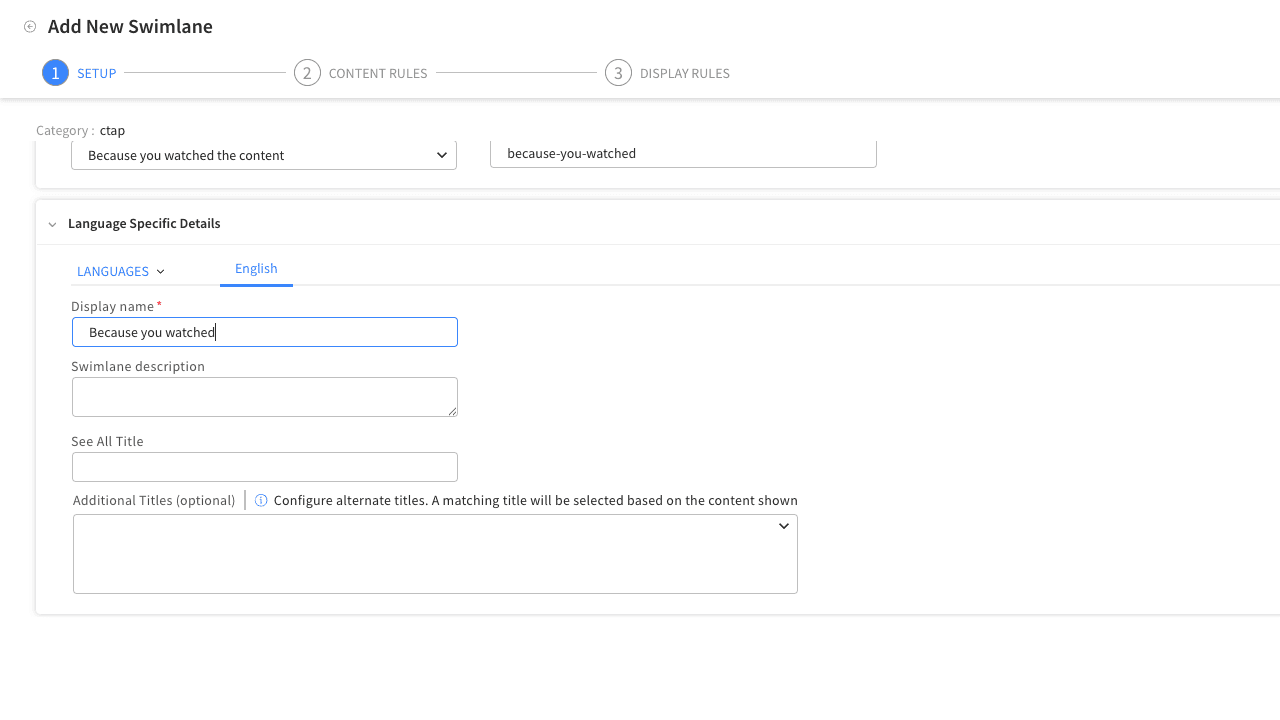
Select the
Additional Titles (optional)
field. A text box opens, together with any titles already used in this tree for the same swimlane type, which you can reselect.
Type a title of up to 100 characters. A character counter shows the remaining length.
Press Enter, or select
Add
<your title>
as additional title
. The title is added as a chip in the field.
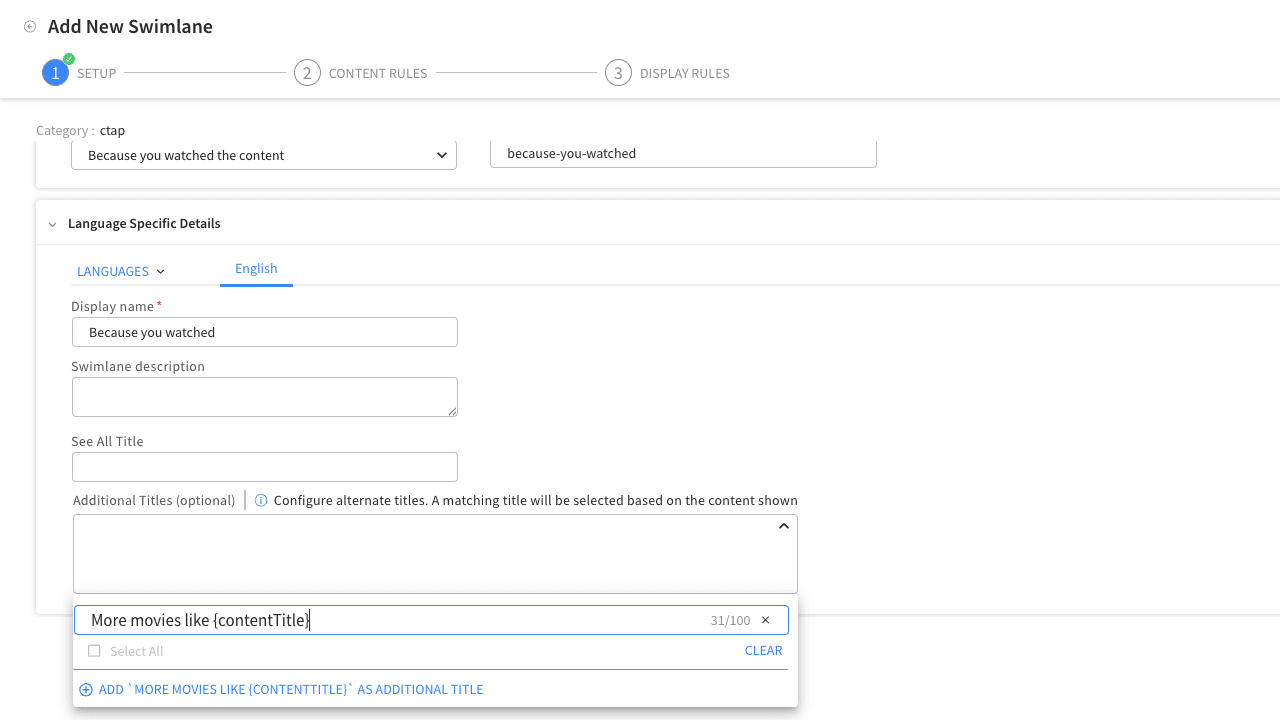
Repeat for each title you want to add, then click outside the field to close it. To remove a title, select the
x
on its chip.
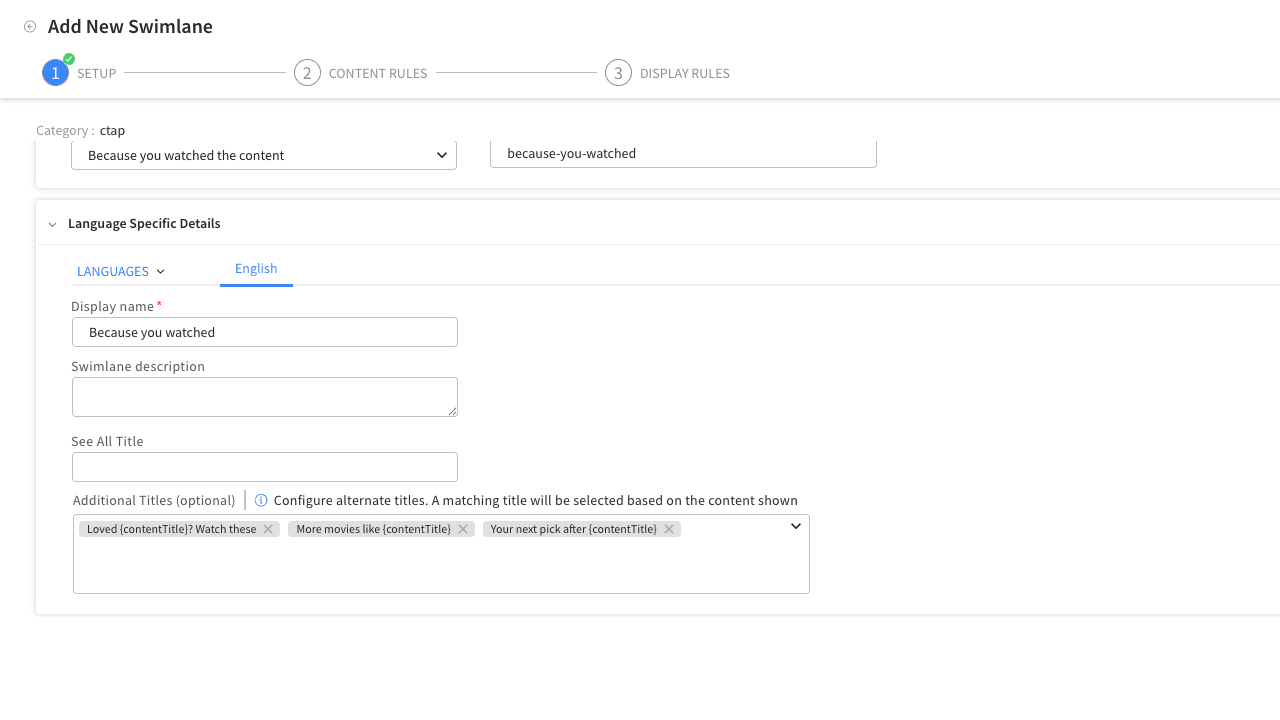
Select
Next
and complete the
Content Rules
step. Select at least one content source.
Complete the
Display Rules
step and finish the wizard.
Publish the tree.
The additional titles are stored on the swimlane for the language you entered them in. Viewers see them only after the tree is published.
Titles per language.
Additional titles belong to the language tab that is selected when you add them. To provide titles in another language, add the language from the
LANGUAGES
list, select its tab, and enter the titles again in that language.
Placeholders.
Write each title so the watched content fits into it. Use the
{contentTitle}
placeholder in a Because you watched the content swimlane, and
{genre}
in a Because you watched the genre swimlane, where the watched title or genre should appear. For example:
More movies like {contentTitle}
.
Reusing titles.
Titles already added elsewhere in the tree for the same swimlane type and language appear as a checklist when you open the field. Select them instead of retyping, or use
Select All
and
Clear
.
Saving the wizard stores the titles on the swimlane. Nothing changes for viewers until you publish the tree.
After publish, the TV app selects the additional title that matches the content the recommendation was built from and shows it as the swimlane title. When no additional title matches, the swimlane shows its
Display name
.
Each title can be up to 100 characters.
The field appears only for the two Because you watched swimlane types, and only when it is enabled for your tenant.
Additional titles are optional. A swimlane without them always shows its display name.

