


After adding a new swimlane or editing an existing swimlane, the additions or the changes have to be published to reflect at the users end.
To publish, do the following:
After successfully adding or editing a swimlane, the Publish button displays the number of changes to be published.
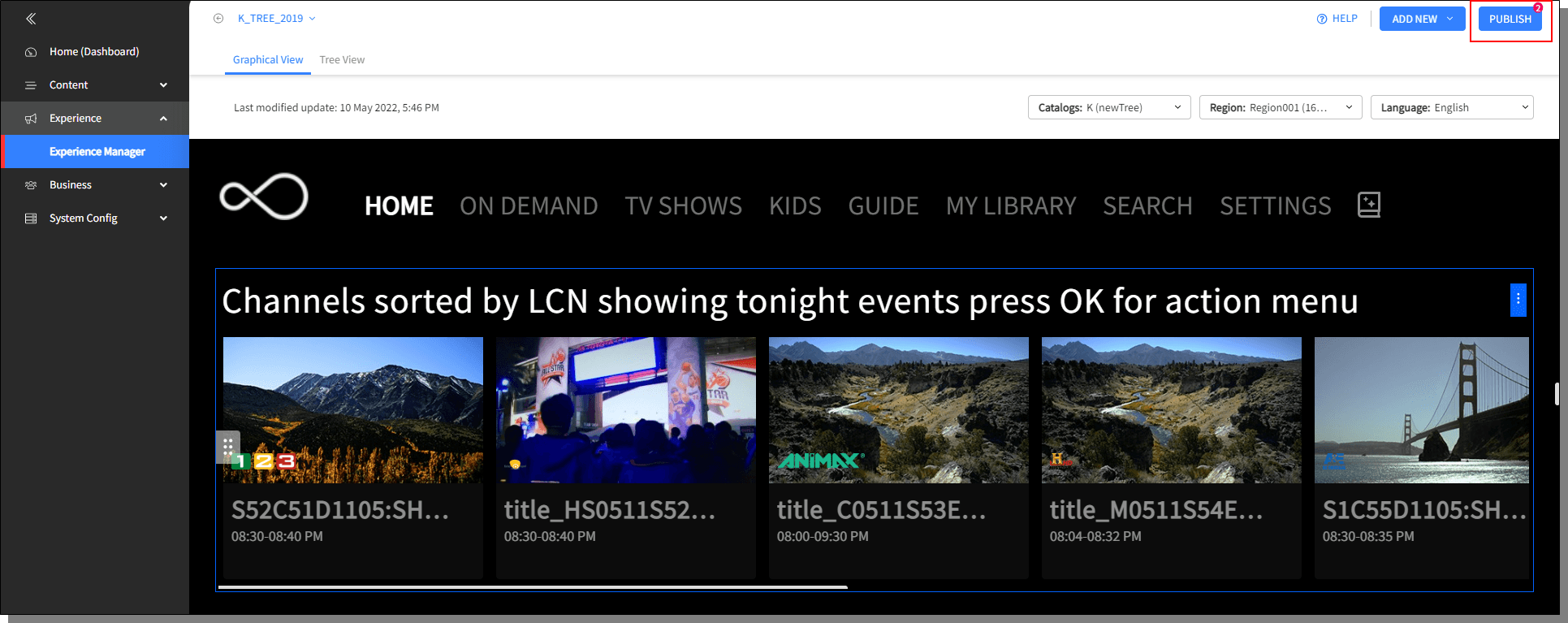
Click on the Publish button to continue to publish new swimlanes or the edited swimlanes. Continue Editing button dismisses the Publish popup.
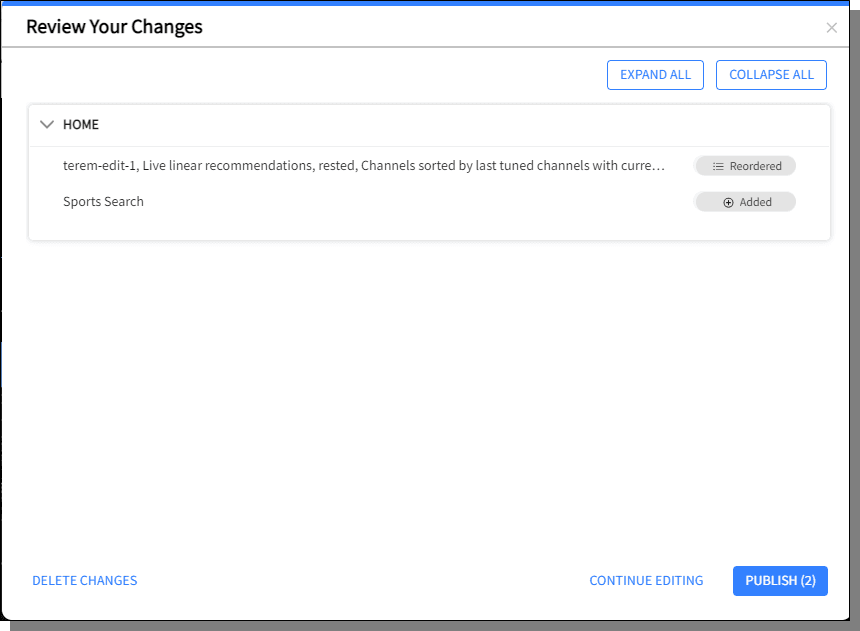
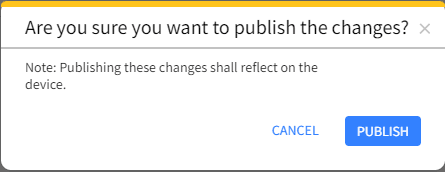
A confirmation pop-up is displayed, click to complete publishing or to dismiss publishing.
When multiple users are working on a specific portal, following notifications are displayed:
Information Notification on publishing the Swimlane: the userid of the user and the name of the portal published is displayed in the notification. Press refresh to view the updated portal.
Error Notification: is displayed when the user tries to publish the outdated Portal. Usually happens when the user misses the notification mentioned in Point 1 and continues to edit the outdated Portal.

