


To view the Swimlanes in tree view and to work with the swimlanes, do the following:
Click on the Tree View tab.
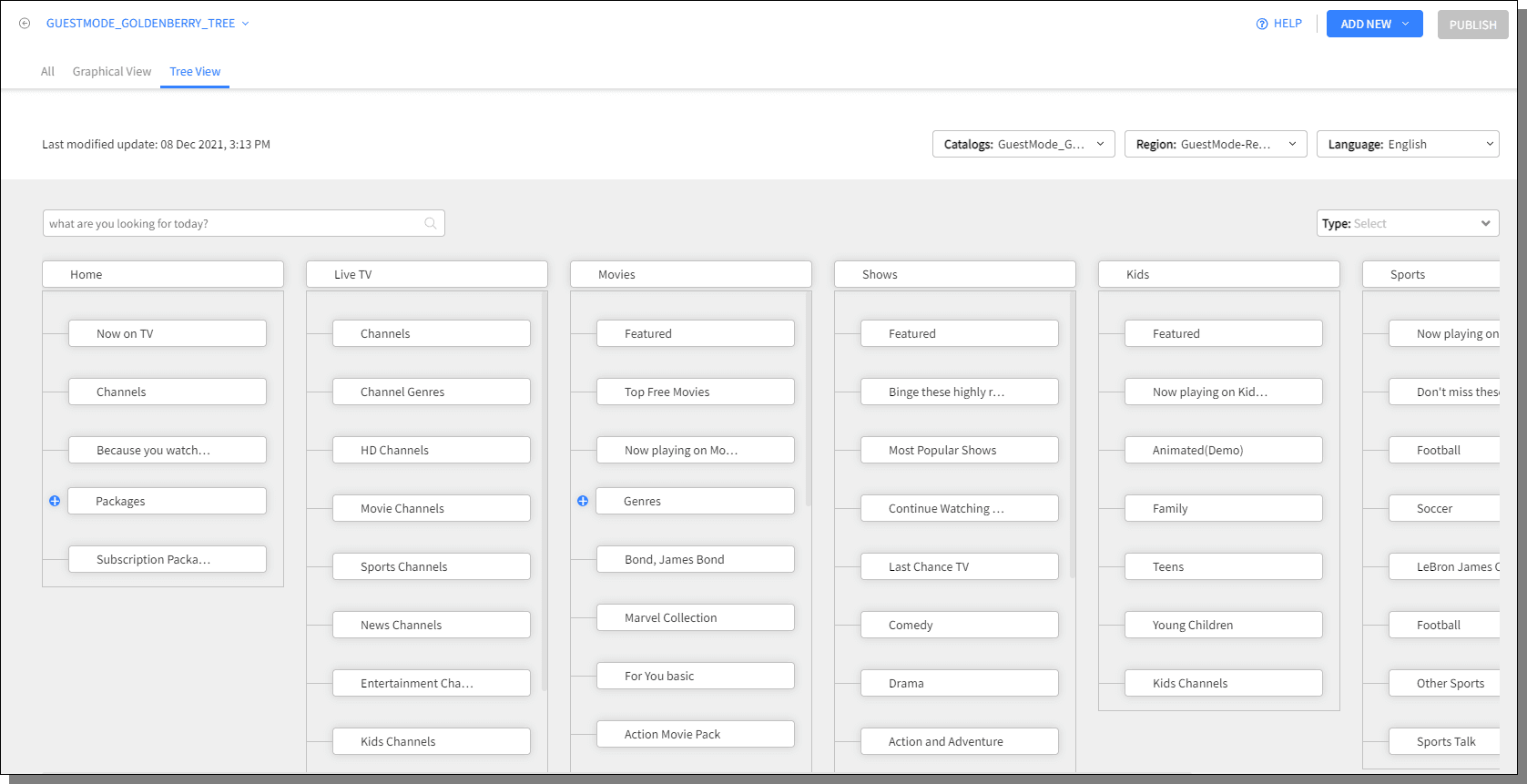
By default the Tree View of the first Catalog of the first Portal in the list is displayed.
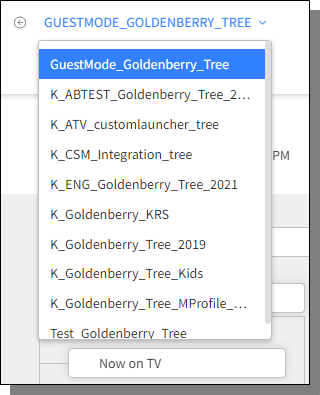
To select a different Portal, click on the drop-down of the Portal names displayed at the left top corner.
Select the Catalog, Region and the Language from the drop-downs provided.

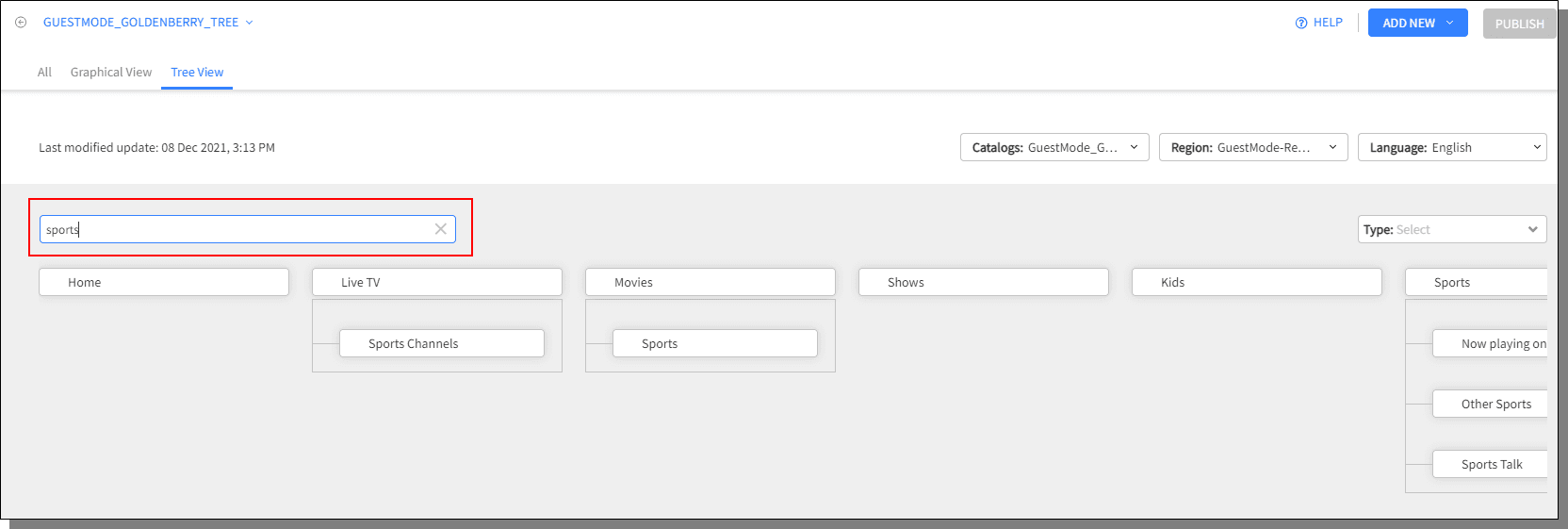
The Keyword search field helps to search any swimlane in the selected Catalog based on the keyword entered.
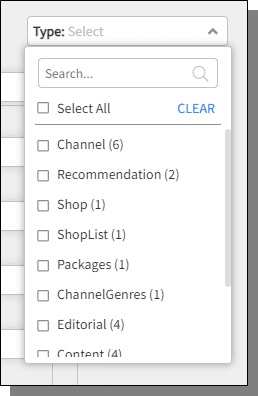
The Tree View can be filtered by using the Type drop-down.
On mouse-hover on the swimlane, is displayed, click on to view various actions that can be taken on a swimlane.

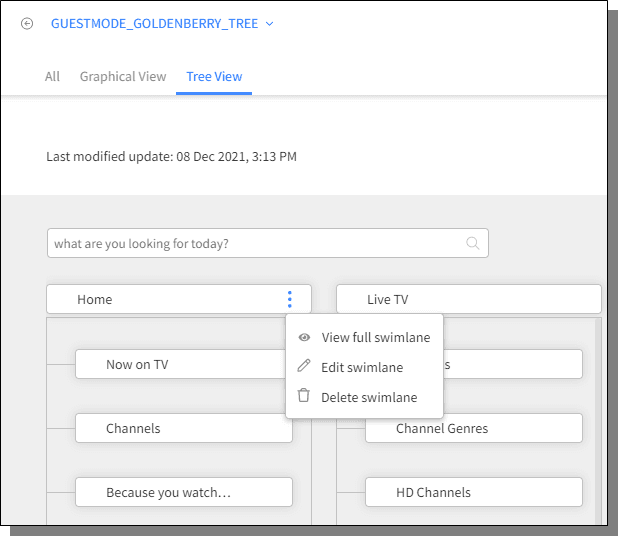
Initiate to View, Edit or Delete the selected swimlane through the pop-up displayed.
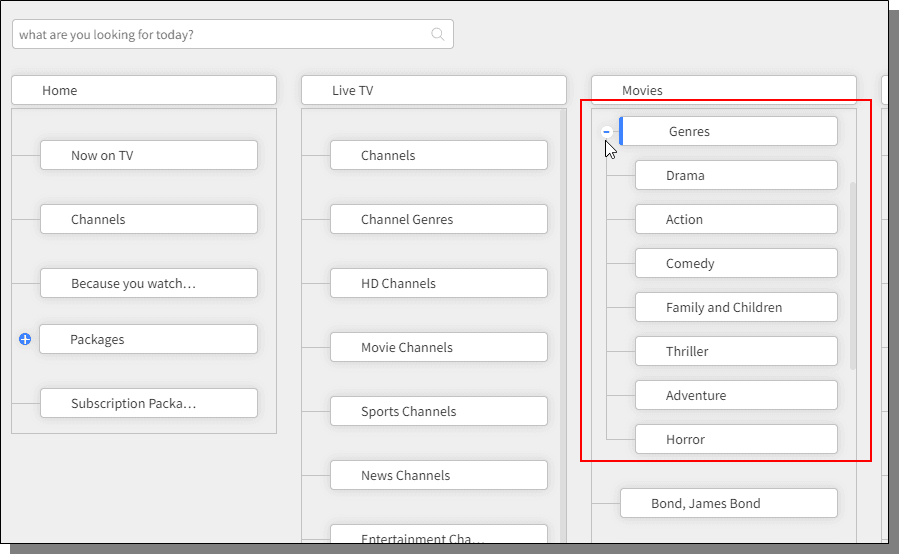
Click on the + displayed beside a Nested Swimlane to view the swimlanes under the Nested Swimlane.
To initiate adding a new Swimlane, do the following:
Click on the button on the right top corner of screen and select New Swimlane.

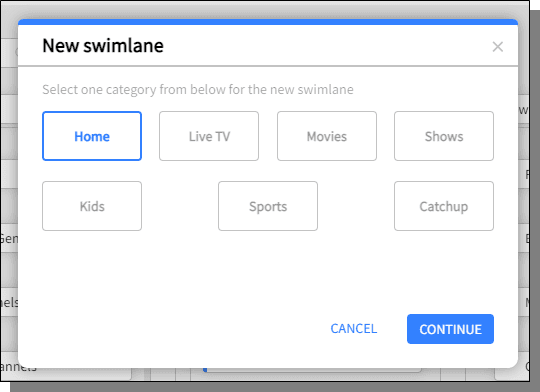
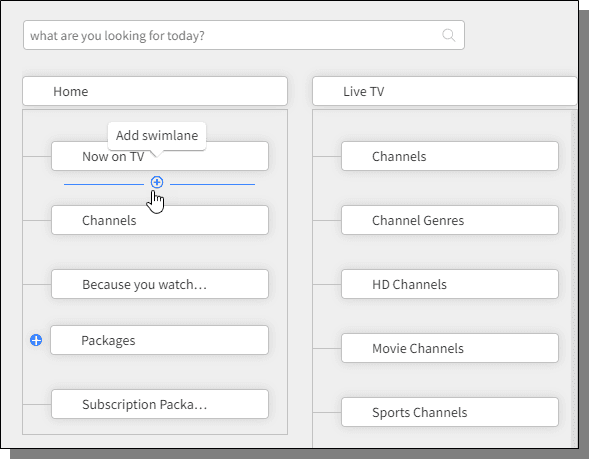
For details about how to add a swimlane, refer to Adding a Swimlane
Swimlanes can be configured under many different menus instead of all being presented on a single page. The Configured menus can be seen in the rectangle marked.
Experience Manager offers three main types of swimlanes:
Content aggregated based on user behavior. For example, Tonight linear recommendations, Last tuned Channels, Most Recent, and so on
Content aggregated based on rules that are expressed in the data tree. For example, Movies, Series, Kids, and Seasonal. These rules can be quite complex, for example, Children’s Christmas Musicals.
Content added as individual assets to an “editorial” swimlane. For example, Upcoming Specials

