


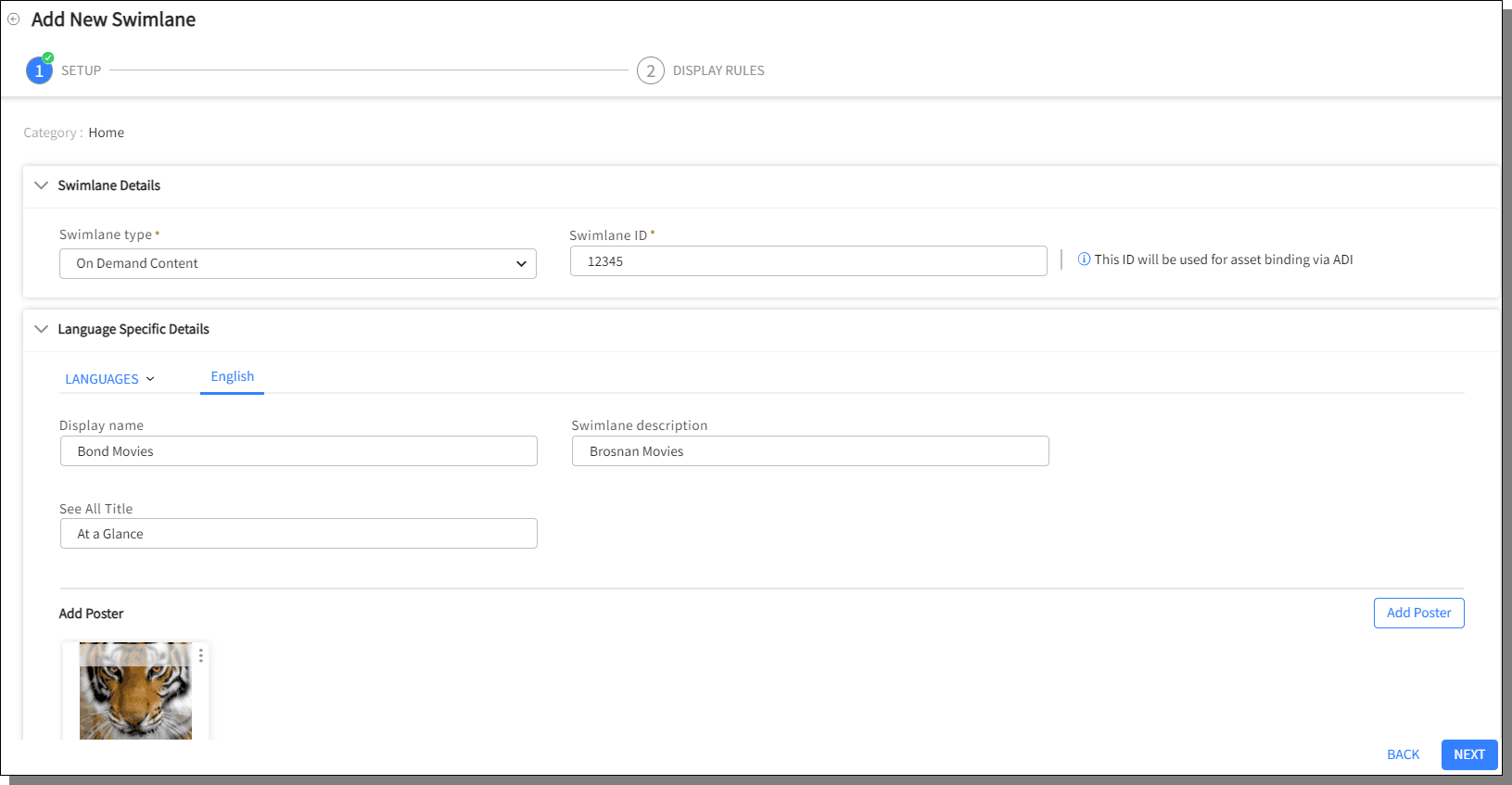
All the fields marked with * are mandatory and you cannot navigate to the next page without filling the details in the mandatory fields.
The first section in creation of the swimlane is to add Swimlane Details in Setup.
Swimlane Type: Choose a type of swimlane from the drop-down list. To learn more about Swimlane Types, see the topic, Swimlane Types
Swimlane ID: Enter a unique ID.
The displays the supported languages, add the details.
Display name: enter a meaningful name
Swimlane description: Describe the swimlane content in 100 characters or less
See All Title: Configure the title of the See All button that is displayed in the application
Add Poster allows to add a poster as a Background or as a Poster to the Swimlane being created.
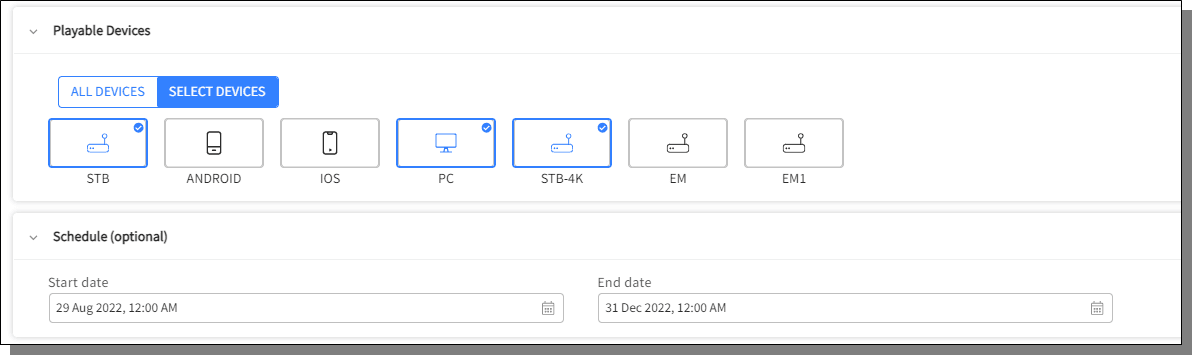
Under Playable Devices, either select All Devices or click Select Devices and choose the devices on which the swimlane is displayed.
An icon is displayed beside the swimlane title in the Graphical View to represent that the swimlane has few selected playable devices.

Schedule defines the validity of the Swimlane. Enter the Start date and the End date.


Turn on the Enable Swimlane Offers toggle button to bind offers to the swimlane that is being created.
Select the Offers from the list, either by selecting the check-box or by searching the offer using the keyword search field.
Click Next button after entering all the details.
Swimlane ID and Swimlane Type cannot be edited once the swimlane creation is completed; However, the other details can be edited by accessing the Edit Swimlane option.

