



The Household Troubleshooting is the operator-facing workspace used by support representatives at telecom and media operators to investigate and resolve customer issues on the Synamedia GO streaming service. This documentation covers the CSR (Customer Service Representative) experience in Operational console for household troubleshooting, diagnostics, and approved support actions.
CSR Standard Viewer
CSR Operator Admin
The CSR Portal is a customer support workspace designed for household troubleshooting and subscriber issue investigation. It gives CSR teams a single place to:
Search for a household or device
Review household details and diagnostics
Investigate recent issues and event history
Validate subscriptions, entitlements, and features
Perform approved corrective actions
Maintain an audit trail for all support activity
Customer Service Representatives
Support supervisors
Operations support teams
Administrative users with CSR permissions
Concept | Description |
Household | A subscriber account and its related devices and services |
External ID | Preferred support identifier for household lookups |
Household ID | Direct household reference |
Device ID | Device-based lookup used for troubleshooting |
Ticket Reference | Support case number used to correlate actions and audit entries |
CSR Role | Controls which screens and corrective actions are available |
Audit Log | Recorded history of household access and support actions |
The CSR Portal uses Synamedia Single Sign-On (SSO). Your role is determined by claims from your identity provider — you do not choose a role at sign-in.
Navigate to the OpsHub portal URL provided by your operator administrator.
Sign in using your SSO credentials.
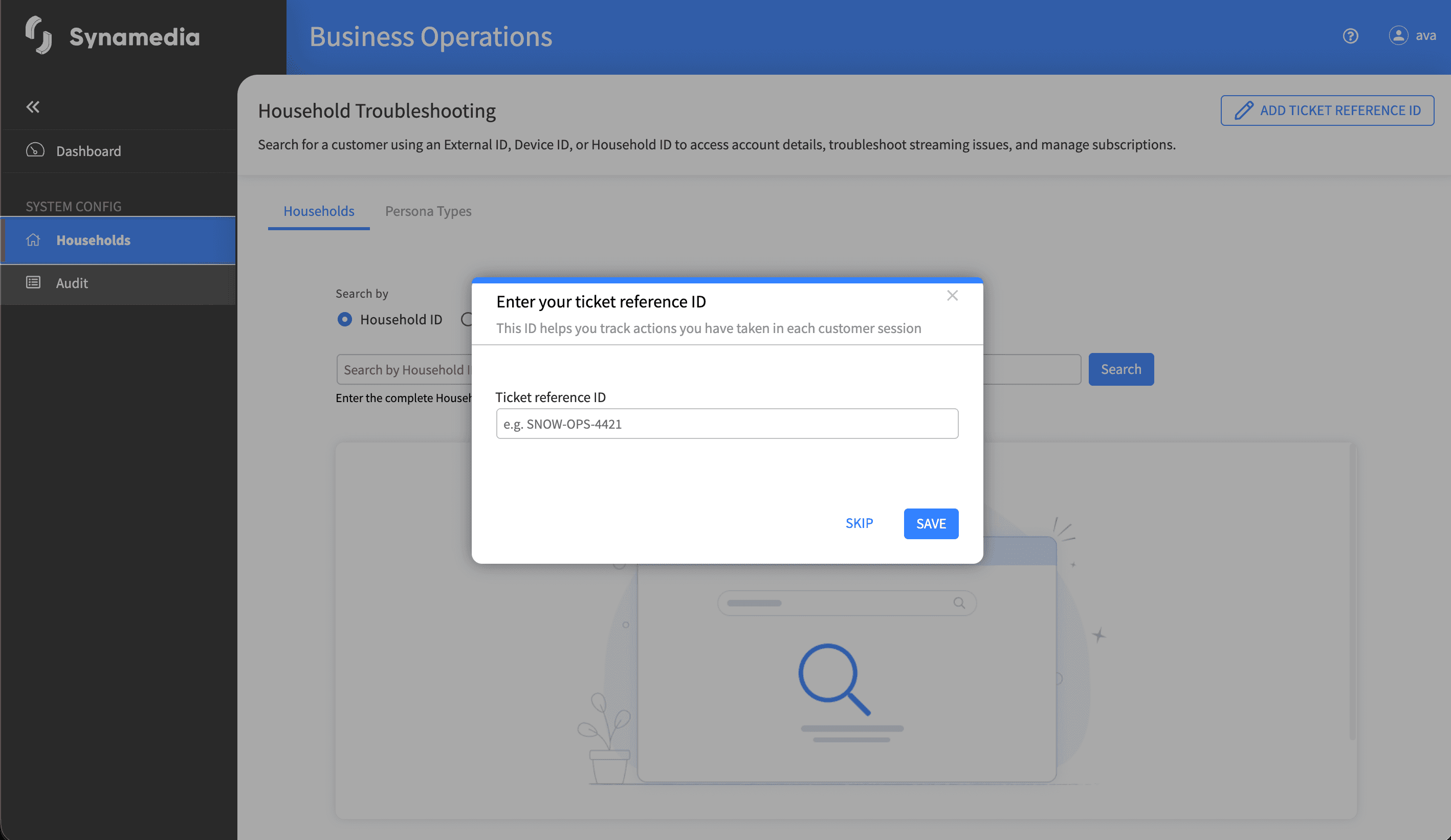
If prompted, enter a ticket reference. or Select the ticket reference action from the header area.
Continue to the search page.
Ticket references support internal traceability. The value is saved in the session and linked to subsequent support actions and audit entries. The ticket reference is optional but recommended. It is used to associate your investigation with a specific support case and is carried forward into audit records.
Examples: ServiceNow ticket ID, Zendesk case ID, Internal incident ID
Ticket references are recorded against household access and approved operations.
The value should be consistent with the customer support case used by your team.
Ticket references are displayed only for CSR-authenticated users in supported UI states.
The CSR Portal uses a five-tab layout inside a selected household record:
Tab | What it covers |
Overview | A triage dashboard showing everything needed to resolve most calls without navigating deeper. |
Devices | All registered devices for the household, with per-device detail on selection. |
Subscriptions | Active authorizations, TVOD purchases, and enablers. |
Diagnostics | Failures, DRM events, and other technical issues affecting the household. |
Event history | Chronological record of all events on the household — logins, playback, subscription changes, CSR actions. |
Different CSR roles show different actions. If an action is not available to your role, the control remains visible but appears disabled. Hovering the control shows a tooltip explaining which role is required. This is deliberate so you can understand what is available at higher roles and know when to escalate to a supervisor.
ReadOnly users see investigation screens only
Standard users see investigation tools plus approved support actions
Admin users see additional administrative controls and audit access
Buttons are enabled only when the user has the relevant permission
Households and device actions are gated by permission scope
Ticket-related workflows are shown only for CSR role holders
The search page is the starting point for all CSR workflows. Use it to locate the household that matches the customer issue.
Search type | What to enter | Result |
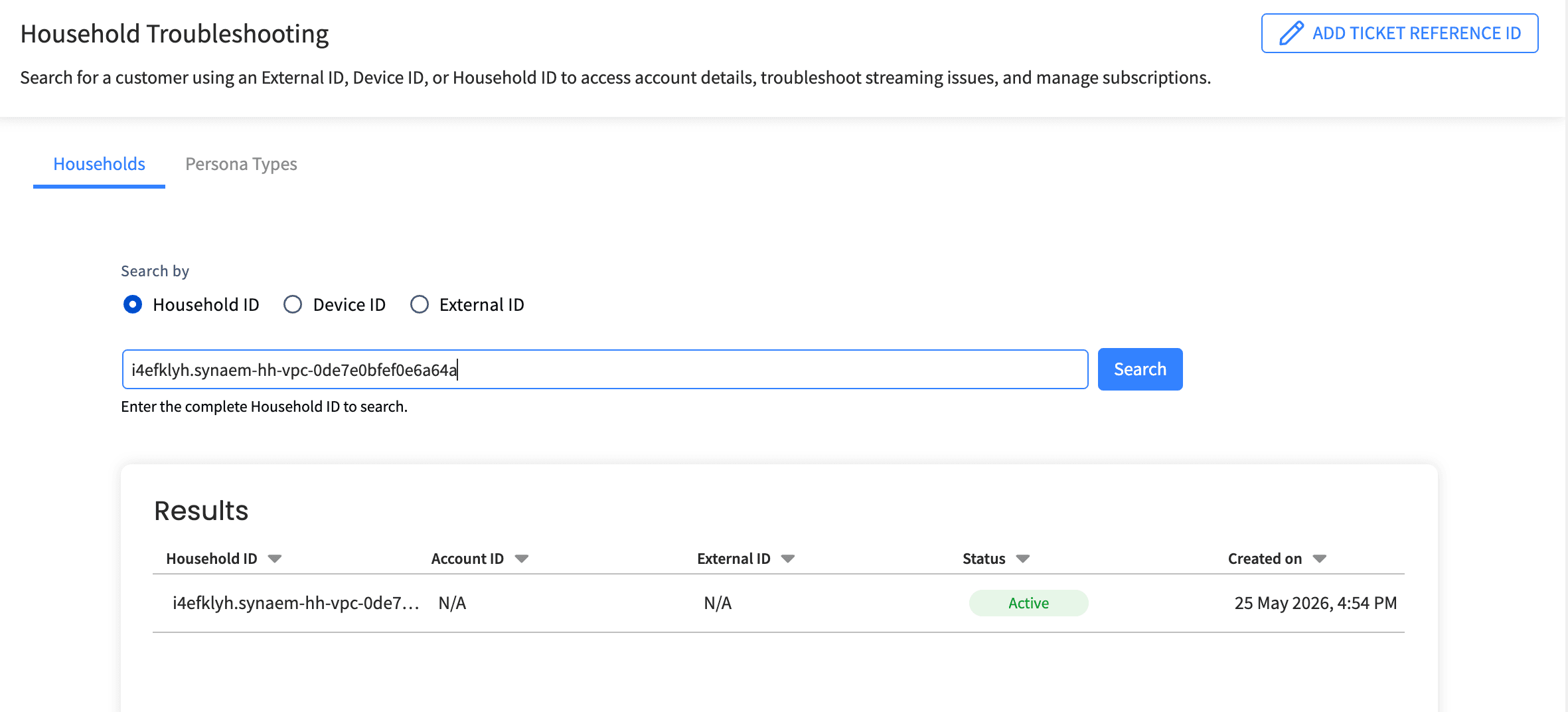
Household ID | The internal identifier (e.g. hh_8472) | One matching household |
External ID | The obfuscated customer identifier (e.g. cust_98231) | One matching household |
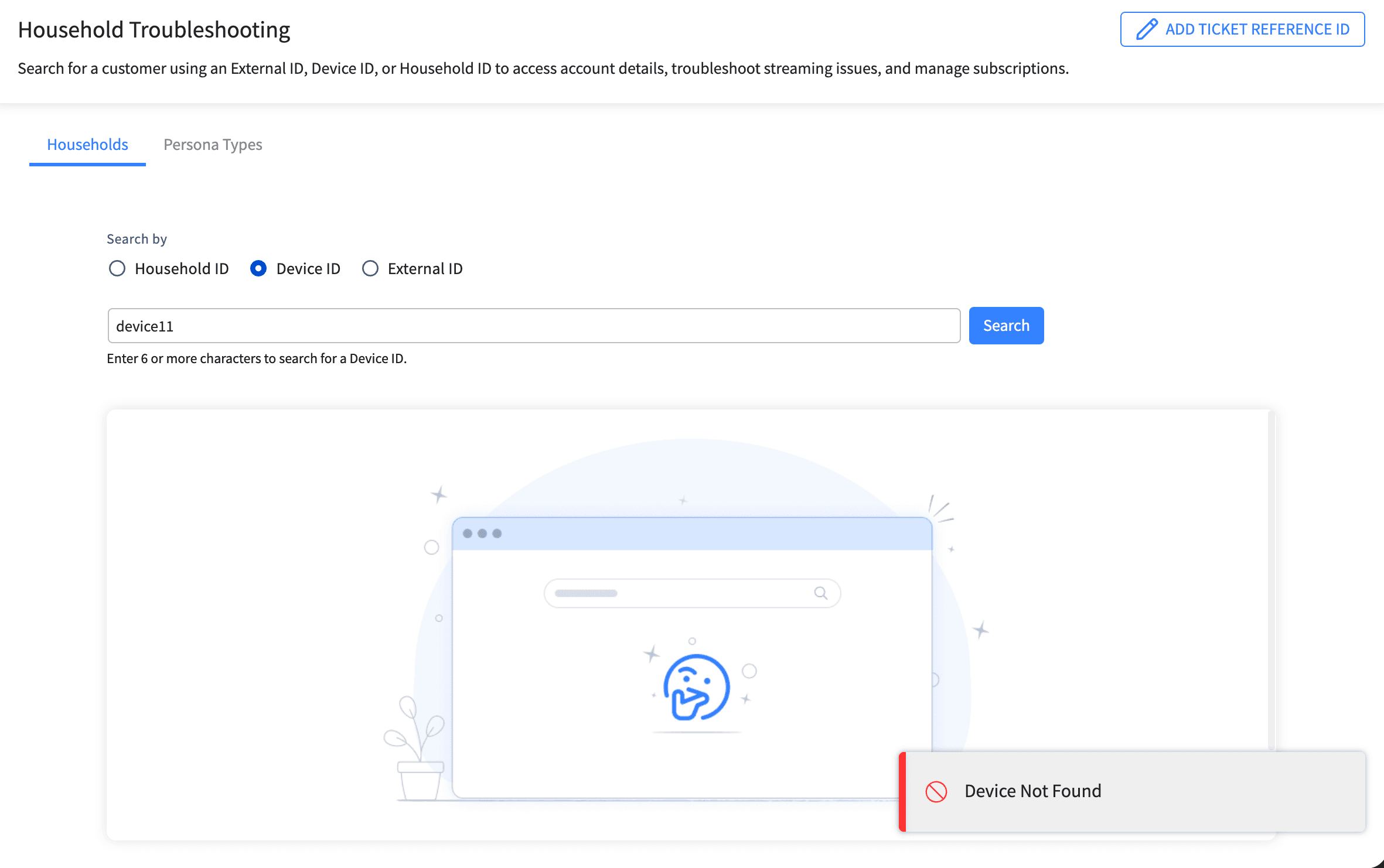
Device ID | Minimum 6 characters — a prefix or suffix of the device ID | Up to 5 matching devices, showing the household each belongs to |
Open the CSR search page.
Select the search type.
Enter the value.
Submit the search.
Review the results before continuing.
To search for a household
From the dropdown next to the search input, choose the search type.
Enter the identifier in the input. The placeholder text will match your selected type.
Click Search or press Enter. The Search button is disabled until you have entered a valid value.
For device search, add characters if you need to narrow results — the maximum returned is 5.
Click Open on any result row to open that household.
Your four most recent searches are shown below the search bar. These are local to your current session only — they are not logged and are not visible to other operators. Click Clear to remove them.
Suspended and Blocked households appear in results with their status pill — verify customer identity before opening
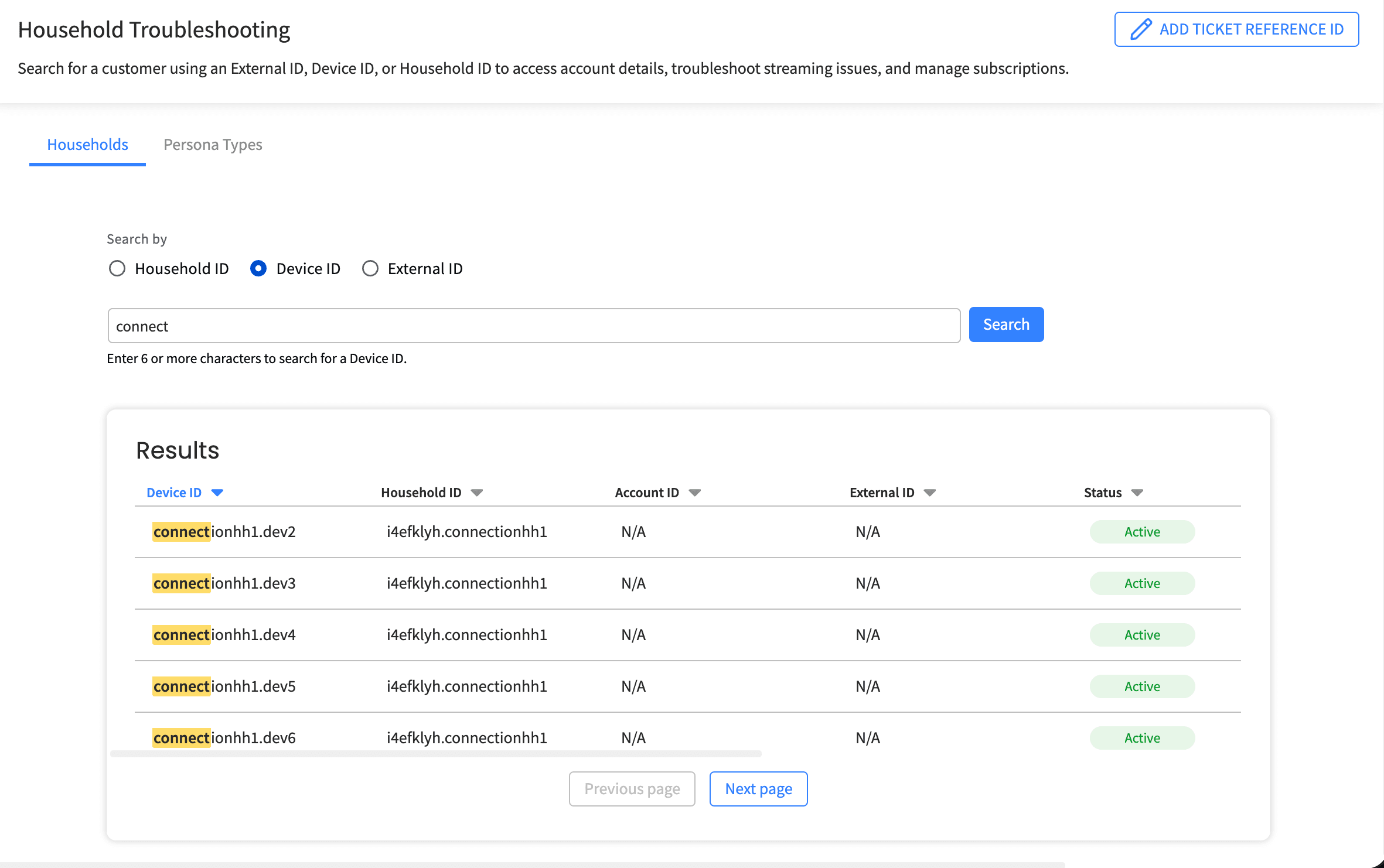
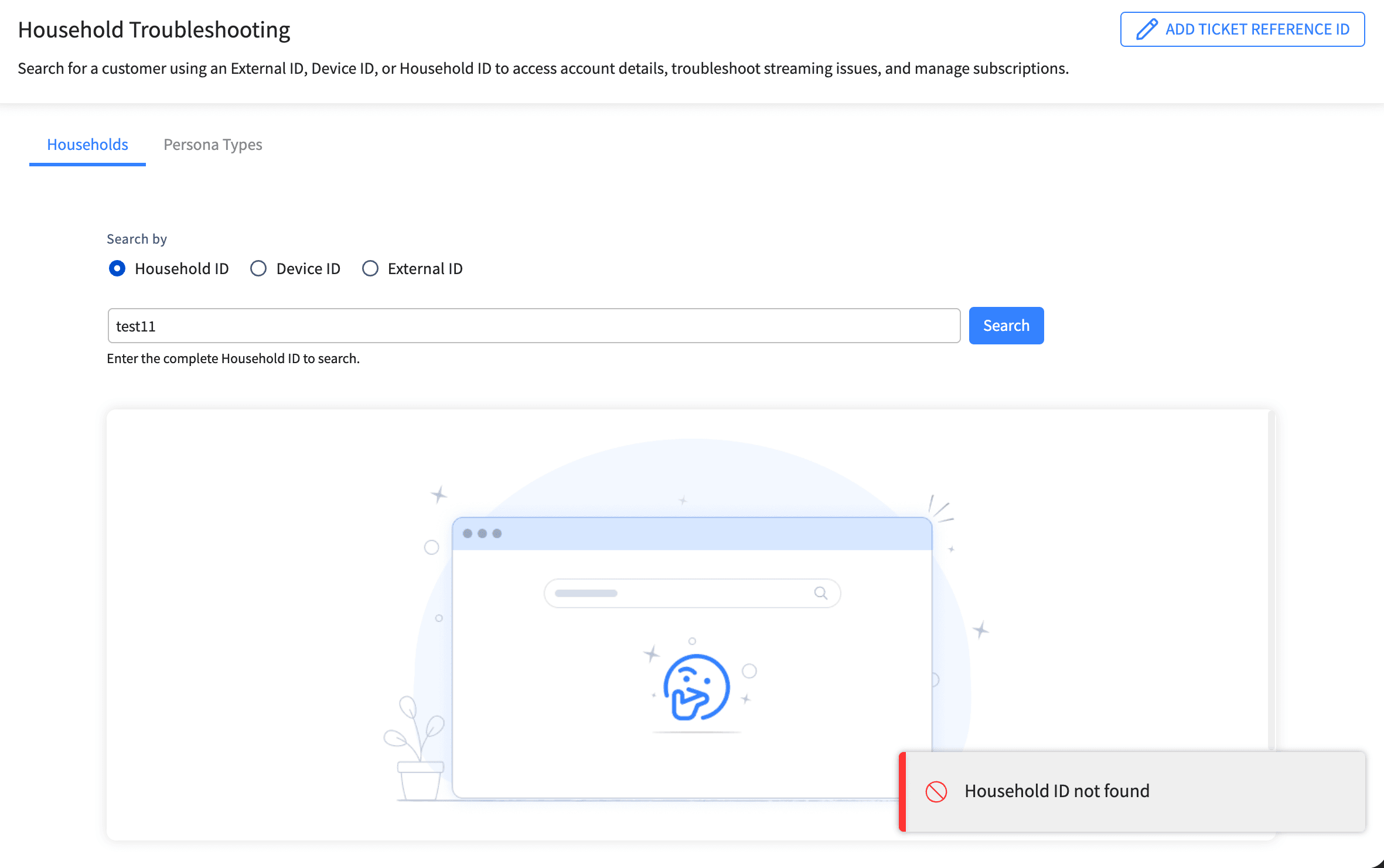
Device search supports partial matching. This helps when the full device ID is not known or if you are narrowing down a likely match.
Partial matching on device identifiers
Quick identification of likely household matches
Faster troubleshooting for device-specific issues
Use at least 6 characters when searching with a partial device ID
Confirm the highlighted match before opening the household
Validate the returned household against the customer report
Overview is the primary triage screen. It is designed so that a ReadOnly CSR can resolve most calls without leaving this tab, and Standard or Admin CSRs can navigate to deeper tabs for write actions using the View more links.
Household ID
Account ID
External ID
Status
Region
Time zone
Creation date
Ticket reference (when applicable)
Household status helps identify whether the account is active, suspended, or otherwise limited. This is useful for quickly understanding the likely customer-impacting issue.
Also
Active households can receive normal service and troubleshooting workflows
Inactive or suspended states may require additional validation
Region and timezone can influence entitlement and service access
The Recent Issues section helps CSR agents recognize the latest and most relevant household problems. It is intended to quickly point attention to a likely cause of the customer issue.
Playback failures
Service interruptions
Device access issues
Household-level configuration problems
Event History offers a timeline of household activity that helps correlate customer complaints with platform events and operational changes.
Playback-related events
DRM events
Device actions
Operational events
Customer-impacting errors, which are error events that can directly affect a customer's ability to watch content, such as playback failures, entitlement problems, license issues, or device restrictions affecting service access
It helps CSR teams confirm whether a symptom is connected to a service issue, entitlement issue, or household configuration problem.
Authorizations — active subscriptions, purchases
No of Devices against Device quota of the household
Each panel on Overview has a View more link that opens the deeper tab pre-filtered to the panel context. For example:
Devices → View more opens the Devices tab
Failures → View more opens the Diagnostics tab filtered to failures for this household
Authorizations → View more opens the Subscriptions tab
Use the overview before making a corrective action or escalating to additional review. A row of quick actions sits above the main dashboard. Two icon types distinguish behaviour:
Icon | Meaning |
Lightning bolt | Action executes immediately with no further screen — a toast confirms completion. Example: Copy household ID. |
Arrow up-right | Action opens the relevant screen or dialog for you to complete. Example: Add authorization opens the Subscriptions tab with the Add modal ready. |
Region changes are operationally sensitive and must be used only when appropriate to the customer issue and policy. These actions are tracked in the audit log.
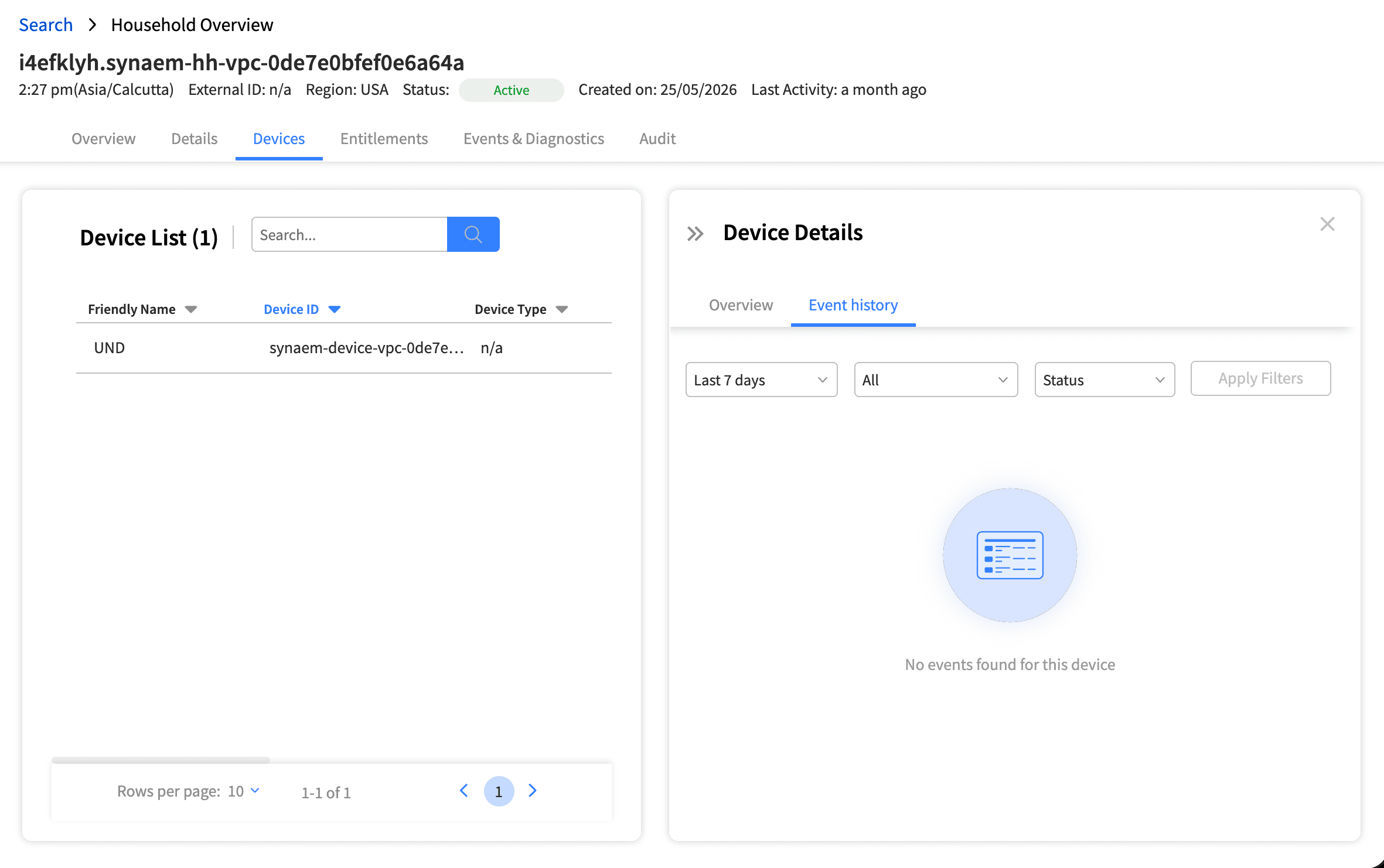
The Devices tab shows the devices associated with the household and their status details. The Devices tab uses a master-detail layout: a list of devices on the left, and the selected device's details on the right. When you enter the tab, the first device is auto-selected.
At the top of the tab, a single-row panel shows the device quota:
Number of devices currently used
The tenant default quota
The list is sorted by attention — devices with recent failures appear first, followed by devices sorted by last active time. Each row shows:
Friendly name (or italic "No friendly name" if not set)
Truncated device ID in monospace
Failure count badge (if recent failures exist) or status pill (Active, Inactive)
Model + last active time
The selected device has an info-blue left accent bar and shaded background. Click any other device row to swap the right pane content.
The right pane shows five sections for the selected device:
Section | Contents | Purpose |
Identity | Friendly name, status pills including "Streaming now" if session is active, full device ID | Confirm the device you are working on |
Failure banner (conditional) | Recent failure count and breakdown | Surface the "why" behind troubled devices |
Hardware & software | Manufacturer, model, category, OS, app version | Answer "what device is this" |
Lifecycle | Registration date, last active, last IP, DRM device ID | Answer "when was this device seen" |
Classification | Device type, full type, package type, features (collapsed by default) | Technical attributes used for content rules |
Recent activity | Chronological timeline scoped to this device | See what has happened on this device |
Two action affordances are available on each device (subject to role):
Edit friendly name — Standard or Admin CSR. Opens a small dialog to rename the device. Requires ticket reference and reason.
Delete device — Admin CSR only. Opens the destructive confirmation dialog. Requires typed confirmation ("delete") plus ticket and required reason.
Note: Deleting a device is permanent. The device is removed from the household record and from event history. The customer must re-register the device to use it again.
Friendly names do not need to be unique
Device identifiers remain unique
Use names that are meaningful to the customer support team
Examples: Living Room TV, Bedroom Fire TV, Customer iPad
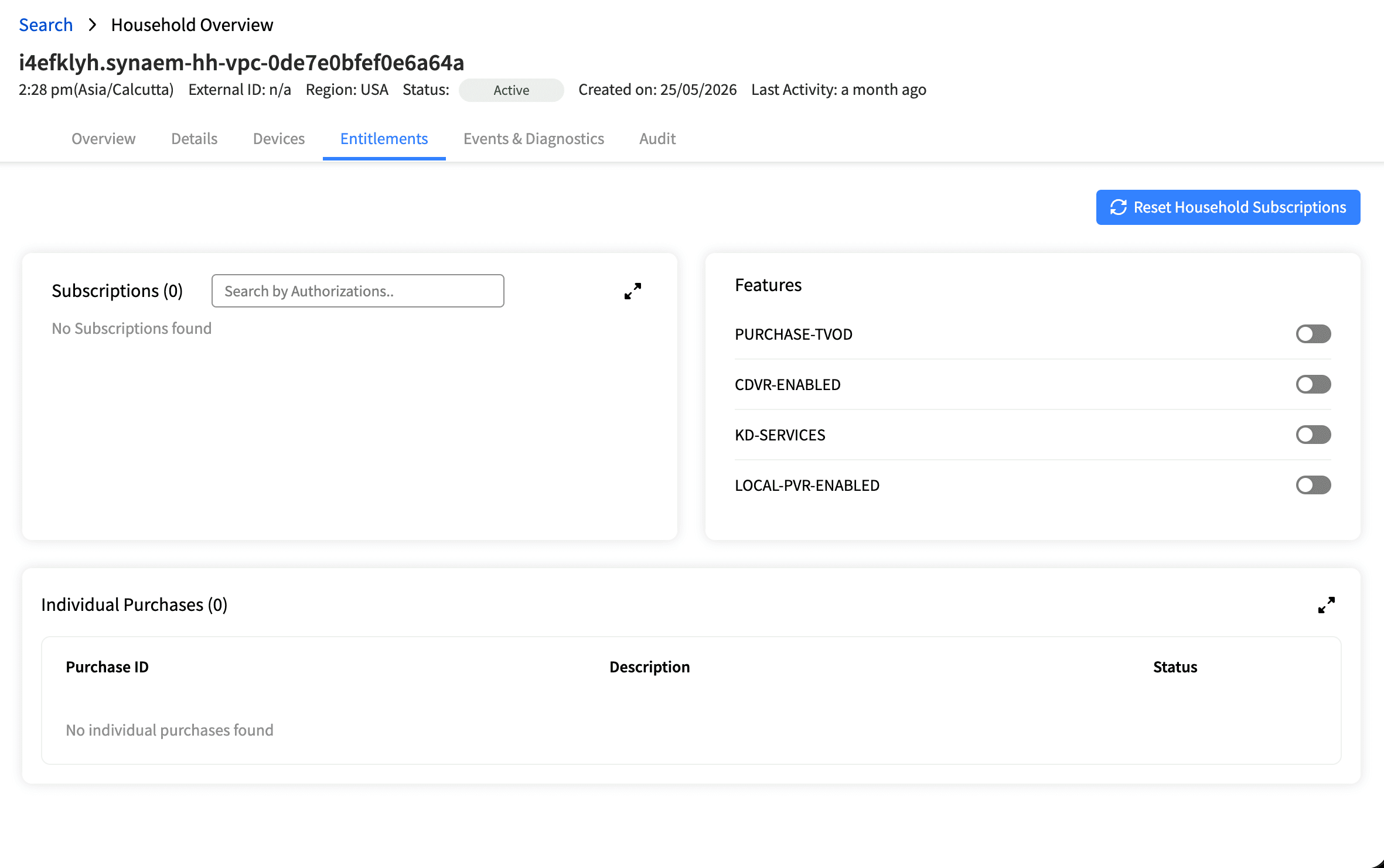
The Entitlements tab combines three categories of household entitlement: active authorizations, TVOD purchases, and active enablers. This tab provides visibility into the active subscriptions, entitlements, feature enablement, and purchase status for a household.
Authorizations are the entitlements granted to the household by package, promotion, or manual CSR grant. Authorizations control account entitlement and access. Approved CSR users may add or remove authorizations to support service restoration and correct misapplied subscription state for typical scenarios of
Missing entitlement
Incorrect entitlement assignment
Recovery of access following a temporary configuration issue
Authorization name and system ID
Source: Package (part of a paid subscription), Promotion (marketing grant), or Manual (CSR-added)
Valid period with expiring warning if within 7 days
Status pill: Active, Expiring, or Manual (ongoing)
The Purchases section is view-only in this release. It shows TVOD (transactional video on demand) purchases the customer has made — rentals and electronic sell-through (EST) purchases.
Each row shows title, purchase type, purchase date, and current status (In window, Owned, Watched, Expired). The View all link opens the full purchase history if the household has more entries than shown inline.
Note: CSRs cannot add, refund, or remove purchases from this screen. Refund and purchase disputes are handled through the billing system. Route these queries to the appropriate escalation path per your operator's policy.
Enablers are feature flags applied to a household — such as 4K playback, offline downloads, or beta player access. The service enablement settings can affect access to content or services. CSR users with the correct permissions may add or remove them as part of troubleshooting.
They are different from authorizations: they do not grant access to specific content but enable specific product capabilities. Use enabler management to restore expected service behavior when a missing or incorrect configuration is preventing the customer from accessing content.
The Diagnostics tab shows failures, DRM events, and other technical issues affecting the household. It uses a unified filter bar with three filters that can be combined.
Filter | Selection type | Default |
Type | Multi-select — pick one or more event types | All failure types |
Device | Single-select — one device or all devices | All devices (unless arrived from a device context) |
Time window | Single-select — 24h, 7 days, or 14 days | Last 24 hours |
The filter bar shows the current state above the table:
The number of selected type filters
The active device (or "All devices")
The time window
A count of events matching the filter
A Clear filters link to reset
Each row shows:
Event type — DRM, Playback, Auth, Authz, Connect
Reason — plain-language description of what happened
Time — relative timestamp (e.g. "2h ago")
Row action — either a Copy correlation ID icon (for DRM events with a session ID) or a Test playback button (for playback failures)
For events with a session correlation ID, the copy icon at the end of the row copies the ID to your clipboard. Use this to hand off deep investigation to the Bitmovin analytics platform.
For events without a correlation ID (typically Auth or Connect events), an em-dash is shown in place of the icon.
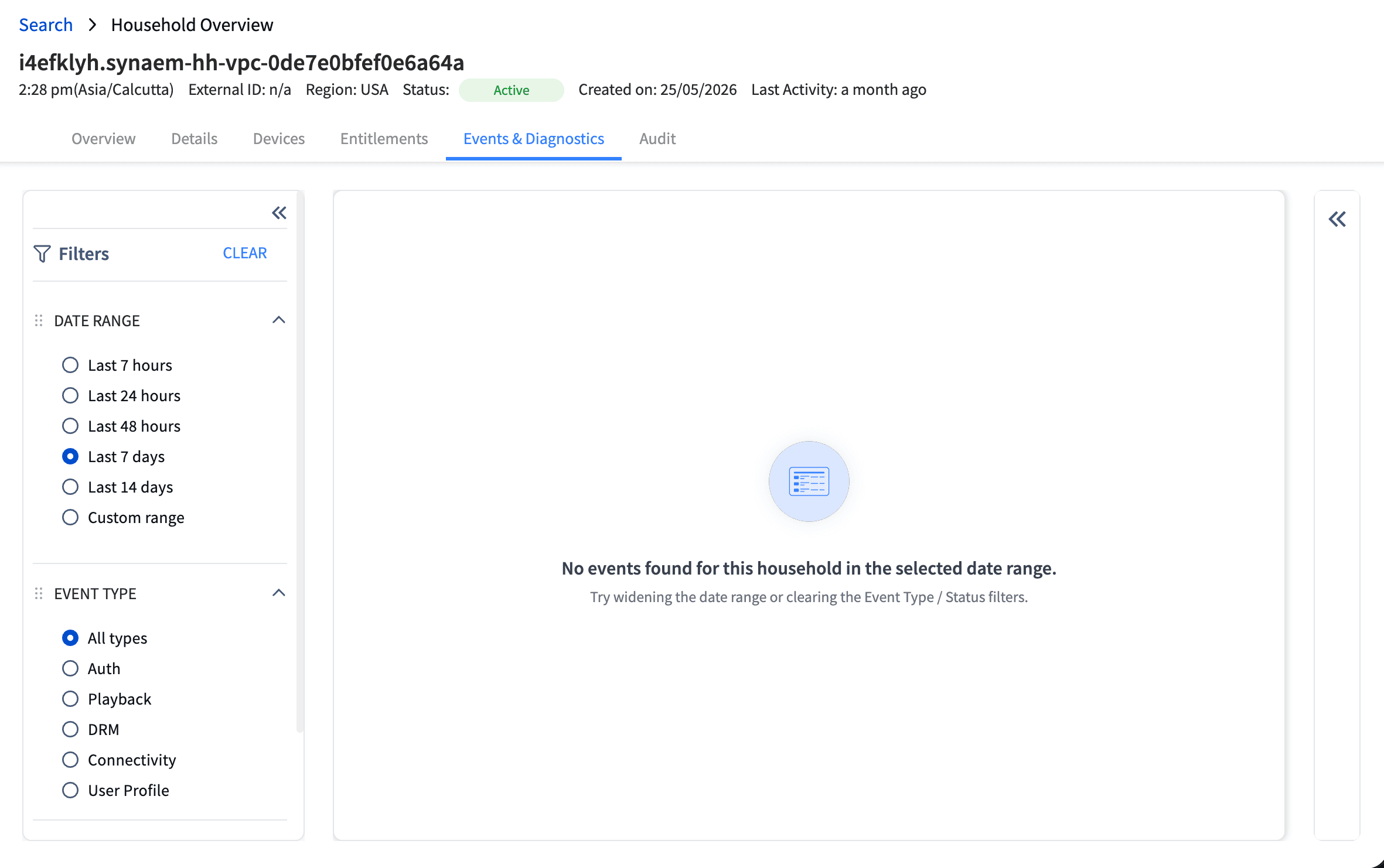
The Event history tab shows a chronological log of all events on the household — including routine successes, not just failures. Use it to see the full picture of what has happened.
The following event categories may appear in Event history:
Category | Example events |
Playback | Manifest served, HTTP 403, stream started, stream ended, playback error |
DRM | License granted, license denied (concurrent limit, device not authorized, key request failed) |
Auth | Device login (success or failure), token issued, token refreshed, token expired, session ID creation error |
Devices | Device registered, device deleted, device friendly name updated |
Account | Authorization added or removed, enabler added or removed, region changed, subscription renewed, parental rating changed |
CSR actions | Any write action performed by a CSR — shows operator ID and ticket reference |
Event history uses the same filter bar pattern as Diagnostics — multi-select Type, single-select Device, single-select Time window. Type filter options in Event history include all categories above.
Row actions match those in Diagnostics:
Playback failure rows show the Test playback button
DRM events with a session ID show the Copy correlation ID icon
Other events show no action affordance
When a CSR (yourself or another operator) has performed a write action on the household, it appears in Event history with:
An info-blue "CSR action" pill
The action description
The operator ID and ticket reference
This lets you see the full audit trail of human-initiated changes alongside system events.
The CSR Portal records customer support activity so operational teams can verify what changed, who changed it, and which support case it was tied to.
Household access
Support actions
Configuration changes
Permission-controlled operations
Device or entitlement modifications
Audit logs support:
Accountability
Security review
Operational reporting
Ticket correlation
Ticket references entered during the session are associated with logged activities to support traceability.
Enter or validate the ticket reference.
Search for the household.
Review the household overview.
Check recent issues.
Review event history.
Validate devices.
Validate subscriptions and entitlements.
Perform the approved corrective action if permission allows.
Confirm the issue is resolved.
Ensure the activity is captured in the audit trail.
Use the correct identifier type for the customer case
Prefer known household or external IDs over uncertain search strings
Validate the result before taking action
Avoid unsupported changes outside your role permissions
Record enough detail in audit-linked ticket references to support future review