



The short video below walks through a complete example: adding a Subnet Override and an ASN Override, editing their country codes, reviewing the audit history, and deleting an override.
The Network Location Override module lets you assign trusted networks to a specific location, overriding the automatic geolocation that the platform would otherwise use.
Every client request is resolved to a country so that the correct regional content and access rules can be applied. Normally the platform determines that country automatically from the client's IP address. When the automatic result is wrong, incomplete, or needs to be forced for a known network, you use this module to define an override.
You can define two kinds of overrides:
Subnet Override – forces a country for a specific IP address range (expressed in CIDR notation).
ASN Override – forces a country for every network that belongs to a given Autonomous System Number (for example an ISP or carrier).
The module is opened from the sidebar under: System Configuration > Network Location Override.
It has two tabs at the top of the screen: "Subnet Override" and "ASN Override". Each tab works the same way; only the primary value you enter (a subnet or an ASN) differs.
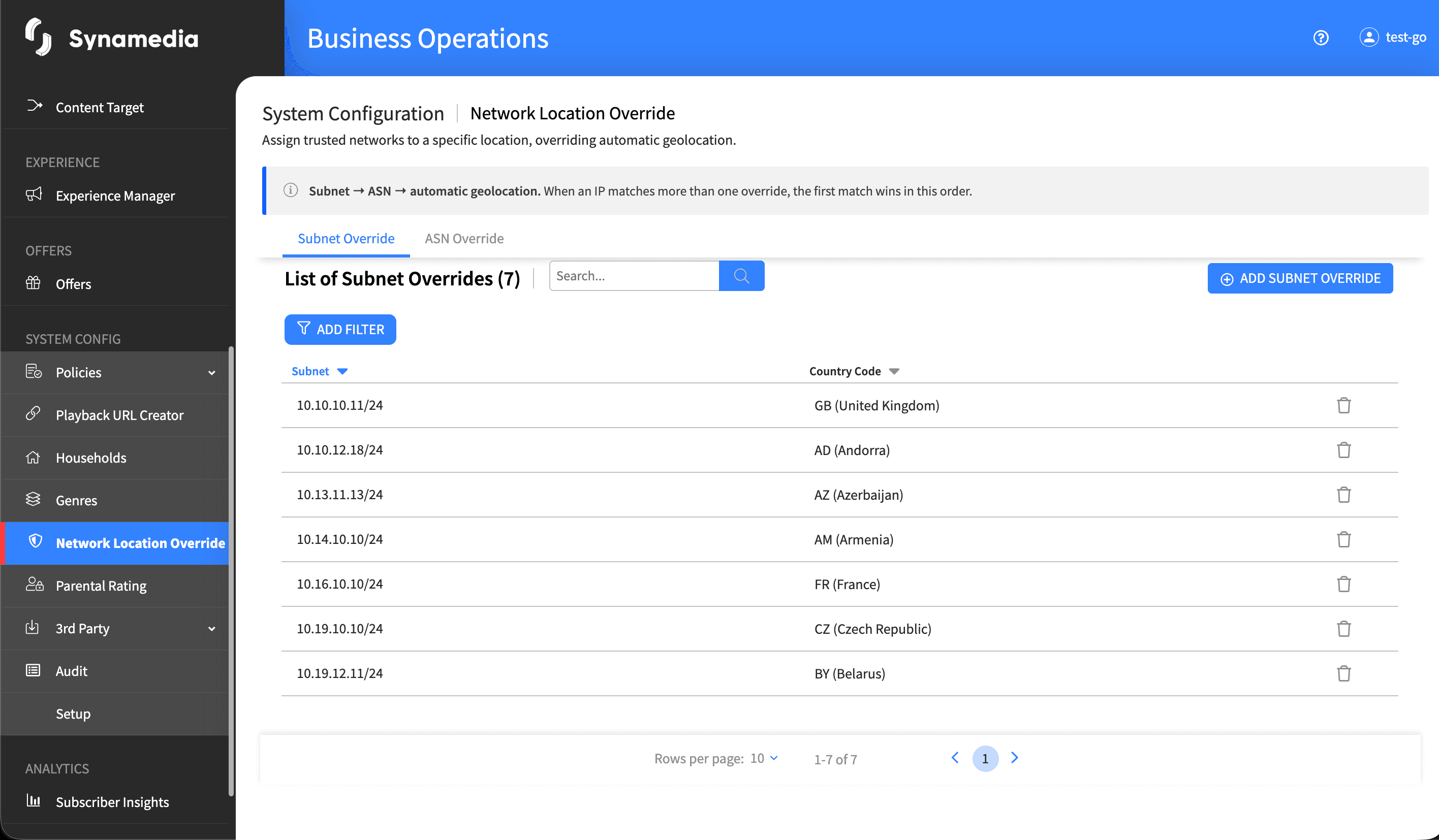
When a client IP is resolved, the rules are evaluated in this order and the FIRST match wins:
Subnet → ASN → Automatic geolocation
Subnet Override – If the IP falls inside a configured subnet, that subnet's country code is used. Subnet overrides are checked first because they are the most specific.
ASN Override – If no subnet matched, and the IP belongs to a configured ASN, that ASN's country code is used.
Automatic geolocation – If no override matched, the platform falls back to its automatic geolocation lookup.
Because Subnet is more specific than ASN, a subnet override always takes precedence over an ASN override for the same address.
Changes take effect the next time an affected household starts a session; existing active sessions are not changed retroactively.

The tab shows a table titled "List of Subnet Overrides" with the following columns:
Subnet – the IP range in CIDR notation.
Country Code – the country the subnet is forced to, shown as the two-letter code together with the country name.
You can:
Search the list using the search box (matches the subnet and the country).
Filter the list by Country Code.
Sort by clicking a column header.
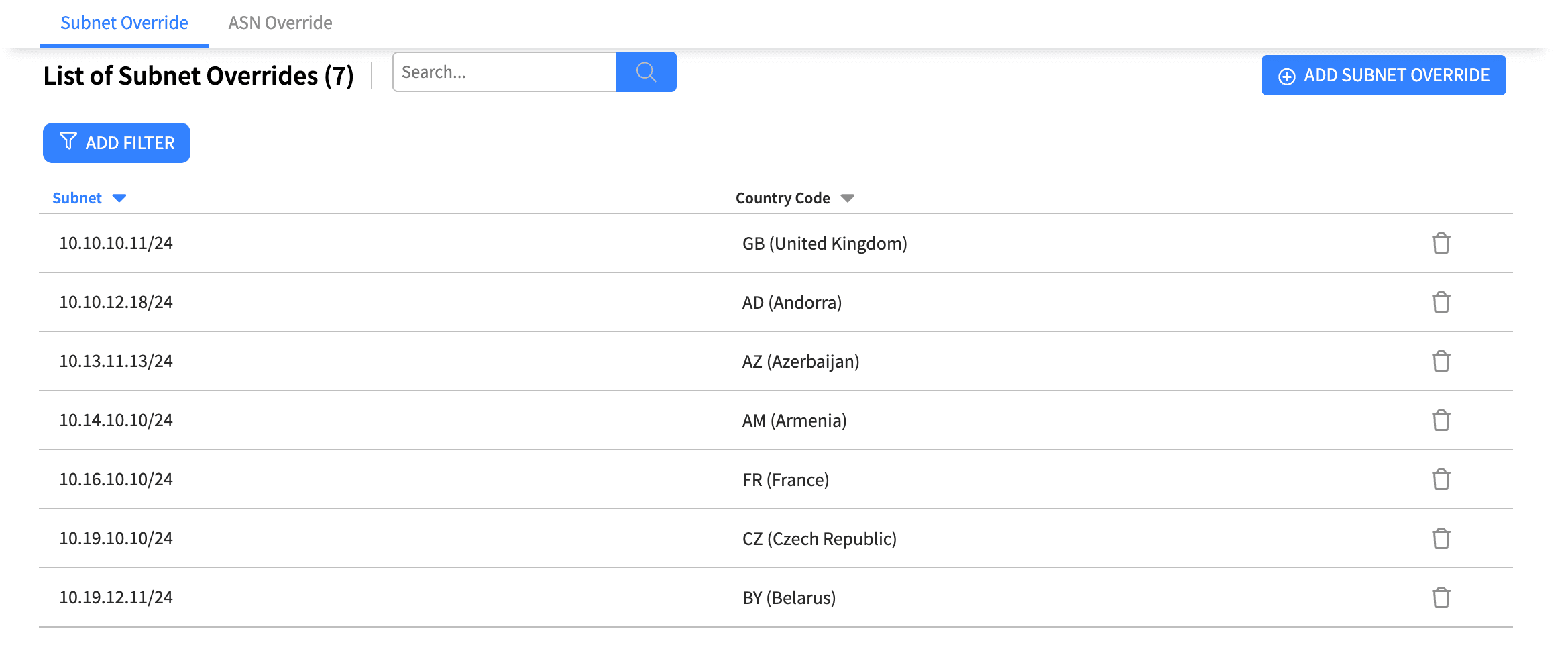
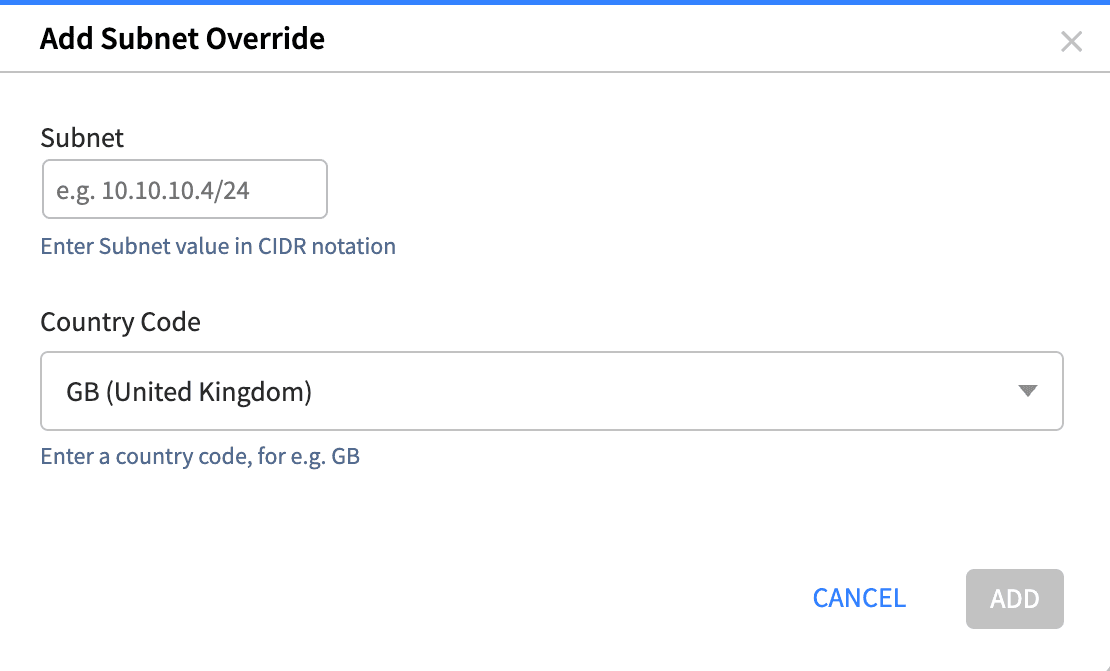
Click "ADD SUBNET OVERRIDE".
In the Subnet field, enter the range in CIDR notation (for example: 10.10.10.4/24). Only IPv4 CIDR values are accepted. If the value is not a valid CIDR, the field shows the error "Enter a valid Subnet value in CIDR notation" and you cannot save until it is corrected.
In the Country Code field, select the country to force this subnet to. This is a searchable list – type a two-letter code (e.g. GB) or a country name to filter it. The default is GB.
Click "ADD" to save, or "Cancel" to discard. A confirmation message appears when the override is added.
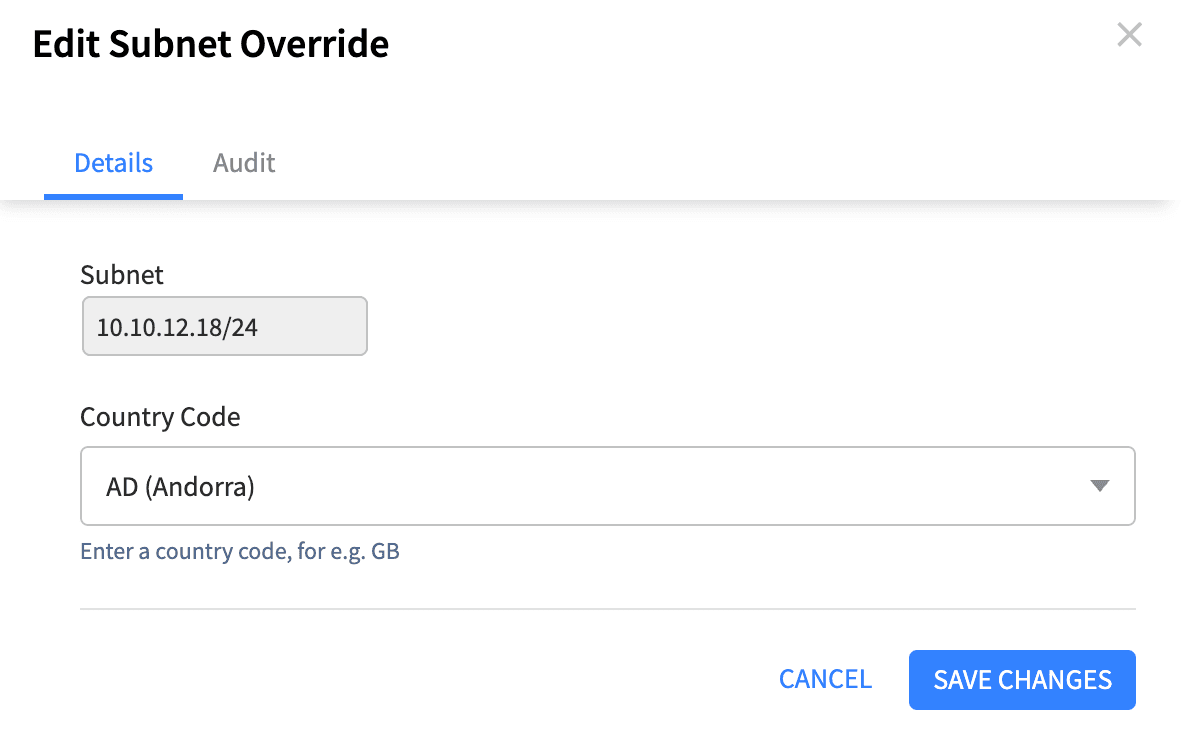
Click the row you want to edit. A side panel opens with two tabs: "Details" and "Audit".
On the Details tab: the Subnet value is read-only and cannot be changed (to change a subnet, delete the override and create a new one); the Country Code can be changed using the dropdown.
Click "SAVE CHANGES" to apply, or "CANCEL" to discard.
Click the delete (trash) icon at the end of the row.
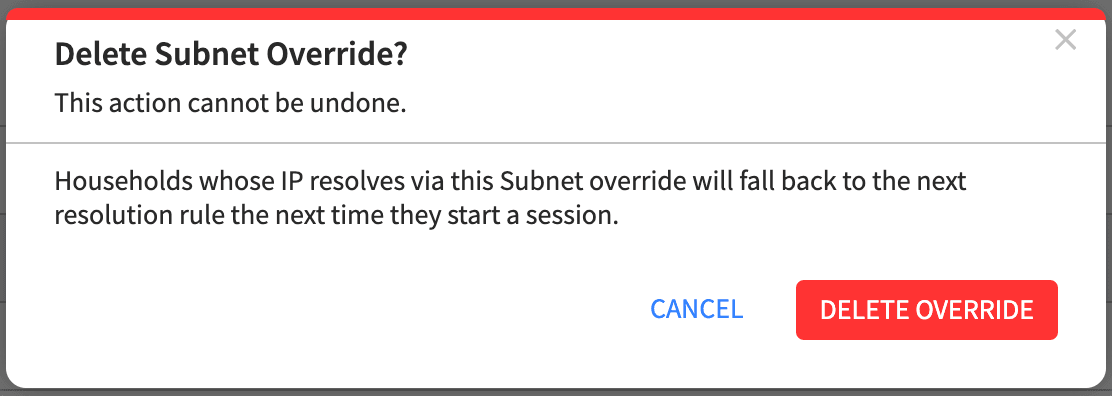
A confirmation dialog "Delete Subnet Override?" appears. It warns that the action cannot be undone, and that households whose IP resolves via this override will fall back to the next resolution rule the next time they start a session.
Click "Delete Override" to confirm, or "Cancel" to keep it.
An Autonomous System Number (ASN) identifies a whole network, such as an ISP or carrier. When you create an ASN override, all traffic that belongs to that network resolves to the country code you choose (unless a more specific subnet override applies first).
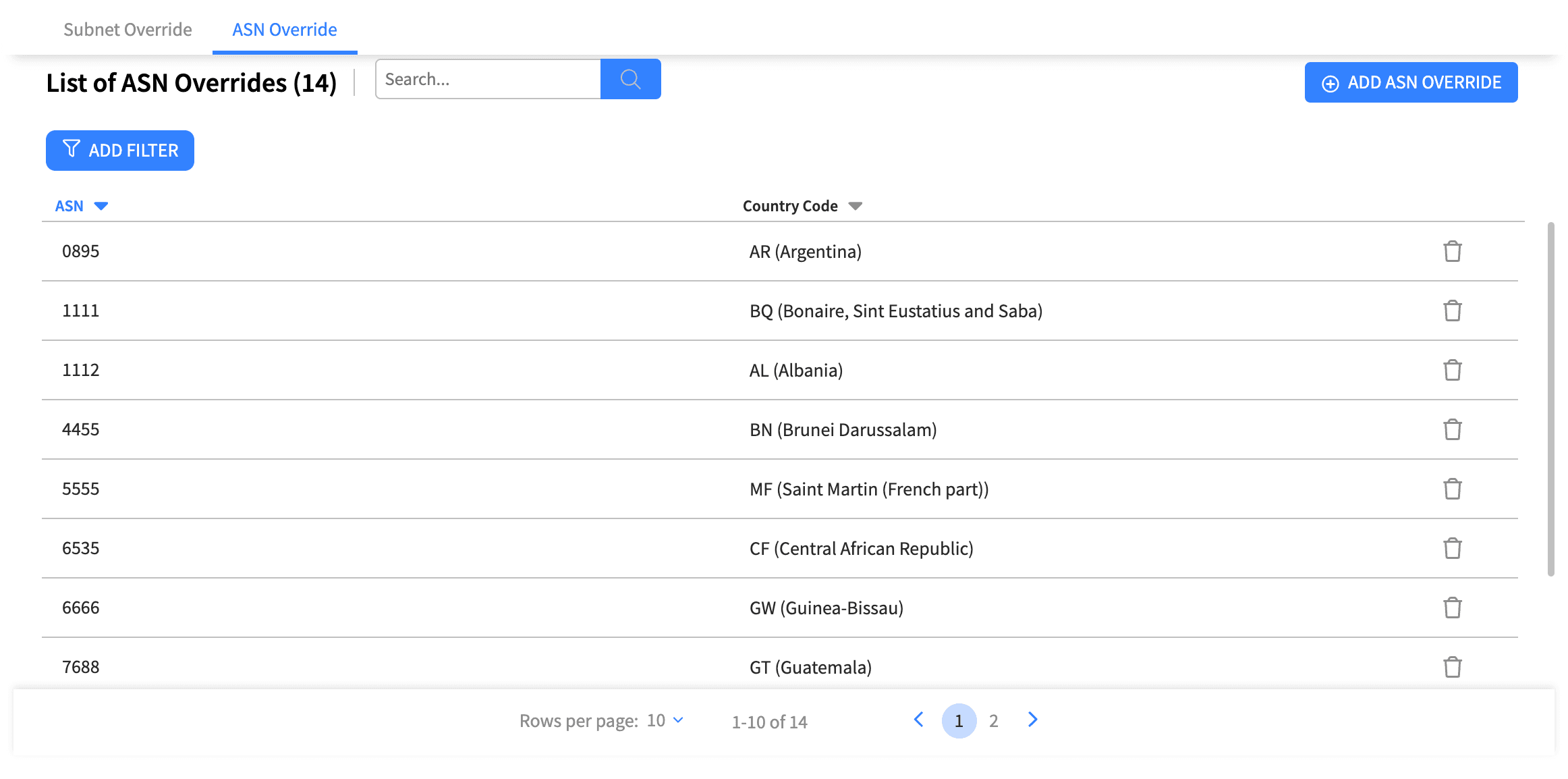
The tab shows a table titled "List of ASN Overrides" with the columns:
ASN – the Autonomous System Number.
Country Code – the country the ASN is forced to, shown as the two-letter code together with the country name.
As with subnets, you can search, filter by Country Code, and sort.
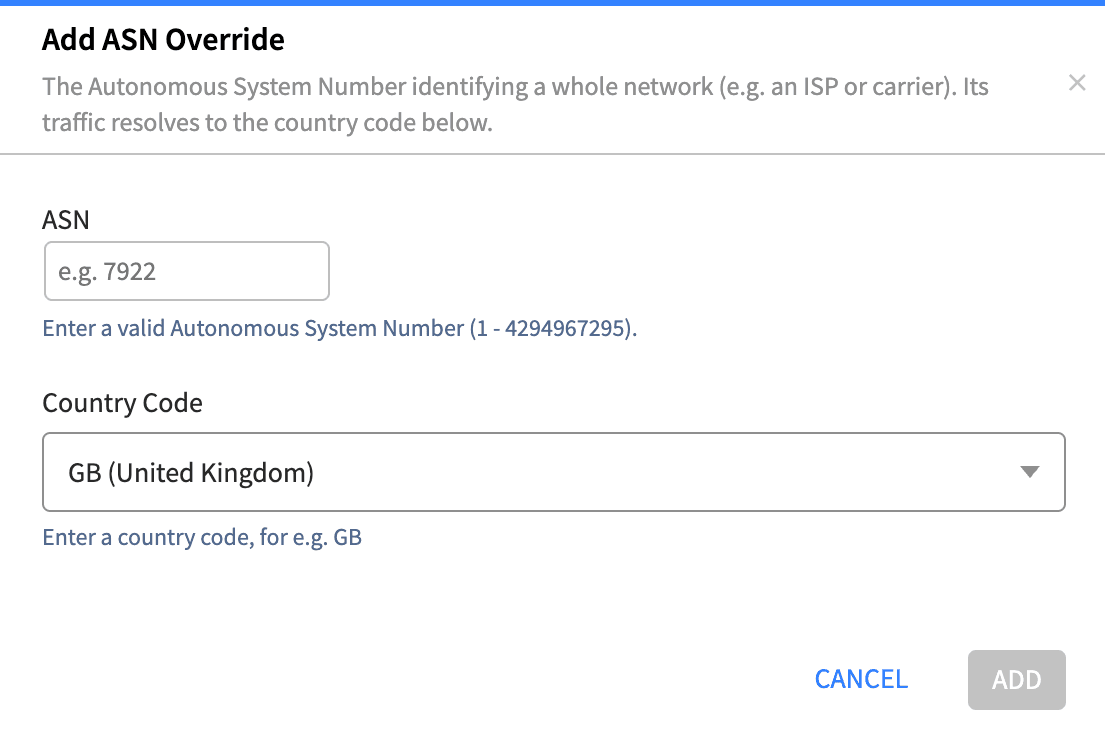
Click "ADD ASN OVERRIDE".
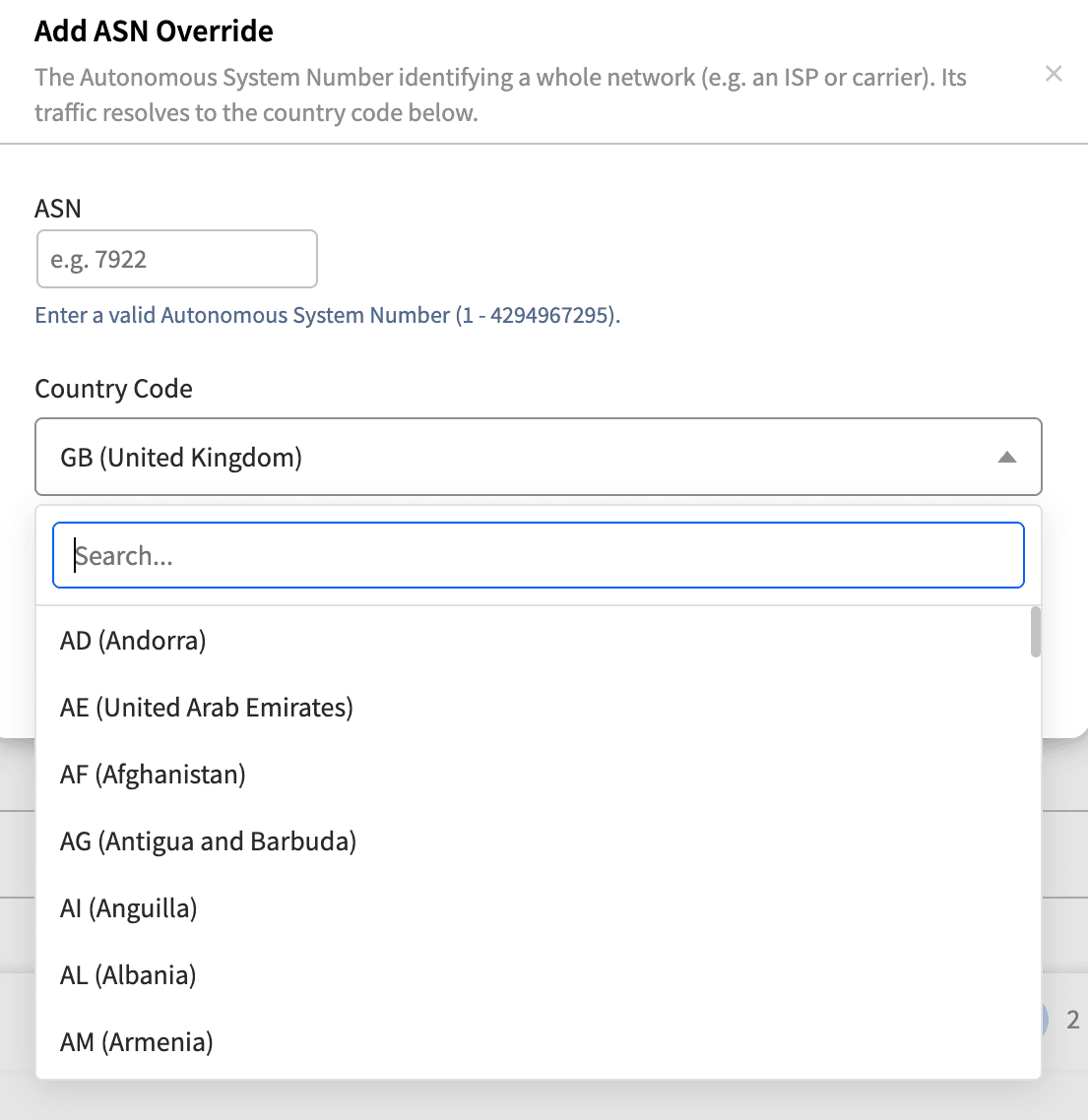
In the ASN field, enter a valid Autonomous System Number (for example: 7922). Valid values are whole numbers from 1 to 4294967295. If the value is out of range or not a number, the field shows the error "Enter a valid Autonomous System Number (1 - 4294967295)" and you cannot save until it is corrected.
In the Country Code field, select the country to force this ASN to. The list is searchable by code or country name. The default is GB.
Click "ADD" to save, or "Cancel" to discard.
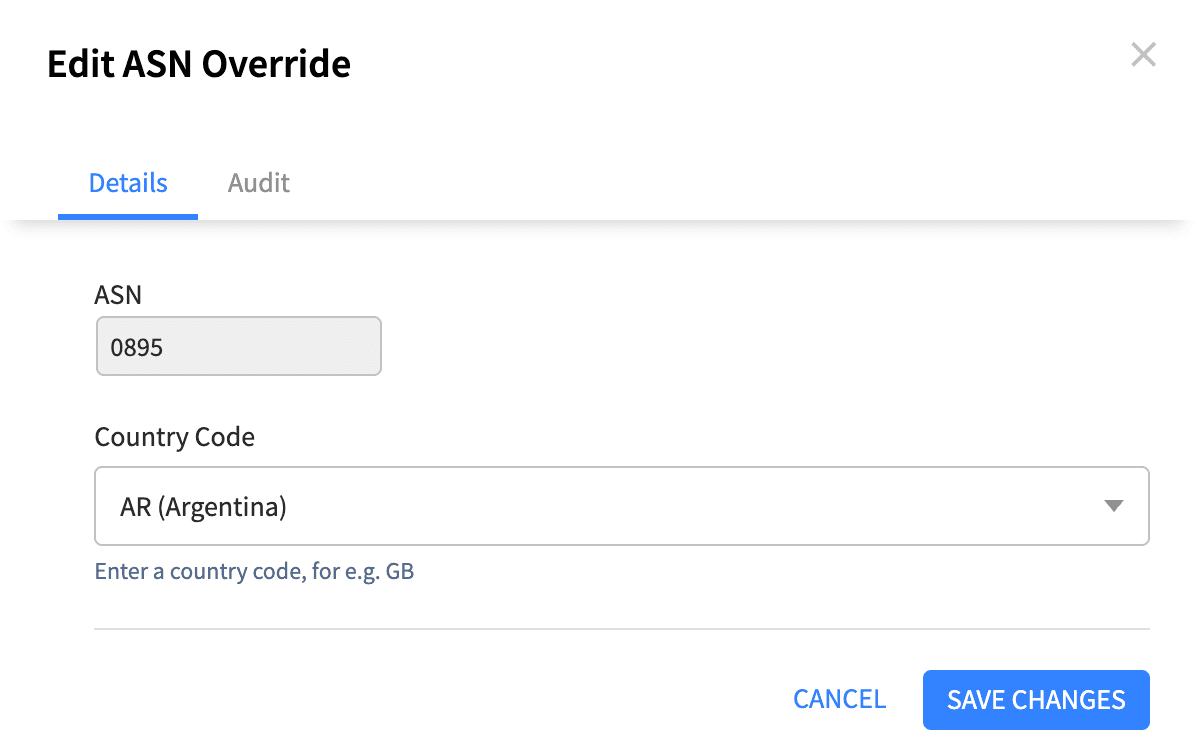
Click the row you want to edit. A side panel opens with the "Details" and "Audit" tabs.
On the Details tab: the ASN value is read-only (to change an ASN, delete the override and create a new one); the Country Code can be changed using the dropdown.
Click the delete (trash) icon at the end of the row.
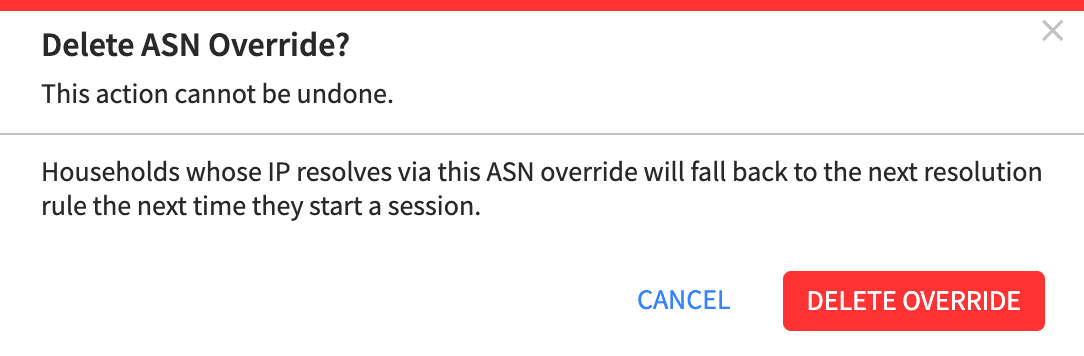
Confirm in the "Delete ASN Override?" dialog. The action cannot be undone, and affected households fall back to the next resolution rule the next time they start a session.
Click "Delete Override" to confirm, or "Cancel" to keep it.
Both override types use the same Country Code selector:
A two-letter ISO country code (for example GB, DE, US).
The selector is searchable: start typing either the code or the country name to narrow the list.
A country code is mandatory; an override cannot be saved without one.
Each override keeps a full history of changes.
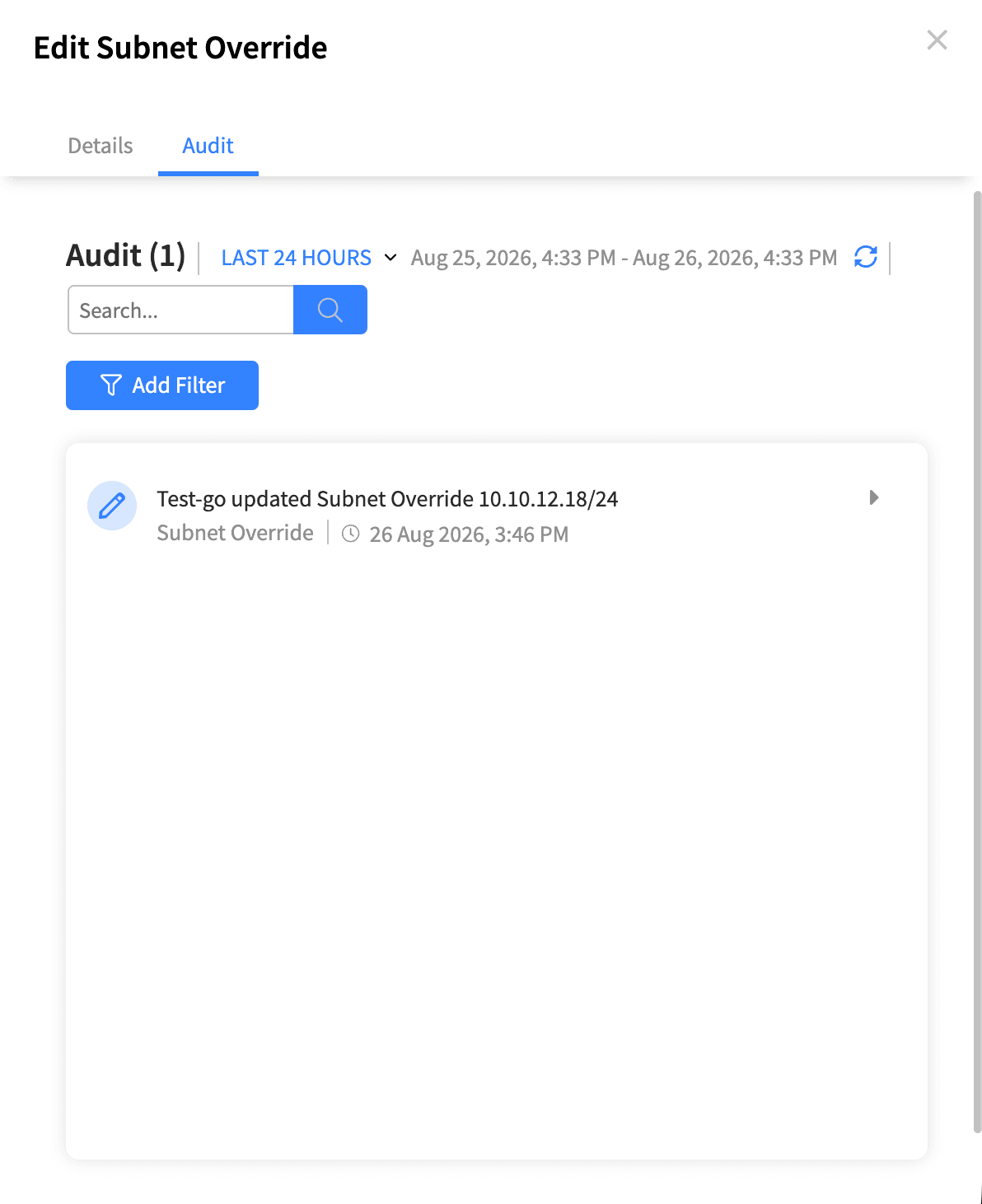
Open an override (click its row) and select the "Audit" tab in the side panel to see a timeline of who created, edited, or otherwise changed the record and when.
Use this to review changes and confirm the current configuration is correct.
Use a Subnet Override when you need to force a specific, known IP range. Use an ASN Override when you need to force an entire provider network.
Remember the resolution order: a Subnet Override will always win over an ASN Override for the same IP, and both win over automatic geolocation.
The primary value (Subnet or ASN) cannot be edited after creation. If it was entered incorrectly, delete the override and create a new one.
Deleting an override is permanent. Affected households revert to the next matching rule (a broader override or automatic geolocation) the next time they start a session.
After adding, editing, or deleting an override, a confirmation message is shown. If an operation fails, an error message explains what went wrong so you can retry.
