


The short video below walks through the Audit log: choosing a time range, searching and filtering, reading an audit entry, expanding it to see before-and-after changes, viewing the raw source, and exporting to CSV.
The Audit module is a system-wide log of every change made across the console. It records who made a change, what they changed, which module they changed it in, and when. Use it for accountability, troubleshooting and compliance.
The module is opened from the sidebar under System Config > Audit. The header reads "Audit" with a live count of the visible records.
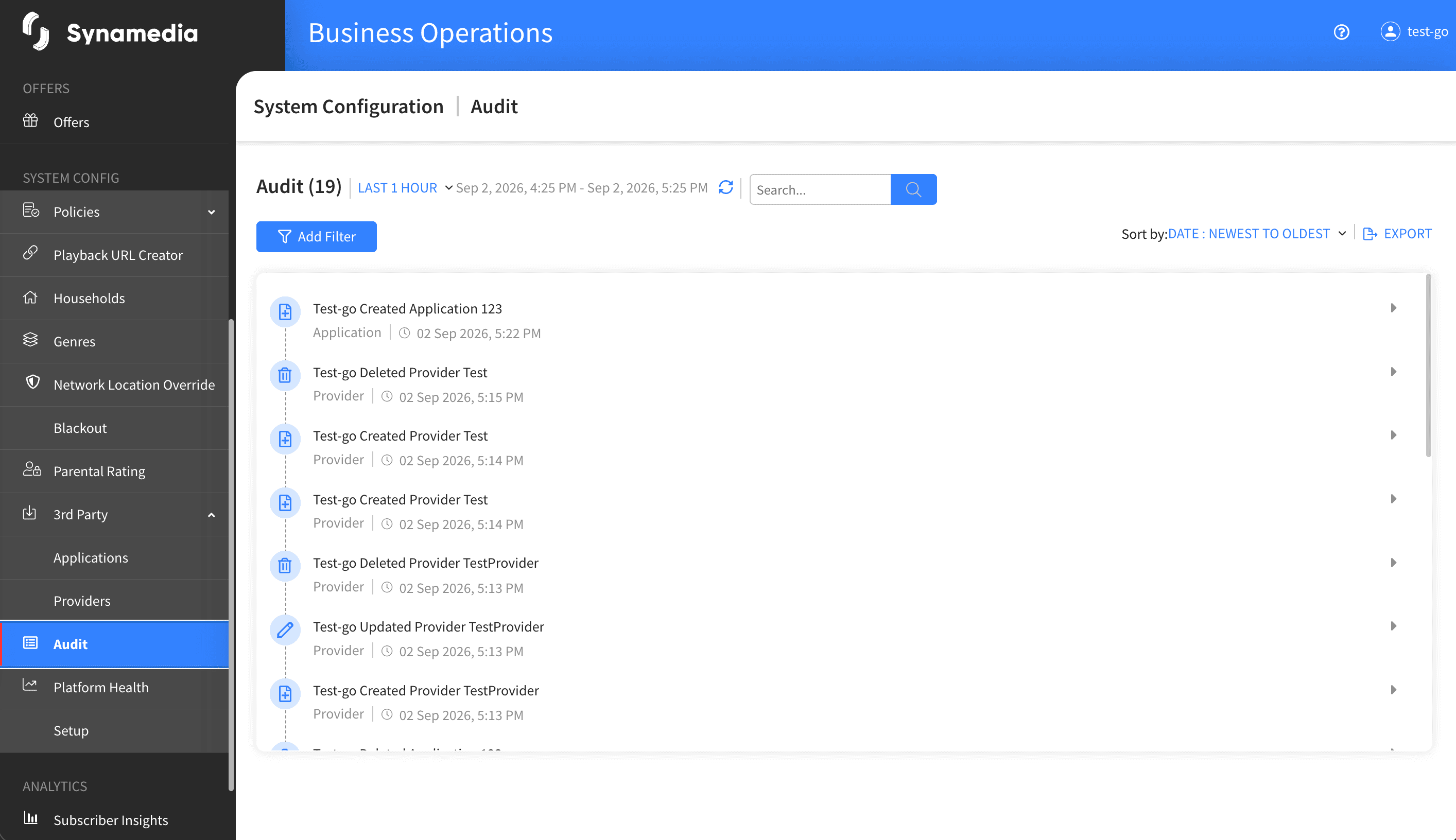
At the top left, a time filter sets how far back the log goes, from "Last 1 Hour" up to "Last 90 Days" (with options in between such as 6 hours, 24 hours, 7 days and 30 days). The exact date range you are viewing is shown below the dropdown. A refresh button reloads the log with your current settings.
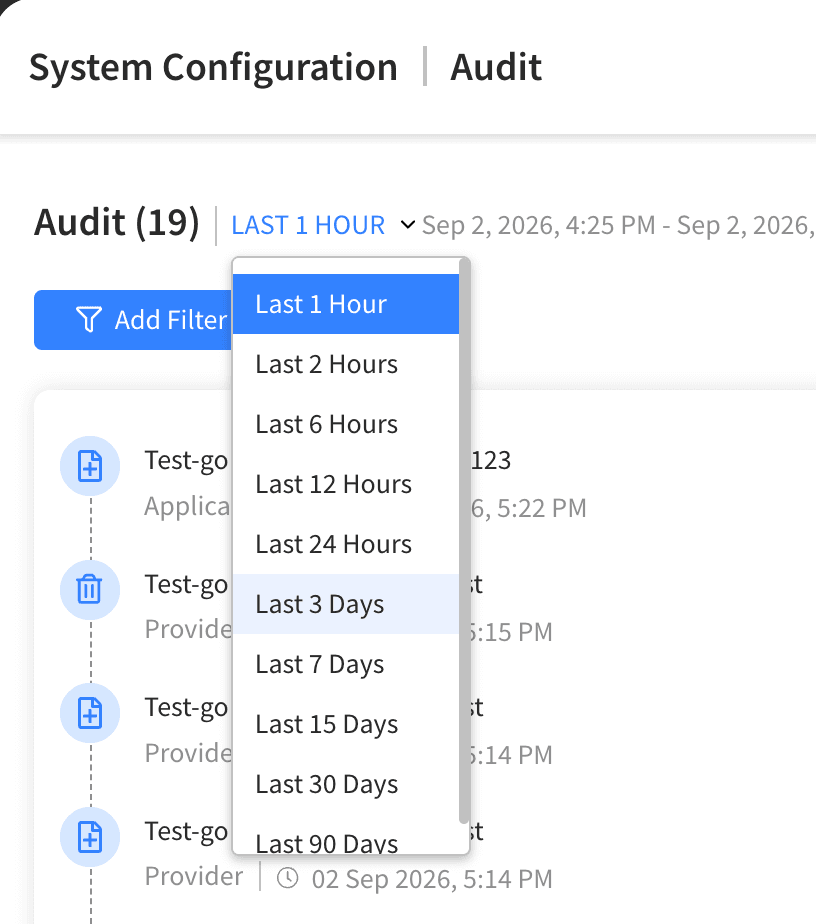
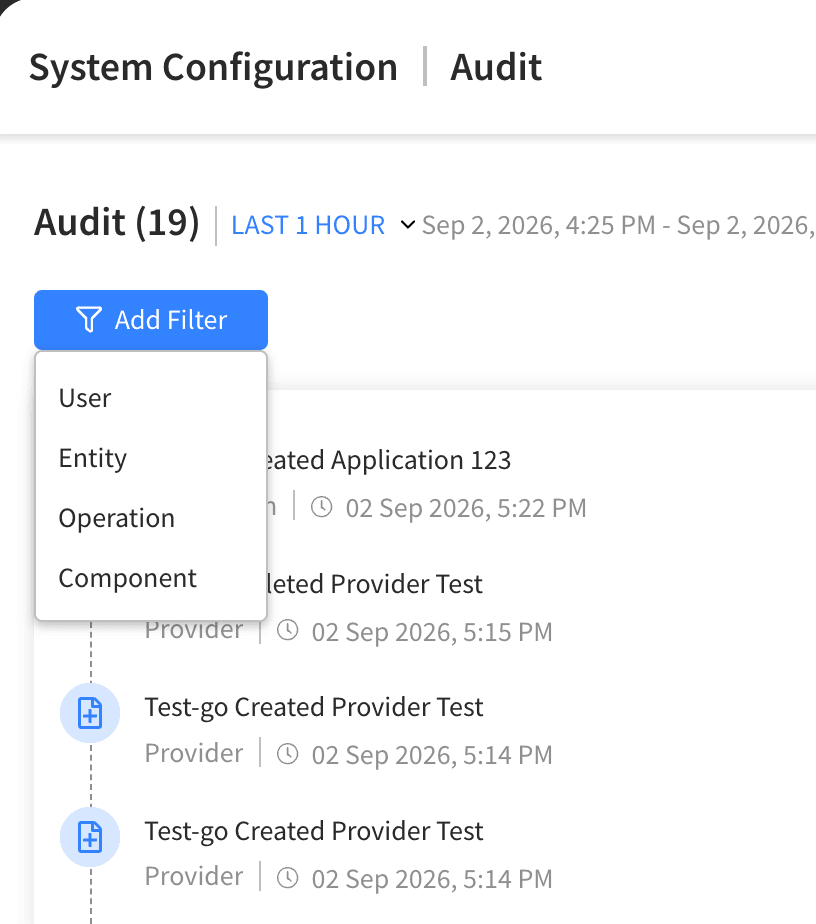
Use the search box to filter entries in real time across user, component, operation, entity and message. Click "Add Filter" to narrow the list by:
User: who made the change.
Entity: the type of thing that was changed.
Operation: the kind of action, such as create, update, delete or view.
Component: the module the change was made in, shown by its friendly name (for example Channels, Offers,
Households, Schedules, Policies, Providers or Applications).
Each active filter appears as a chip you can adjust or remove, and multiple filters combine so all conditions must match. "Clear Filter" removes them all at once.
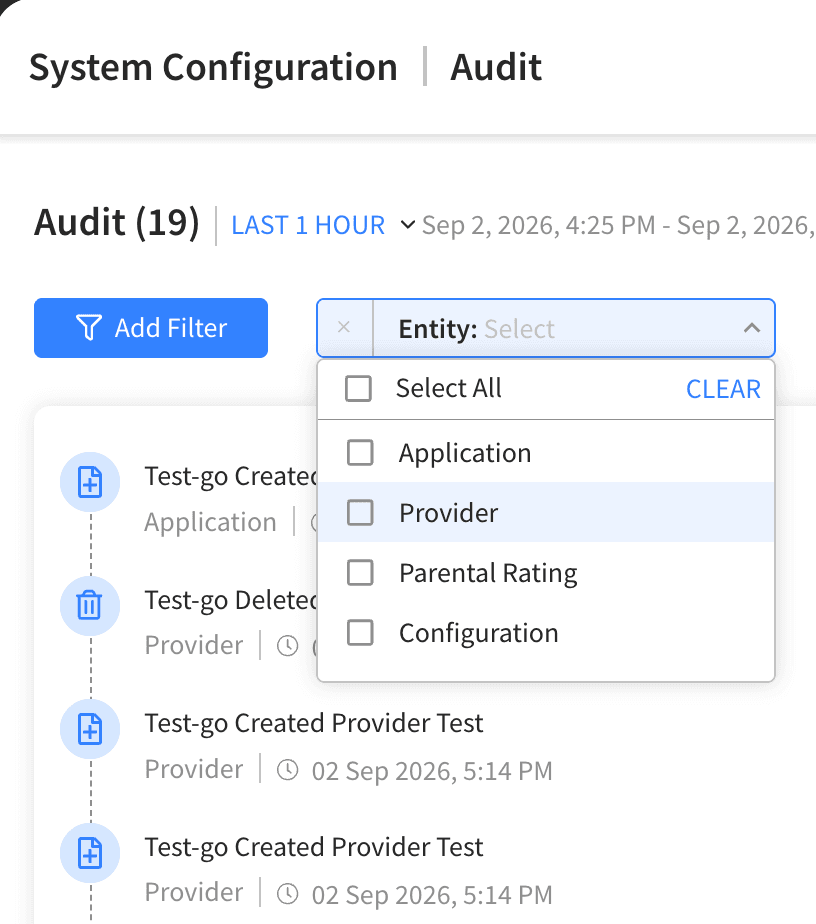
Use "Sort by:" to order entries by date, either "DATE: Newest to Oldest" (the default) or "DATE: Oldest to Newest". Click "EXPORT" to download the currently visible entries as a CSV file, which includes the timestamp, user, message, entity, entity ID, operation, component and change details.
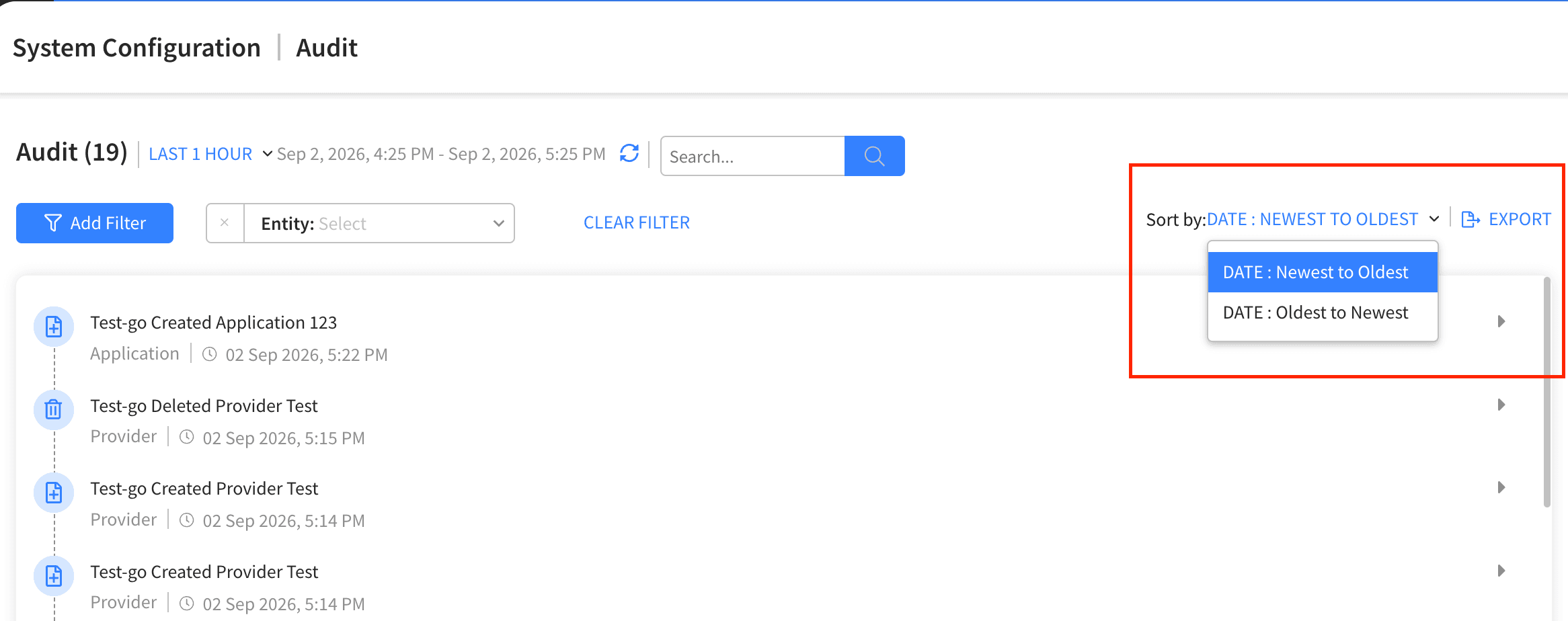
Entries are shown as a timeline. Each entry shows a message describing the change (for example who updated which entity), the entity type, and the time (with the full timestamp on hover). Entries that recorded actual changes can be expanded by clicking them; entries with no changes appear dimmed.
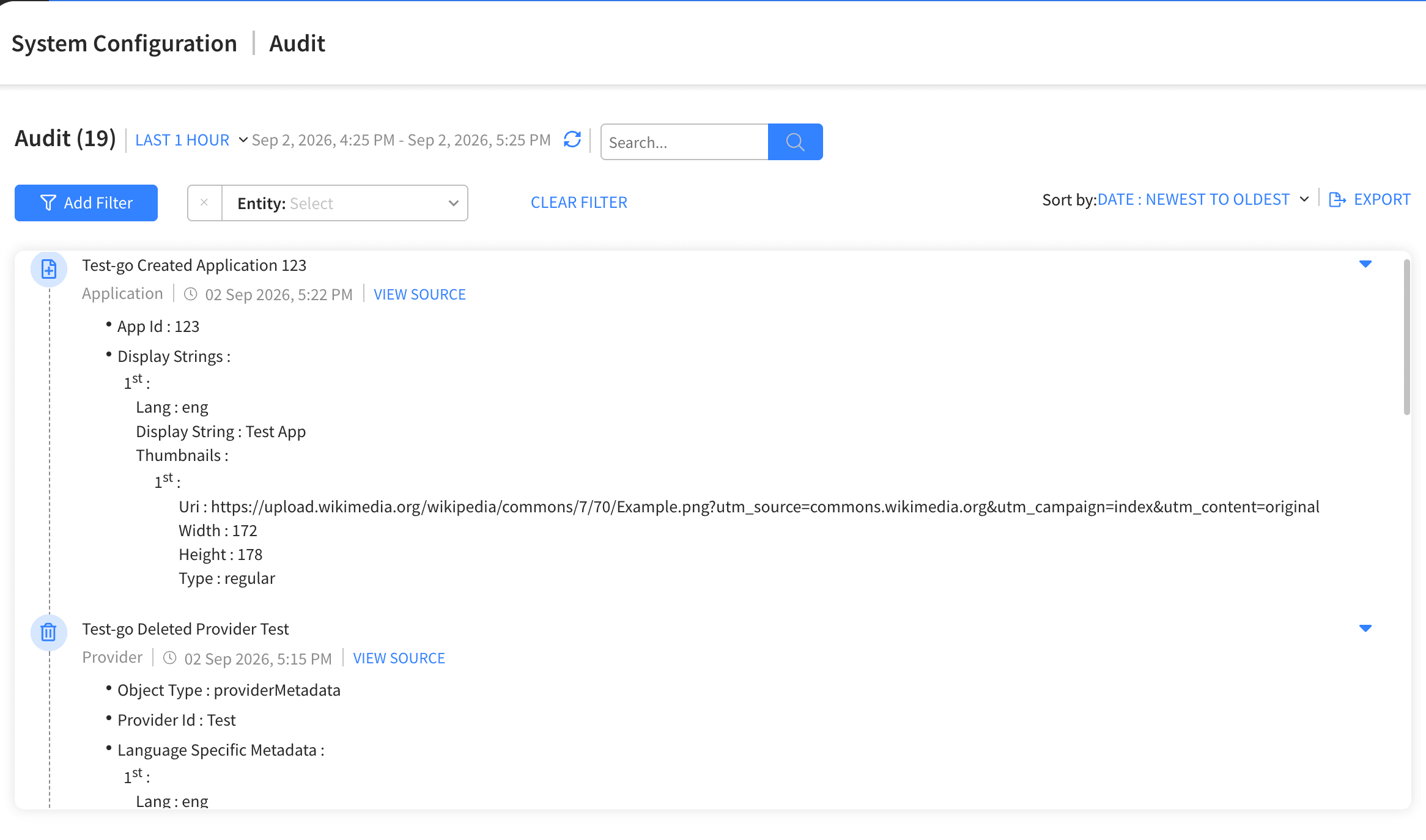
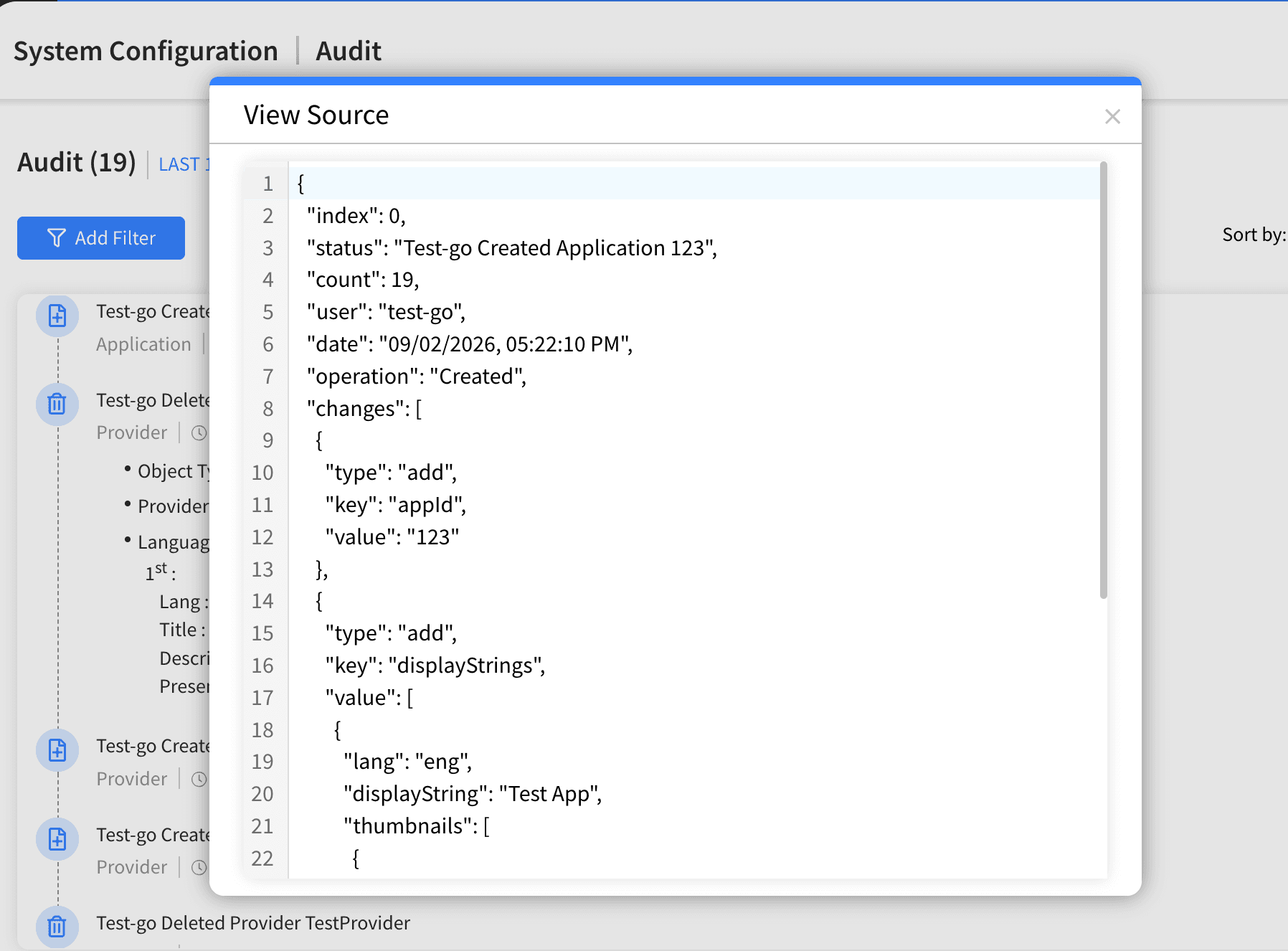
Expand an entry to see the individual field changes, shown as each field's value before and after the change, with nested details indented. Click "VIEW SOURCE" to open a read-only view of the raw JSON for the entry, useful for detailed record-keeping or debugging.
All searching and filtering happens within the selected time range, so widen the range first if you are looking further back.
Combine filters (for example a user, a component and an operation) to zero in on a specific change quickly.
Only entries that recorded changes are expandable; dimmed entries have no change detail to show.
The exported CSV contains exactly what is on screen, respecting your current filters, search and sort order.
"VIEW SOURCE" shows the raw event and is best for debugging rather than everyday reading.
This is the system-wide log; individual modules also have their own Audit tabs that show changes to just one item.

