


A dedicated article for that screen may not exist yet, or its link needs updating — use the module directory below, or contact support.
VOD Management Overview - Overview of on-demand assets and catalogs.
Assets - Create and manage individual on-demand titles, their metadata, media and images.
Catalogs - Group assets into catalogs for targeting and merchandising.
Content Tagging - Tag assets so they can be classified and grouped automatically.
Classification Binding - Bind classification rules to content for automated organisation.
Data Plane - Track the ingest and publishing status of content.
Channels - Create and manage linear channels and their metadata.
Lineups - Arrange channels into region-specific lineups with channel numbering.
Schedules - Manage EPG schedules, programme data and schedule ingest jobs.
Content Target - Bind catalogs to lineups and target content by device and profile.
Experience Manager - Design the on-screen layout, swimlanes and navigation.
Offers - Create subscription and purchase offers for subscribers.
Linear Policies - Set the default viewing rules for live linear content.
VOD Policies - Set the default rules for on-demand content.
Concurrency - Limit simultaneous streams per household, channel and content.
Playback URL Creator - Build conditional playback URL rules and publish them.
Households - View households, devices, quotas and enabled services.
Households CSR Guide - View households, devices, quotas and enabled services.
Genres - Manage the genre taxonomy used across content.
Parental Rating - Configure the parental rating scheme and age thresholds.
Applications - Register and brand third-party applications.
Providers - Register and brand third-party content providers.
Audit - Review the system-wide audit trail of operator actions.
Platform Health - Review the health of the application in the form of various visualizations
Setup - Guided setup wizard for first-time configuration.
Subscriber Insights - Guided setup wizard for first-time configuration.
Sidebar (left): expandable menu grouping every module by area — Content, Experience, Offers, System Config and Advanced Settings.
Top bar: shows the current area title, the sub title and actions if any
Help icon (opens the help article for the screen you are on), and your user menu.
Main area: the working surface for the selected module.
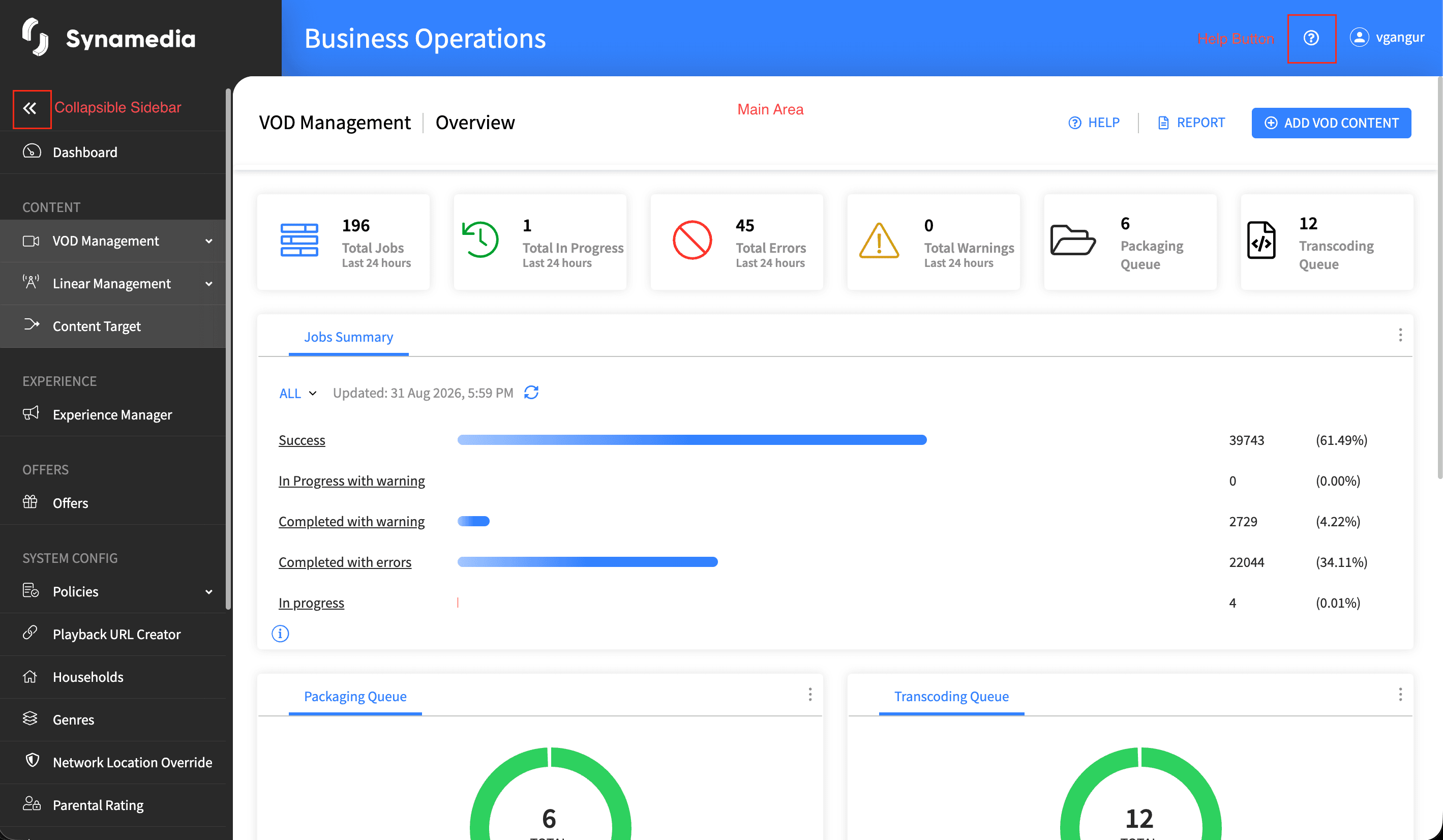
Every module screen has its own Help icon in the top bar — use it for task-specific guidance.
If a screen's help link brings you back here, that article is not yet linked — please report it to your administrator so the mapping can be corrected.
For access or permission questions, contact your operator administrator.
For product issues, raise a ticket through your standard Synamedia support channel.

