


The short video below walks through Content Targets: reading the list, adding a content target that binds a catalog to a lineup, defining target groups by device and profile, editing target groups, and removing a content target.
Content Targets control which content catalog is delivered to which lineup, and on which devices and profiles. Where a catalog says what content is available, a content target is the delivery rule that binds that catalog to a customer package (lineup) with device and profile restrictions.
Each content target is one catalog paired with one lineup, together with one or more target groups. A target group is a combination of Device and Profile (and Community, where enabled) that the binding applies to.
The module is opened from the sidebar under Content > Content Target. The header reads "Content Targets".
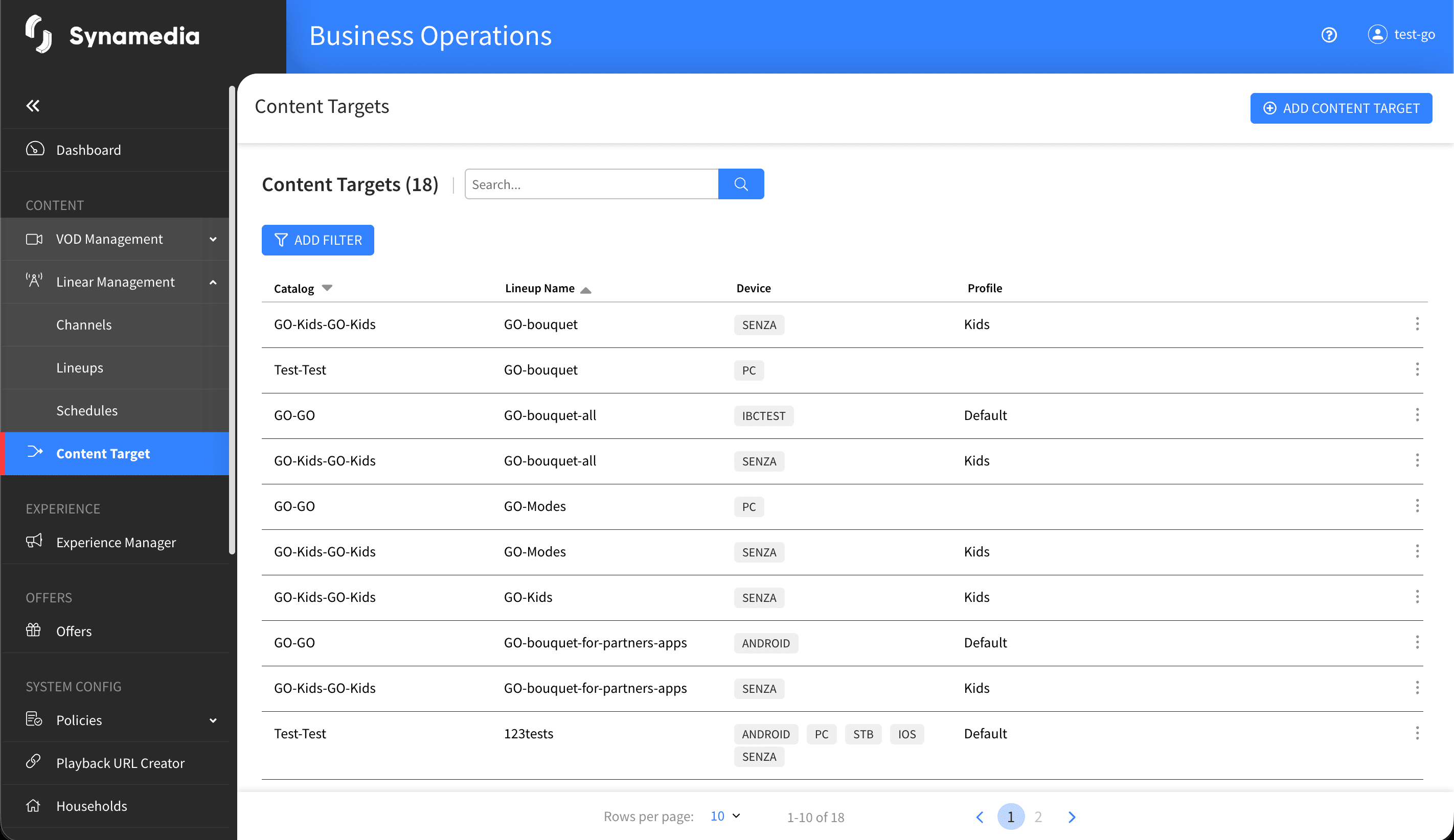
The list shows a row for each catalog-to-lineup binding, with columns:
Catalog: the catalog, shown as its key and ID.
Lineup Name: the lineup, shown as its description and ID.
Device: the device types in the target groups, shown as tags.
Profile: the user profile in the target group.
Community: the community identifier, shown only where community is enabled.
You can search by catalog or lineup name, add filters for Catalog and Lineup, sort by clicking a column header, and choose how many rows appear per page. If no content targets exist yet, the screen shows the message that there are none associated and invites you to click "ADD CONTENT TARGET".
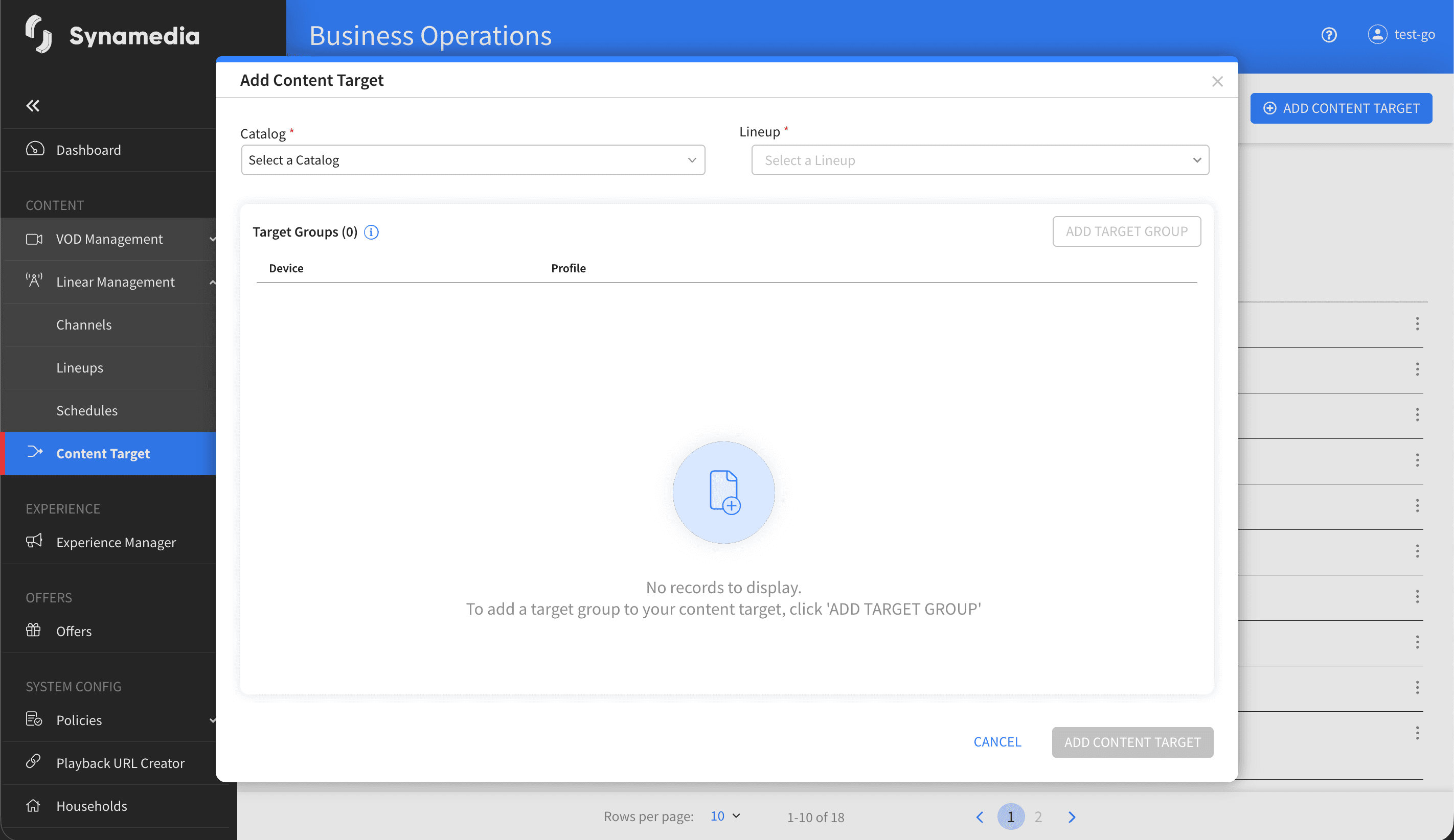
Click "ADD CONTENT TARGET" to open the "Add Content Target" dialog.
Select a Catalog (required).
Select a Lineup (required).
Click "ADD TARGET GROUP" to add a target group row, then choose one or more Devices, a Profile, and a Community if that field is shown.
Add as many target groups as you need for different device and profile combinations.
Click "ADD CONTENT TARGET" in the dialog to save.
The combination of Lineup, Device, Profile (and Community, where enabled) must be unique across all catalogs. If you enter a combination that already exists, the row is flagged with the message "Target groups can not be identical" and you cannot save. You also cannot save with an empty Device or Profile; the disabled save button explains "Add one or more parameters to empty target groups".
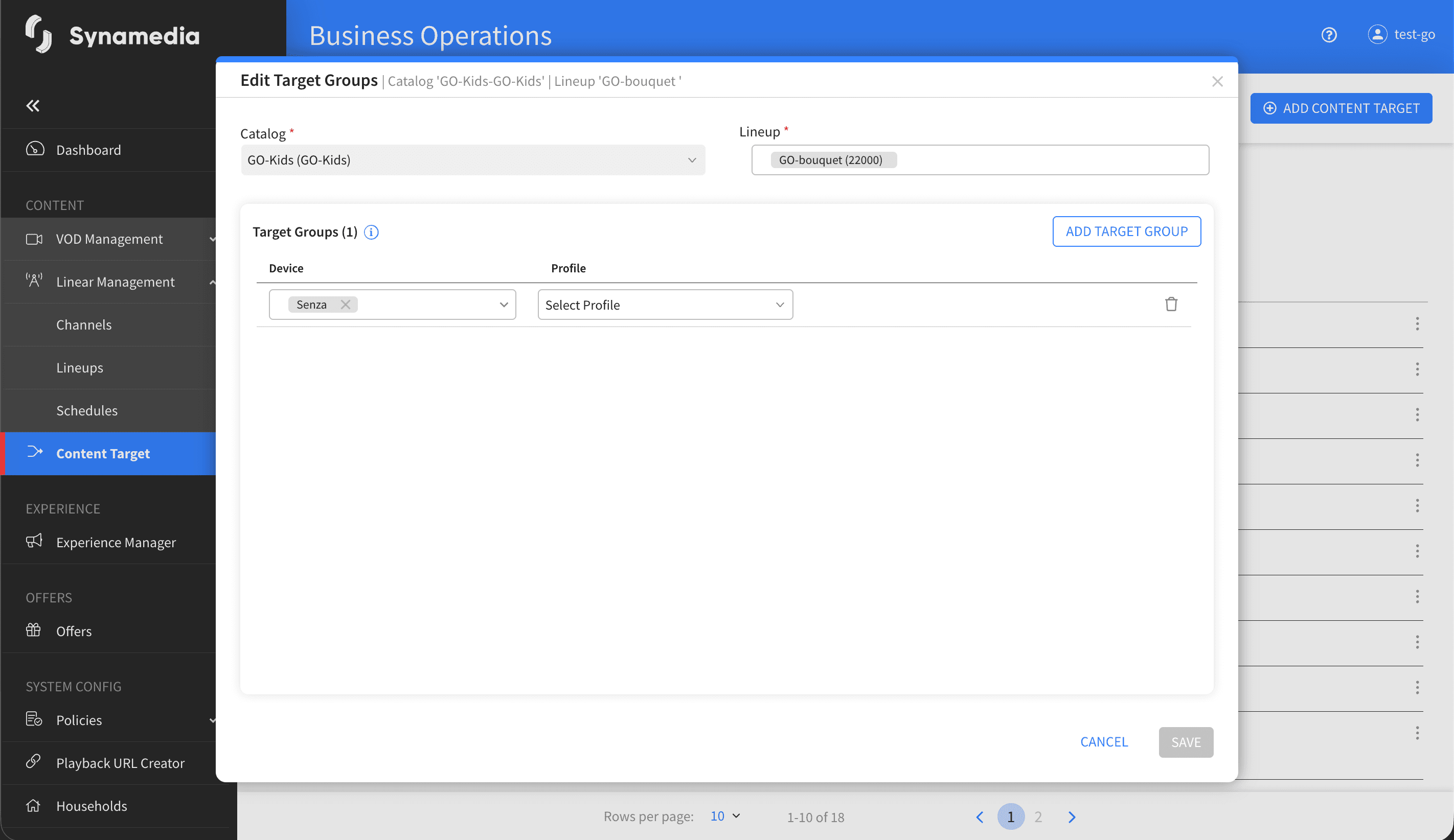
Open a row's action menu and choose "Edit Target Groups". The dialog opens with the Catalog and Lineup locked (they cannot be changed once the target is created), so you can add, change or remove target groups only. Click "SAVE" to apply. If you try to cancel after making changes, an "Unsaved Changes" dialog asks whether you want to leave without saving, offering "return to editing" or "Exit without saving".
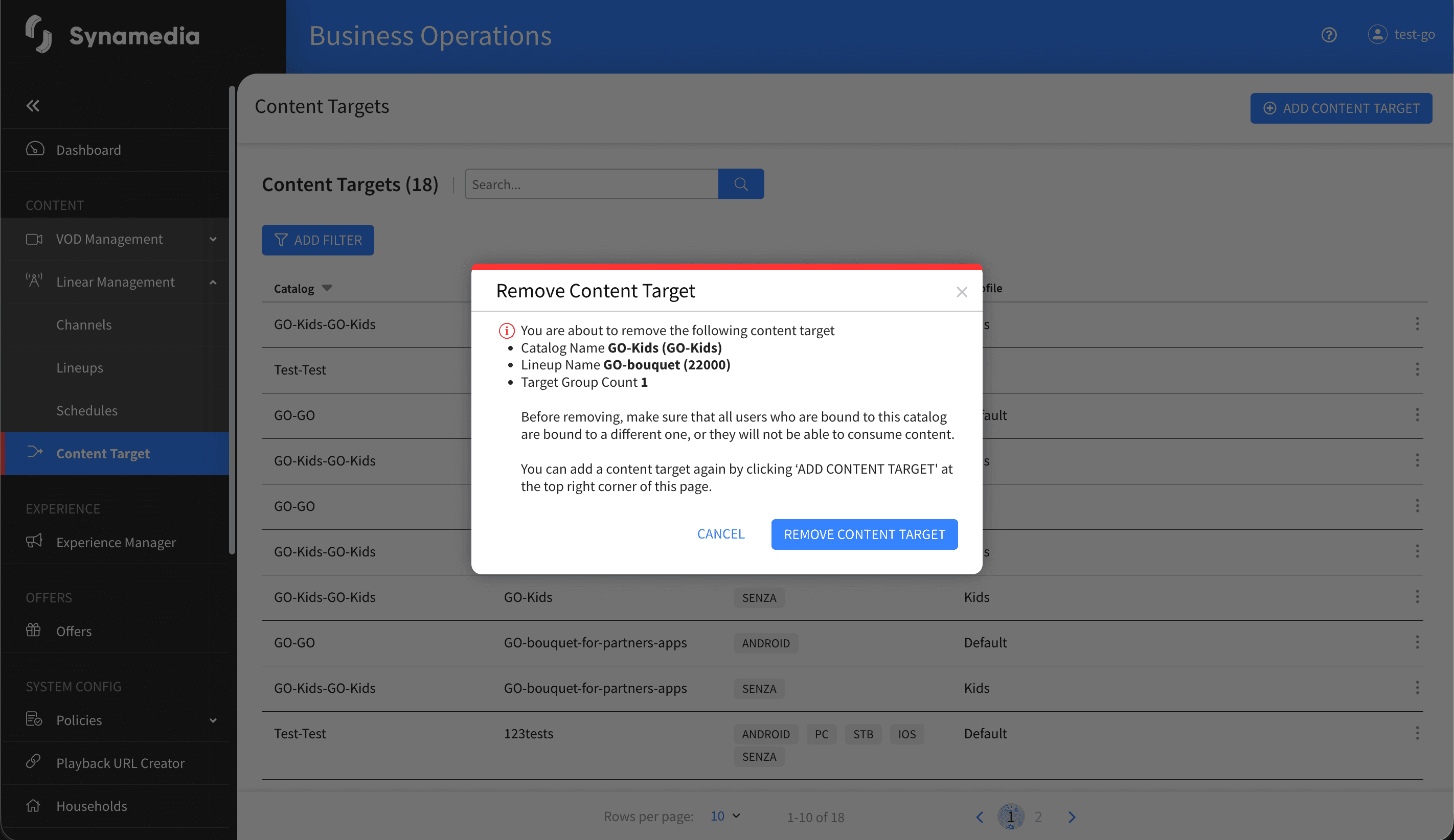
Open a row's action menu and choose "Remove". A confirmation dialog titled "Remove Content Target" lists the catalog, lineup and target group count, and warns you to make sure any users bound to this catalog are moved to another one first, or they will not be able to consume content. Confirm with "Remove Content Target".
A content target is one catalog plus one lineup; to reach the same lineup with a different catalog, create a separate content target.
The Device, Profile (and Community) combination must be unique across every catalog, so the system blocks duplicates.
The Catalog and Lineup are locked once the target is created; to change them, remove the target and create a new one.
Before removing a content target, make sure affected subscribers are bound to another catalog so they keep access to content.
Use multiple target groups within one content target to support several device or profile combinations at once.

