


The short video below walks through Parental Ratings: reading the ratings list, creating a rating with its age limit and types, editing a rating, and deleting one.
Parental Ratings are the age-based classifications used to control which content viewers can watch, such as PG, PG-13 or R. Each rating has a unique ID, a display name in one or more languages, an age limit, and one or more types that say whether it applies to on-demand or broadcast content. Households use these ratings and their age limits to restrict content through parental controls.
The module is opened from the sidebar under System Config > Parental Rating. The header reads "Parental Rating".
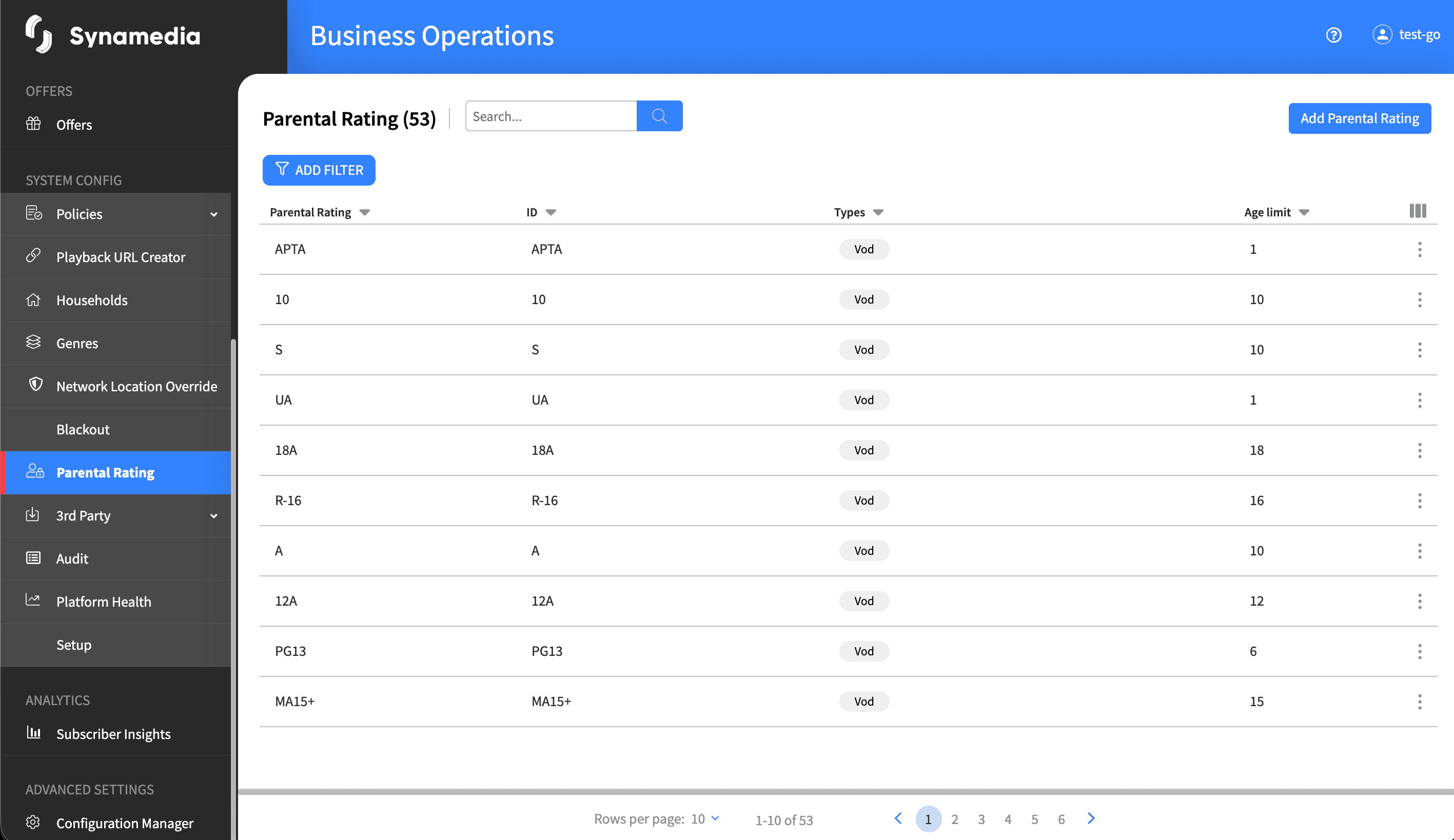
The list shows a row for each rating with columns:
Parental Rating: the display name in your default language.
ID: the unique rating identifier.
Types: the rating type or types, shown as tags – VOD or Linear.
Age limit: the minimum age required to view content with this rating.
Flags: shows an "Adult" tag when the rating is marked as adult-rated.
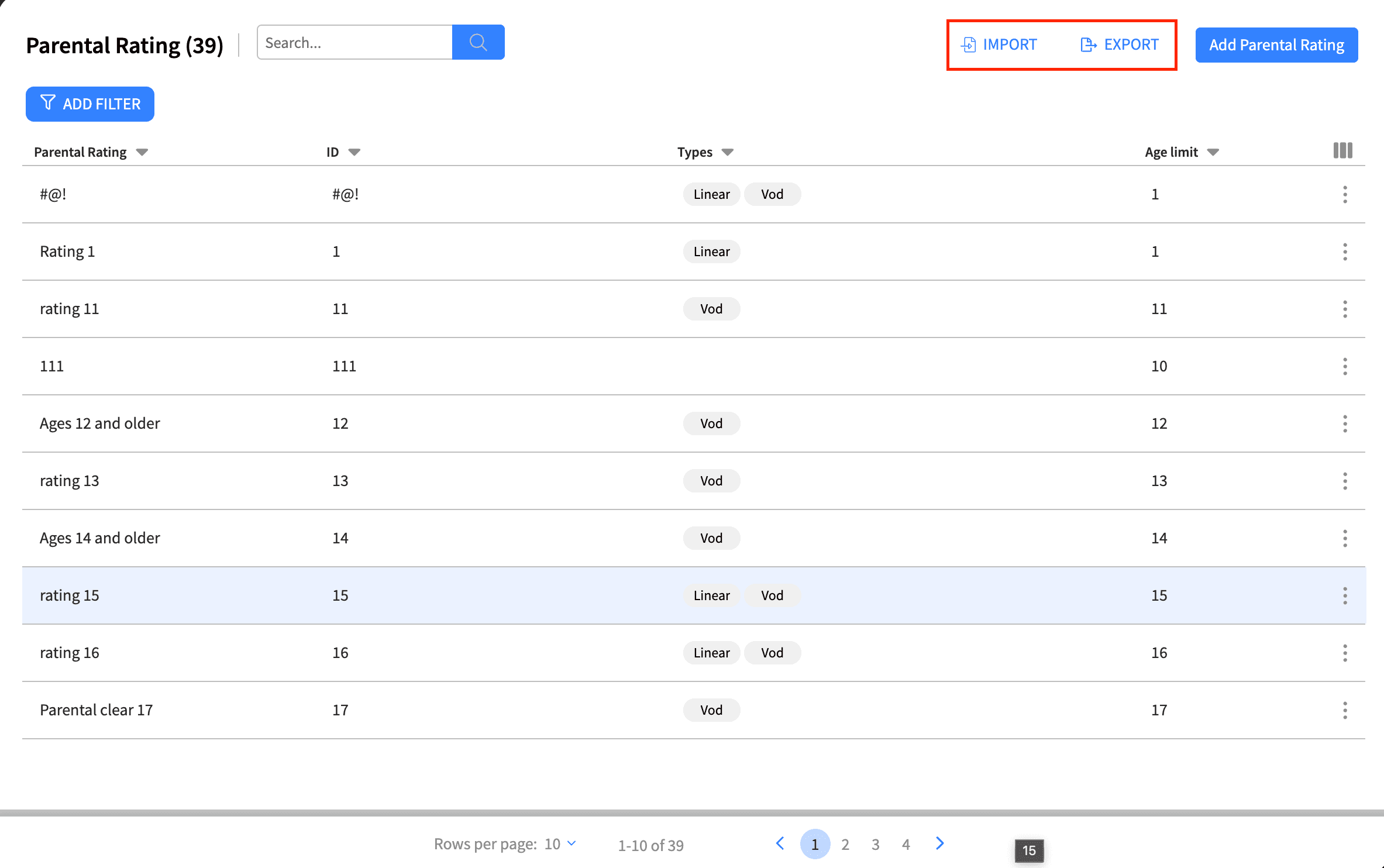
You can search by rating name or ID, filter by type and flags, and sort by clicking a column header. Where enabled, Import and Export buttons let you add many ratings from a file or download the full list.
Click a rating row to open a side panel with two tabs: Details, showing the rating ID, and Audit, showing the full history of changes to the rating.
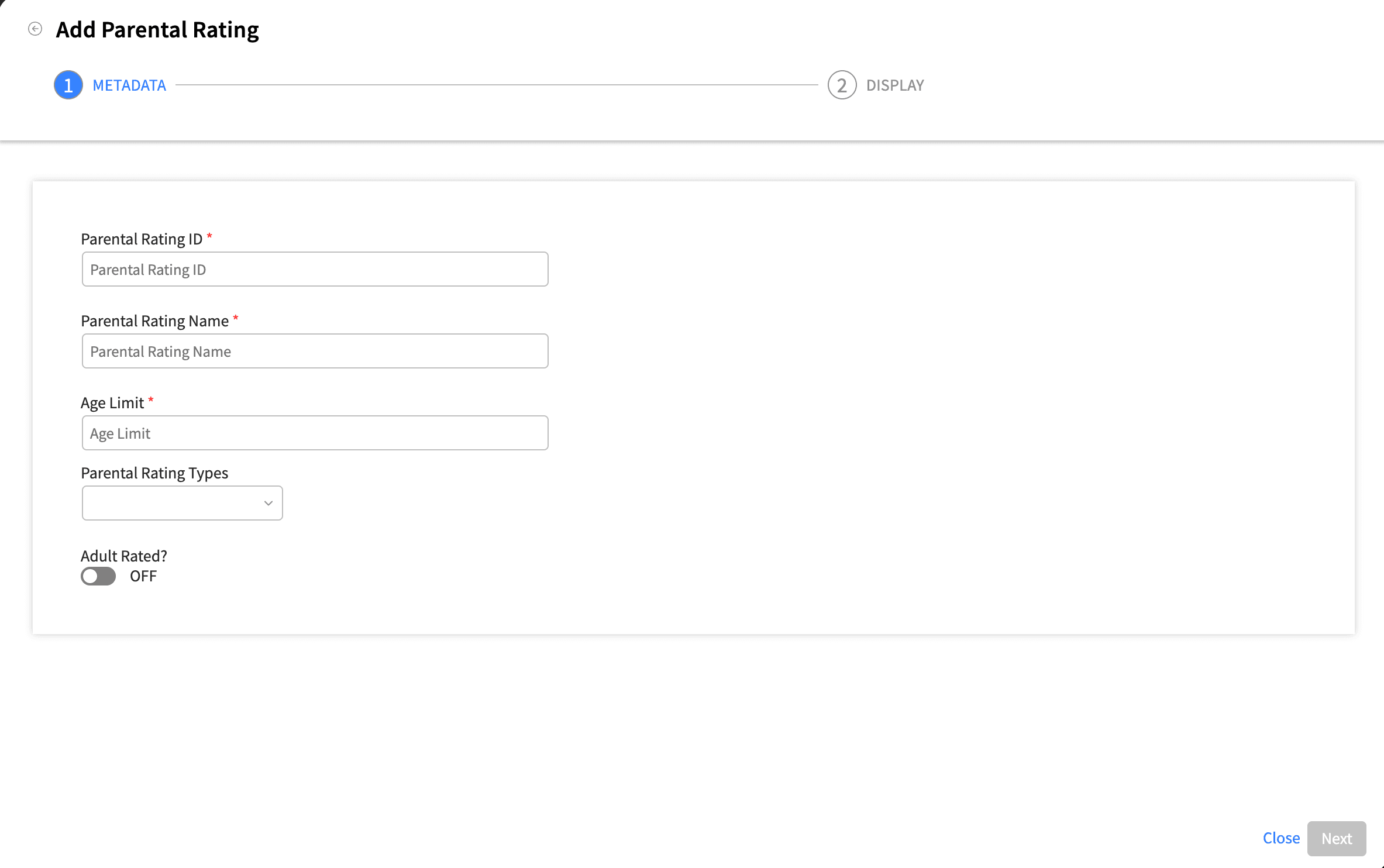
Click "Add Parental Rating" to open the two-step form titled "Add Parental Rating".
Step 1 – Metadata:
Parental Rating ID: required and must be unique; this cannot be changed after the rating is created.
Parental Rating Name: required, the display name in your default language, and must be unique.
Age Limit: required, a whole number that sets the minimum age to view this rating.
Parental Rating Types: choose one or more of VOD or Linear; unlike genres, both can be selected together.
Adult Rated: a toggle to mark the rating as containing adult content.
Step 2 – Display: for each available language, enter the display Name (required for your default language). Languages left empty are skipped.
Click "Create" to save.
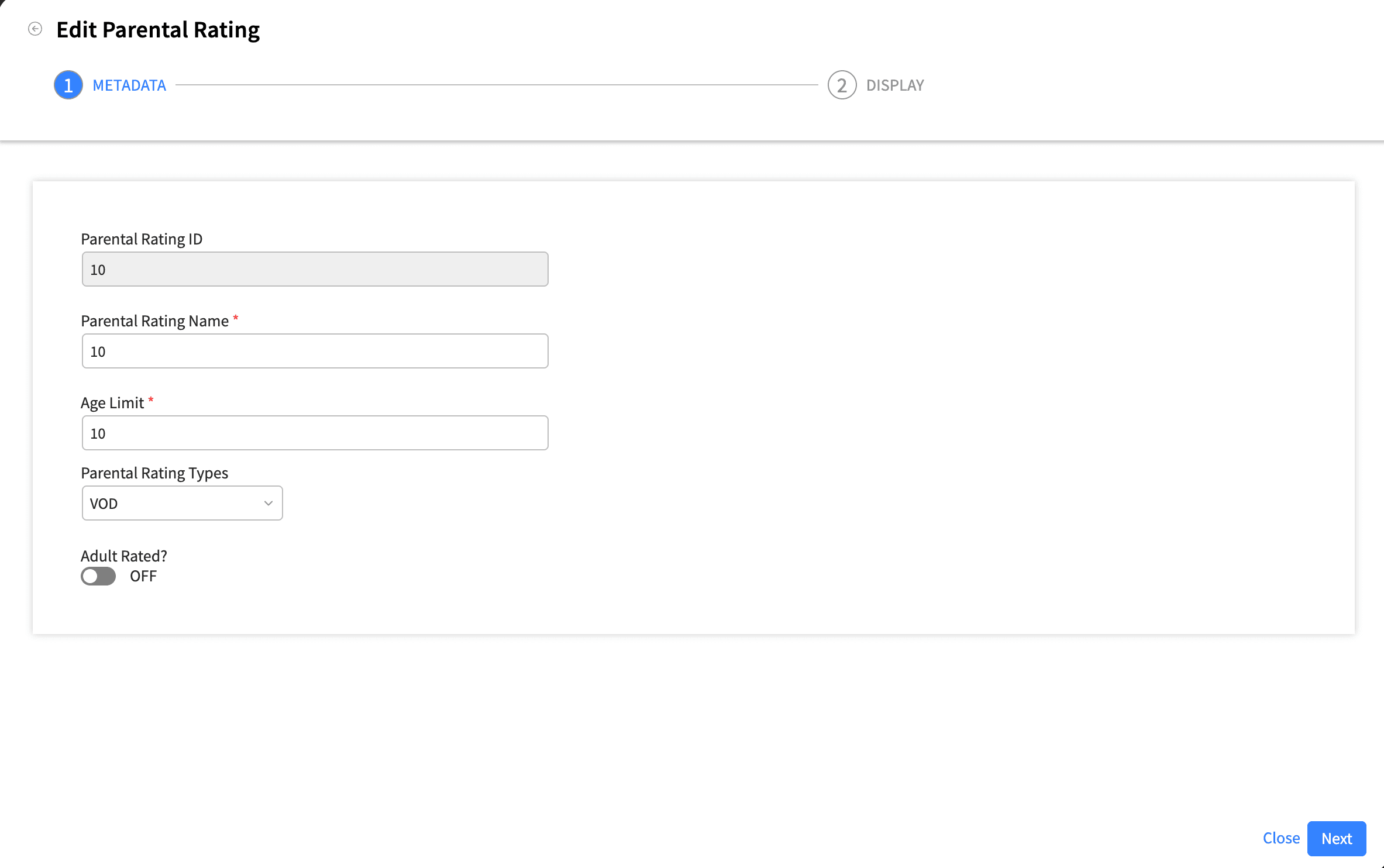
Open a rating and click the Edit (pencil) icon to reopen the two-step form. You can change all fields except the Parental Rating ID, which is read-only once the rating exists. Save your changes when done.
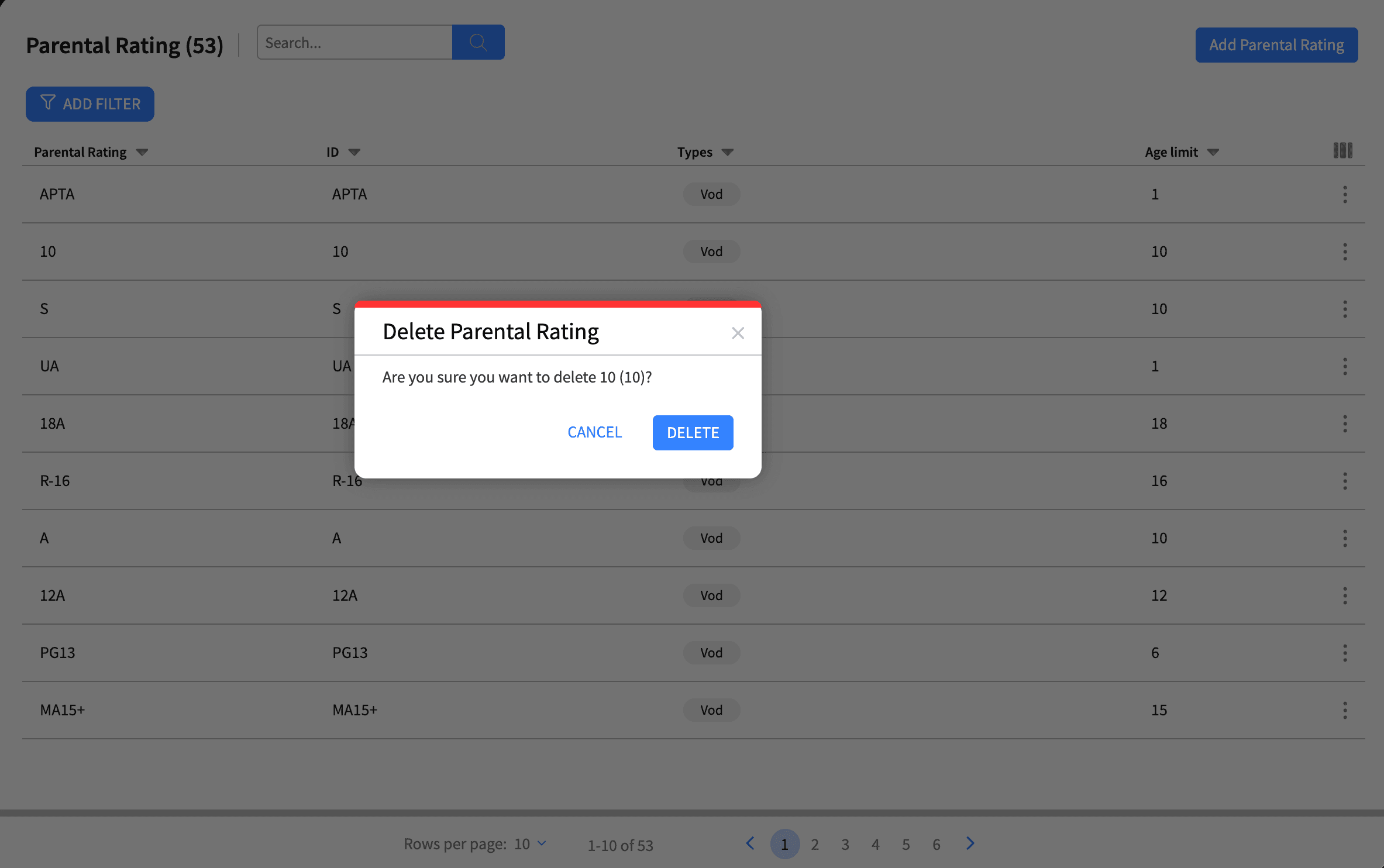
Click the Delete (trash) icon on a rating row. A confirmation dialog titled "Delete Parental Rating" asks you to confirm deletion of the named rating and its ID. Confirm to delete.
The Parental Rating ID is permanent once the rating is created, so choose it to match your regional rating scheme, for example "pg" or "pg-13".
The age limit you set here is what households use to restrict content; higher ages restrict more content.
Always fill in the display name for your default language; other languages are optional.
Unlike genres, a single rating can apply to both VOD and Linear content at the same time.
Create ratings in a logical age sequence (for example 3, 7, 13, 17, 18+) so households have no confusing gaps.
Use Import to add a whole regional rating scheme at once and Export to keep a backup.

