



The short video below shows how to link the contents to the classification via ingest rules.
Classification Binding tab in Rules enables binding the assets for a specific classification base on the applied conditions. Classifications influence how content is discovered, how parental controls and regional availability behave, and how related rules treat the title.
Within VOD Management this is primarily a view: classifications are assigned by business rules or come from the content's ingest data.
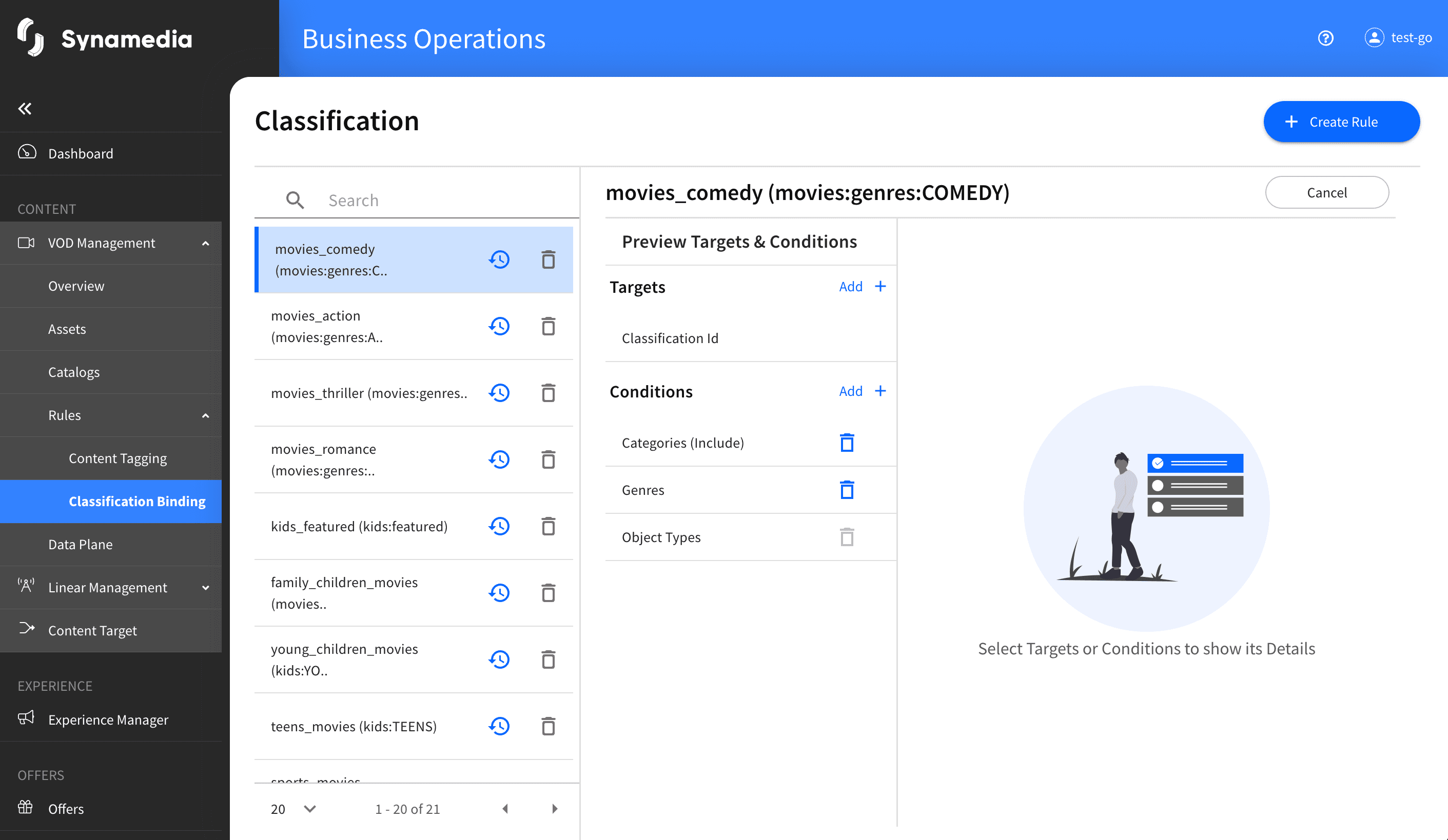
To create a new rule, complete the following:
From the Classification Binding home, click 'Create Rule'
In the Create Rules page, add the following:
Rule Id
Classification Id under Targets
Add the required Conditions.
Click, Next
The review screen is displayed with all the details entered, review the conditions for the Rule. Note: The right pane will show the number of assets tagged. The larger the number of assets, the longer time it will take for the "tagging" process to complete.
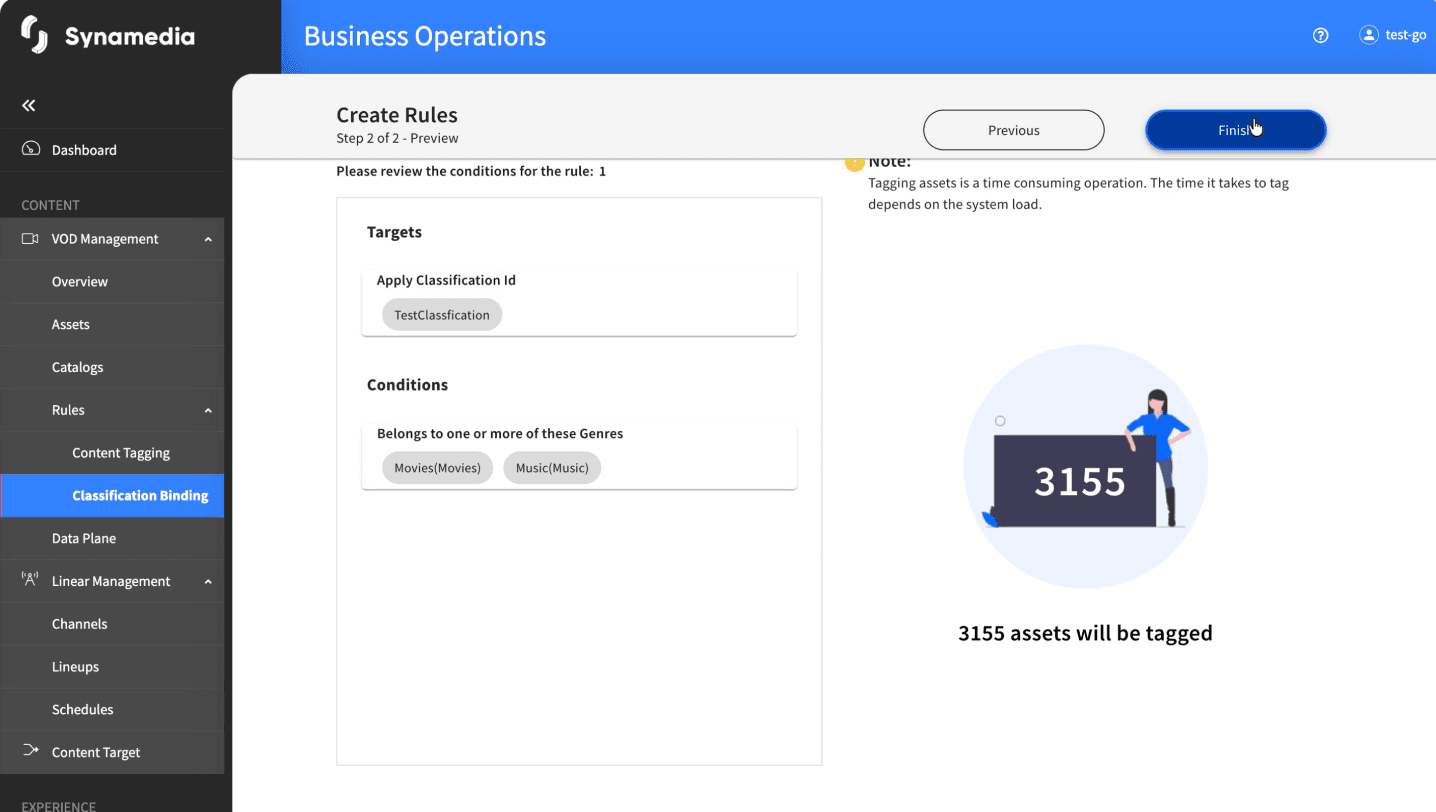
Click Finish.
The new Rule created is listed in the Classification Binding home screen.
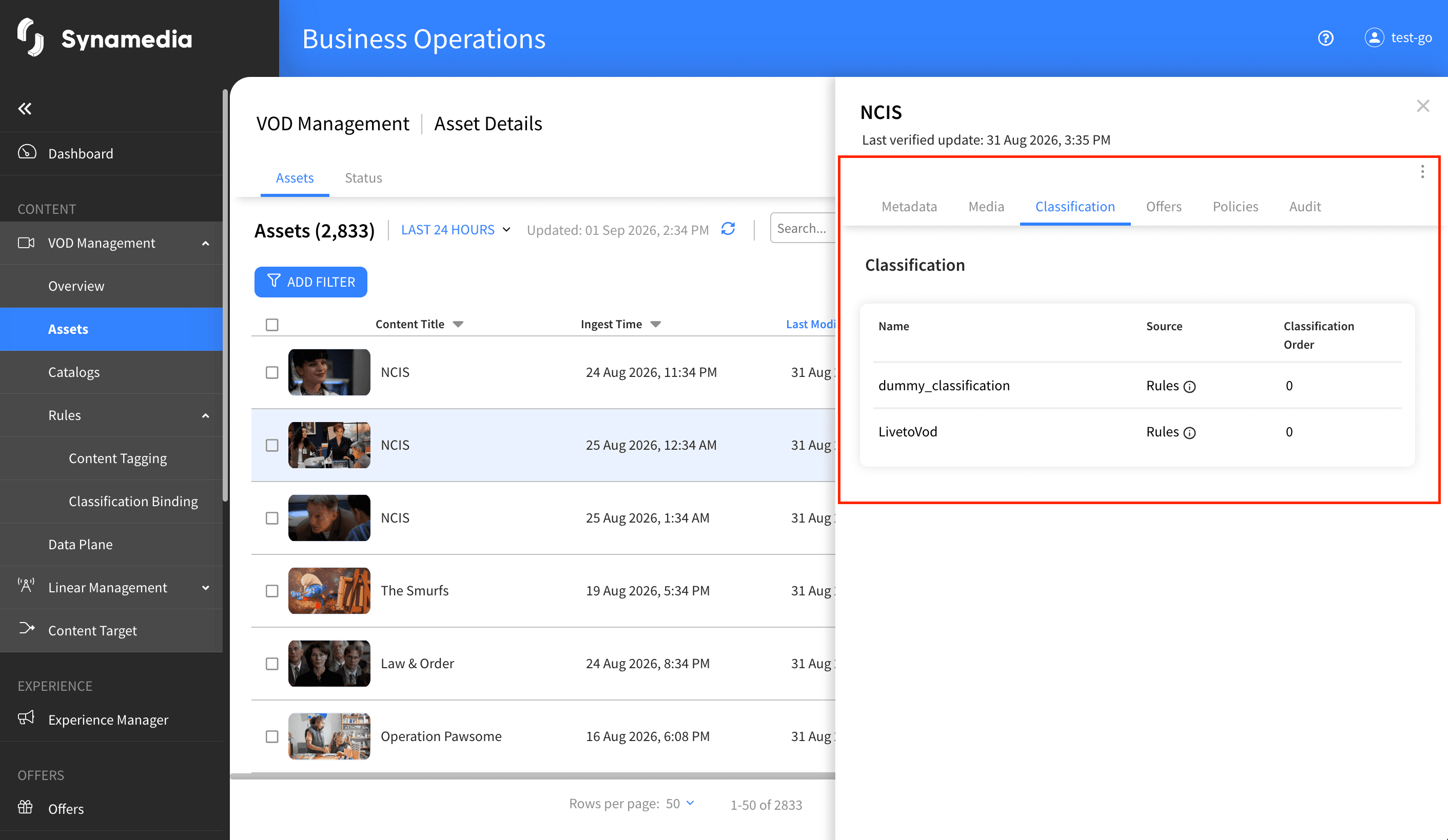
Open a title from the Assets list and select the Classification tab in the asset details side panel.
When associating assets with a classification, the right pane will show the number of assets tagged. The larger the number of assets, the longer time it will take for the "tagging" process to complete. It's good to be aware of this fact.
