


The short video below walks through the Lineups area: browsing lineups, viewing a lineup's details and tabs, creating a lineup, associating channels and setting channel numbers, cloning a lineup, and deleting one.
The Lineups area is where you group channels into channel packages (lineups). A lineup decides which channels a subscriber gets, what number each channel appears on, which regions it applies to, and which offers and content targets are associated with it. Sub-lineups let you create regional or package-specific variations that inherit channels from a parent lineup.
The module is opened from the sidebar under Linear Management > Lineups. The screen is split into two panels: the list of lineups on the left, and the details of the selected lineup on the right.
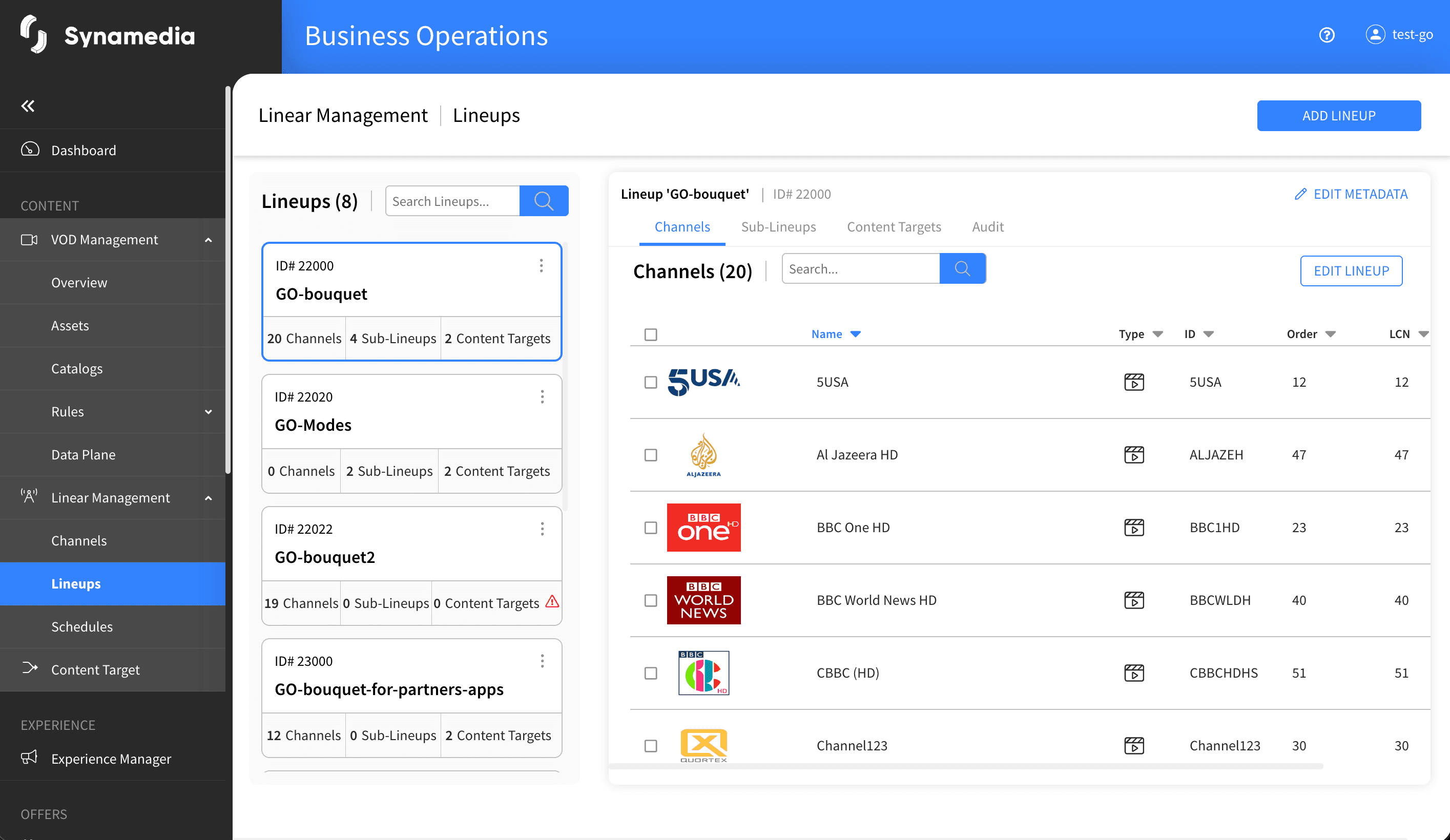
The left panel shows a card for each lineup with its name, ID, a count of any sub-lineups, and a "Default" badge where a default lineup is in use. Use the search box (labelled "Search Lineups...") to find a lineup by its name, ID, TV Pop ID, or by a channel name it contains.
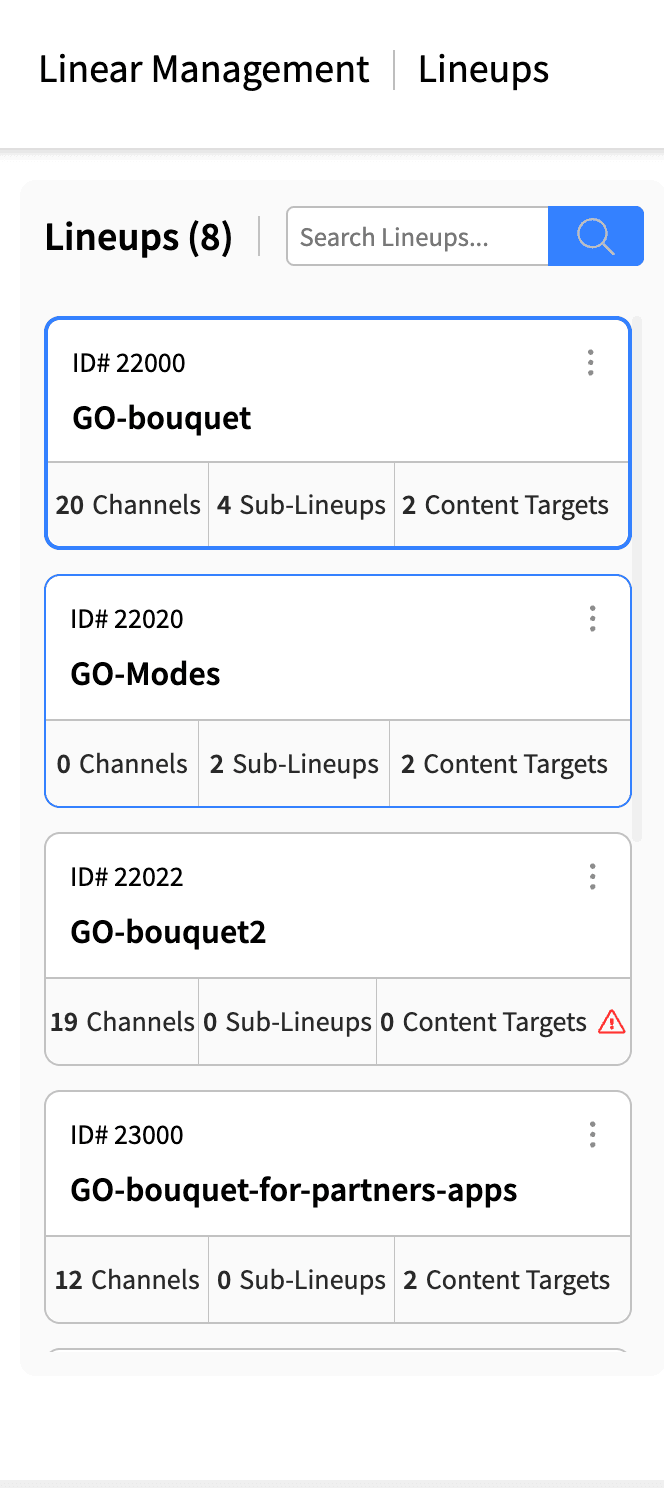
Select a lineup to see its details on the right, organised into tabs:
Channel Details: the lineup's metadata (profile type, name, ID, TV Pop ID, parent lineup and geo regions).
Sub-Lineups: the sub-lineups under this lineup, where you can create and open them.
Channels: the channels in the lineup with their numbering.
Offers: the subscription offers associated with the lineup, where you can associate or remove offers.
Lineups Content Targets: the content catalogues bound to the lineup, where you can associate or remove content targets.
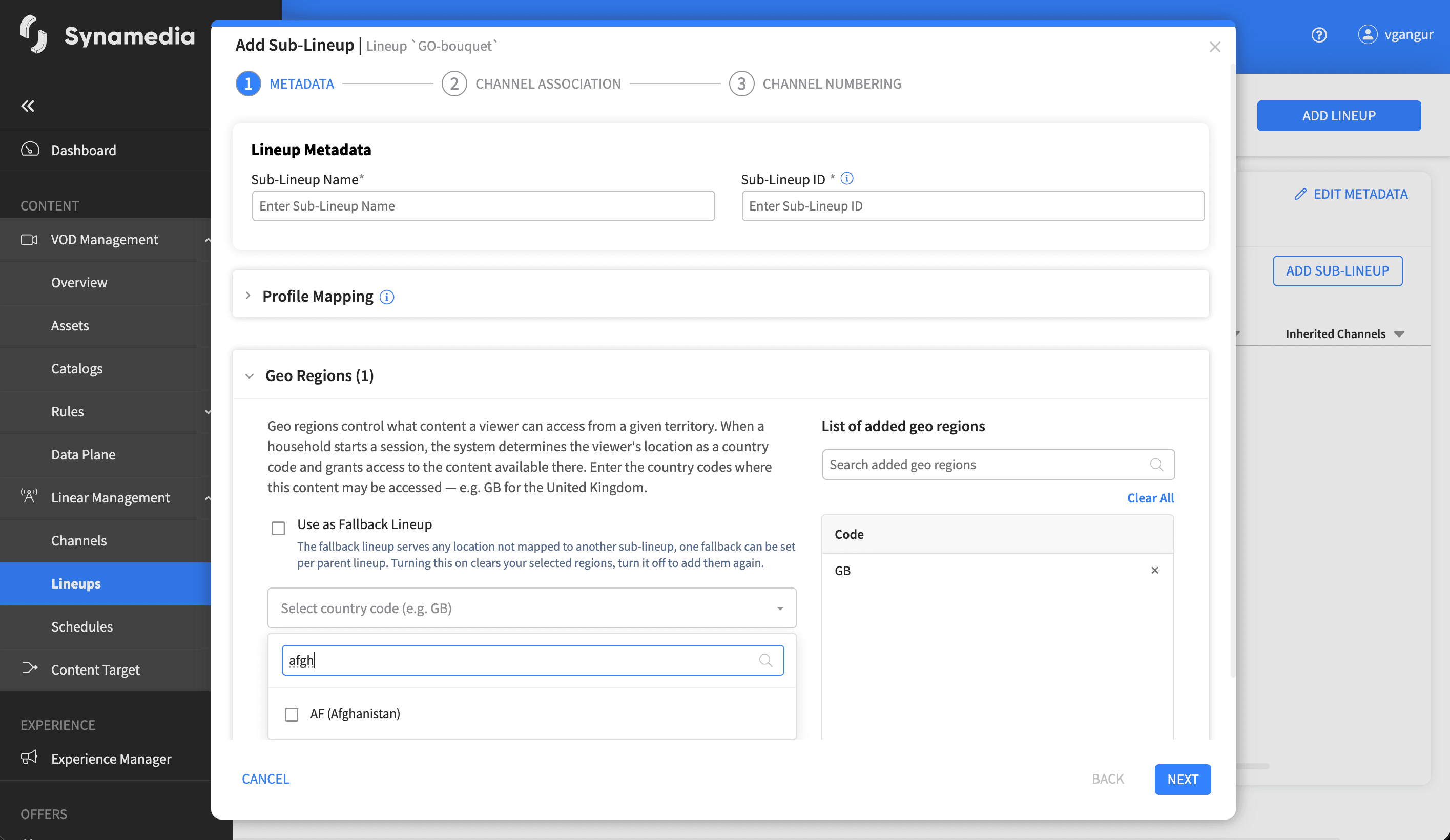
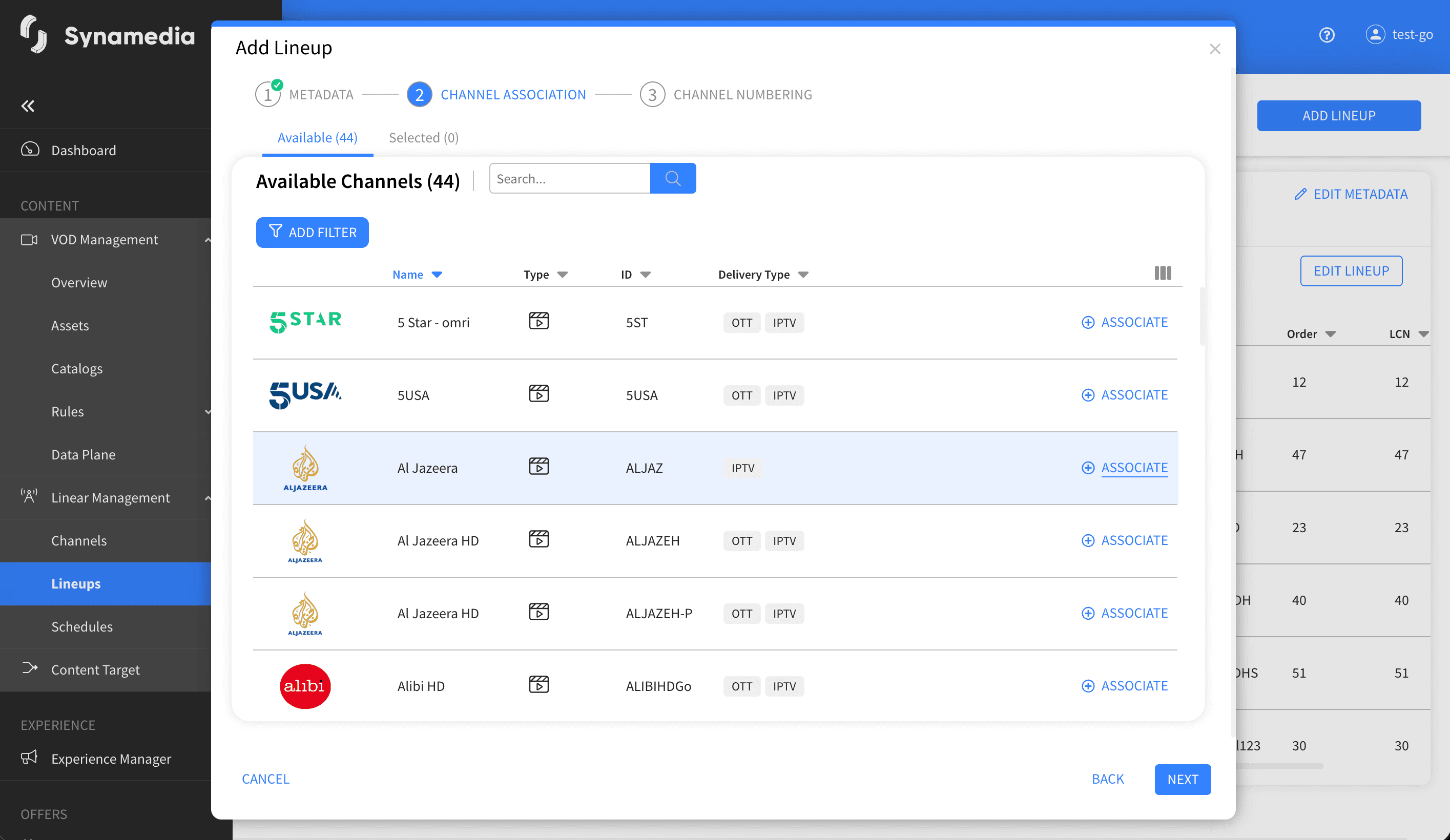
Click "ADD LINEUP" to open the three-step wizard.
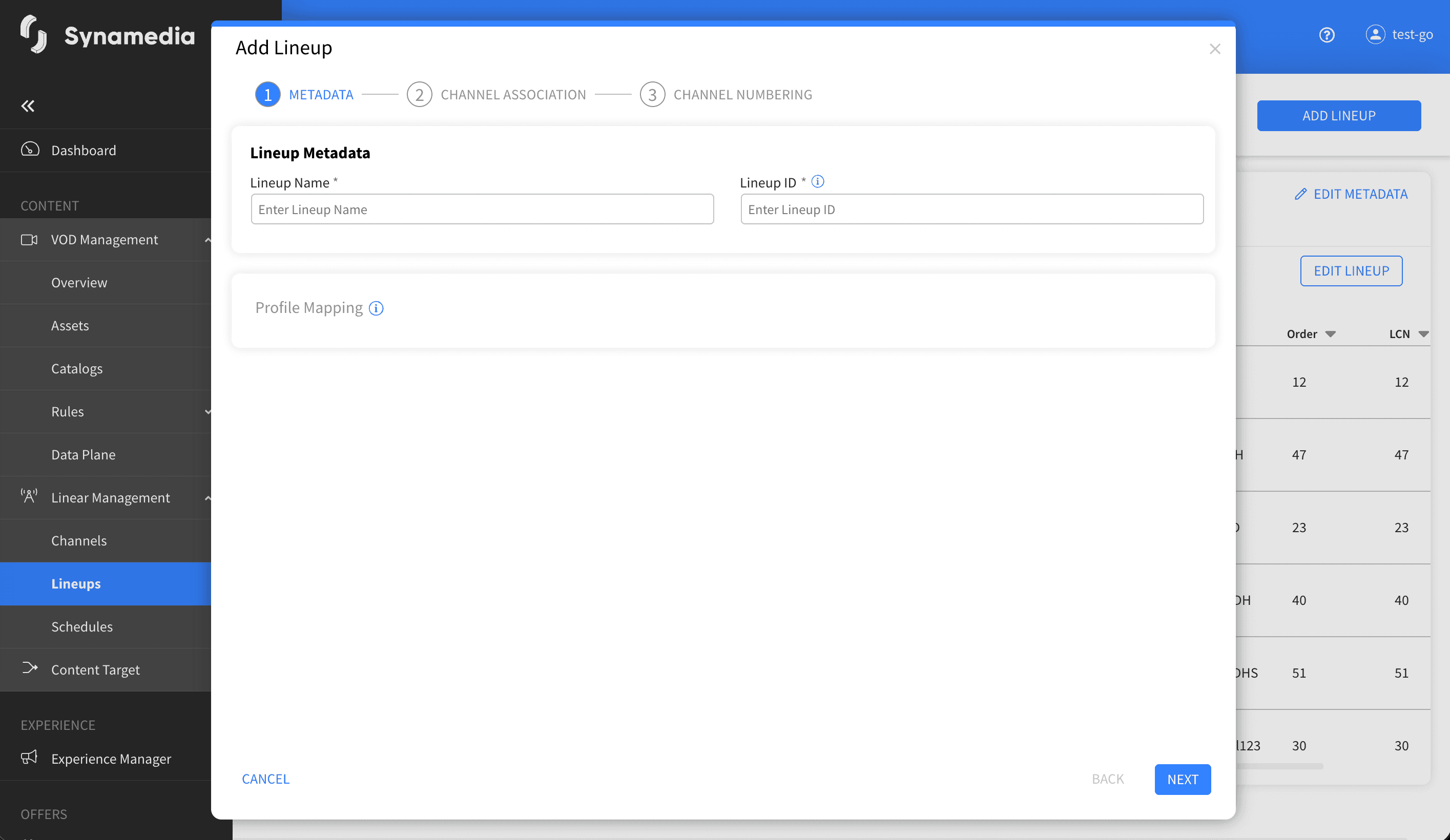
Step 1 – Metadata: enter the Lineup Name and a unique Lineup ID (the ID cannot be changed after the lineup is added), and optionally a TV Pop ID. To create a sub-lineup, choose a Target Lineup (the parent) and enter the Sub-Lineup Name and Sub-Lineup ID. You can also manage profile bouquet mappings that link the lineup to system profiles.
Step 2 – Channel Association: move channels from Available Channels into Selected Channels. If this is a sub-lineup, channels inherited from the parent are shown separately and cannot be changed.
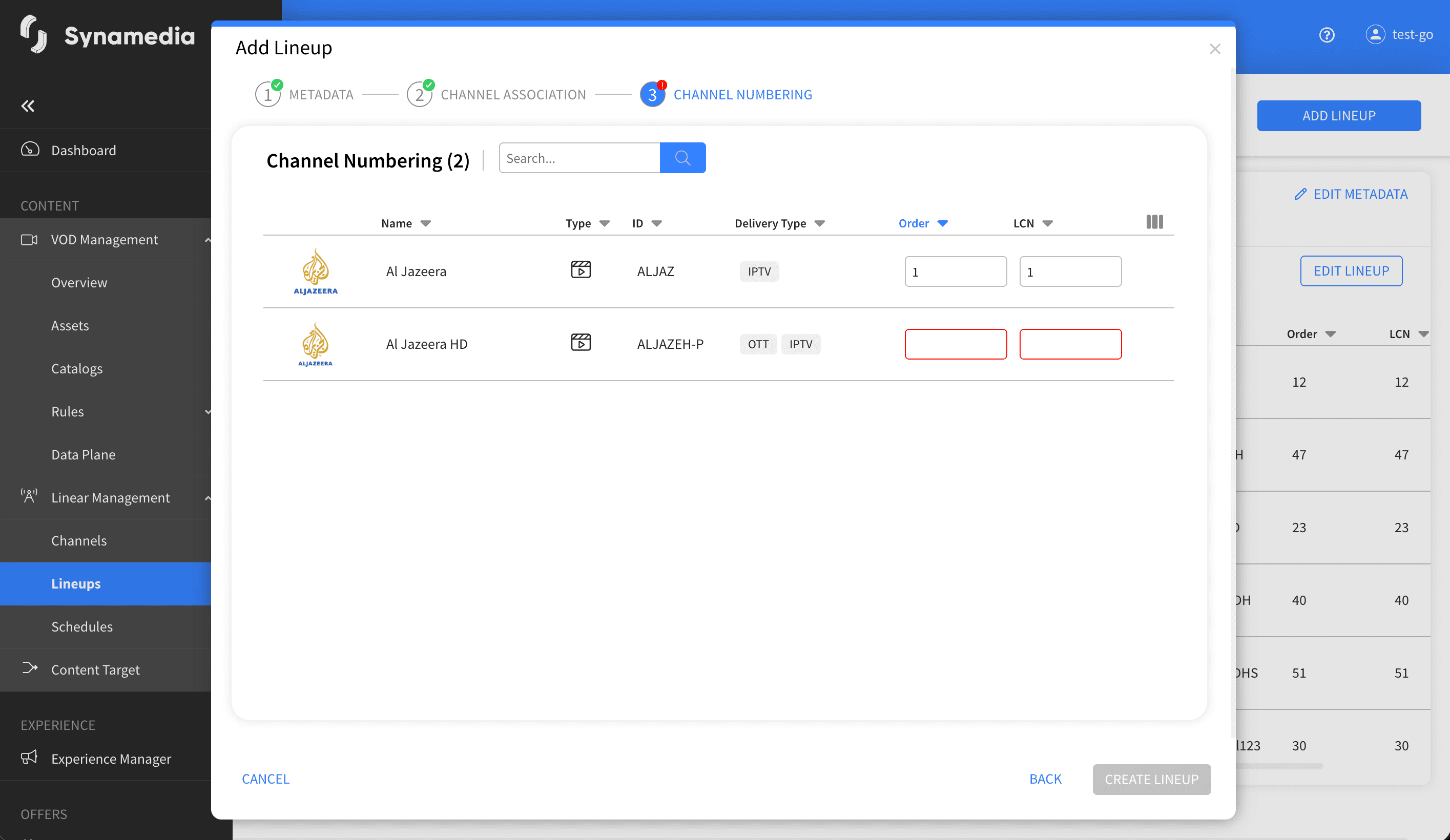
Step 3 – Channel Numbering: set the number (Order) each channel appears on, either by dragging to reorder or by typing a number. Channel numbers must be unique, and a lineup must contain at least one channel. Use "Create Lineup" to finish.
Each lineup card has a menu with actions:
Edit Metadata: quickly change the lineup name.
Edit Lineup: reopen the three-step wizard to change channels and numbering.
Set as Default: make this lineup the default (where default lineups are enabled).
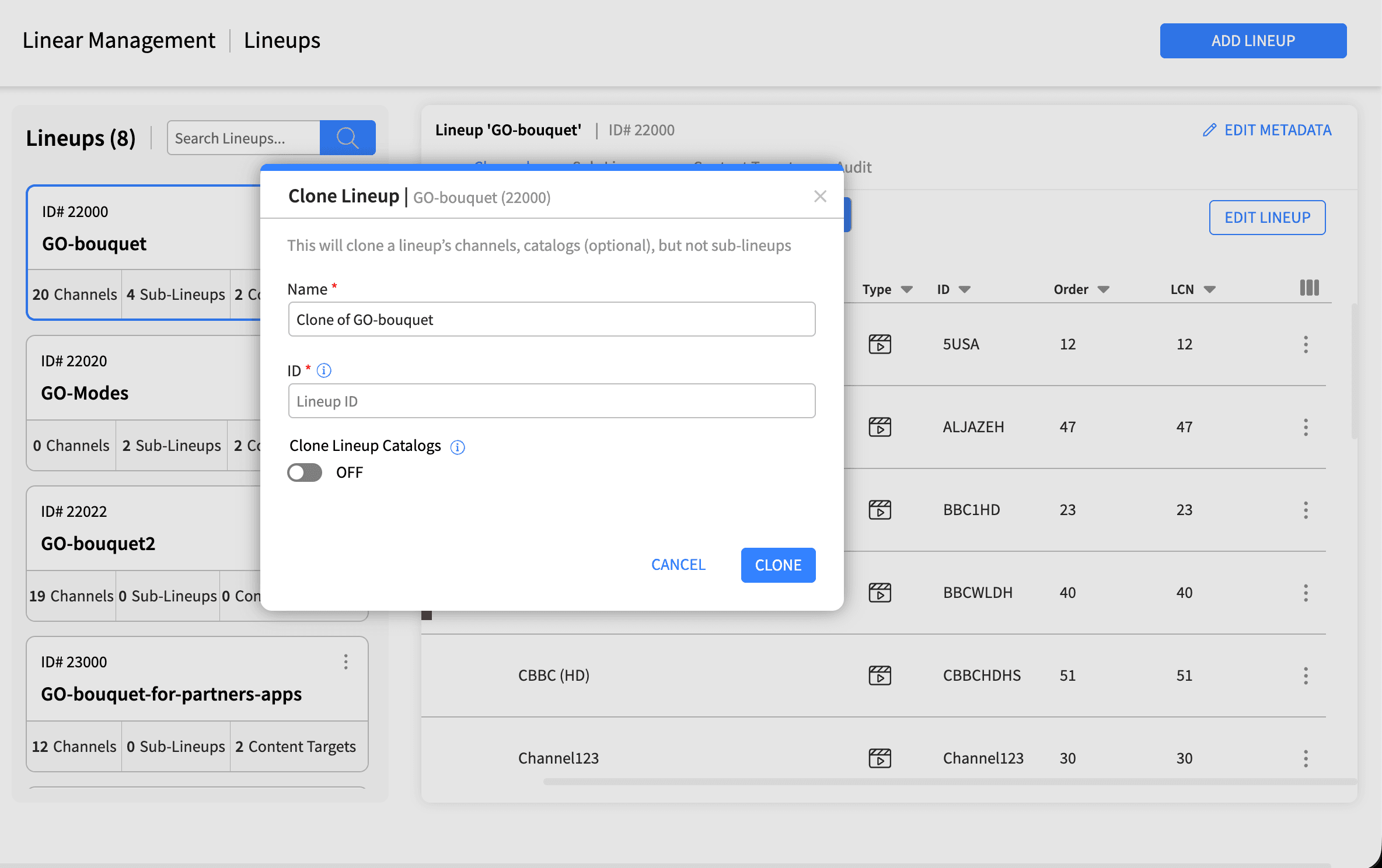
Clone: open the "Clone Lineup" dialog, which pre-fills a new name, asks for a unique new Lineup ID, and offers a "Clone Catalog Bindings" option to copy the associated content targets.
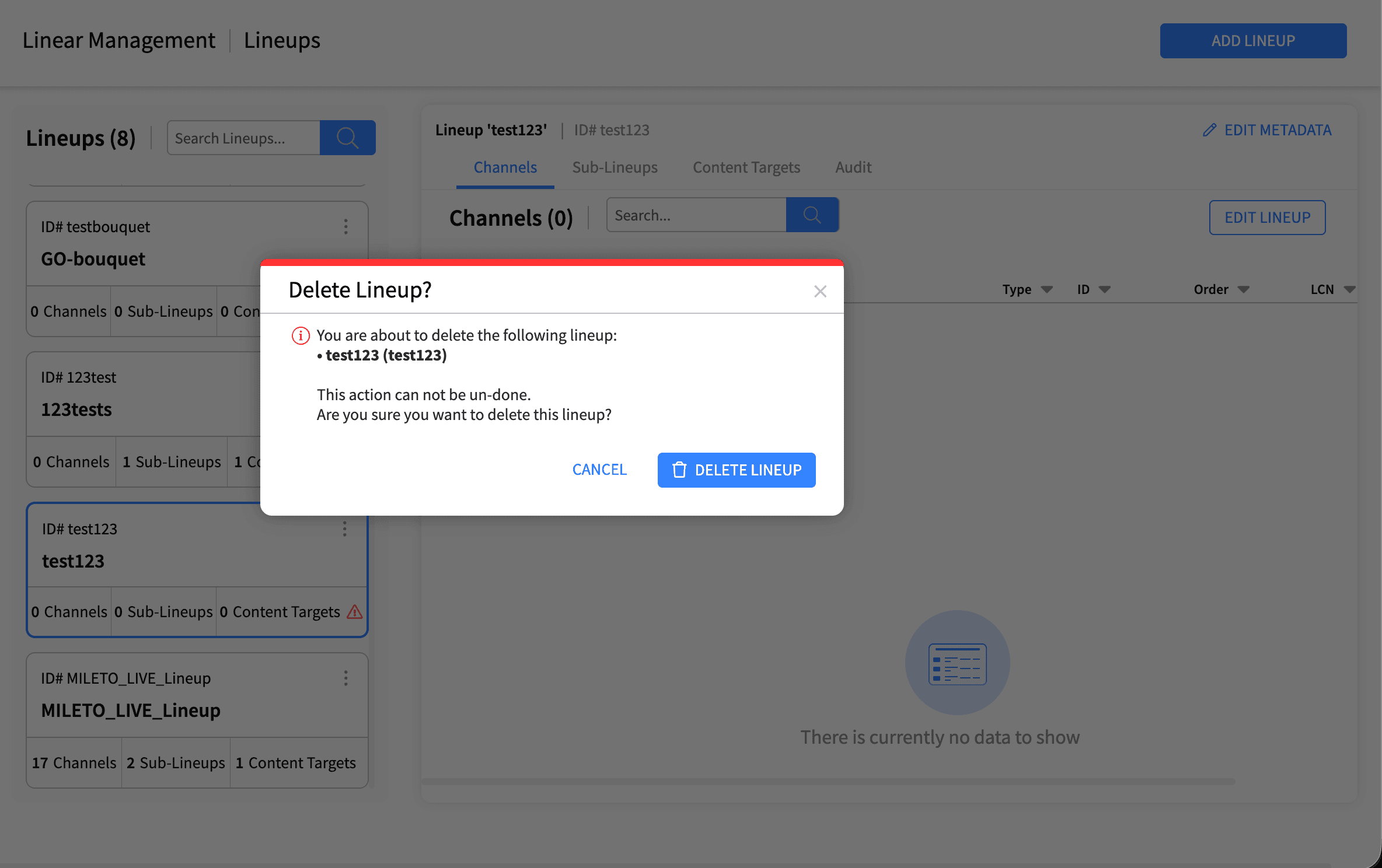
Choose Delete from the lineup's menu. A confirmation dialog titled "Delete Lineup" appears. If the lineup has sub-lineups, you are asked to delete those first. If it has associated content targets, you are warned that deleting the lineup loses those associations. Confirm with "Yes, Delete". A success message confirms the lineup was deleted.
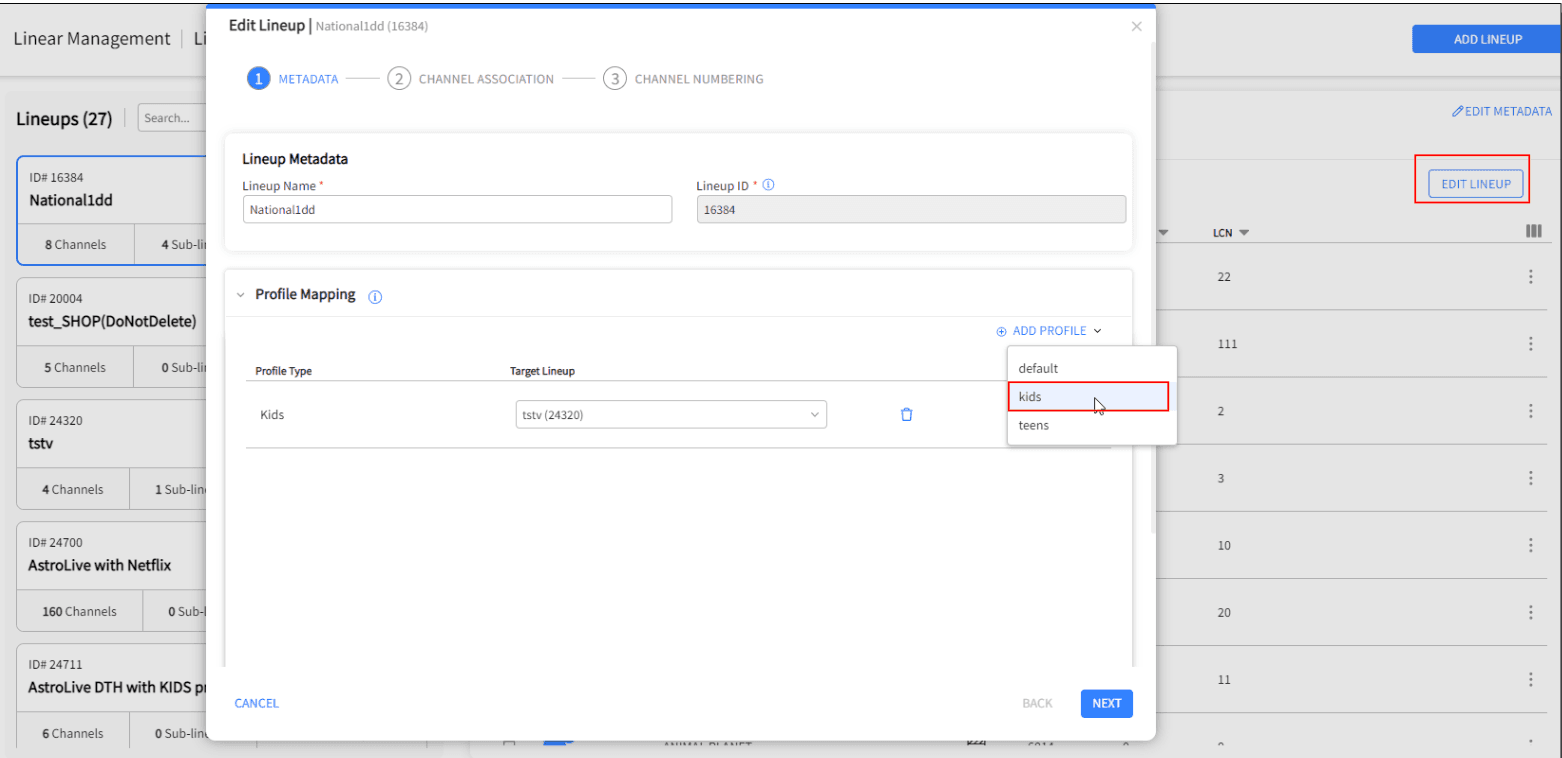
Profile mapping feature enables adding predefined profile types having all the linear channels catering to the respective profile type.
For example the kids profile has the following features:
A guide displaying only kids channels
Search results showing only channels for kids
Channel up or Channel down tuning to the next or previous kids channel
Direct channel access tuning to the nearest kids channel when the channel number pressed is not a kids channel
To initiate Profile Mapping, do the following:
From the left navigation pane of Synamedia Next-Gen Business Operations Console landing page, select Linear Management > Lineups.
Click on the lineup andclick on the Edit Lineup button to map the kids profile.
A lineup can be whitelisted in a specific country or geo region by adding those regions when creating or editing a sub-lineup. Every sub-lineup in a lineup must have unique geo-regions associated with it, and only one sub-lineup may have the 'fallback' option selected
The Lineup ID cannot be changed after the lineup is added, so choose it carefully.
Channel numbering is what subscribers see, so double-check the order and make sure every number is unique within the lineups and its sub-lineups
A lineup must contain at least one channel to be valid.
Use sub-lineups for regional or package-specific variations while inheriting the base channels from the parent.
When cloning, decide whether you also want to copy the content target (catalogue) bindings.
Delete sub-lineups before deleting their parent lineup.

