


The short video below walks through a complete example: uploading a new Pre-Roll video, associating it with Channel IDs and Providers, reviewing the preview and status, checking the audit history, and deleting a Pre-Roll.
The Pre-Roll module lets you manage short promotional or informational videos that play before content starts. A Pre-Roll can be targeted so that it applies only to specific Channel IDs, specific Providers, or both.
Each Pre-Roll consists of:
A video file in MP4 format
An optional Pre-Roll title
An optional Pre-Roll description
Targeting associations for Channel IDs and/or Providers
A processing status
Audit history for traceability
The module is opened from the sidebar under its Pre-Roll management entry in OpsHub.
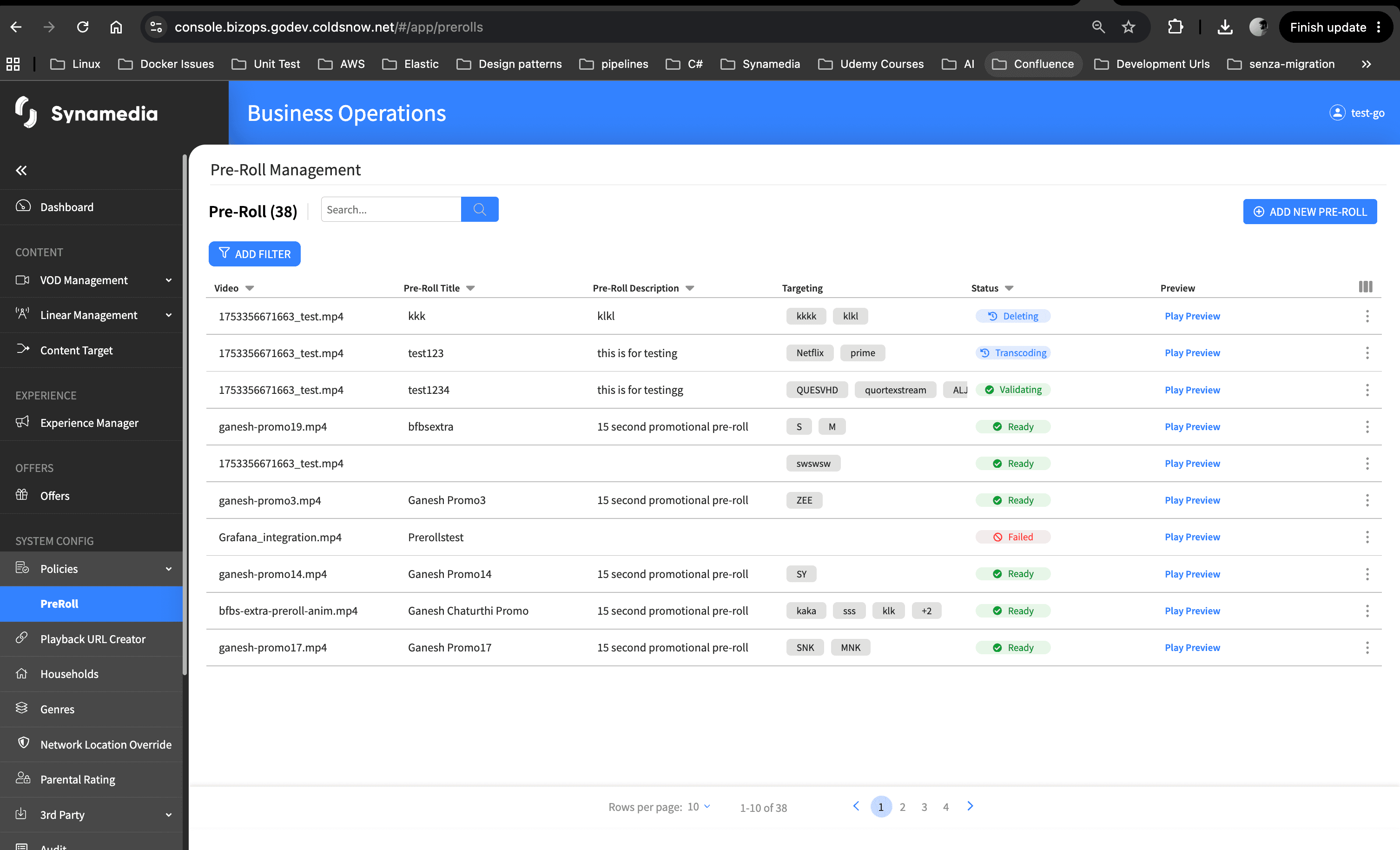
The main screen shows a table of all configured Pre-Rolls. From there you can:
Search the list
Filter by Targeting and Status
Preview a Pre-Roll
Open a Pre-Roll to view details
Add a new Pre-Roll, if you have edit permission
Delete a Pre-Roll, if you have edit permission
A Pre-Roll can be associated with:
One or more Channel IDs
One or more Providers
A combination of both
If a Channel ID or Provider is already associated with another Pre-Roll, OpsHub shows a warning when you add that value to a different Pre-Roll. Saving the new association overrides the earlier association.
Warnings are shown independently:
Channel conflicts are shown only in the Channel section
Provider conflicts are shown only in the Provider section
Warnings appear only after you add a conflicting value. They are not shown before any new association is entered.
The main table is titled "Pre-Roll" and shows the following columns:
Video: the uploaded video filename
Pre-Roll Title
Pre-Roll Description
Targeting: associated Channel IDs and/or Providers
Status
Preview
Search the list using the search box
Filter by Targeting
Filter by Status
Sort by Video, Pre-Roll Title, Pre-Roll Description, and Status
Open a row to see more details
Click "Play Preview" to preview the video
Each Pre-Roll shows a processing state in the Status column.
Common status types are:
Ready: the video has been uploaded and is available
Failed: the upload or processing failed
In progress states: accepted, queued, packaging, transcoding, processing, deleting, or similar intermediate backend states
The exact wording depends on the backend state returned to OpsHub.
Click "ADD NEW PRE-ROLL".
The create flow has two steps:
Upload Video
Associate Channel / Provider
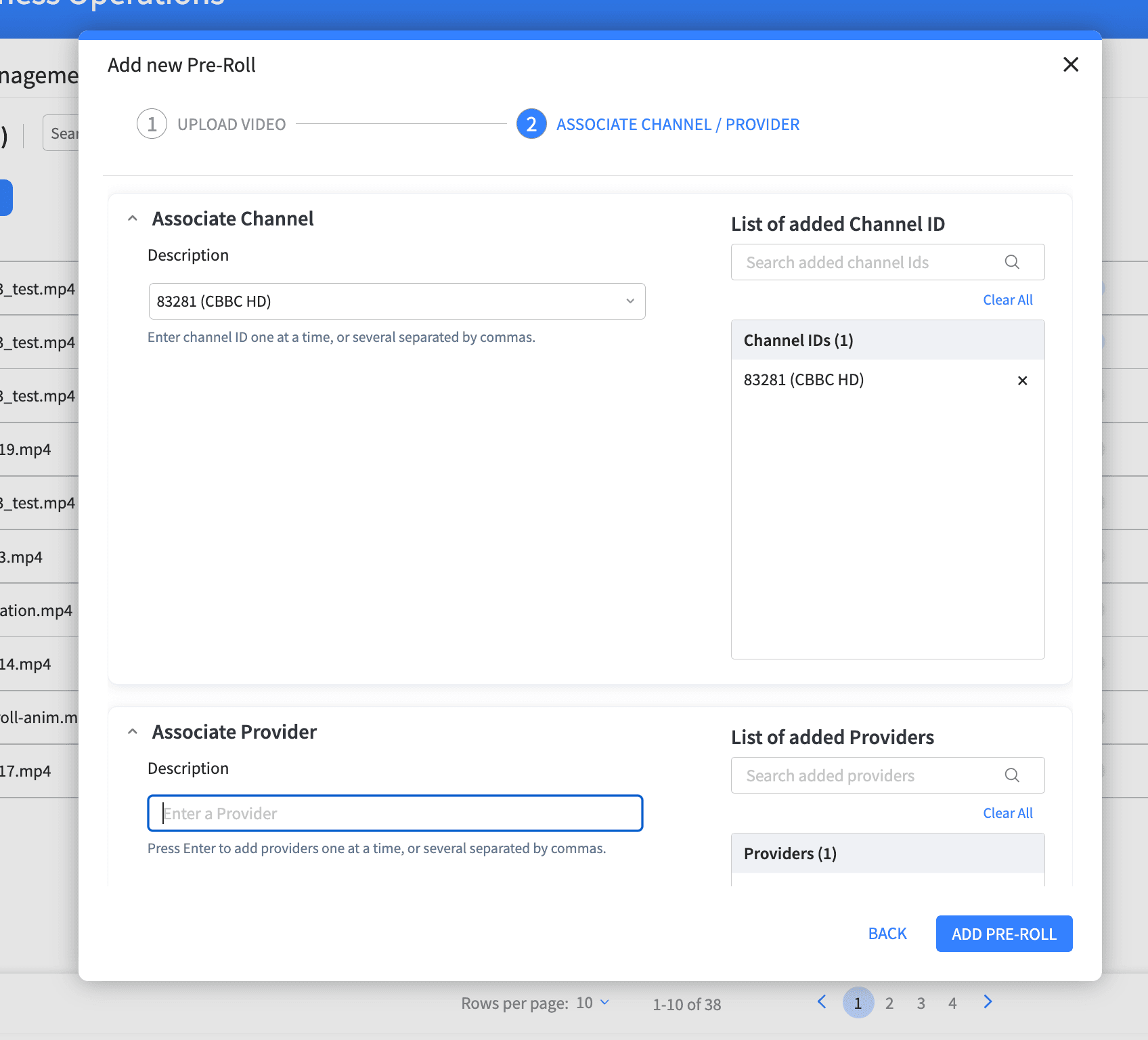
In this step you:
Drag and drop an MP4 file, or click "Browse Files"
Optionally enter a Pre-Roll title
Optionally enter a Pre-Roll description
Only MP4 files are accepted
If the file is invalid, the error shown is: "Select one MP4 video file."
The video is uploaded in the background after selection
The "NEXT" button stays disabled until the upload completes successfully
The preview is shown only after the upload is successfully confirmed
"Remove Video" is shown only after the MP4 has been uploaded successfully
If the upload fails, OpsHub shows a retryable upload error state
During upload, users may see:
Preparing upload…
A progress bar with percentage
Waiting for storage confirmation…
If the upload fails, the user sees:
"The video could not be uploaded due to a temporary issue. Please try uploading it again."
Step 2: Associate Channel / Provider
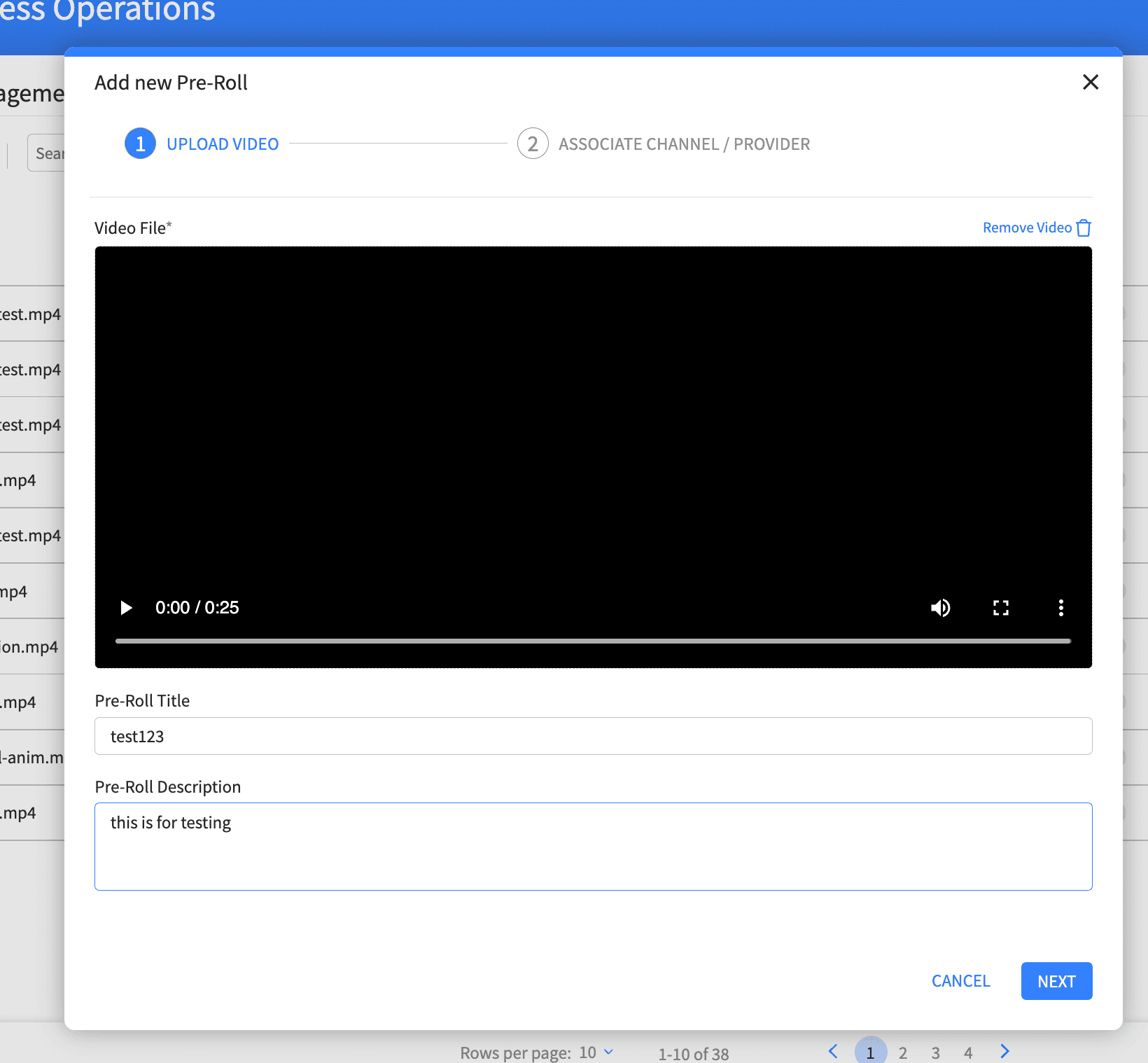
In this step you can add targeting associations.
Associate Channel
Use the Channel selector to choose one or more Channel IDs
Search within available Channel IDs
Remove individual Channel IDs from the added list
Use "Clear All" to remove all selected Channel IDs
Associate Provider
Enter one or more Providers
Multiple Providers can be entered separated by commas
Press Enter to add them
Remove individual Providers from the added list
Use "Clear All" to remove all selected Providers
Important behavior:
At least one targeting association is required when creating a new Pre-Roll
Conflict warnings are shown separately for Channel IDs and Providers
If a selected Channel ID or Provider is already associated with another Pre-Roll, OpsHub warns that saving here will override that earlier association
The warning uses the full width of the row within the create form
Typical warning behavior:
Channel warning: shown only in the Channel card
Provider warning: shown only in the Provider card
Saving a new Pre-Roll
After the upload is successful and targeting has been added:
Click "ADD PRE-ROLL" to save
If the selected targeting conflicts with another Pre-Roll, OpsHub still allows the save and applies the new association as an override
If saving fails, an error message is shown and the user can retry
Click any row in the list to open the side panel.
The side panel has two tabs:
Details
Audit
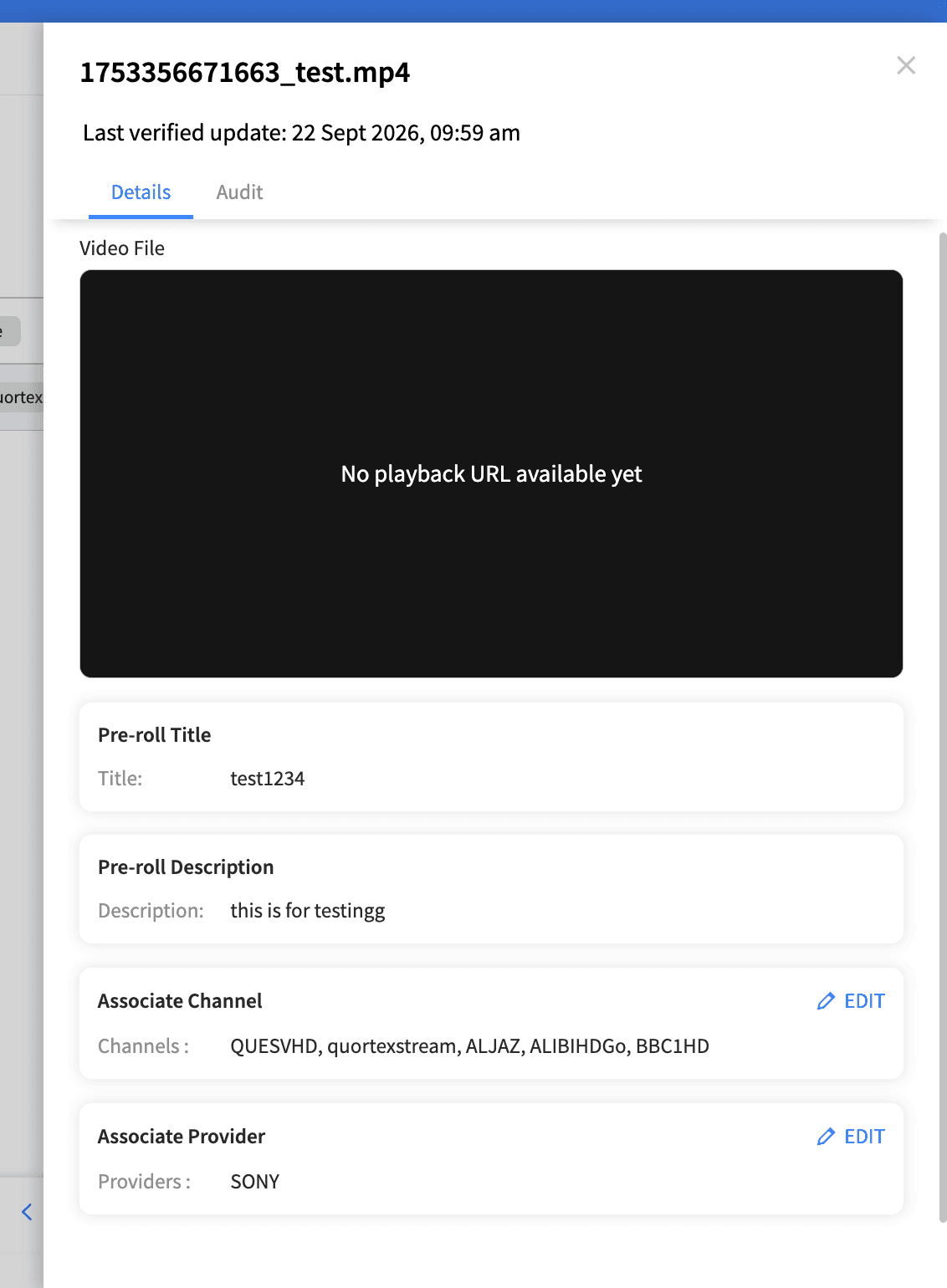
The panel header shows the video filename or Pre-Roll identifier, and also shows the last verified update time.
Details tab
The Details tab shows:
Video File
Pre-Roll Title
Pre-Roll Description
Associate Channel
Associate Provider
You can also preview the video from the Details tab.
Current OpsHub behavior:
The title and description are shown as read-only in the side panel
Targeting associations can be edited
Video replacement is not supported from the side panel
If the details cannot be loaded, the panel shows a fallback empty state.
Editing targeting associations
If you have edit permission, use the "EDIT" action in the Channel or Provider section.
Channel editing
Add or remove Channel IDs
Search within the Channel list
Save changes when finished
Provider editing
Add or remove Providers
Enter Providers as text and press Enter to add them
Save changes when finished
Important behavior:
Channel and Provider sections are edited independently
Warnings are shown only for newly added conflicting values
Existing values do not show a warning unless a newly added value conflicts
If a conflicting value is added, saving applies the new association as an override
To save:
Click "SAVE CHANGES"
To discard:
Click "CANCEL"
If saving fails, OpsHub retains the draft changes and shows an error so the user can retry.
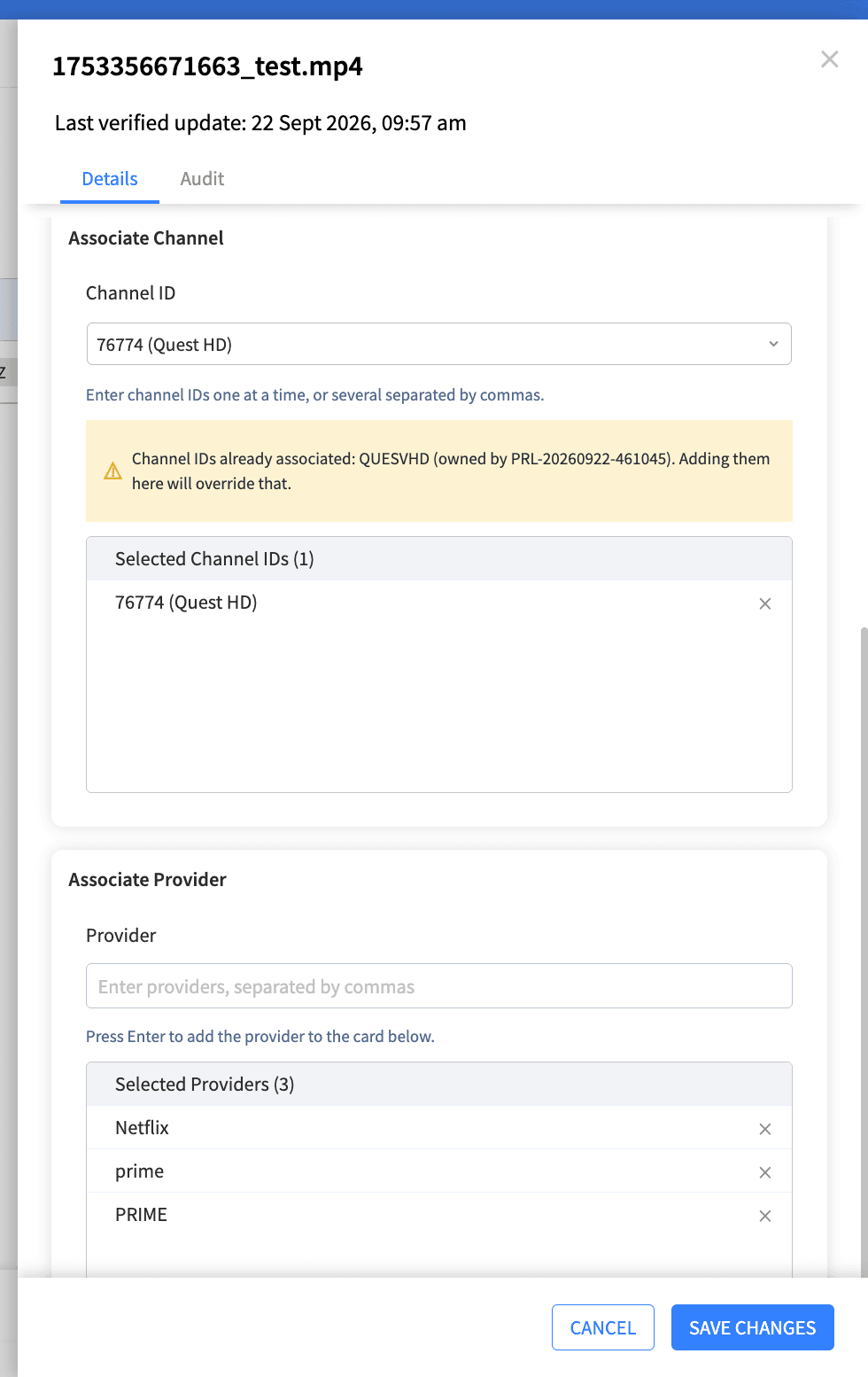
Pre-Roll Details Edit
Click "Play Preview" from the table, or use the preview area from the Details tab.
This opens the Pre-Roll video player so the user can verify the uploaded asset.
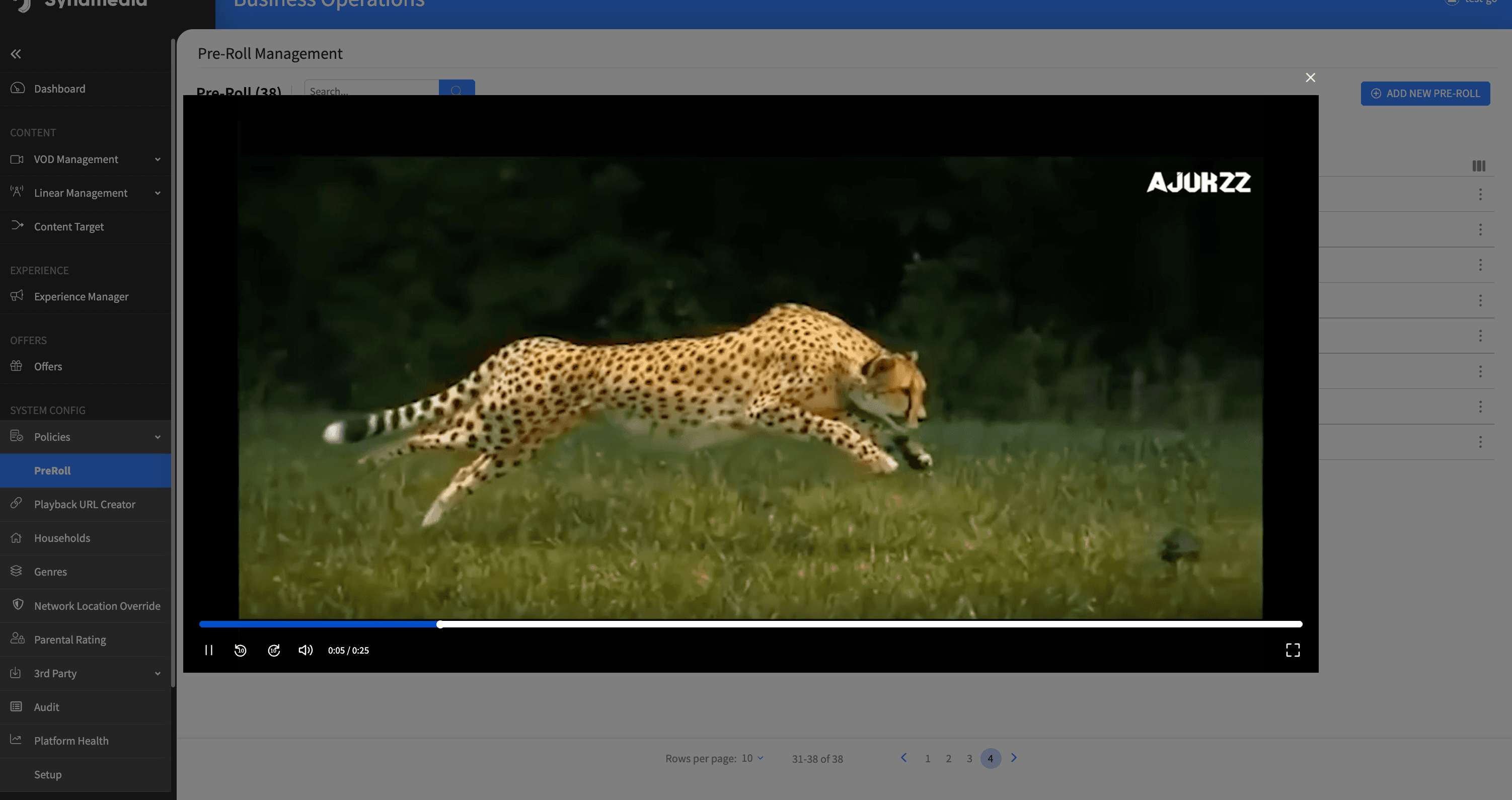
Pre-Roll Preview
Click the delete icon at the end of the row.
A confirmation dialog appears.
Delete behavior:
The dialog asks the user to confirm the deletion
If the Pre-Roll currently owns Channel ID or Provider associations, the dialog also lists those affected associations
Deleting the Pre-Roll removes those associations along with the Pre-Roll
Users can:
Click "Delete" to confirm
Click "Cancel" to keep the Pre-Roll
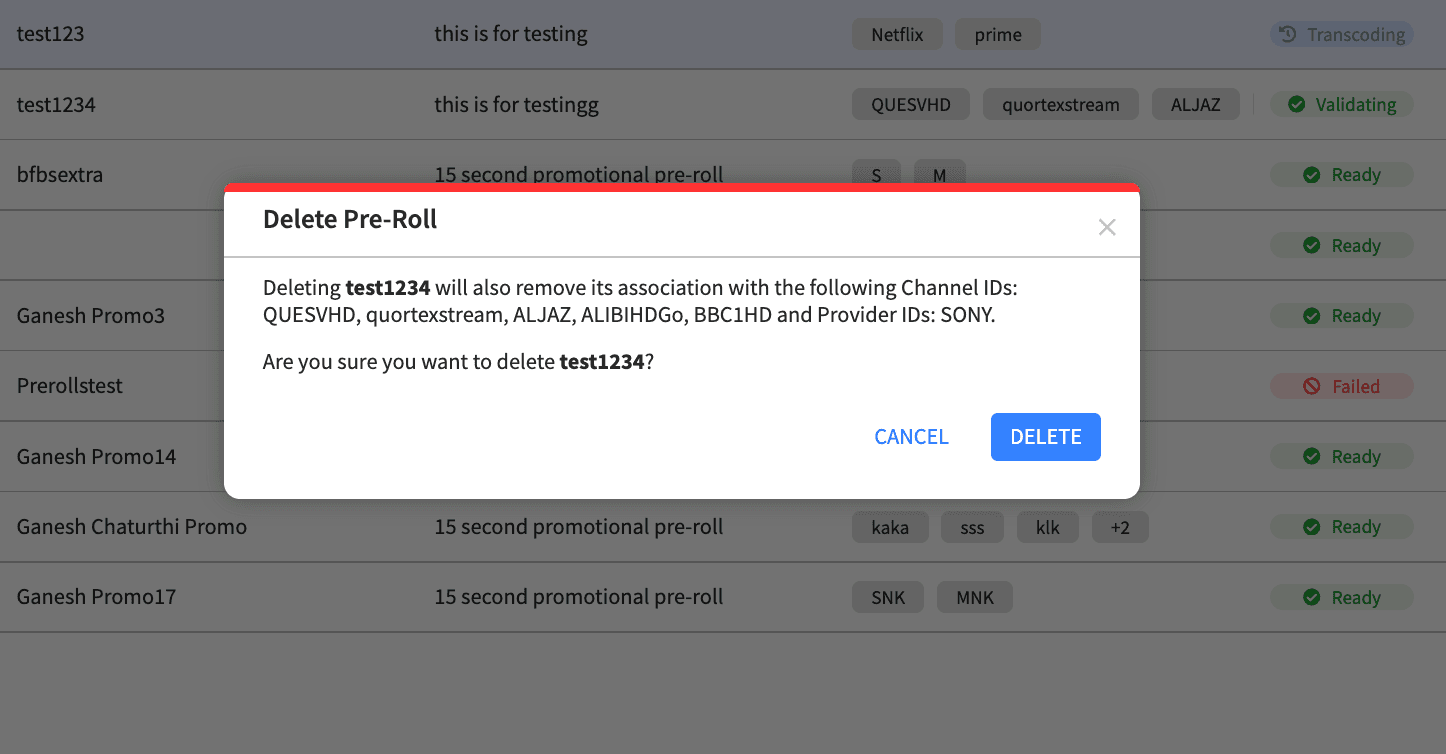
Pre-Roll Delete Dialog
Pre-Roll visibility and actions are permission-based.
Typical behavior:
Users with view permission can open the module, browse the table, open details, and view audit history
Users with edit permission can create, delete, and edit targeting associations
The "ADD NEW PRE-ROLL" button is shown only when the user has edit permission
If a user does not have view permission, the page is not shown.
Each Pre-Roll keeps a change history.
Open a Pre-Roll and select the "Audit" tab to see a timeline of recorded actions, such as:
creation
updates
deletion-related history
other tracked changes sent by the service
Use this to confirm who changed the Pre-Roll and when.
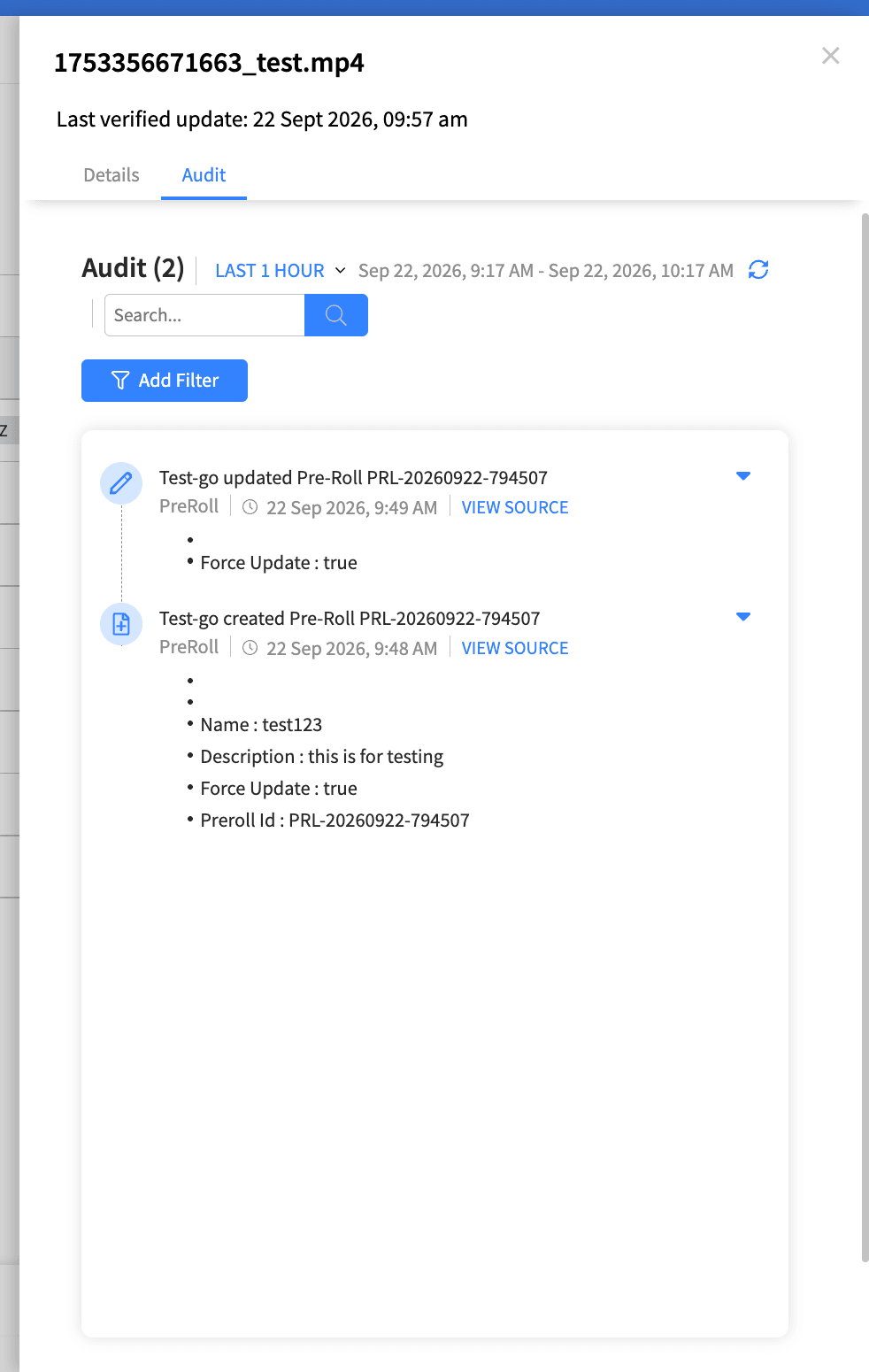
Pre-Roll Audit History
Use clear titles and descriptions so the purpose of each Pre-Roll is easy to identify. Use targeting carefully. A Channel ID or Provider should normally belong to only one active Pre-Roll association at a time. If OpsHub shows a conflict warning, review whether the new association is intended before saving. Wait for the upload to finish before moving to the targeting step. Use the preview to confirm the correct asset was uploaded. Deleting a Pre-Roll also removes its targeting associations. If a save or upload fails, read the error message and retry the operation.

