


The short video below walks through Linear Policies: finding a policy, reading its default value and conditional values, editing a policy, adding a conditional value, and resetting a policy back to its base value.
Linear Policies set the default viewing rules for live linear (broadcast) content. They control playback features such as catch-up, restart and recording, content protection settings, and any restrictions that apply to all linear services unless a more specific condition overrides them. Each policy has a default value, and can optionally have conditional values that apply only when certain conditions are met (for example a different value for a particular device type or network type).
The module is opened from the sidebar under System Config > Policies > Linear Content > Linear Policies. The header reads "Linear Policies".
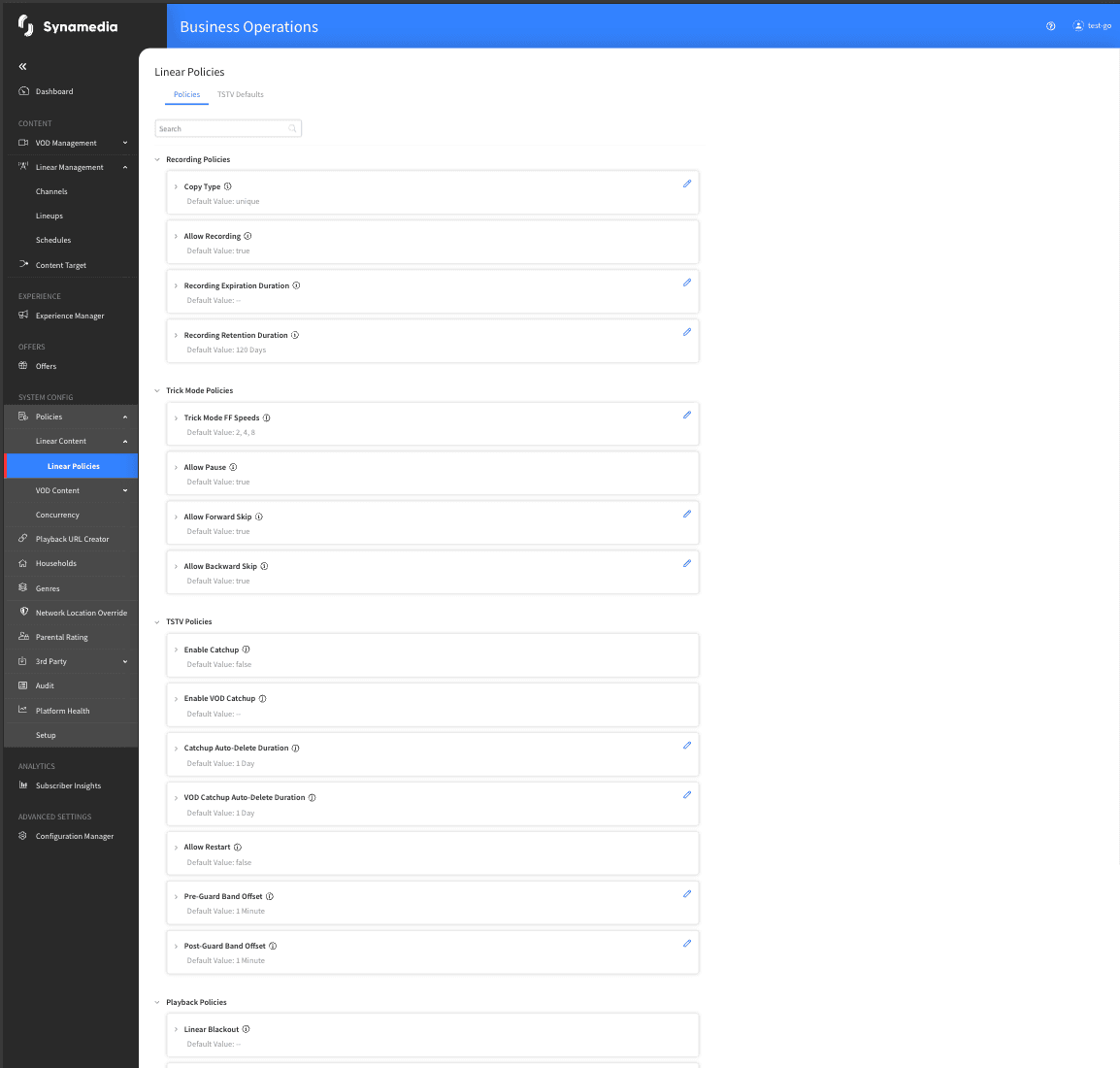
Policies are grouped into expandable sections. Each policy row shows:
The policy name, with an information icon that shows a description on hover.
An "EDITED" tag when the policy differs from its default value.
The current default value in plain text (for example True, False, or a duration).
An indication that conditional values exist, where they have been defined.
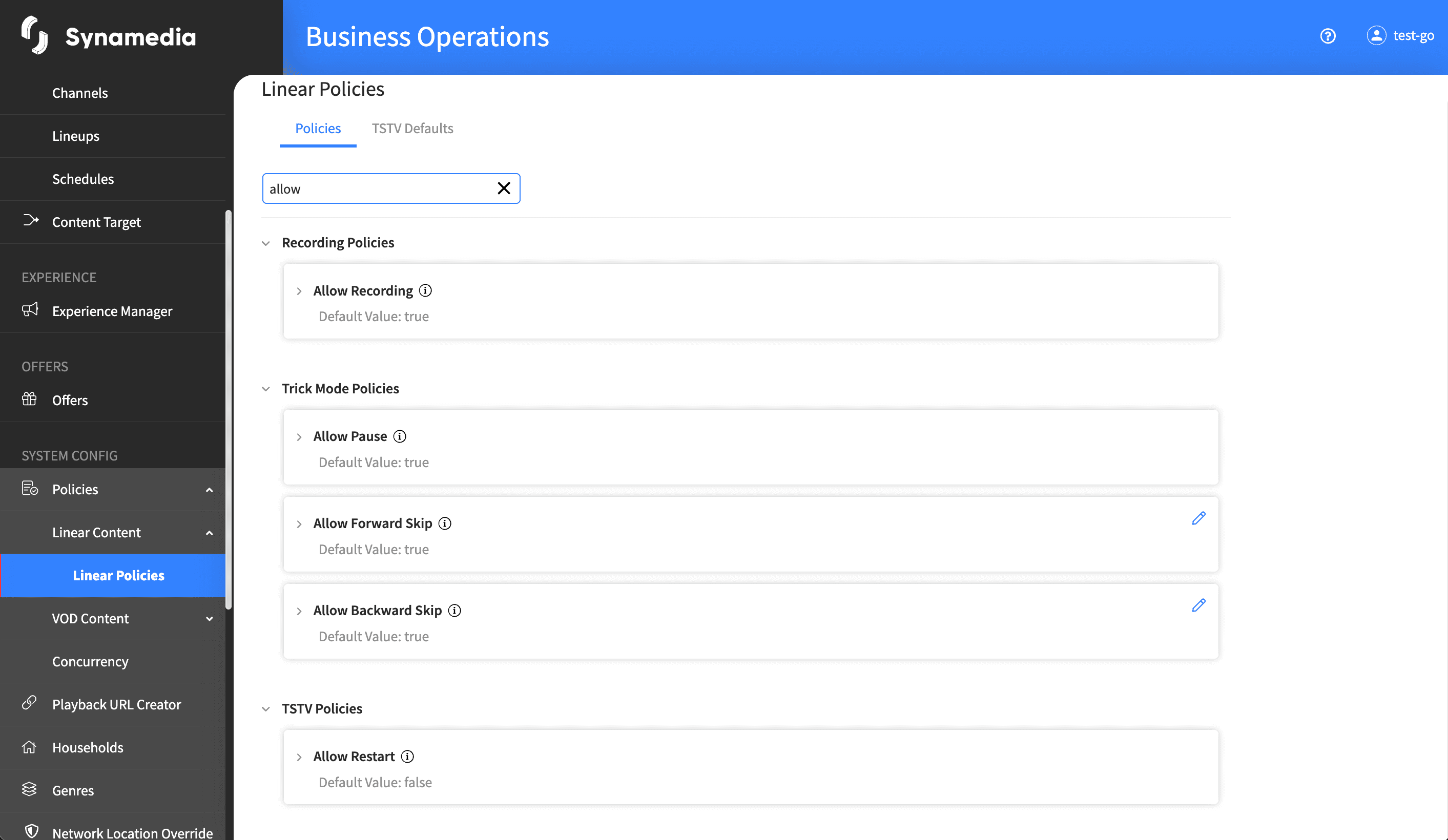
Use the search box to filter the list by policy name as you type.
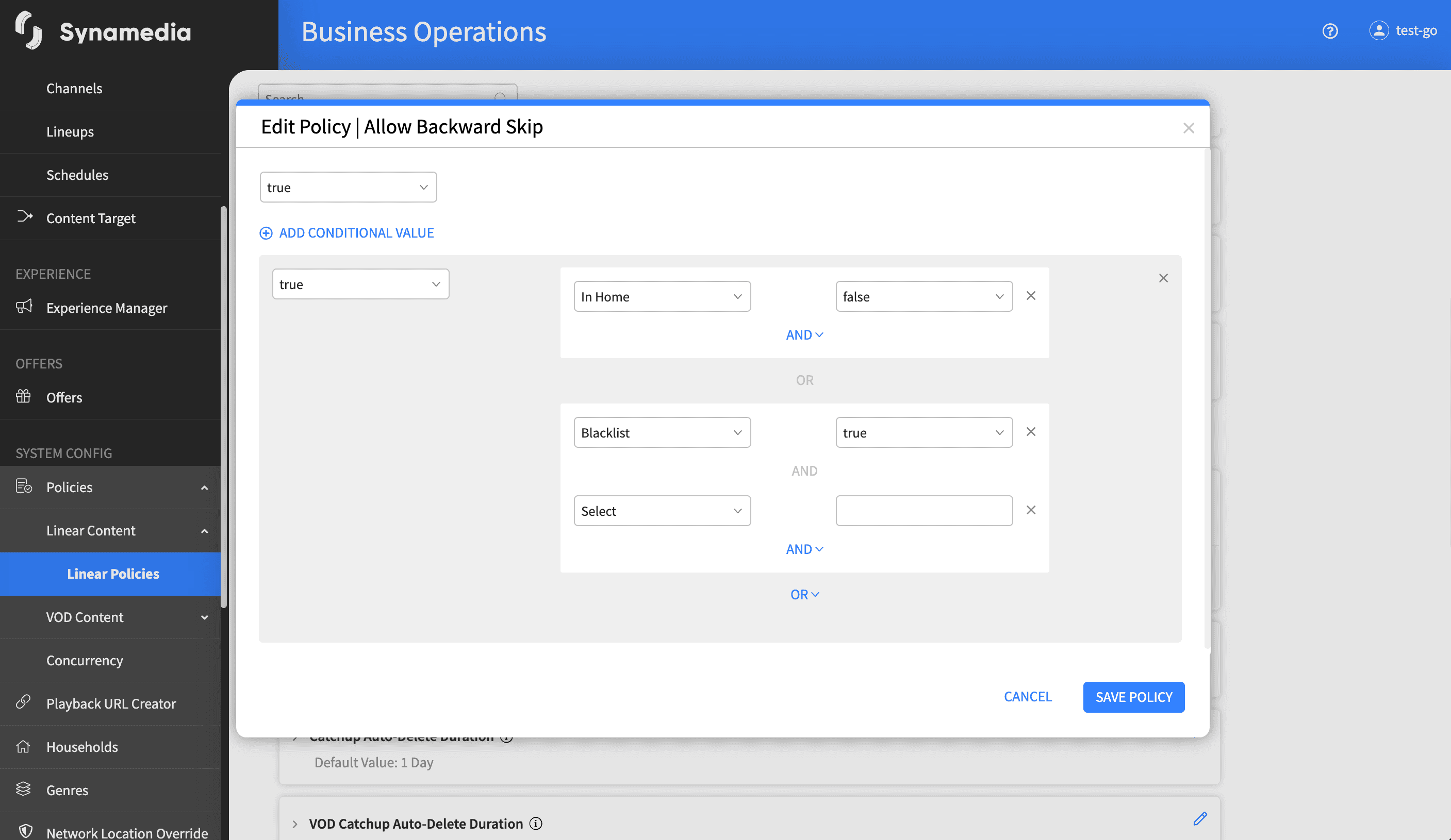
Expand a policy to see its Default Value and, where defined, its Conditional Value section. Conditional values show the rules that trigger them, joined by AND and OR logic – for example a value that applies only when the device type is a set-top box and the network type is wifi.

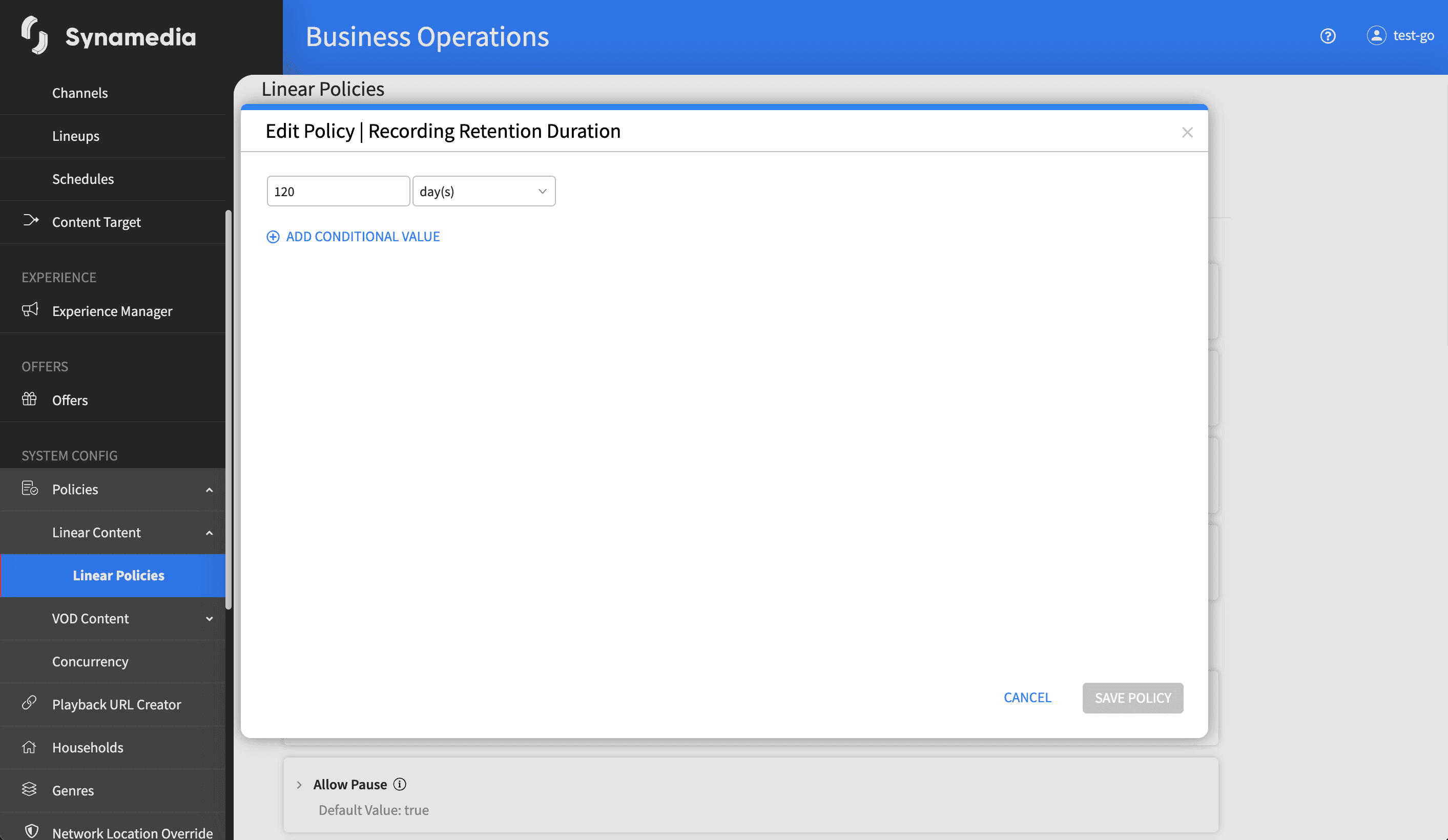
Click the Edit (pencil) icon on a policy to open the "Edit Policy" dialog for that policy. Here you can change the default value and, where the policy supports it, manage conditional values. The value control matches the policy type – a text field, a duration (a number plus a unit such as minutes, hours or days), a toggle, or a multi-select list. Click "Save Policy" to apply, or "Cancel" to discard. Some policies are view-only and have no Edit action.
Inside the Edit Policy dialog, click "ADD CONDITIONAL VALUE" to add a rule that overrides the default under specific conditions. Define the condition (for example a device type or network type) and the value that applies when it is met. You can combine conditions with AND and OR logic. A conditional value cannot be left empty.
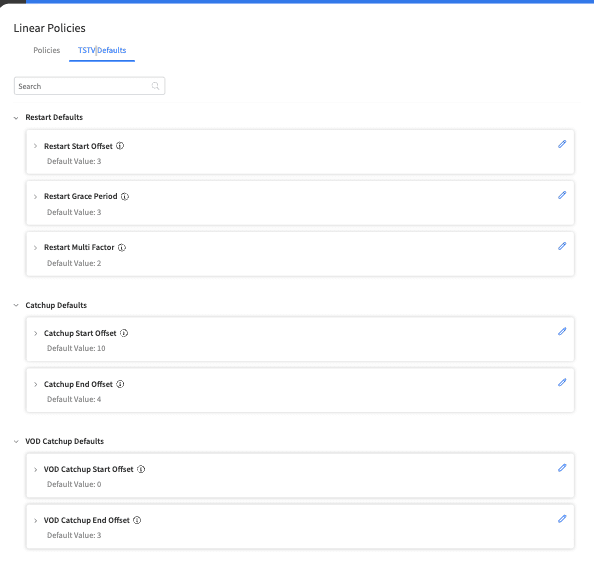
TSTV default offsets can be defined in this section. These offsets are used for event rules while calculating the catchup or restart end times
The "EDITED" tag is a quick way to see which policies differ from their defaults.
Set the default value for the common case, then add conditional values only for the exceptions.
Conditional values are only available for policies that support them; some policies are view-only.
Resetting a policy removes all of its customisations at once and cannot be undone selectively, so use it deliberately.
Use the information icon next to each policy name to understand exactly what the setting controls before changing it.
