


The short video below walks through the Schedules area: reading the schedule grid per channel, filtering by lineup and time range, opening a programme's details, and checking schedule ingest jobs for problems.
The Schedules area is where you view the programme guide for your channels and monitor the jobs that import schedule data. The Schedules Grid shows what is scheduled on each channel, and the Ingest Jobs tab tracks when schedule data was imported and whether it succeeded.
The module is opened from the sidebar under Linear Management > Schedules. It has two tabs: Schedules Grid and Ingest Jobs.
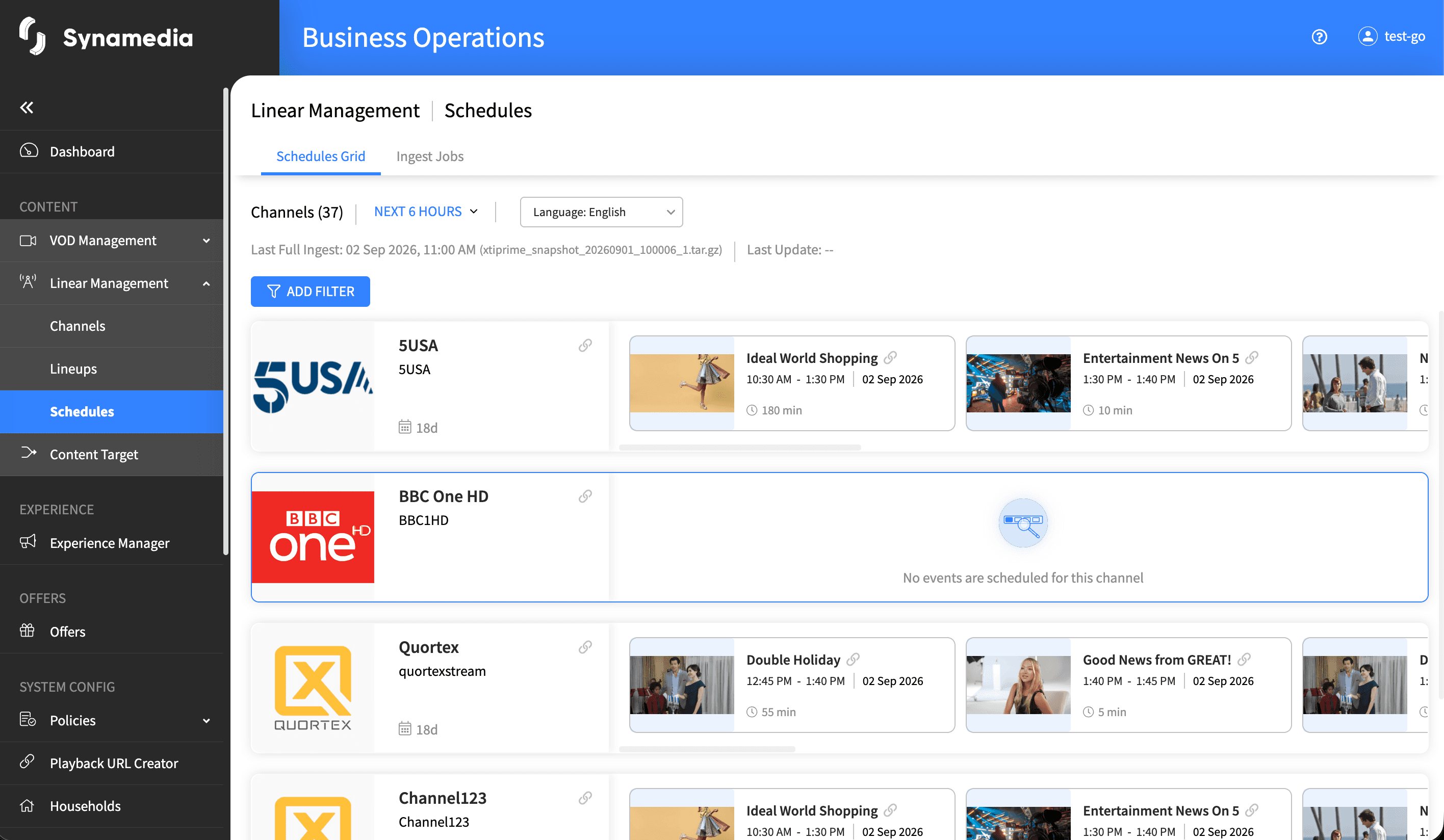
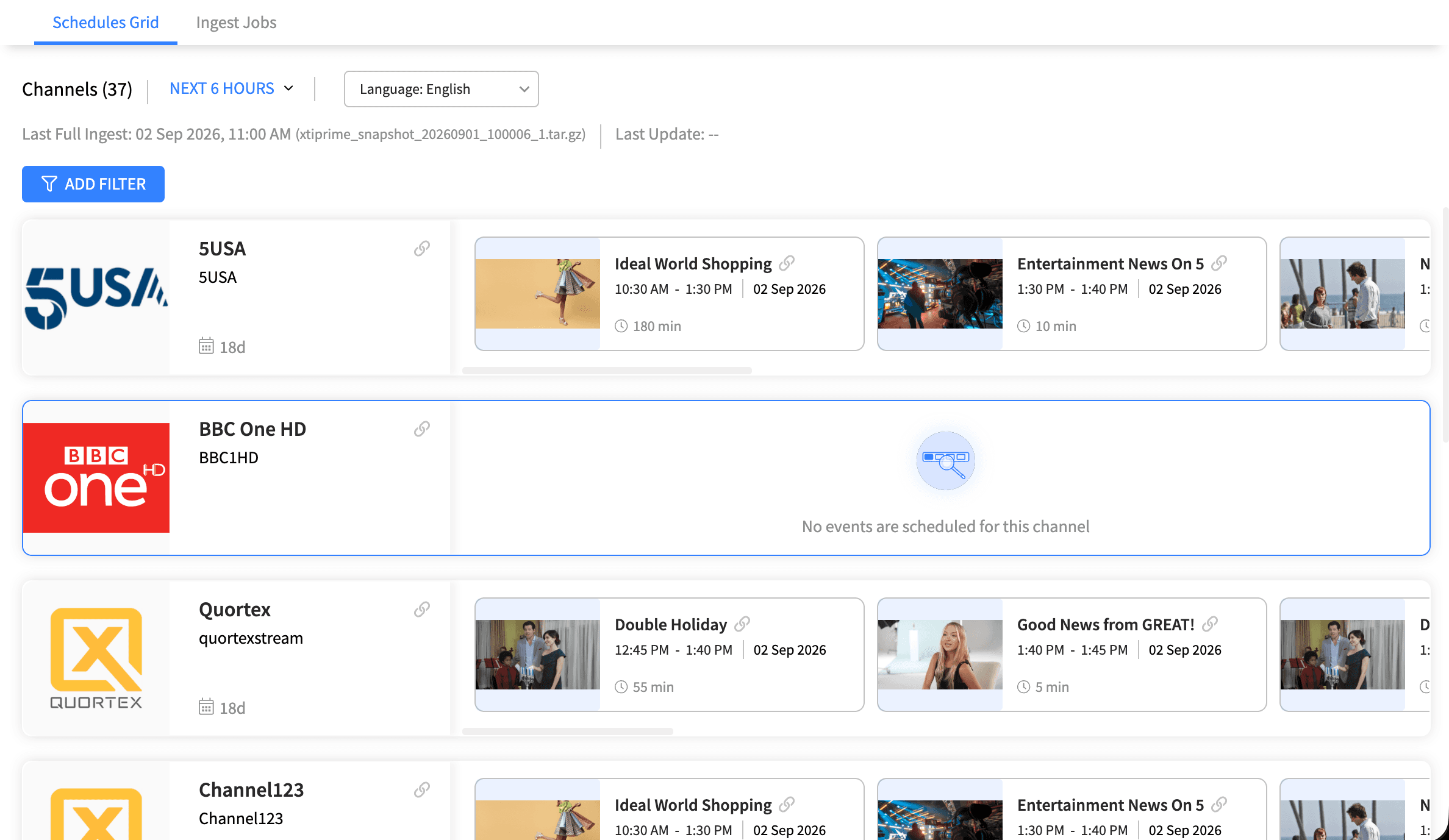
The Schedules Grid shows one card per channel, each listing its programme events along a horizontal timeline. At the top you can set a time range (Next 6 Hours, Next 12 Hours, Next 24 Hours, Next 7 Days, Next 14 Days or a custom range) and see when the last full ingest and last update happened. Open the additional filters to narrow the view by Lineup, Schedule Depth, Service Key, Channel Name, Series ID, Season ID and channel flags (such as Adult Channel, Application Channel, Dynamic Ads, Pay Per View, Radio Channel). Use Reset Filters to return to the defaults.
Each channel card shows the channel logo, name and ID, its schedule depth (how far ahead schedule data exists), and a badge if the channel has warnings or errors. If a channel has no programmes, it shows the message "No events are scheduled for this channel".
Gaps and overlaps are indicated in the schedules grid
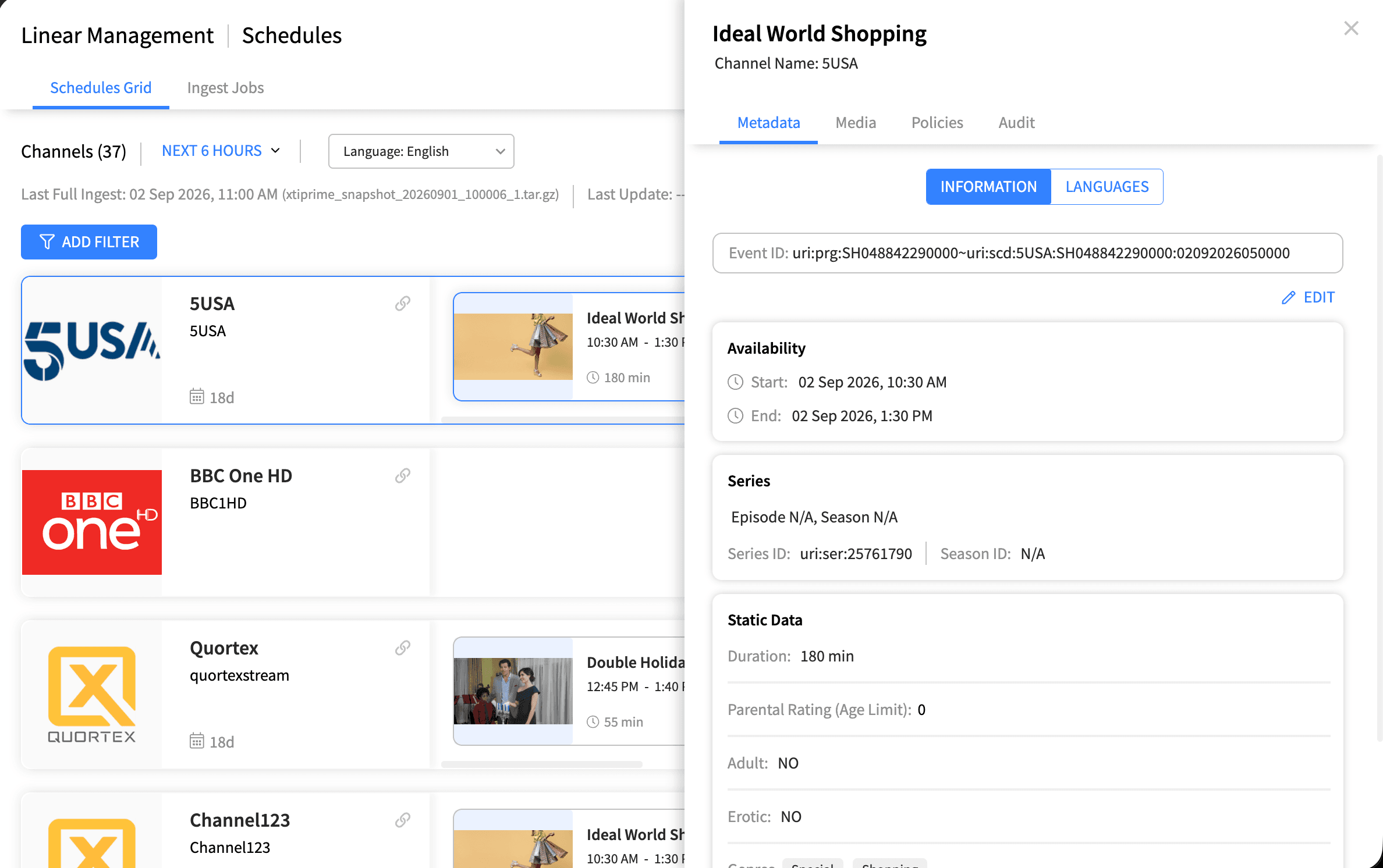
Click a programme event to open a side panel with tabs:
Metadata (title, description, duration, genres and ratings)
Media (video and image assets)
Policies (catch-up, restart, recording and replay rules) - Policies can also be overridden at the event level
Audit (the event's change history).
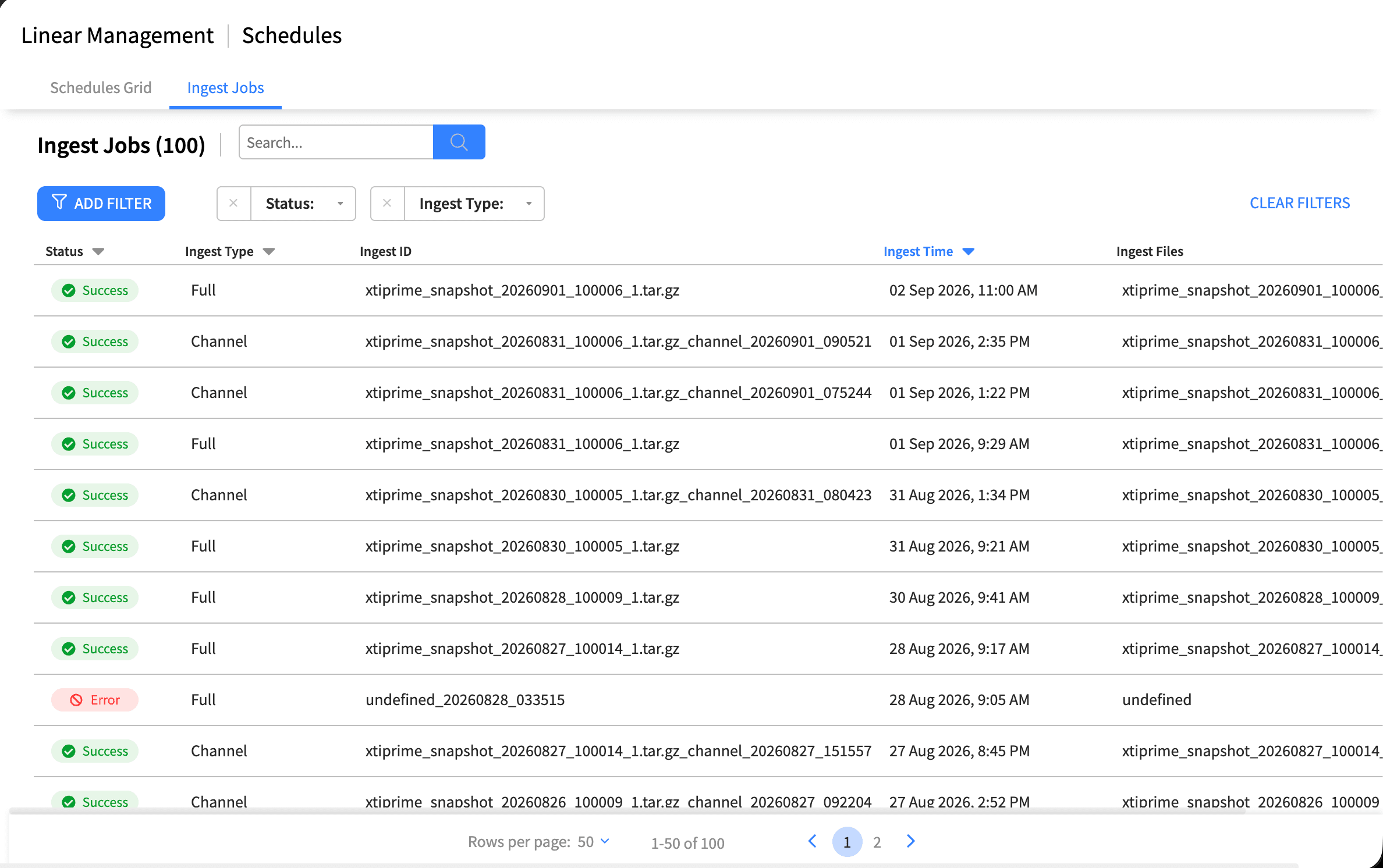
The Ingest Jobs tab lists the jobs that imported schedule data. The typical columns are:
Status: Success, Error or Warning, shown as a coloured tag.
Ingest Type: Channel, Full or Update.
Ingest ID: the unique identifier of the job.
Ingest Time: when the job ran.
Ingest Files: the files that were ingested.
You can search by Ingest ID, filter by Status and Ingest Type, and choose how many rows appear per page. Click a job to open a side panel with its summary, the files processed, any errors, and its audit trail.
Use the Last Full Ingest and Last Update times to confirm your schedule data is fresh.
A full ingest replaces all schedule data, while an update applies only incremental changes.
Schedule depth tells you how far into the future programmes are available, which matters for catch-up and replay.
Ingest jobs should normally show Success; investigate Error or Warning jobs by opening them and reading the error details.
Filter the grid by Lineup to focus on only the channels you manage.
A channel with no events may be expected (if it allows empty schedules) or may point to missing data worth checking.

