


The short video below walks through Concurrency rules: browsing the rules list, reading a rule's targets and applicable values, creating a rule with the two-step wizard, previewing and saving, and deleting a rule.
Concurrency rules define the maximum number of simultaneous video streams a household or user can play at once. They let you limit how many streams run at the same time – for example allowing several concurrent streams per household on a specific package but only one per user on a basic package.
The module is opened from the sidebar under System Config > Policies > Concurrency. The screen is split into a list of rules on the left and the details of the selected rule on the right.
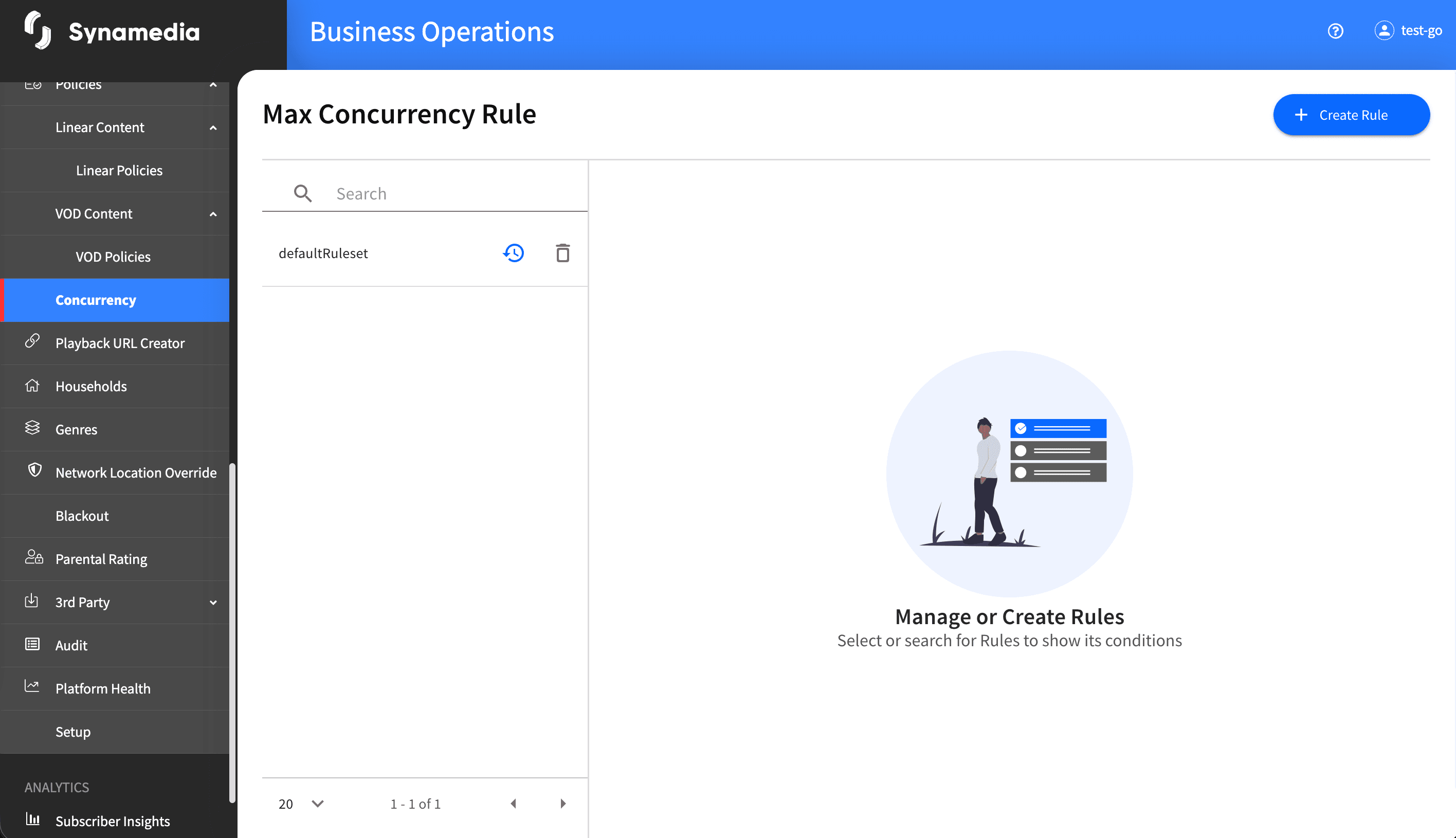
The left panel lists the concurrency rules, each shown by its rule ID. Use the search box to filter by rule ID or label, and use the pagination at the bottom to move through pages (the default is 20 rows per page). Select a rule to load its details on the right. When no rule is selected, the right panel shows "Manage or Create Rules" with the hint "Select or search for Rules to show its conditions".
When you select a rule, the details panel shows two parts:
Targets (what the rule applies to): for example, package specific targets
Applicable Values (the limits): for example the maximum streams per household, per channel and per content. Modified items are marked so you can see what has changed. Click the History icon next to the rule to open its audit trail.
Click "Create Rule" to open the two-step wizard.
Step 1 – Define: enter a unique Rule ID (a duplicate ID is rejected), choose the rule's targets (such as package), and set at least one applicable value (maximum streams per household). Required targets must be filled and apply the required concurrency value under applicable values. Click "Next".
Step 2 – Preview: review the formatted rule. Click "Save" to create it. A success message titled "Updated Rule" confirms the rule was saved.

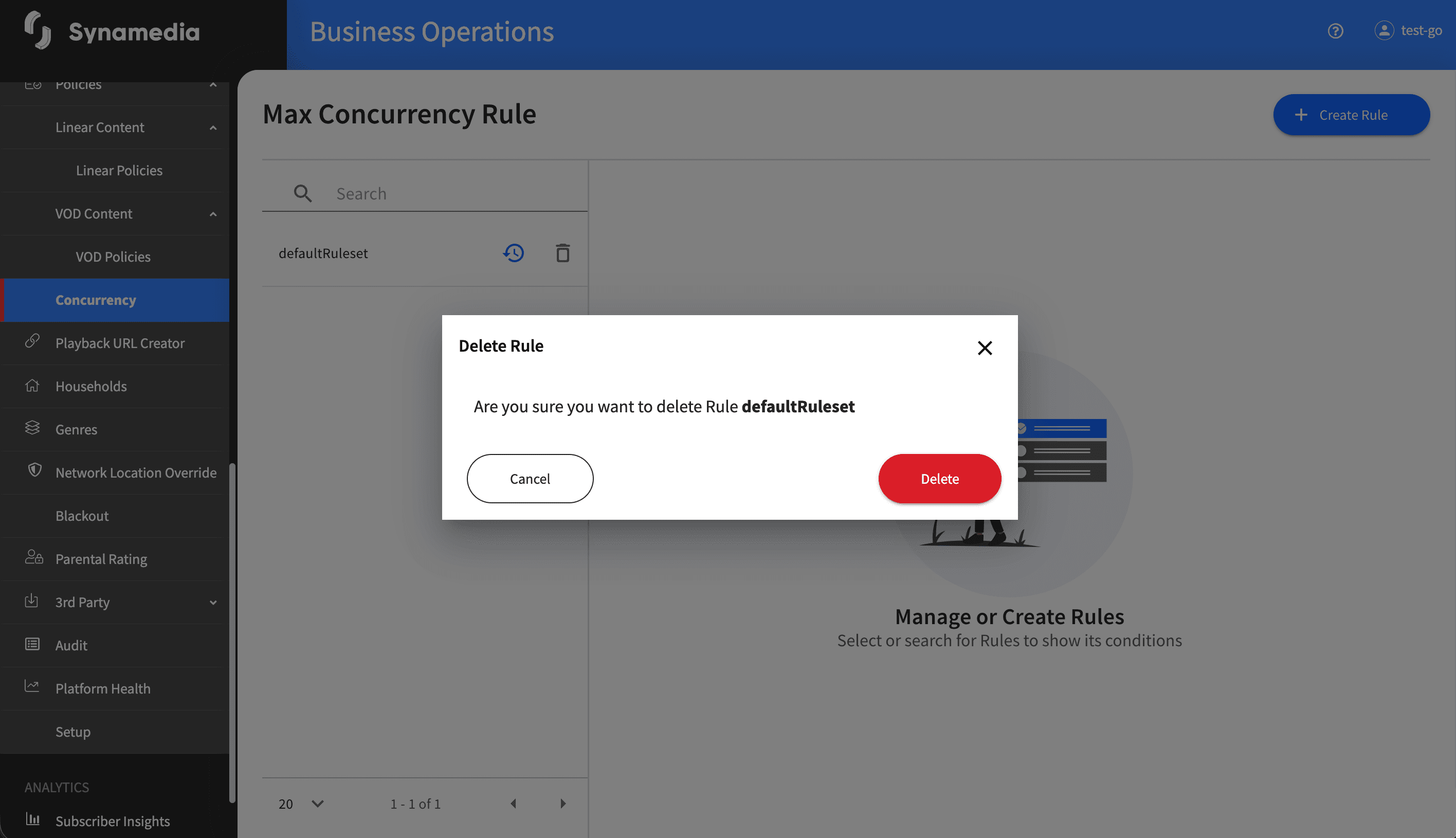
Where deletion is allowed, use the Delete icon on the rule. A confirmation dialog titled "Delete Rule" asks you to confirm deletion of the named rule. Confirm with "Delete". A success message confirms the rule was deleted. Deletion takes effect immediately and cannot be undone.
Targets say what the rule applies to while applicable values are the actual limits (streams per household, channel or content).
Rule IDs must be unique; the wizard blocks a duplicate ID.
You must fill any required targets and set at least one applicable value before a rule can be saved.
Use the two-step wizard's Preview step to confirm the rule reads as you intend before saving.
Deleting a rule is immediate and cannot be undone, so confirm you have the right rule first.
Use the History icon to review who changed a rule and when.

