


The short video below shows where catalogs appear for a title: reviewing the catalogs an asset belongs to, understanding why each one was assigned, and seeing how catalogs relate to the offers on the content.
Catalogues represent the collections or storefront regions where your content is made available to customers. A single title can belong to more than one catalogue, meaning it can appear in several storefronts at the same time.
Catalogs are shown against each asset so that, at a glance, you can tell where a piece of content is (or is not) available.
In most cases catalogs are assigned automatically by catalog rules or come from the content's ingest data
Use the catalog rules section to update or add new rules for ingest data.
All the content targets appear in the Content Target module which show the binding of different lineups to each catalog
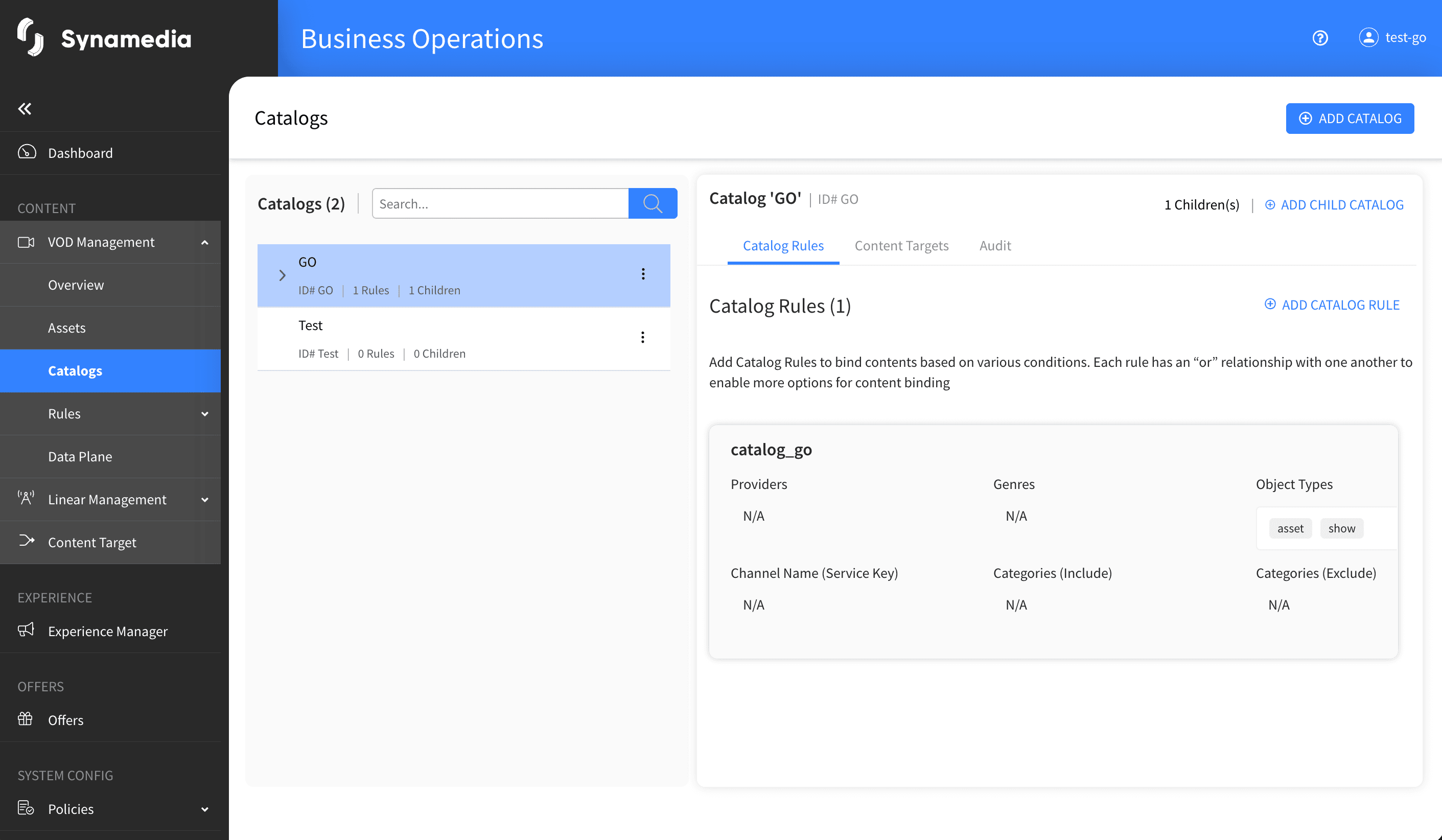
You will see catalog information in two places:
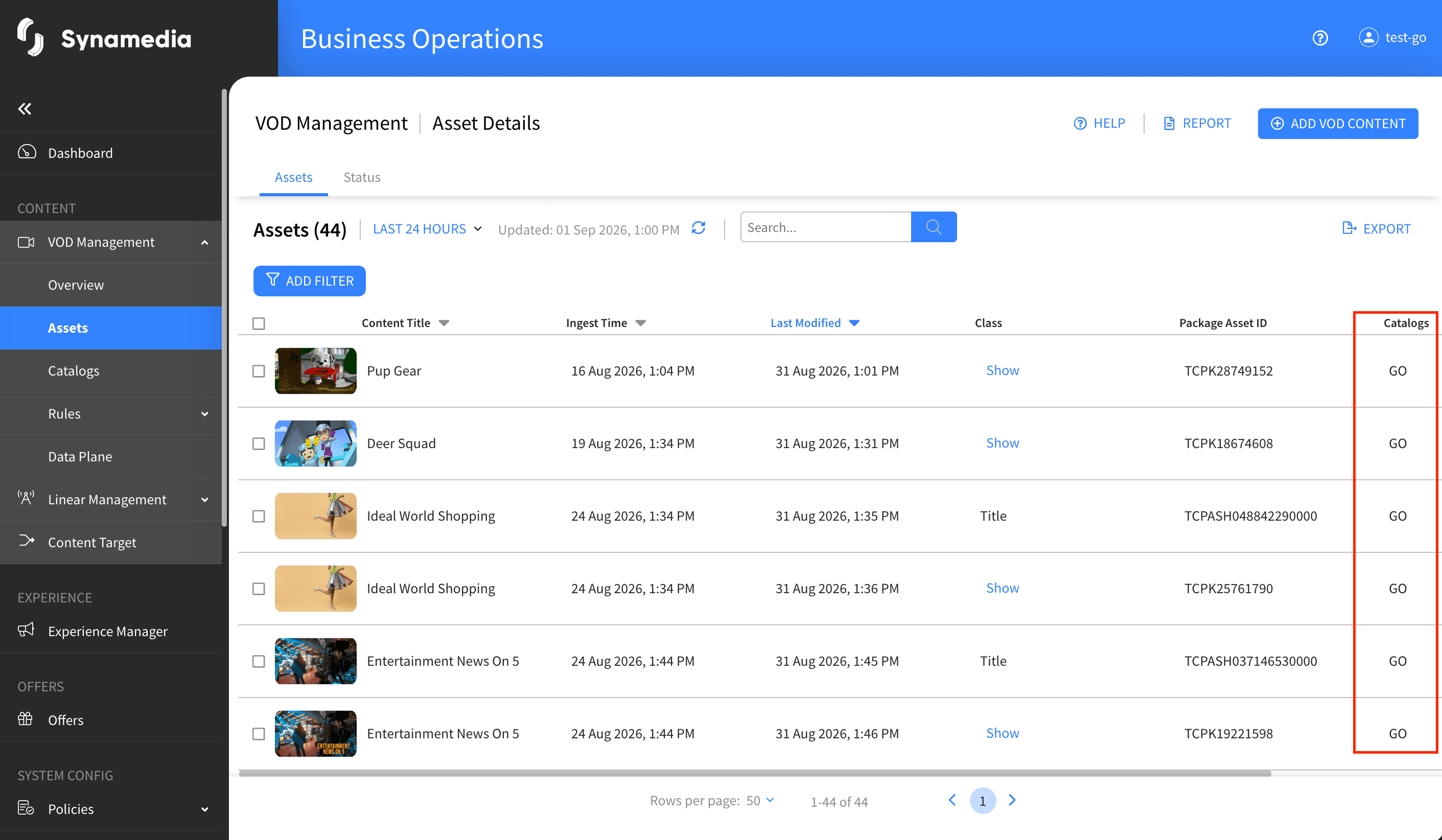
In the Assets table: the Catalogs column lists the catalogs each title belongs to (for example "GO, HBO"), so you can scan availability across many titles at once, and you can filter and search the list to find all content in a particular catalog.
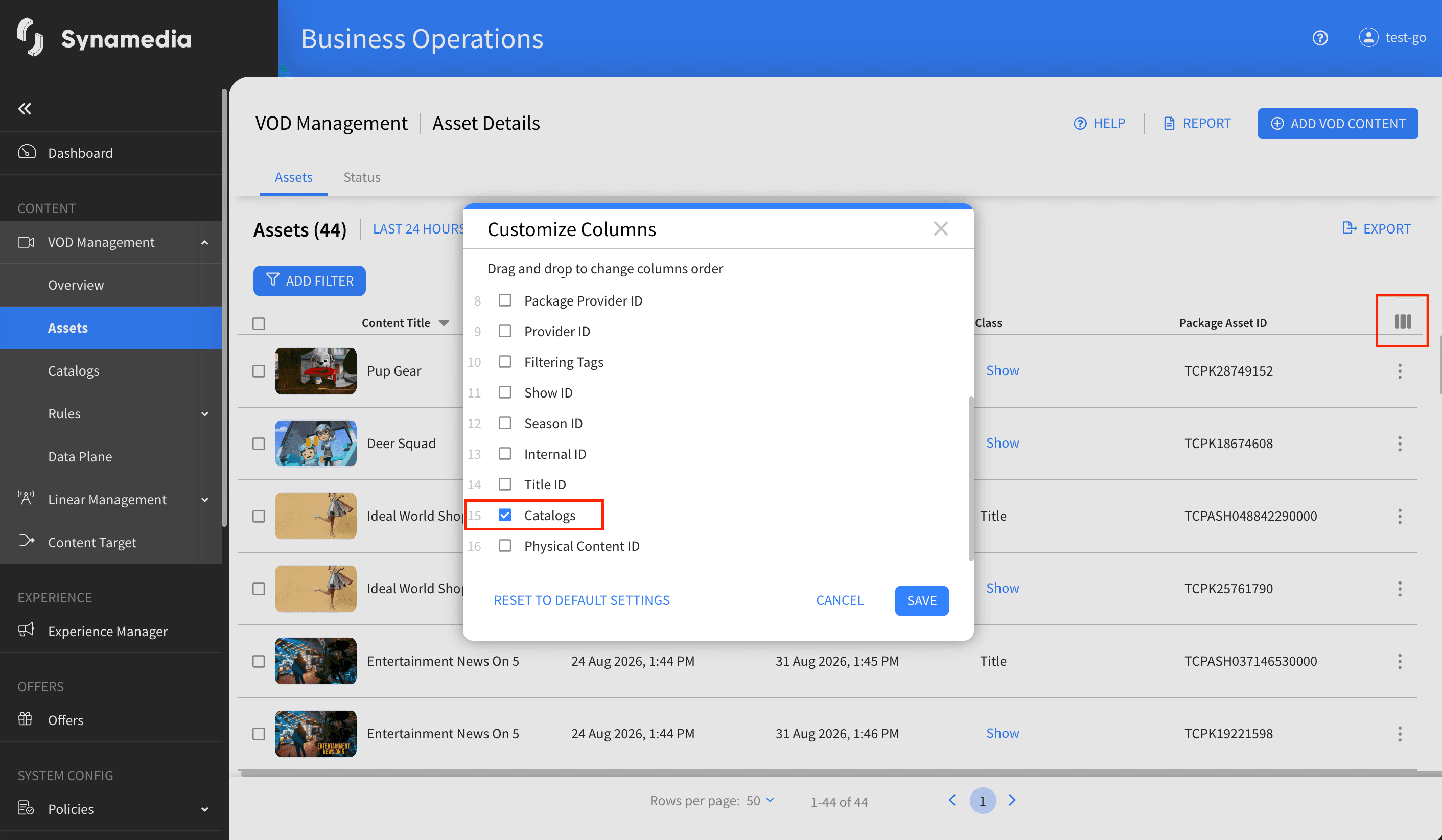
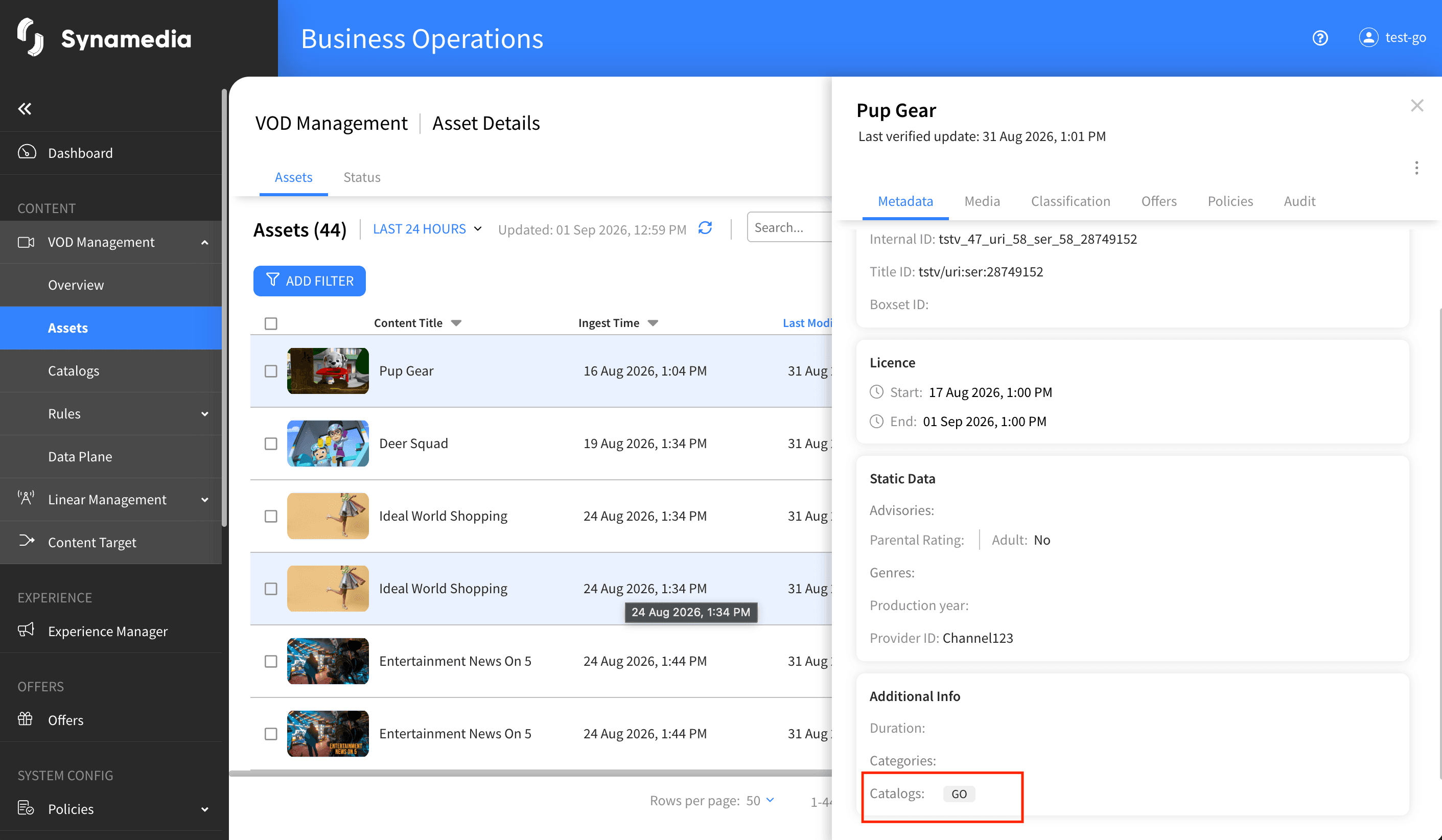
In the asset's Metadata: when you open a title, its catalogs are listed in the information area as tags. This is the place to review, in detail, exactly which catalogs a single title belongs to and why.
The audit details can be viewed in the audit tab of each catalog
Use the Catalogs column and filter in the Assets list to quickly find every title in a given storefront or region.
The catalogs shown against an asset are for review, so to change where a title is available, work through its offers rather than trying to edit the catalog directly.
Use the assignment tooltip (Rule, Manual change or Input file) to understand why a title is in a catalog before assuming something is wrong.
A title can belong to several catalogs at once, so always check the full list, not just the first entry.

